Hey friends,
Sales automation in Salesforce is three jobs with three tools: lead assignment rules route each new lead to a user or a queue, a record-triggered flow creates the follow-up task, and forecast settings roll opportunities up by period once Forecasting is turned on.
This post ties the three together. For the lead lifecycle, see my guide to lead management, and for the forecasting setup steps see Collaborative Forecasting. The facts below come from Salesforce Help and developer pages I read on October 28, 2026, plus what I could see in my own Developer Edition org. That org has one active lead assignment rule, a sample flow that is saved but inactive, Forecasting switched off and no queues. So I describe the flow from my screens, and the rest only from the docs.
Which tool does which sales job?
| Sales job | Tool |
|---|---|
| Give each new lead an owner | A lead assignment rule |
| Let a team share a pool of leads | A queue, used as the assignee in a rule |
| Route leads that arrive from your website | Web-to-Lead plus an active assignment rule |
| Remind a rep to follow up | A record-triggered flow that creates a Task |
| Roll the pipeline up by period | Forecasts settings |
If you are new to flows, start with what Salesforce Flow is and the Flow Builder tour. If you are unsure whether a job belongs in a flow or in code, Apex vs Flow covers that choice.
How do lead assignment rules work?
My lead management guide covers the basics, so here is the short version. A rule is a list of entries. Per Help's Set Up Assignment Rules page, Salesforce evaluates the entries in order, assigns the lead when one matches and stops. Per the assignment rule guidelines, only one rule of each type can be in effect at a time, and lead rules assign leads whether they are created manually, come from Web-to-Lead or are imported with the Data Import Wizard. In Lightning Experience, Salesforce's troubleshooting article gives the path as Setup, Feature Settings, Marketing, Lead Assignment Rules.
What you set on each entry, from the Set Up Assignment Rules page:
- Criteria. Filter criteria, up to 25 of up to 255 characters each, or a formula that returns True or False.
- Assignee. A user or a queue. Users named here can't be inactive and must have Read permission on leads.
- Do Not Reassign Owner. Keeps the current owner when the lead is updated.
- Email template. If you don't pick one, Salesforce sends no notification email. For a queue, the email goes to the queue email address and all queue members.
- A catch-all. Help's tip is to make the last entry one with no criteria, so it assigns any lead the earlier entries did not.
In my org the Lead Assignment Rules page lists one rule named Standard, and it is the active one. I did not change it.
Why isn't my assignment rule setting the owner?
Here are the checks I would run, in this order. Each comes from one of Salesforce's own pages:
- Is the rule active? Only one can be active at a time (troubleshooting article).
- Does the lead match an entry? If no entry matches, the lead goes to the default Web-to-Lead owner or to the admin doing the import (Set Up Assignment Rules).
- Is the rule applied on the page layout? The troubleshooting article says an active rule with correct criteria still has to be applied in the Case and Lead page layouts, through Layout Properties on the layout in Object Manager.
- Did the rep ask for it? When someone creates a lead manually, the lead belongs to them unless they assign it with the active rule. The Assign using active assignment rule checkbox is Salesforce Classic only (Guidelines for Creating Leads).
- Is the assignee a queue at creation? Salesforce says you cannot set a queue as the lead owner when the lead is created. You can assign it to the queue afterward, or automate the assignment for bulk imports with a flow (queue article).
How do web leads get routed?
Per Help's Web-to-Lead guidelines, Web-to-Lead can generate up to 500 new leads a day. Routing depends on your rule: create a lead assignment rule and activate it, and if the rule is inactive, every web-generated lead goes to the default owner you set in Lead Settings. My lead capture guide walks through the form itself.
Where do queues fit in?
A queue is a shared owner. Help's queue overview says records remain in a queue until they are assigned an owner, and queue members, or users above them in the role hierarchy, can take ownership. It lists leads among the objects that can use queues, and its examples include a lead queue for the reps in one sales territory. My org has no queues, so I can't show you one. I can only point you to that page.
Can a flow run the assignment rules?
Yes. The Actions Developer Guide documents an Apply Lead Assignment Rules action that runs the lead assignment rules on a collection of leads. These are its documented limits:
- It processes up to 20 lead records at a time.
- It is available in API version 54.0.
- Its required input is a collection of lead IDs.
- Leads must be enabled in your org, and the user needs read and edit permissions for leads.
- On failure the response shows
isSuccessas false, for example when a lead ID is invalid or the user lacks access.
One gotcha from the lead guidelines: if you use that action in a record-triggered flow on leads and the flow runs immediately, select Assign using active assignment rules when you create or edit a lead (Salesforce Classic only). I have not added this action to my demo flow, so treat this section as documentation, not a walkthrough.
How do you create follow-up tasks with a flow?
This is the part I built so you can see it. In my org I made a sample flow called Demo Lead Follow-Up Task. It is a demo: I saved it, but I never activated it or ran it, so it is inactive and I can't show you a task it created. Here is how it is put together.
Step 1: the trigger. The flow is a record-triggered flow on the Lead object, set to run when a record is created.
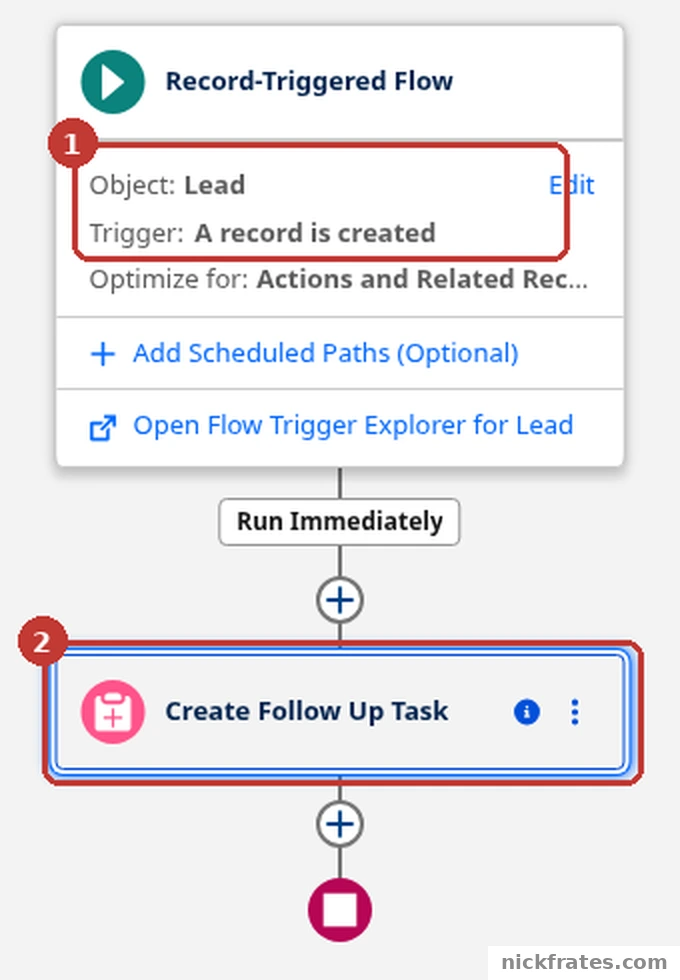
Setup > Flows > Demo Lead Follow-Up Task, in Flow Builder: the Start element and the Create Follow Up Task element.
- Marker 1 is the Start element: Object is Lead and Trigger is A record is created.
- Marker 2 is the element that does the work, a Create Records element I named Create Follow Up Task.
The Start element is set to optimize for Actions and Related Records. That fits the job, because Help's before-save flows page lists only Assignment, Decision, Get Records and Loop as supported elements for before-save updates, and Create Records is not one of them. So a Create Records element does not belong in a before-save flow.
Step 2: the task. In the Create Records element, I chose to set the field values manually, picked Task as the object and set the Subject to "Follow up with new lead".
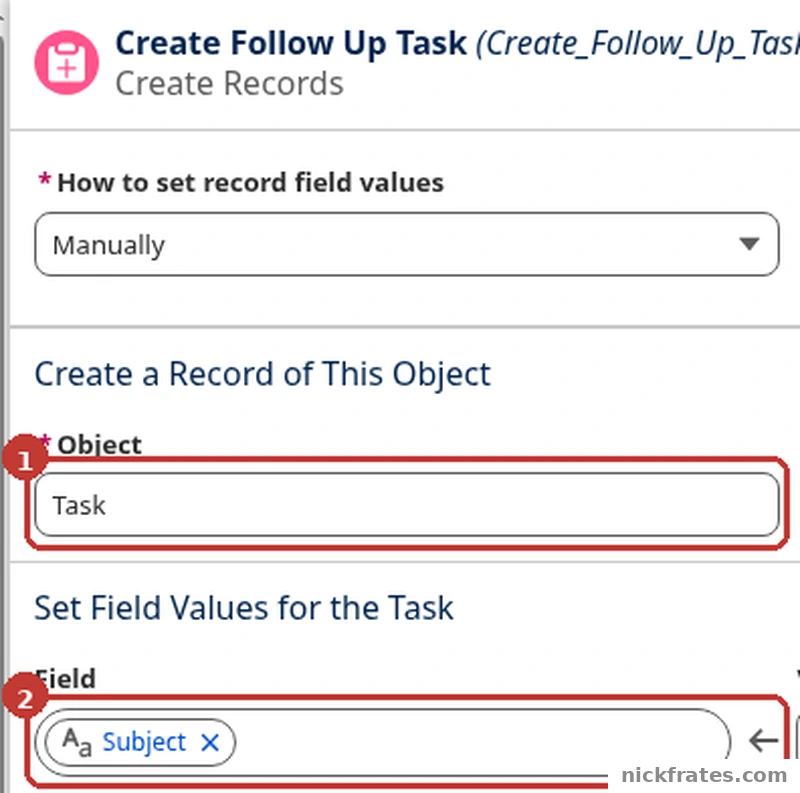
Setup > Flows > Demo Lead Follow-Up Task > Create Follow Up Task, the Create Records panel in Flow Builder.
- Marker 1 is the Object, Task.
- Marker 2 is the Subject field, which is set to the text Follow up with new lead.
One thing from Help's Create Records page: the record isn't created until the interview's transaction is completed. Another, from the lead guidelines: when someone creates a lead in Lightning Experience, the lead is automatically updated, which fires flows and Apex triggers set to run on update. My flow triggers on create only. If yours also triggers on update, decide whether that is what you want.
My demo sets only the Subject. The table below comes from the Task object reference, and I have not tested these fields in my flow.
| Task field | What it holds |
|---|---|
| Subject | The subject line, such as Call or Send Quote, up to 255 characters |
| WhoId (Name ID) | A person, either a lead or a contact |
| WhatId (Related To ID) | A nonhuman record such as an account or an opportunity |
| OwnerId (Assigned To ID) | The user or queue that owns the task |
| ActivityDate (Due Date) | The due date of the task |
| Status | Defaults to Not Started |
| Priority | Defaults to Normal |
If the flow does not fire, my guide to debugging record-triggered flows lists what to check.
Cert Lab by Nick Frates
Let the Agentforce Sales Consultant Cert Lab test you to success
Scenario questions on the full sales lifecycle, consulting strategy, data and AI, with every answer explained, so you think like a consultant on exam day.
Start the Agentforce Sales Consultant Cert Lab for $9.99 →What does forecasting automate?
Forecasting is different from the other two. You don't build it, you switch it on and configure it. In my org, Setup has a Forecasts Settings page with a Turn on Forecasting toggle, and it is off. So I have not seen a live forecast and I won't describe one. What I can give you is what the ForecastingSettings metadata documentation says the settings hold:
- An
enableForecastssetting that indicates whether Salesforce Forecasting is enabled. The docs warn that disabling Forecasts can result in data loss. - Forecast types, with a maximum of four active at once.
- Default periods and ranges. Users can forecast up to 15 months, 15 fiscal periods or 8 quarters in the future or past.
- Settings for adjustments and quotas.
For the setup in order, read my seven-step guide to Collaborative Forecasting. Forecast types explains the types, and Pipeline Inspection has its own guide. For where forecasting sits among the other Sales Cloud features, see the Sales Cloud overview.
Mistakes to avoid
- Activating a second assignment rule and expecting both to run. Only one can be in effect.
- Leaving out a catch-all entry. Unmatched leads then fall to the default owner, which may not be who you want.
- Naming an inactive user as assignee. Help says users in a rule can't be inactive.
- Expecting a queue as the owner at creation. Create the lead, then assign it, or use a flow.
- Putting task creation in a before-save flow. Create Records isn't on Help's list of supported before-save elements.
- Triggering the task flow on update without meaning to. Creating a lead in Lightning Experience also updates it.
If you are learning Sales Cloud for your job or the exam, my Agentforce Sales Consultant study guide lists every objective, my practice exam gives you questions to try, and the Agentforce Sales Consultant Cert Lab I built is where I would practice the scenarios.
Cert Lab by Nick Frates
Practice the whole Sales Consultant exam
Lessons, flashcards, a quiz for each of the five exam sections and full practice exams, every answer explained.
Start the Agentforce Sales Consultant Cert Lab for $9.99 →FAQ
What is the difference between assignment rules and flows?
Assignment rules decide who owns a lead, using ordered entries and the first match. A record-triggered flow can do other work when a record is created or changed, such as creating a Task.
How many lead assignment rules can be active?
One. Salesforce's guidelines say only one rule of each type can be in effect at a time.
Can a flow apply the lead assignment rules?
Yes, with the Apply Lead Assignment Rules action. It handles up to 20 lead records at a time and is available in API version 54.0.
Can I assign a new lead to a queue when I create it?
Salesforce says no. You can't set a queue as the lead owner at creation. Assign it afterward, or use a flow for bulk assignment.
How many leads can Web-to-Lead create a day?
Help says up to 500 new leads a day.
How do I create follow-up tasks automatically?
Build a record-triggered flow on Lead with a Create Records element for the Task object, as in the sample above. Set the owner, the related person and the due date as needed.
How do I turn on forecasting?
In my org it is the Turn on Forecasting toggle on the Forecasts Settings page in Setup. My Collaborative Forecasting guide walks through the setup in order.
Hope this helps!
Best,
Nick