Hey friends,
A Salesforce flow is an automation you build with clicks, not code. It's saved in Salesforce in the shape of a flowchart, and unlike a flowchart it actually does the steps: it collects data, then uses that data to make things happen in your org or in an outside system. You build flows in Flow Builder, and 'Salesforce Flow' is the umbrella name for the whole set of tools. That's how Salesforce's own Trailhead flow basics unit and Build a Flow Help page describe it. I read both on October 28, 2026, and I mark my own opinions as mine.
This post is the concept. If you want the longer reference, my Flow types explained post goes deep on every type.
Salesforce Flow, flow and Flow Builder: what each name means
People mix these up, and Trailhead says so itself. Here's how it separates them:
| Term | What it means |
|---|---|
| Salesforce Flow | The umbrella term for everything in Salesforce that lets you create, manage and run automation with clicks, not code. It includes separate products like Flow Orchestration and Flow Integration powered by MuleSoft. |
| Flow | One saved automation, with the structure of a flowchart. It collects data and uses it to make things happen, in your org or in an external system. |
| Flow Builder | The primary tool for creating flows. |
Flows are declarative, which just means building them doesn't need software programming skills. Trailhead's own comparison is that you can think of flows as visual coding: no code, but you still need to understand a few programming ideas and logic.
What a flow can do
Trailhead's examples show the range. A flow can:
- Guide a site member through a step-by-step request, like asking for a new credit card.
- Reassign a case to a higher-level tech when a support tech clicks an Escalate button.
- Update all the contacts related to an account when the account is updated.
- Create a renewal opportunity when an opportunity closes.
- Update a lead after a certain amount of time passes, or when a specified time is reached.
The three parts of every flow
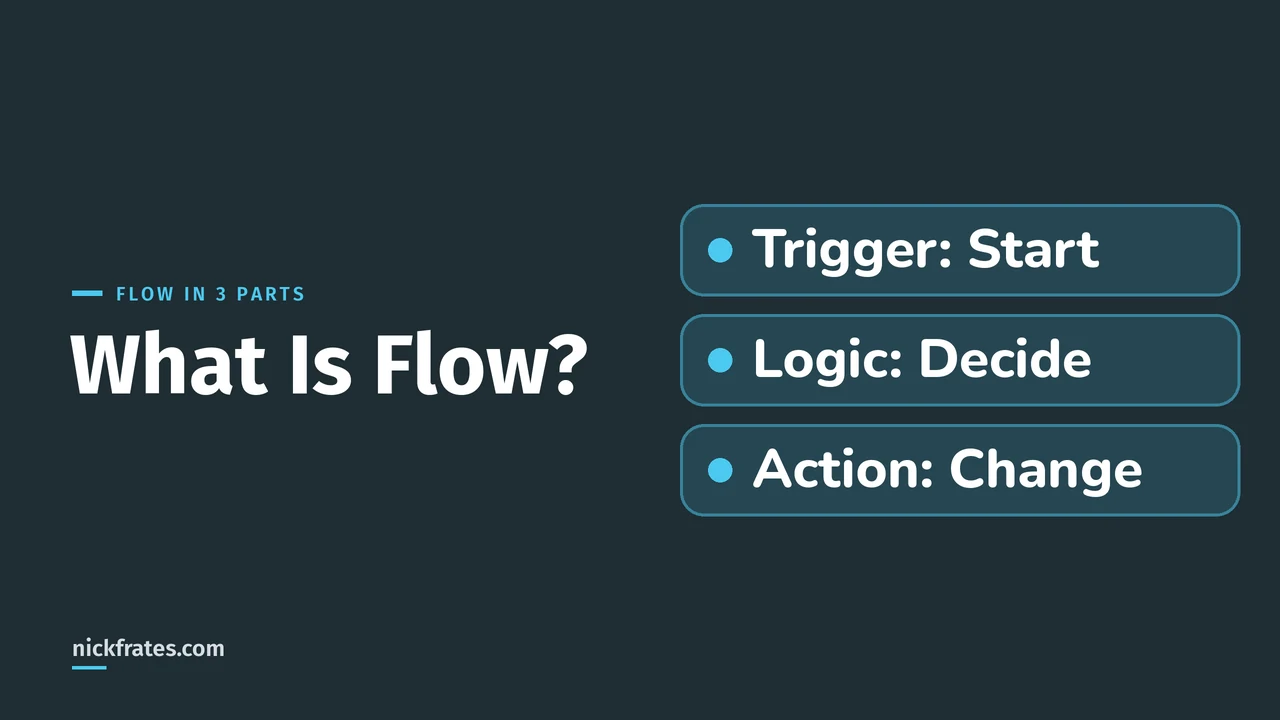
However complicated a flow looks, I find it easiest to read as three parts: how it starts, the logic it runs, and what it changes. That framing is mine. The Salesforce pieces behind it are these:
- How it starts is the flow type. The Help page says a flow's type decides which elements and resources you can add and how you can distribute the flow. A screen flow can be embedded on a page to gather information, while an autolaunched flow is run in the background, for example from a custom button.
- The logic is elements. You add elements to the canvas and connect them in the order you want them to run. Decision, Assignment, Get Records and Loop are elements you'll hear about early.
- What it changes is data. Help says a flow can look up values from records, connect to external systems, and create, update and delete records.
These are the four types you'll see first, with Salesforce's own description of each:
| Flow type | How Salesforce describes it |
|---|---|
| Screen Flow | Guides users through a business process. It needs user interaction because it includes screens. |
| Record-Triggered Flow | Launches when a record is created, updated or deleted. It runs in the background. |
| Schedule-Triggered Flow | Runs in the background at a specified time and frequency for each record in a batch. |
| Autolaunched Flow (No Trigger) | Launches when invoked by a supported method, such as Apex, a REST API call or a custom button. It runs in the background with no user interaction. |
There are many more types, and the Help list of flow types is long because some belong to specific products. For the exam-relevant ones, see Flow types explained.
Where you find Flow Builder
Flows live in Setup. Here is the path I used in my own Developer Edition org on October 28, 2026, and it matches the steps in the Help page: in Setup, search Flows, open it, and click New Flow.
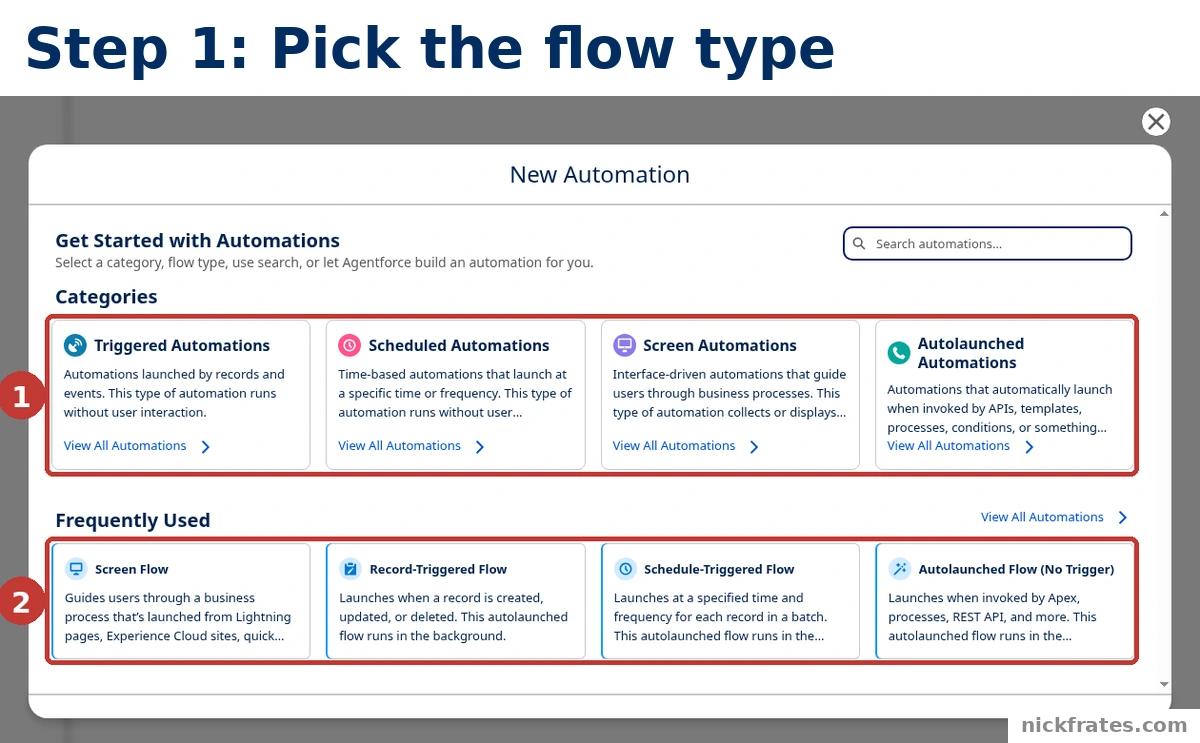
Setup > Flows > New Flow opens the New Automation dialog in Flow Builder.
- Categories. The four cards group flow types: Triggered, Scheduled, Screen and Autolaunched Automations. Help describes picking the category first, then the type, for example Screens, then Screen Flow.
- Frequently Used. The four shortcuts below are Screen Flow, Record-Triggered Flow, Schedule-Triggered Flow and Autolaunched Flow (No Trigger). Click one to open a blank canvas.
I clicked Screen Flow and added two elements. The screen below is only a tiny demo I built to show the parts, so it isn't a flow you should copy. I saved it and never activated it.
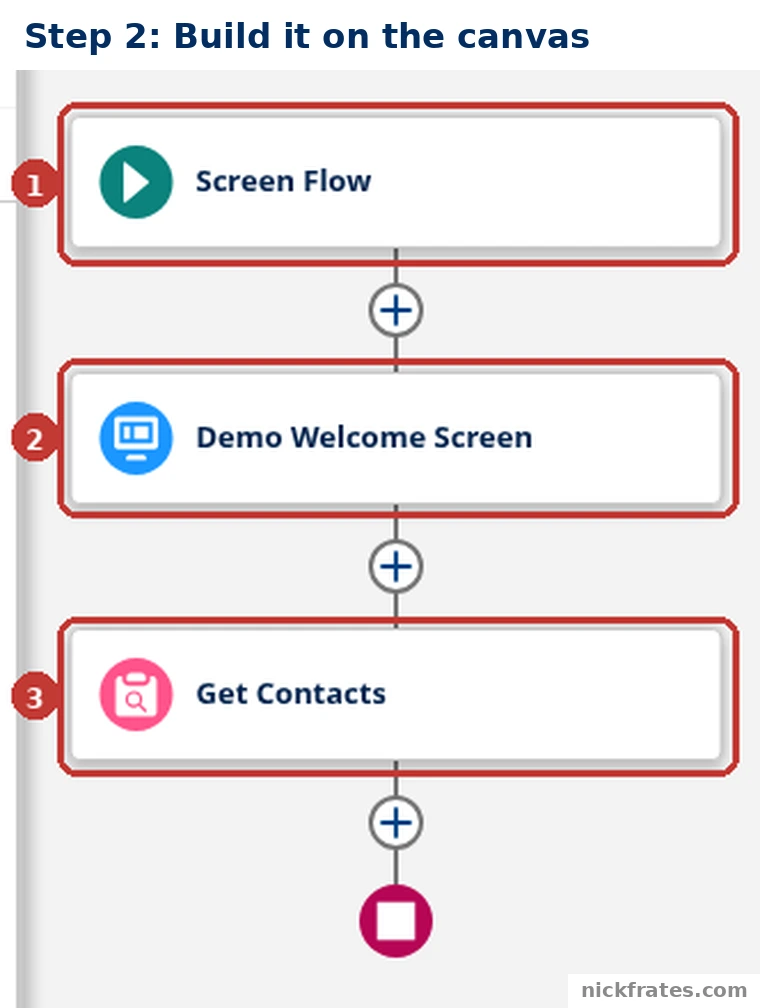
Setup > Flows > New Flow > Screen Flow: a small demo flow on the canvas.
- Start. Every flow begins here. This one says Screen Flow because that's the type I picked.
- Screen element. My Demo Welcome Screen is where a user would see or enter information.
- Get Records element. My Get Contacts element looks up Contact records, the Salesforce data the flow can then use. The plus buttons between elements are how you add the next step.
Beside the canvas (cropped out of the screenshot), Flow Builder's Toolbox lists what's in the flow, including the Contacts record collection that Get Contacts created. The Help page gives the same overall recipe: add the elements to the canvas, connect them (Auto-Layout connects them for you, free-form makes you do it), and save the flow. Then you test it and activate it, and only then is it ready for users.
When to use a flow, and when not to
Trailhead's rule is to consider declarative options before custom code, because declarative automation is usually easier to create and support. It's also clear that flows aren't for everything: its example is generating a PDF, which flows can't do naturally and which needs someone to code a solution. Trailhead's own comparison of three ways to solve a form-with-logic problem is a good mental model:
| Solution | Form | Conditional logic and actions | Requires code |
|---|---|---|---|
| Quick action | Yes | No | No |
| Flow | Yes | Yes | No |
| Lightning component | Yes | Yes | Yes |
Trailhead also admits there's no simple, definitive rule for flows versus code, and that it's normal to try a flow first and move to code if it doesn't fit. When you get to that point, my Apex vs Flow post covers how Salesforce's own guidance decides, and my Flow best practices post covers building well once you've chosen Flow.
Cert Lab by Nick Frates
Flow is on the Admin exam
The free Admin Cert Lab covers all 8 Admin exam sections with lessons, practice questions that explain every option, and flashcards. Free, no card, no trial.
Start the free Admin Cert Lab →Mistakes beginners make with flows
- Treating a flow like a diagram. A flowchart only shows a process. A flow runs it, so test before you activate.
- Starting without a plan. The Help page tip is to plan the flow first, because it's easier to automate a process when you understand all its details.
- Assuming flows can do everything. Trailhead says there will always be things code can do that flows can't. Plan to hand those parts to a developer.
- Expecting to get it right the first time. Trailhead calls experimenting a normal part of learning automation and says not to be afraid to get it wrong the first, second or even third time.
FAQ
What is Salesforce Flow in simple terms?
It's Salesforce's way to automate business processes with clicks instead of code. You build a flow in Flow Builder, and it can collect data and then create, update or look up records.
What is the difference between a flow and Flow Builder?
A flow is the saved automation. Flow Builder is the main tool you use to create flows.
Do I need to know how to code to use Flow?
No. Flows are built with clicks, but Trailhead says you do need to understand some programming concepts and logic.
What are the main types of flow?
The four you'll meet first are screen flows, record-triggered flows, schedule-triggered flows and autolaunched flows with no trigger. The flow type decides which elements you can use and how you distribute the flow.
Where do I find Flow in Salesforce?
In Setup, enter Flows in the Quick Find box, then open Flows. Help also lists the Automation app and the Flows tab in any Lightning app as ways to open the list.
Is Flow better than Apex?
Neither is better in general. Salesforce recommends considering declarative tools like Flow first, and using code for what flows can't do.
Is there a Salesforce Flow certification?
There isn't one called that, but several exams cover Flow. My Salesforce Flow certification post maps which ones.
Where to go next
- Salesforce Flow types explained: every flow type and when each fits.
- Salesforce Flow best practices: how to build flows that scale.
- Flow Building Framework: my short FRAME checklist for beginners building their first flows.
- Apex vs Flow: when to write code instead.
- Salesforce Flow for the Admin exam: the flow topics the exam tests.
- Is there a Salesforce Flow certification?: which exams and badges prove your Flow skills.
- If you're headed for the App Builder exam, my Platform App Builder Cert Lab practices Flow alongside the rest of the exam.
Hope this helps!
Best,
Nick