
Hey friends,
Most of the Decision elements I see in real orgs are doing one job: look at a single field, usually a picklist, and send the flow down a different path for each value. That works, but you spend a lot of clicks writing outcomes that just say Status equals New, Status equals Working, and so on.
Split by Field Value is a Winter '27 decision type in Flow Builder that branches a flow on the value of a field or other resource, with one path per value and an automatic default path. For picklists, Flow Builder names the branches for you. It is a simpler version of a regular Decision, not a replacement for it.
Salesforce's Winter '27 release notes describe it this way: you add a Decision element, choose Split by Field Value, pick the field, and set the path values with inline pickers, without writing expressions. The official note does not claim this runs any faster than a Decision, and I have not seen Salesforce say that anywhere else, so don't pick it for performance.
If you are still getting comfortable with Flow Builder, start with What Is Salesforce Flow and then come back here.
What Split by Field Value actually does
You point it at a field or other resource. Each value you care about gets its own branch. Anything that doesn't match those values goes down an automatic default path.
If the field is a picklist, Flow Builder fills in the branch names from the picklist values. That saves the labeling you'd otherwise do in a regular Decision. The official release note does not spell out the default path or the picklist naming. The example below shows the default path on the canvas as Default Outcome. The picklist auto-naming detail comes from Salesforce Ben and Salesforce Time.
That's the whole idea. One field, one value per branch, plus a default.
How to add Split by Field Value in Flow Builder
Use this sequence, which follows the official How section in the Winter '27 release notes:
- Open your flow in Flow Builder.
- Add a Decision element.
- Select Split by Field Value.
- Choose the field or resource you want to branch on.
- Define each path and its value with the inline picker.
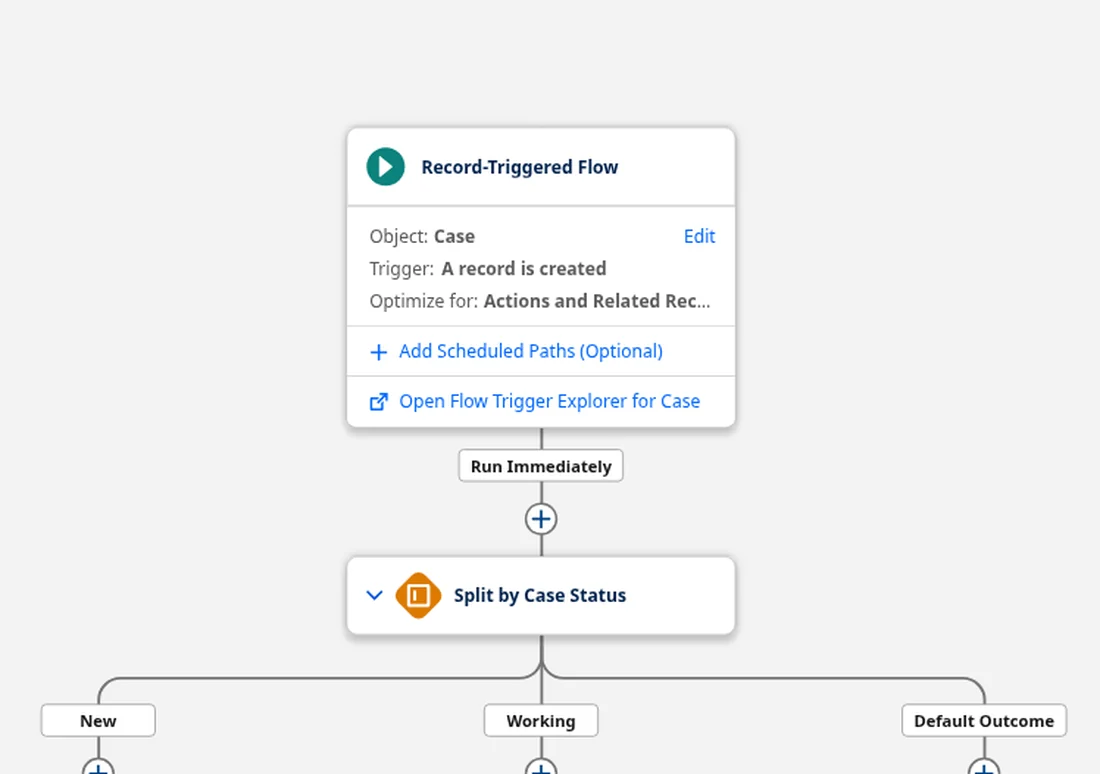
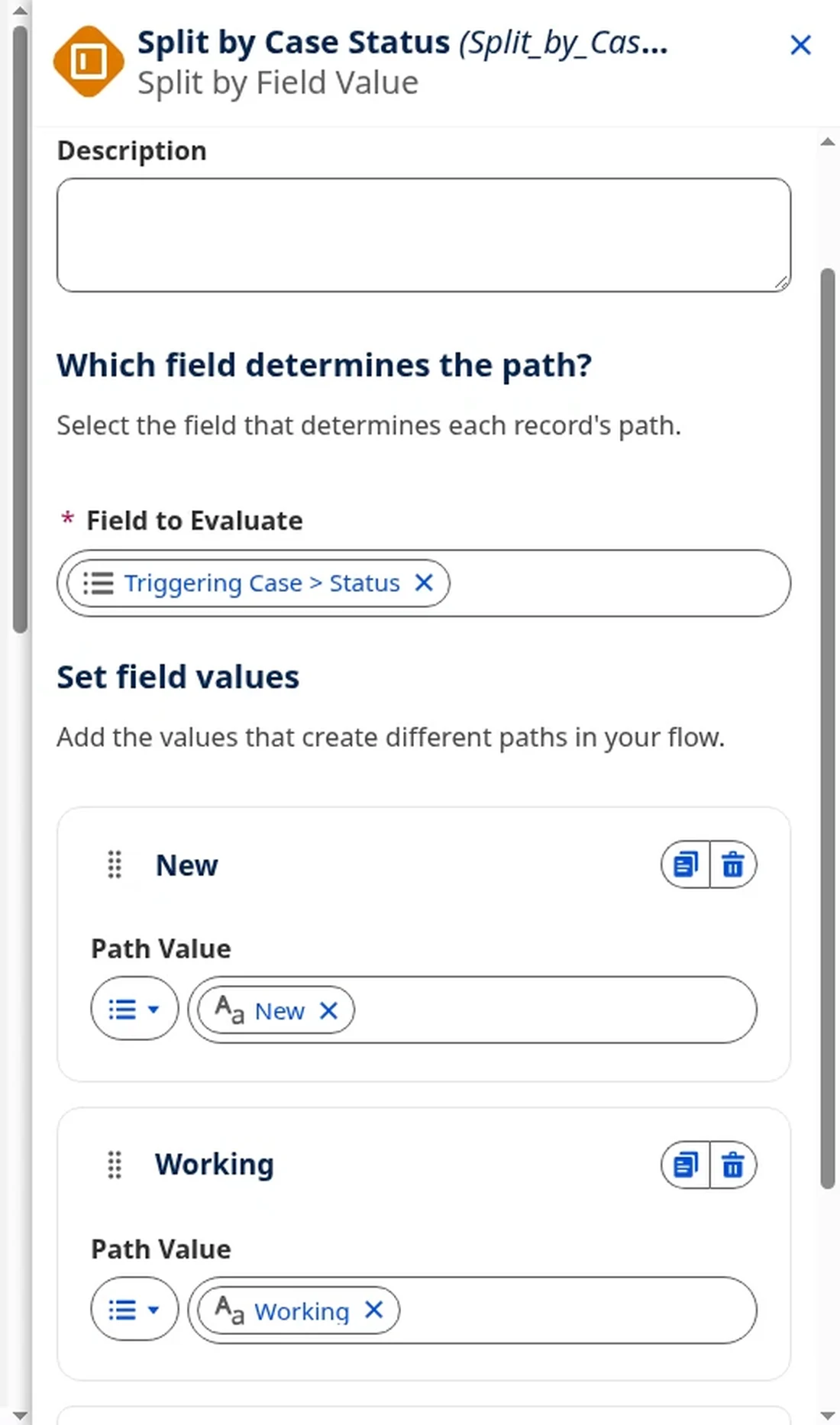
The example above is a record-triggered flow on Case. The element is labeled Split by Case Status, and Field to Evaluate is set to Triggering Case > Status. The canvas has branches for New and Working, plus Default Outcome. Other Status values, such as Escalated or Closed, are not set up as their own branches in this demo, so they would follow the default path. That's a typical pattern: add the values you want to handle, and let the default catch everything else, including a value added later.
This works in a record-triggered flow or a screen flow. The element is about how the flow branches, not about how the flow starts. If you want a walkthrough of screens, see how to build a screen flow.
When to use a regular Decision instead
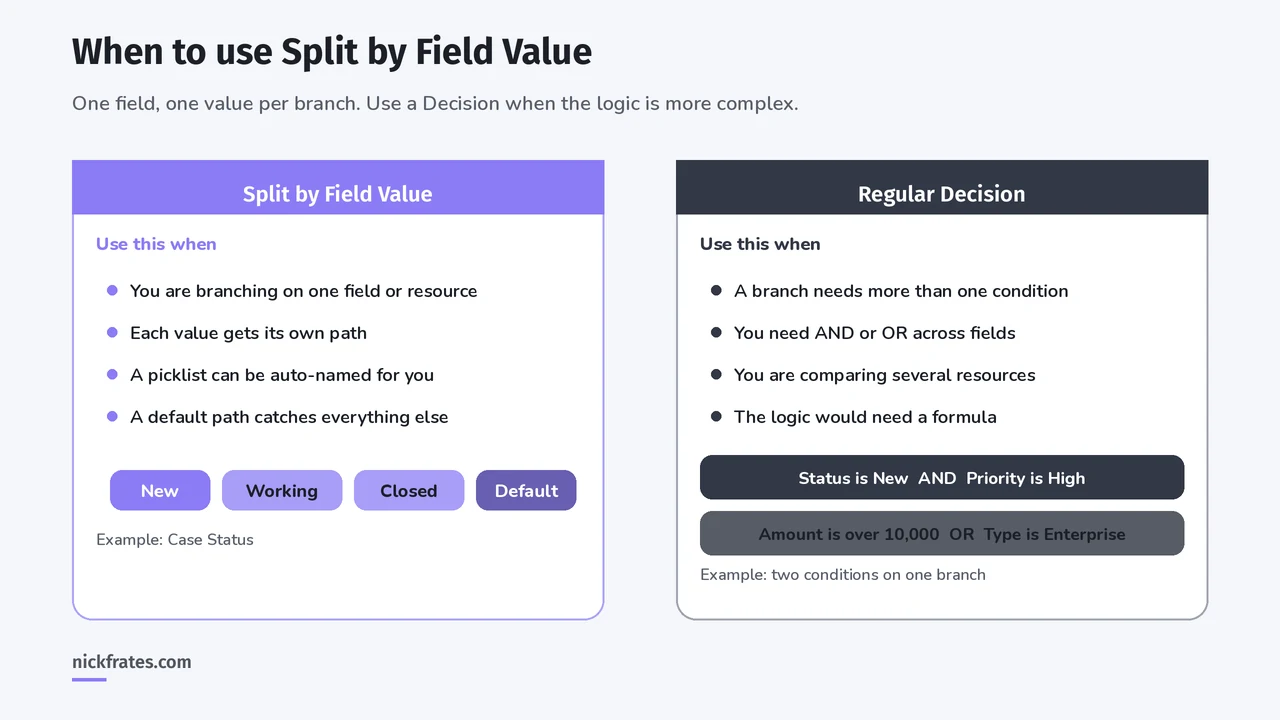
Split by Field Value can only put one condition on a branch. If you need to check more than one field, combine conditions with AND or OR, or write a formula, use a regular Decision. That is still the right tool for anything more complex.
| Use Split by Field Value when | Use a regular Decision when |
|---|---|
| You are branching on one field or resource | A branch needs more than one condition |
| Each value should get its own path, plus a default | You need AND or OR logic across fields |
| The field is a picklist you want auto-named | You are comparing several resources, or you need a formula |
Mistakes to avoid
- Using it when a branch needs two conditions. Status is New AND Priority is High is a regular Decision, not Split by Field Value.
- Picking it because you think it is faster. Salesforce has not said these decision types run any faster than a Decision.
- Forgetting the default path. New picklist values, blanks, and unexpected values need somewhere to go.
- Building a regular Decision for a single picklist out of habit. If one field is the only thing you are branching on, Split by Field Value is the simpler setup.
Cert Lab by Nick Frates
Practise Flow decisions before exam day
Get exam-style questions and hands-on practice tasks on Flow and process automation, including when a Decision is the right tool.
Start the Platform App Builder Cert Lab for $9.99 →FAQ
Is Split by Field Value a new element or a Decision type? The official Winter '27 release notes call Split by Field Value and Split by Date decision types. You add a Decision element in Flow Builder, then select the type. On the canvas they appear under those names, with their own icons.
Does it work on more than picklists? Yes. It branches on the value of a field or other resource, not only on picklists. Picklists are the case where Flow Builder names the branches for you.
Is there a similar option for dates? Yes. Split by Date in Salesforce Flow branches on today's date, not on a date stored on a record.
Which editions get it? The official release note lists Lightning Experience in Essentials, Professional, Enterprise, Performance, Unlimited, and Developer editions.
Is this on the Platform App Builder or Admin exam? The exams test Flow and Decision logic, and this is a newer Winter '27 decision type. I would know how it differs from a regular Decision. The Platform App Builder study guide is the place to start for that exam, and Formula Field vs Validation Rule vs Flow is useful when you are choosing between a formula, a validation rule, and a flow.
If you have a question or feedback, share it and I'll take a look.
Hope this helps!
Best,
Nick
Cert Lab by Nick Frates
Start the free Admin Cert Lab
Free, no card, no trial. Lessons and exam-style questions for the Platform Administrator exam, including Flow and automation.
Start the free Admin Cert Lab →