Hey friends,
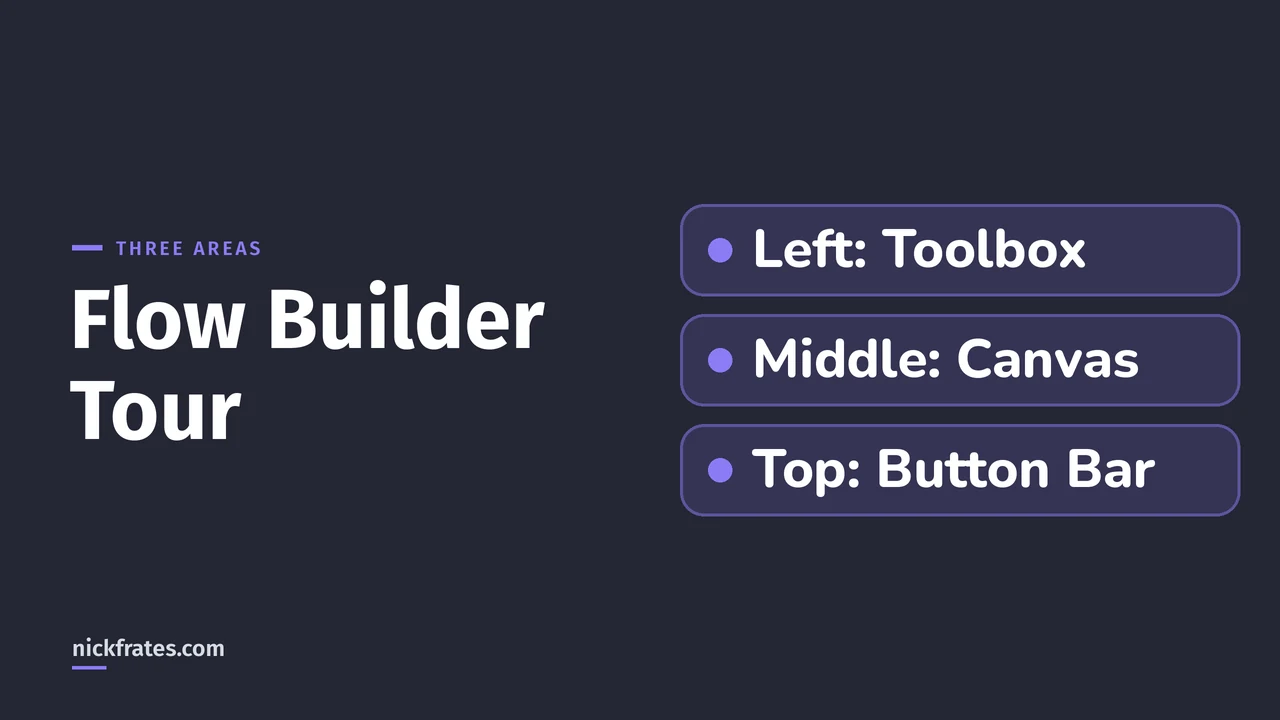
Flow Builder has three main areas: the Toolbox on the left, which lists the elements and resources in your flow; the canvas in the middle, where you add elements and connect them; and the button bar across the top, which shows the flow's status and holds Run, Debug, Save and Activate. Everything in this tour comes from Salesforce's own Trailhead Flow Builder unit, which I read in full on October 28, 2026, and from live screenshots I took the same day in my own Developer Edition org.
I'm keeping the concepts out of this one. If you're asking what a flow is or which type to pick, start with What Is Salesforce Flow?. This post is only the screen: where things are and what each one does.
Open Flow Builder
Salesforce's Build a Flow Help page gives two routes. From Setup, enter Flows in the Quick Find box, open Flows and click New Flow. Or, from the Automation app, click New. Either way you pick a category and a flow type, and a blank canvas opens. I used Setup > Flows > New Flow > Screen Flow and built a tiny demo flow I never activated, so everything below shows a flow that isn't doing real work.
The three areas of the screen
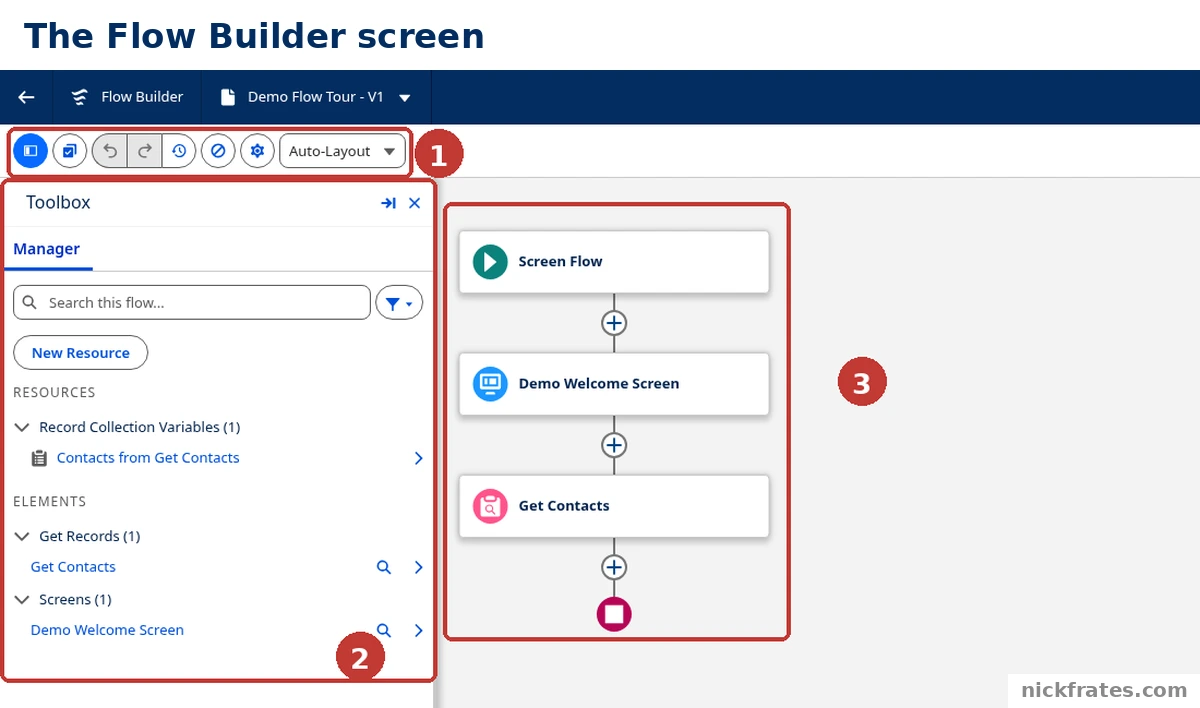
Setup > Flows > New Flow > Screen Flow: the button bar (1), Toolbox (2) and canvas (3).
- The button bar. The row of icons at the left is the first half of it. Per Trailhead, these cover showing and hiding the Toolbox, Select Elements to copy several elements at once, Undo and Redo, the errors and warnings pane, the Version Properties window, and the Auto-Layout or Free-Form choice. Trailhead recommends Auto-Layout whenever possible because it has more features. My canvas is in Auto-Layout.
- The Toolbox. Trailhead says it lists the elements and resources you've built in your flow, and lets you create new resources. In my version it has a single Manager tab with a search box, a filter, a New Resource button and two lists, Resources and Elements. It doesn't have a separate Elements tab. You add elements from the canvas, which I show below.
- The canvas. The working area. Each element you add becomes a card, and the lines between them are connectors that set the order the flow runs. The little plus signs between cards are where you add the next element. The round icon at the bottom is the End of the flow.
The Toolbox is a good place to see how the pieces relate. In my demo, the Elements list has a Get Records group and a Screens group, one element each. The Resources list has a record collection variable named Contacts from Get Contacts, which the Get Records element created for me. Trailhead says many elements create their own resources this way.
The button bar: status, Run, Debug, Save and Activate
On my saved flow, the right side of the bar reads, left to right:
- Last saved and the Inactive badge. The bar tells you when the flow was last saved and whether it's active. Mine says Last saved on 10/28/2026, 12:12 PM and Inactive.
- Run and Debug. Trailhead says Run runs the most recent saved version, and unsaved changes aren't included. Debug lets you test the most recent saved version with sample data and review what it does.
- Save As New Version. The arrow next to it opens a menu. In mine, Save As New Flow opens a Save as dialog with a Flow Label, a Flow API Name and a Description. I cancelled it.
- Save. Grey in my demo because nothing was unsaved.
- Activate. Trailhead says it makes the current version the one users encounter, and because a flow can have several versions you can activate a specific one. I didn't click it, so my demo stays inactive.
Clicking Debug swaps the Toolbox for a Debug panel. In mine it had a Setup tab with an Input Variables section, which said the flow has no input variables, and a Select Debug Options section with two checkboxes: run the latest version of each flow called by subflow elements, and run the automation as another user. Reset Debug Settings and Run buttons sit at the bottom. I didn't run it.
Adding an element: the plus button and the Add to Flow menu
To add a step, click a plus sign on the canvas. Trailhead says elements are the nodes on the canvas that make things happen. Here's what the menu looked like when I clicked the plus under the Start element:
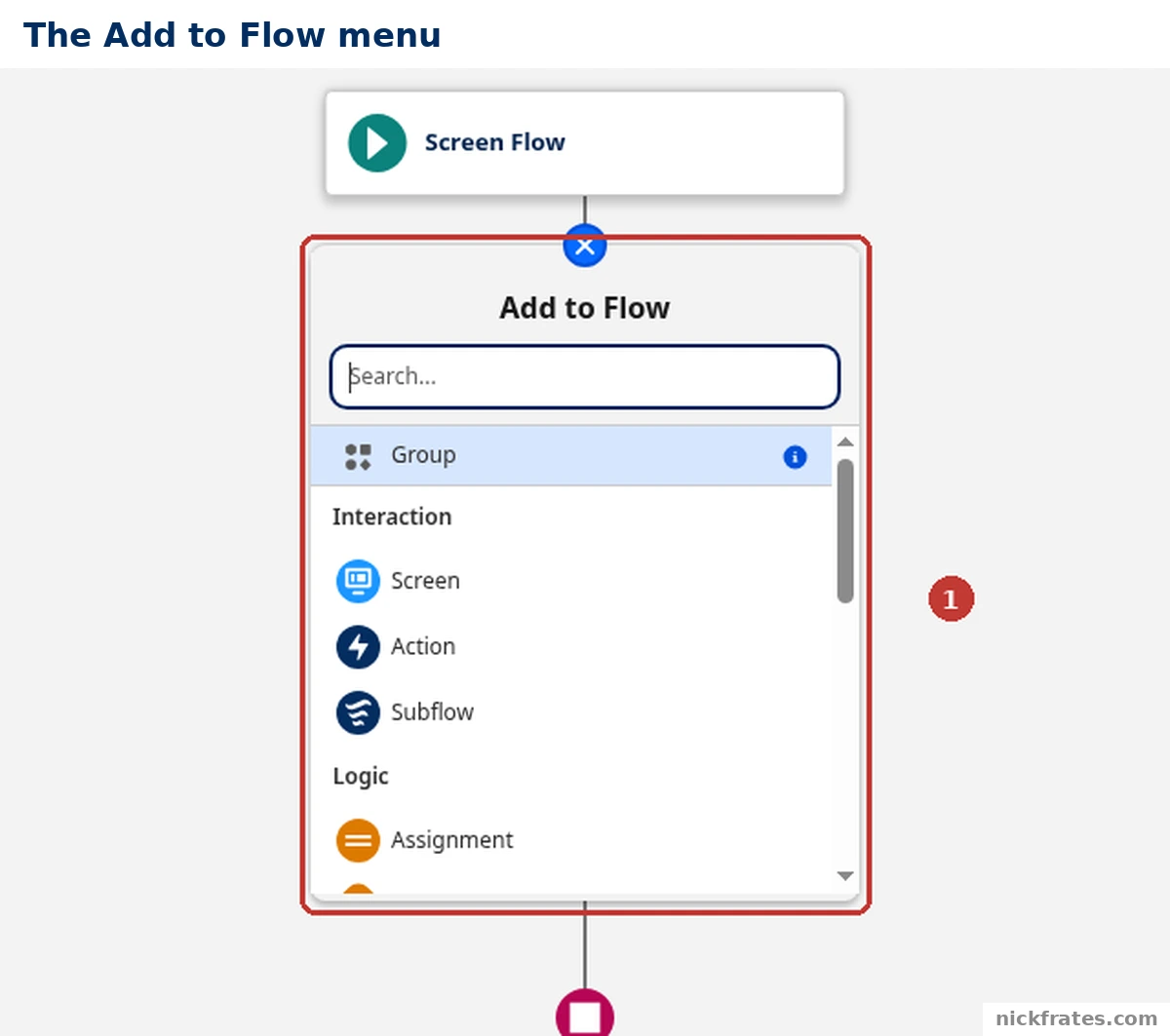
Setup > Flows > New Flow > Screen Flow, then the plus button under Start: the Add to Flow menu.
The menu has a search box and a Group option at the top. Below that the elements are listed in headings, the first being Interaction (Screen, Action and Subflow) and the next Logic, starting with Assignment. The list scrolls, and I only captured the top of it. Trailhead sorts every element into one of three types:
| Element type | What it does | Examples from Trailhead |
|---|---|---|
| Interaction | Interacts with users | Screen, Action, Subflow (calls another flow) |
| Data | Interacts with records in the Salesforce database | Look up, create, update and delete records, one at a time or many |
| Logic | Interacts with the flow itself | Create multiple paths with criteria, update temporary data, loop through groups of data, pause until a specified time, change a collection |
When you choose an element, it opens an editor. For the Screen element, my New Screen editor had a Components list on the left, a preview of the screen in the middle, and a Screen Properties panel on the right with a Label, an API Name, a Description and a Stage field. Cancel and Done are at the bottom right. Other elements open their own editors, which I haven't captured.
Resources: the New Resource button
Resources are containers that don't show up on the canvas but are referenced by the elements, per Trailhead. You create one from the Toolbox with New Resource, which opens a dialog. Its Resource Type list is the quickest way to see what's available. This is the top of it in my org, with Flow Builder's own one-line description of each:
| Resource type | Description in the dialog |
|---|---|
| Variable | Store a value that can be used and changed throughout the flow. |
| Constant | Store a value that can be used but not changed throughout the flow. |
| Formula | Calculate a value when the formula is used in the flow. |
| Text Template | Store text that can be used and changed throughout the flow. |
| Choice | Create a choice option to be used in a screen component. |
The list continues below those, with Collection Choice Set, Collection Filter Criteria, Record Choice Set, Picklist Choice Set and Stage. To make a simple text variable, Trailhead's variables unit says to open the Toolbox, click New Resource, choose Variable for the Resource Type, enter an API name and description, pick Text as the Data Type, and click Done. One more detail from that unit: formula resources are recalculated every time they're accessed.
Small things worth knowing
Trailhead lists keyboard shortcuts for the canvas. These are the Windows ones:
| Action | Windows shortcut |
|---|---|
| Move the canvas | Arrow keys |
| Zoom in | CTRL+Alt+= or CTRL+Mouse Wheel Up |
| Zoom out | CTRL+Alt+- or CTRL+Mouse Wheel Down |
| Zoom to fit | CTRL+Alt+1 |
| Undo and redo | CTRL+Z and CTRL+Y |
| Save as | Shift+CTRL+S |
The Mac versions swap CTRL for Command and Alt for Option. The Trailhead unit lists them all.
Cert Lab by Nick Frates
Studying for App Builder?
Lessons, practice questions and flashcards for all 5 App Builder exam sections, built from the official exam guide.
Start the App Builder Cert Lab, $9.99 →Where beginners get stuck in Flow Builder
- Hunting for an Elements tab. There isn't one in this version. Click a plus sign on the canvas to add an element, and use the Toolbox to see what you've already added.
- Testing unsaved changes. Run and Debug use the most recent saved version, so save first.
- Confusing Save with Activate. Saving doesn't change what users get. The flow stays Inactive until you activate a version.
- Skipping the plan. Salesforce's Help page tip is to plan the flow before you start building it. My Flow best practices post goes further on that.
FAQ
What are the parts of Flow Builder?
The Toolbox, the canvas and the button bar. The Toolbox lists the elements and resources in your flow, the canvas is where you build, and the button bar shows status and holds the Run, Debug, Save and Activate buttons.
Where do I add an element in Flow Builder?
Click a plus sign on the canvas. The Add to Flow menu opens with a search box and the elements grouped by type.
What is the Toolbox for?
It lists the elements and resources in your flow and lets you create new resources with New Resource.
What is a resource in a flow?
A container that elements reference, such as a variable, constant, formula or text template. Resources don't appear on the canvas.
What's the difference between Save and Activate?
Save stores your changes. Activate makes a version the one users encounter, and a flow stays inactive until you activate it.
What's the difference between Run and Debug?
Both use the most recent saved version. Debug lets you feed in sample data and review what the flow does.
Should I use Auto-Layout or Free-Form?
Trailhead recommends Auto-Layout whenever possible, because it has additional features.
Where to go next
- What Is Salesforce Flow?: the concepts behind what you just toured.
- Salesforce Flow types explained: every flow type and when each fits.
- Salesforce Flow best practices: how to build flows that scale.
- Apex vs Flow: when to write code instead.
- Is there a Salesforce Flow certification?: which exams and badges prove your Flow skills.
- Starting out on the Admin path? My free Admin Cert Lab covers Flow on the Admin exam.
Hope this helps!
Best,
Nick