Hey friends,
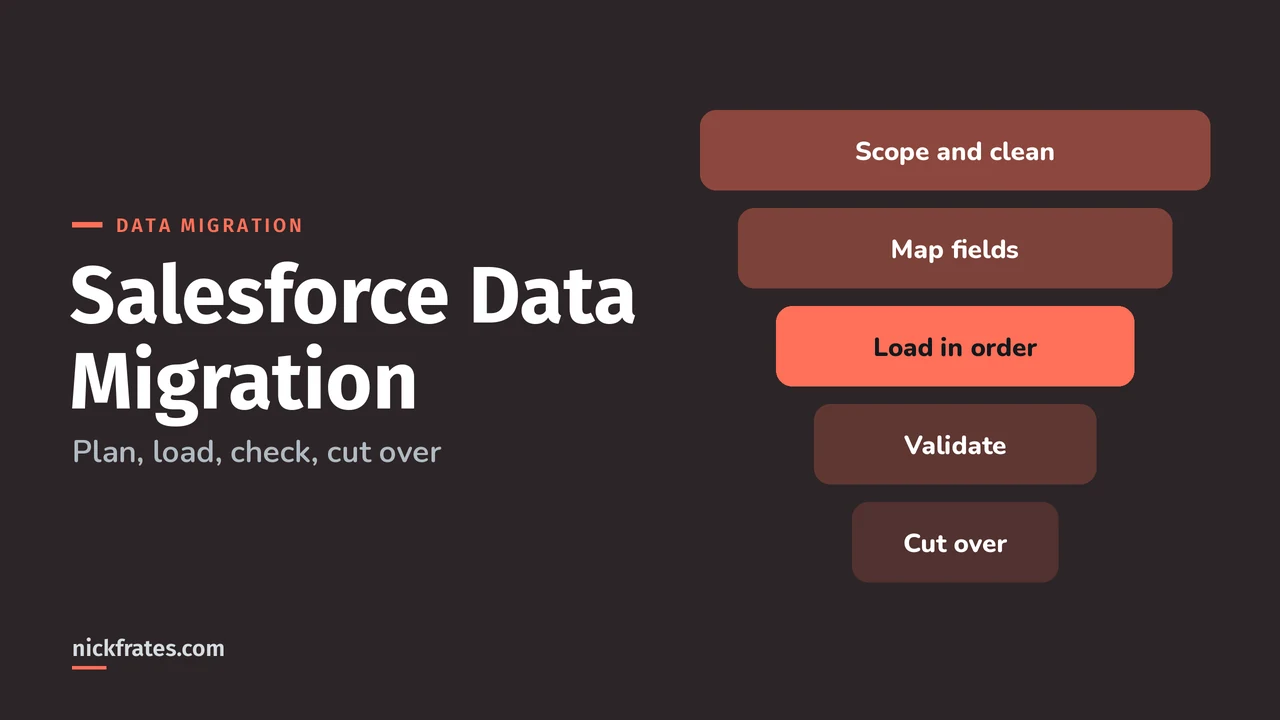
A Salesforce data migration goes smoothly when you do six things in order: scope and clean the data, map every field, load parents before children using external IDs, load lean with automation paused, validate with counts and queries, then cut over. For anything over a few thousand records, use Data Loader or the Bulk API 2.0 instead of the import wizard. I'll cover org-to-org moves and legacy systems the same way, since the steps barely change.
Migration is 15% of the Salesforce Certified Platform Data Architect exam, and it's also where real projects go wrong, so I've tried to keep this practical. Sources are the Salesforce docs linked in each section.
What are the steps in a Salesforce data migration?
- Scope it. List the objects and the date range you really need. Salesforce's Trailhead calls this loading lean: identify the business-critical operations, the minimal data set and the loading plan, then load as fast as you can.
- Clean the source. Fix duplicates, bad dates and missing required values before the load. Salesforce's Bulk API guidance says to make sure data is clean first, because errors in a batch trigger single-row processing, which hurts performance a lot.
- Map fields. Build a mapping sheet from each source column to a Salesforce field, and create any missing custom fields before you load.
- Load in dependency order with external IDs holding the relationships together.
- Validate row counts and relationships on both sides.
- Cut over and re-enable everything you paused.
Which tool should I use to migrate data?
| Tool | Good for | Limits to know |
|---|---|---|
| Data Import Wizard | Small, simple loads of common objects. See my Data Import Wizard vs Data Loader post | Not built for large or complex loads |
| Data Loader | Insert, update, upsert, delete and export with CSV files and field mapping | Import batch size is up to 200 records with the SOAP API and up to 10,000 with the Bulk API. See the Data Loader settings |
| Bulk API 2.0 | Large asynchronous jobs from your own scripts or an ETL tool | Batches are created for you automatically, and ingest is capped at 150,000,000 records in a rolling 24 hours. See the Bulk API limits |
| ETL platforms | Scheduled, repeatable moves from other systems | The exam guide says you need to know Data Loader and ETL scripting, not configure a specific tool |
Salesforce's large data volume guide says any operation with more than 2,000 records is a good candidate for Bulk API 2.0, and smaller jobs can use synchronous REST or SOAP calls. See the loading data best practices.
In what order should I load objects?
Parents first, children second. The Trailhead module is blunt about two things you shouldn't defer: parent records that have master-detail children, because you can't load the children without them, and record owners, because the owners need to exist before you load their data. A practical order:
| Step | Load | Why |
|---|---|---|
| 1 | Users and roles | Owners must exist before their records do |
| 2 | Reference data such as price books and products | Other records point to them |
| 3 | Accounts | Parent of contacts and opportunities |
| 4 | Contacts, then opportunities and cases | They look up to accounts |
| 5 | Junction and line item records | They need both of their parents |
| 6 | Everything else, such as notes and history | It depends on all of the above |
How do I keep relationships intact without Salesforce IDs?
Use an external ID. Add a field to each object that holds the source system's ID, mark it External ID and Unique, and then relate children to parents through it. External IDs can be created on Auto Number, Email, Number and Text fields, and they create an index on the field, per the Indexes page of the large data volume guide.
In the child file, the column header is the relationship name plus the parent's external ID field. For a custom lookup field named Account__c pointing to an account with a field named Legacy_Id__c, the header is Account__r.Legacy_Id__c: replace the __c on the lookup with __r. The Bulk API guide documents this, and notes you can only use indexed fields on the parent. For standard lookups, such as a contact's account, the same idea works with the standard relationship name.
With Data Loader, associating records by external ID happens on an Upsert, per this Salesforce Help article. The same article warns that some polymorphic fields, such as Activity's Related To and Name, and the Owner field on a custom object, can't be mapped to external IDs. Plan to resolve those with real Salesforce IDs.
How do I keep the original created date and owner?
Turn on the Set Audit Fields upon Record Creation setting in Setup under User Interface, then give the loading user that permission, with a permission set if they're on a standard profile. Created By, Created Date, Last Modified By and Last Modified Date can then be written when you insert records through API tools like Data Loader. The Salesforce Help article is clear that this works only at creation, not on later edits.
Two practical details from the audit field article: the dates must be in the right date/time format, and the Created By and Last Modified By values must be the target org's user IDs, not the source org's.
How do I make a big load faster?
Salesforce's advice boils down to loading lean, as the Load Your Data unit puts it, and its best practices table gives the specifics:
- Use Public Read/Write sharing during the initial load to avoid sharing calculations, and use the defer sharing calculation permission until the data is in.
- Disable Apex triggers, workflow rules and validations during the load, then process records afterward, for example with Batch Apex.
- Group child records by
ParentIdin the same batch, to reduce parent record locking conflicts. - Insert is the fastest operation, update is next and upsert is after that. If you can, split an upsert into a create and an update.
- When updating, send only the fields that changed.
- Load users into roles first, add sharing rules one at a time and let each calculation finish.
To pause a trigger without deploying code, Trailhead's pattern is a custom setting with a checkbox that the trigger checks. Here's my version of it:
Pausing automation only works if you plan for it. Before the load, query the data to find and fix records that would have failed a validation rule. After the load, use Batch Apex or the Bulk API to add the lookups and roll-up summary values you deferred, then reset the setting and turn the rules back on. If your trigger logic needs to be bulk-safe in the first place, see my post on Apex trigger best practices.
Cert Lab by Nick Frates
Practice migration scenarios
Quick questions on load order, external IDs, audit fields and bulk loading for all six Platform Data Architect sections, with every option explained.
Start the Platform Data Architect Cert Lab for $9.99 →Not ready to buy? Try a free lesson and see how fast you learn.
How do I export a very large amount of data?
For huge tables, use PK chunking with a Bulk API query. It splits the query into chunks by record ID. The default chunk size is 100,000 and the maximum is 250,000, and each chunk is a separate batch that counts toward your daily batch limit. It works only with queries that don't include subqueries or conditions other than WHERE. Details are on the PK Chunking page. Bulk API 2.0 query jobs don't consume your daily batch allocation, only ingest jobs do.
How do I migrate data from one Salesforce org to another?
The data model has to exist in the target org first, including custom fields to hold anything extra. Then export from the old org, edit the file, and insert into the new org. Salesforce Help walks through this with Data Loader's Export All and Insert, in the audit field article, and the audit field steps above apply if you want to keep original dates and creators. Metadata, such as fields, flows and code, moves separately from data, through your deployment tools.
What about moving from another CRM?
The steps are the same. Export each object from the old system to CSV, map columns to Salesforce fields, store the old system's record ID in an external ID field on every object, and load in order. Keeping that old ID is what lets you re-run a failed load, fix mistakes and trace a record back later.
How do I check that the migration worked?
Compare counts and look for orphans, on both sides. These queries assume a legacy ID field on each object:
The first number should match your source count. The second query finds contacts whose account never linked, which usually means the accounts loaded after them or a key didn't match.
How does this show up on the Data Architect exam?
The exam guide lists three objectives: ensuring high data quality at load time, techniques for improving performance when migrating large data volumes, and considerations for exporting data. Expect scenarios where you pick between pausing automation and cleaning data first, choose Bulk API over SOAP, or pick PK chunking for an export. My 20 practice questions include three on migration.
What migration mistakes do people make?
- Loading children before parents and then wondering why the relationships are blank.
- Leaving triggers, flows and validation rules on during a large load, and not planning how to catch what they would have caught.
- Trying to fix audit fields after the load, when they can only be set at creation.
- Using upsert for every load when insert would be faster for new records.
- Not keeping the source system ID, so a failed load can't be safely re-run.
- Skipping a rehearsal in a sandbox with realistic volumes.
I'll be honest about how I learned this stuff. I loved Focus on Force and used it through 17 Salesforce certifications. Reading the study guide first was slow for me; taking practice tests rapid-fire and studying every wrong answer was fast. So when I built Cert Lab, I built it around that: test yourself quickly, see why each option is right or wrong.
FAQ
What is the best tool for a Salesforce data migration?
For more than a few thousand records, Data Loader or the Bulk API 2.0. The Data Import Wizard is for small, simple loads.
How many records can the Bulk API load per day?
Up to 150,000,000 records in a rolling 24 hours, and Bulk API 2.0 creates the batches for you.
Can I keep the original created date?
Yes. Enable the Set Audit Fields upon Record Creation setting and permission, then set the audit fields when you insert records. It only works at creation.
What is an external ID used for in a migration?
It lets you relate child records to parents, and upsert records, using the source system's ID instead of Salesforce IDs.
How do I export millions of records?
Use a Bulk API query with PK chunking, or a Bulk API 2.0 query.
Where should you go next?
- Salesforce large data volumes for skew, indexes and archiving.
- Data Import Wizard vs Data Loader for choosing a tool.
- Master data management in Salesforce for deciding which system owns what.
- Platform Data Architect study plan for the whole exam.
Nick Frates, a senior Salesforce developer with 17 certifications, built the Platform Data Architect Cert Lab at nickfrates.com: rapid-fire practice questions for every exam section, each answer explained.
Cert Lab by Nick Frates
Let the Platform Data Architect Cert Lab test you to success
Lessons, flashcards, a quiz for each of the six exam sections and full practice exams, every answer explained.
Start the Platform Data Architect Cert Lab for $9.99 →Not ready to buy? Try a free lesson and see how fast you learn.
Hope this helps!
Best,
Nick