Hey friends,
Use the Data Import Wizard for simple, one-off imports of up to 50,000 records into common standard objects or custom objects. Use Data Loader for anything bigger (up to 150 million records), for objects the wizard doesn't support, or for loads you want to automate on a schedule. That's the whole decision, and it's a reliable Admin exam question.
Both tools are in Data and Analytics Management, the biggest section of the Admin exam at 17%. The facts below come from Trailhead's Import Data unit.
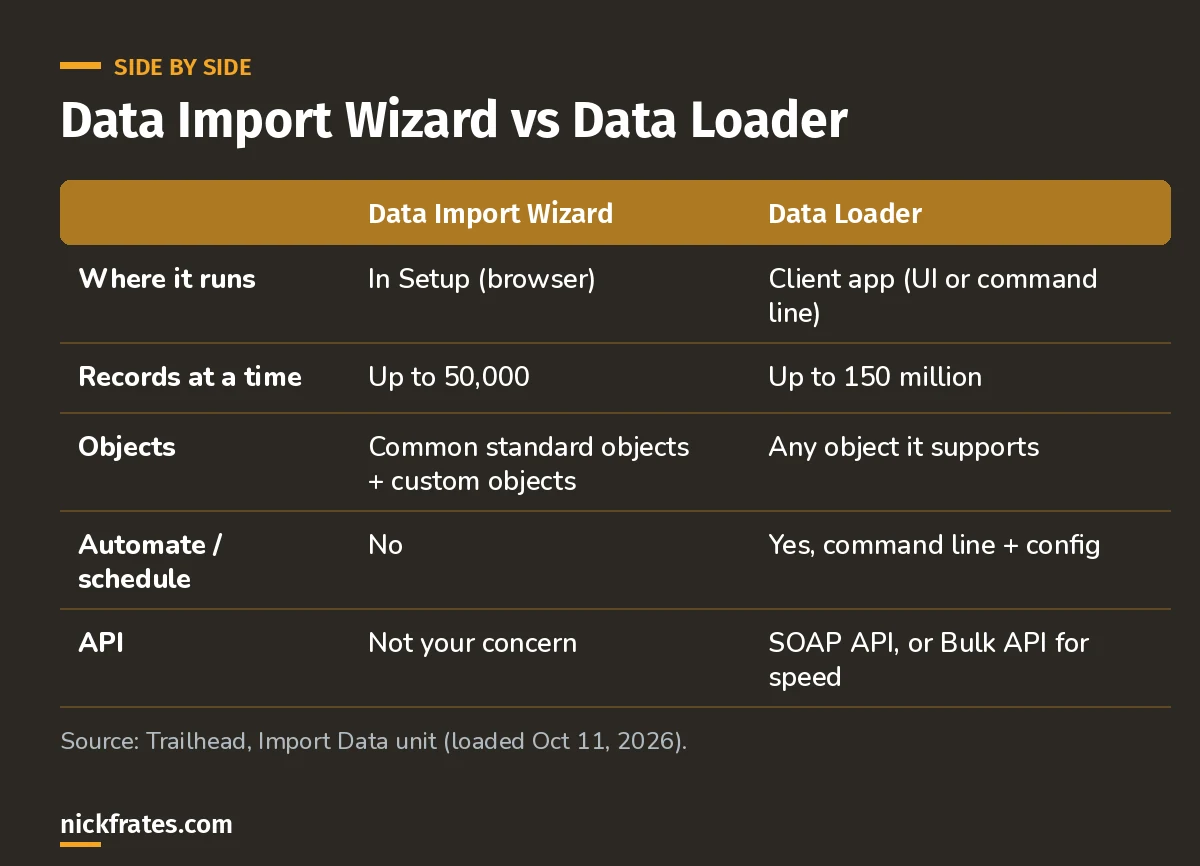
The two tools side by side.
Data Import Wizard
You open it from Setup, so there's nothing to install. It imports common standard objects like accounts, contacts, leads and campaign members, plus custom objects, up to 50,000 records at a time. It walks you through matching, file upload and field mapping in a few screens.
Choose it when the object is supported, you're under 50,000 records, and you don't need to automate the import.
Data Loader
Data Loader is a client application. It can load up to 150 million records of any supported data type, from files or a database connection. You can run it through its interface or the command line, and the command line version is what lets you schedule regular loads, like nightly imports.
It uses the SOAP API by default. For big jobs you can switch it to the Bulk API, which is faster because it processes records in parallel with fewer network round-trips.
Choose it when you need 50,000 to 150 million records, an object the wizard doesn't support, or a scheduled, repeatable load. Past 150 million, Trailhead recommends working with a Salesforce partner or a partner product.
How to decide in 10 seconds
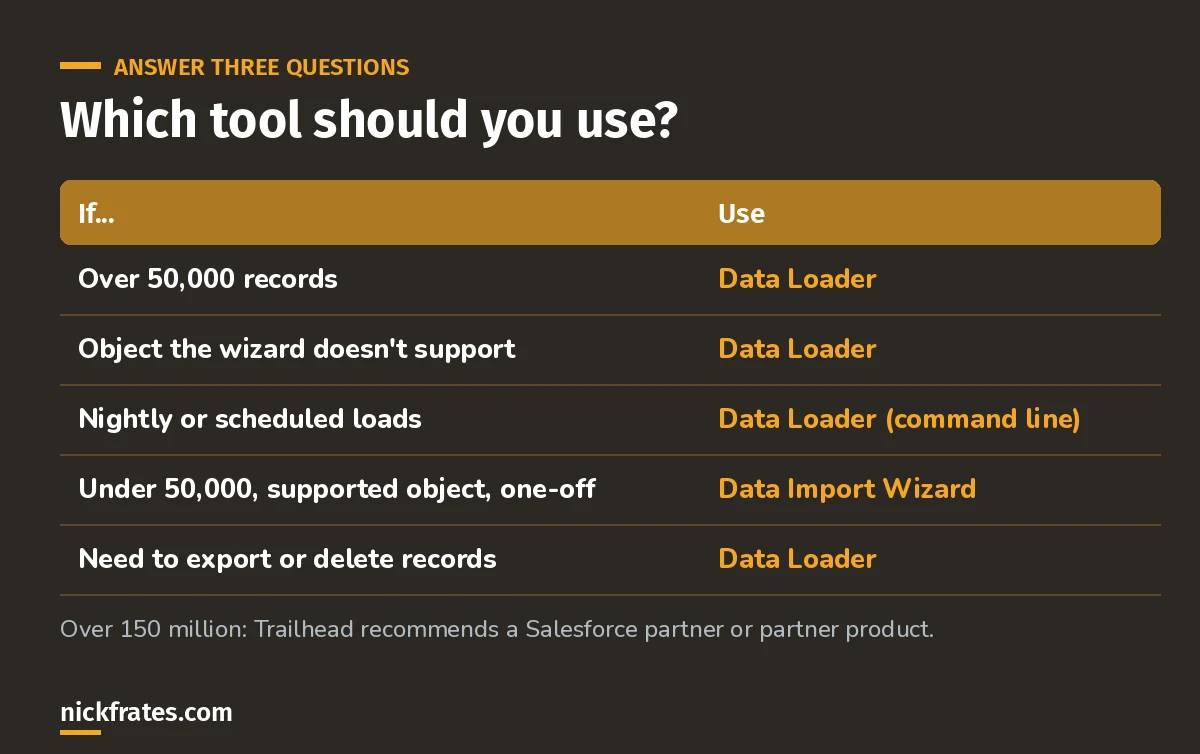
Any one Data Loader trigger wins.
Worked example 1. Marketing has 12,000 leads from a trade show in a CSV. Answer: Data Import Wizard. Supported object, under 50,000, one-off.
Worked example 2. Finance wants 300,000 invoice records loaded every night from another system. Answer: Data Loader from the command line. It's over the limit and it needs a schedule.
Worked example 3. You need to import 5,000 records into an object the wizard doesn't list. Answer: Data Loader. The record count doesn't matter if the object isn't supported.
Cert Lab by Nick Frates
Practice the Data and Analytics section free
Lessons and practice questions on data tools, duplicate rules, validation rules and reports. All 8 Admin sections, free.
Start the free Admin Cert Lab →Prep the file first (this is where imports really fail)
Trailhead's checklist before any import:
- Export the data from your existing system.
- Clean it: remove duplicates, delete what you don't need, fix spelling and enforce naming conventions.
- Compare your columns to the Salesforce fields and plan the mapping.
- Make the Salesforce changes first: new custom fields, new picklist values, and temporarily turning off automation that would fire on every record.
- Import a small test file before the real one.
Field gotchas from the same unit:
- Checkboxes: use 1 for checked and 0 for unchecked.
- Multi-select picklists: separate values with a semicolon.
- Restricted picklists: a value that doesn't match uses the default value or the record may fail. Unrestricted picklists just take the value from the file.
- Unmapped columns aren't imported. For accounts and contacts, the wizard can save unmapped data into a note instead.
After a wizard import, check progress in Setup under Bulk Data Load Jobs. You also get an email when it finishes.
Related exam traps
- Duplicate rules vs validation rules. The exam guide names this comparison. Duplicate and matching rules catch duplicate records; validation rules enforce data quality on fields. See my guide to duplicate and matching rules.
- Automation during loads. A big load fires your flows and triggers on every record. Plan for it, or use a bypass like the one in my bypass validation rules in Flow post.
Keep studying
- Reports and dashboards for the Admin exam, the other half of this section.
- My 6-week Admin study plan covers data tools in week 3.
- 25 free Admin practice questions.
- Platform Data Architect study guide for data migration and large data volume design.
Hope this helps!
Best,
Nick