Hey friends,
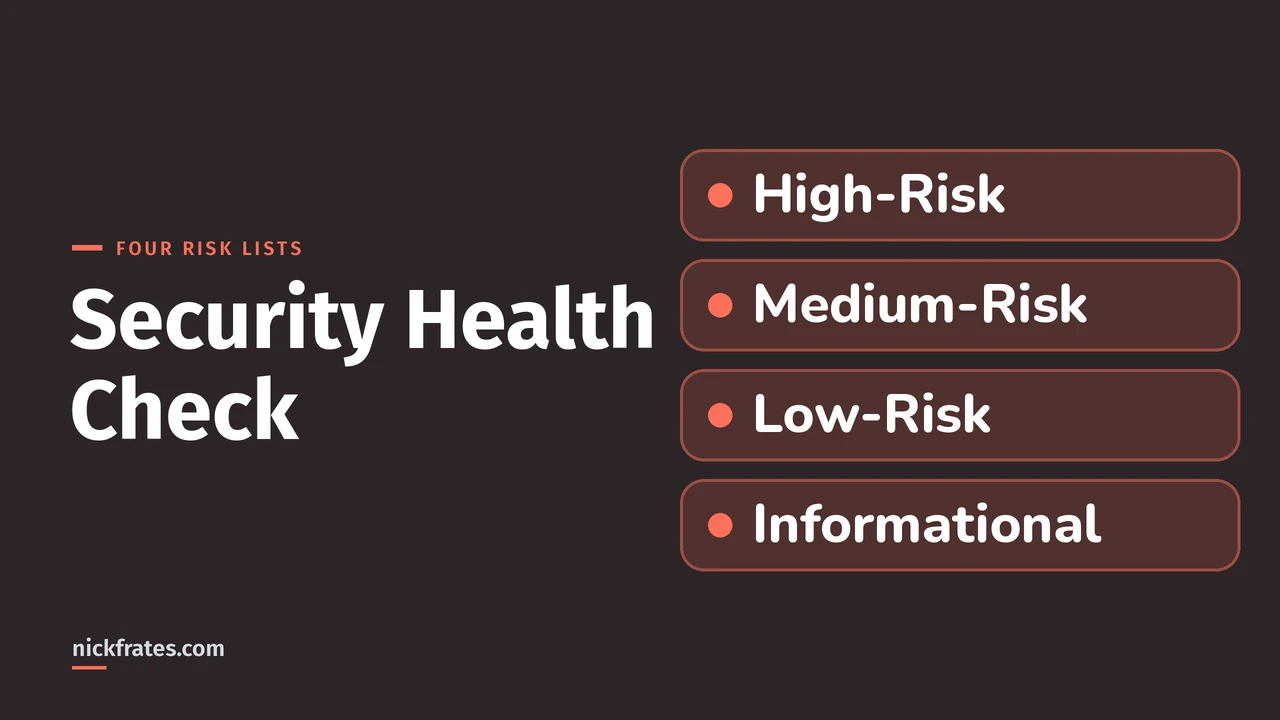
Security Health Check is a page in Setup that compares your org's security settings with a baseline, by default the Salesforce Baseline Standard, and gives you a score and a grade. You open it from Setup, read the High-Risk, Medium-Risk, Low-Risk and Informational lists, and fix a finding with its Edit link or with Fix Risks, which changes supported settings to the baseline's recommended values. That is how Salesforce's Security Health Check page in the Security Guide describes it. I read it on October 28, 2026, and I mark my own opinions as mine.
I ran it in a Developer Edition org on that date. I only looked: I opened the Fix Risks window and then cancelled it, so I changed nothing and I will not tell you I fixed anything. The score in the pictures is that demo org's own default score, not a recommendation for yours.
What Health Check compares
Help says Health Check lets an admin identify and fix potential vulnerabilities in security settings from a single page. A summary score shows how your org measures against a security baseline like the Salesforce Baseline Standard. You can also upload up to five custom baselines to use instead. Health Check is available in Professional, Enterprise, Performance, Unlimited and Developer Editions, in both Lightning Experience and Salesforce Classic.
On permissions, Help lists View Health Check to view it and Manage Health Check to import a custom baseline. The Security Center permissions (View Security Center, Manage Security Center) also appear on that list.
How to run it
- From Setup, use the Quick Find box to find and select Health Check.
- In the baseline dropdown, choose the Salesforce Baseline Standard or a custom baseline.
- Read the score and grade, then work through the settings lists below.
Help says the baseline consists of recommended values for the High-Risk, Medium-Risk, Low-Risk and Informational security settings. If you change a setting to be less restrictive than the baseline, your score and grade go down.
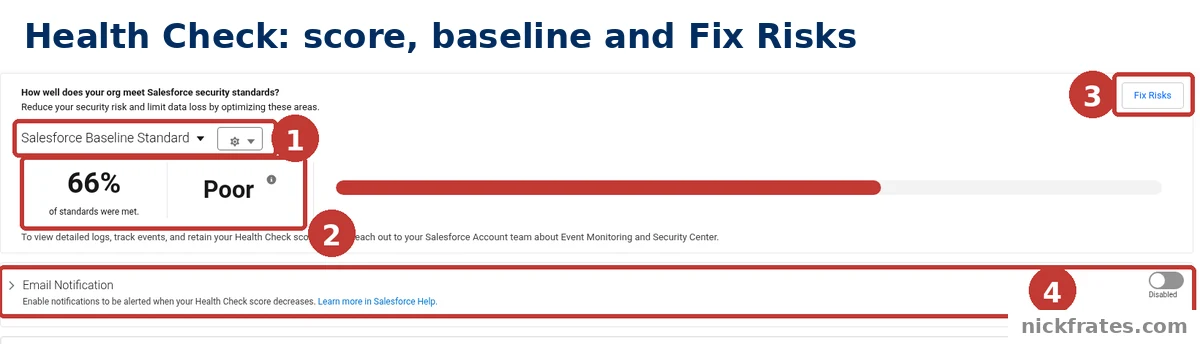
Setup > Health Check: the baseline, score, Fix Risks button and Email Notification row.
- The baseline selector. It says Salesforce Baseline Standard. In my org that was the only baseline in the dropdown. The gear beside it is the baseline control menu, where Help says you can import, export, edit or delete a custom baseline.
- The score and grade. My demo org showed 66% of standards met and the grade Poor.
- Fix Risks. The button that changes settings to the baseline's recommended values. More on it below.
- Email Notification. The toggle says it alerts you when your Health Check score decreases. It was off in my org. Help also describes weekly notifications to the people you choose if the score decreases.
How to read the findings
Under the score are four lists. In my org they were High-Risk Security Settings (16), Medium-Risk Security Settings (11), Low-Risk Security Settings (8) and Informational Security Settings (9). The number in brackets is how many settings each list holds. Every row has the same columns: Status, Setting, Group, Your Value, Standard Value and an Edit link under Actions. Help says your settings are shown with how they compare against the baseline values.
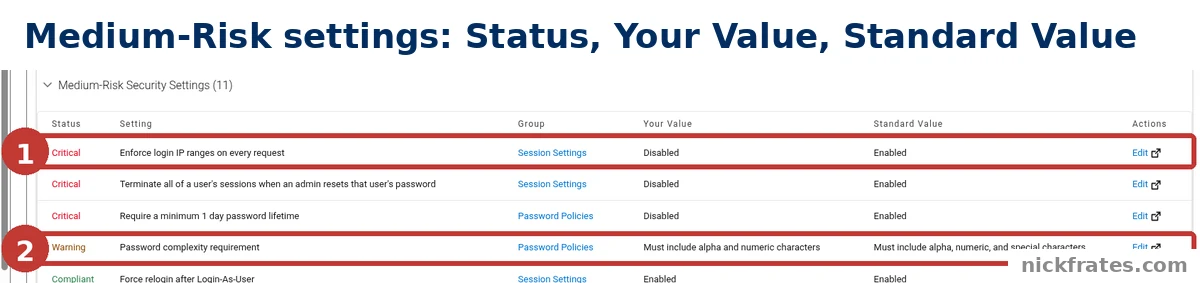
Setup > Health Check > Medium-Risk Security Settings: Status, Your Value and Standard Value.
- A Critical row. Enforce login IP ranges on every request, in the Session Settings group. My value is Disabled and the standard value is Enabled.
- A Warning row. Password complexity requirement, in Password Policies. My value is must include alpha and numeric characters, and the standard is alpha, numeric and special characters.
Three things I saw in my own org, so read the Status column and not only the two values:
- Statuses were Critical, Warning or Compliant, and the Group column named where the setting lives, such as Session Settings, Password Policies, Identity or Network Security.
- A Compliant row can have a different value from the standard. In the Medium-Risk list, User passwords expire in showed 90 days against a standard of 30 days, and it was still Compliant.
- The Informational list also has statuses. Percentage of active internal users with System Administrator profile showed 33.33% against a standard of 5.00% and was marked Critical.
How to fix a finding
Help gives two routes: edit the setting yourself, or use Fix Risks to change settings to your baseline's recommended values without leaving the Health Check page. The Edit link on each row is the first route, and it is the only route for anything Fix Risks does not list.
When I clicked Fix Risks, a window titled Fix security risks? opened with the line that these settings can be automatically changed to the standard value. It listed 12 settings, 9 Critical and 3 Warning, each with a checkbox that was empty, plus Cancel and a Change Settings button that was greyed out while nothing was ticked. The settings were in the Session Settings, Identity and Password Policies groups. I clicked Cancel, so nothing was changed.
Not every finding was in that window. Number of trusted IP ranges, in Network Security, was marked Critical in my High-Risk list but was not in the Fix Risks list. That matches Help: not all settings can be changed with Fix Risks, so if a setting isn't on the Fix Risks screen you change it with its Edit link.
My advice: open each setting's Help before you tick it. I did not apply any change, so I can't tell you what each one does to your users. Salesforce's own example of a risk is lowering the minimum password length from 8 to 5, which makes passwords more vulnerable to guessing and brute force attacks.
Cert Lab by Nick Frates
Security is on the Admin exam
The free Admin Cert Lab covers all 8 Admin exam sections with lessons, practice questions that explain every option, and flashcards. Free, no card, no trial.
Start the free Admin Cert Lab →After the first run
- Expect the score to move. Help notes that new signals are occasionally introduced which may impact your current score. Review your baseline configurations to include any new signals and resolve any non-compliant settings.
- Use a custom baseline if you have your own standard. Help's example is a financial services company building one from FINRA standards. You can import up to five.
- Turn on the notification. That way a drop in the score reaches you without checking by hand.
- Security Center. Help says its Health Check detail page aggregates multiple Health Check scores and settings in one place, and Help says that saves you time.
Health Check is about org-level security settings. Who can see which objects and fields is a separate set of controls, covered in my security model post, my object-level security post and my field-level security post.
Mistakes to avoid
- Ticking every box in Fix Risks without reading. That is my opinion, not Salesforce's. Each row is a setting with its own effect, so look each up.
- Assuming Fix Risks covers everything. Help says it doesn't, and my own Network Security finding was outside the list.
- Judging only by matching values. My Compliant rows had values that differed from the standard.
- Being surprised by a lower score. Help says new signals can change it, so check whether something new appeared before looking for who changed what.
FAQ
What is the Salesforce Security Health Check?
It is a Setup page that compares your org's security settings with a baseline and gives you a score and a grade.
Where do I find Health Check in Salesforce?
In Setup, enter Health Check in the Quick Find box and select Health Check.
What baseline does it use?
The Salesforce Baseline Standard by default. You can import up to five custom baselines and choose one from the dropdown.
What does Fix Risks do?
It changes the settings you tick to your selected baseline's recommended values without leaving the Health Check page.
Can Fix Risks change every setting?
No. Help says that if a setting isn't on the Fix Risks screen, you change it manually with the Edit link on the Health Check page.
Why did my Health Check score change?
Making a setting less restrictive than the baseline lowers it. Help also says new signals occasionally introduced can affect your score.
What permission do I need?
Help lists View Health Check to view it and Manage Health Check to import a custom baseline, along with the Security Center permissions.
Where to go next
- Salesforce security model explained: profiles, permission sets, roles and sharing in one place.
- Object-level security in Salesforce: control create, read, edit and delete.
- Field-level security in Salesforce: who can see each field.
- Salesforce permission sets and permission set groups: how to reuse the building blocks.
- Administrator certification study guide: security is one of the exam's topics.
- Salesforce Admin certification: cost, exam format and study plan.
- Is the Admin certification worth it?: how to decide.
- Salesforce certification: how it works: where the exams fit.
- To practice security questions for free, try the free Admin Cert Lab.
Hope this helps!
Best,
Nick