Hey friends,
Field-level security, also called field permissions, controls whether a user can see and edit the value of one field on an object. It applies across the whole app, including related lists, list views, reports and search results, not just on the record page. You set it per field in a permission set or profile, or from the field's own Set Field-Level Security page, and you check who has access from the field's View Field Accessibility page or the Field Access page in Object Manager. That is how Salesforce's Trailhead field-level security unit and the Help page Set Field Permissions in Permission Sets and Profiles describe it. I read both on October 28, 2026, and I mark my own opinions as mine.
I tested every step in a Developer Edition org on that date, using a custom Contact field I made called Demo Secret Note. To see the result from the user's side, I logged in as a test user on the Custom: Support Profile, where the field is hidden, and compared their Contact page with mine. That comparison is in the check section below. This post covers fields. Object access comes first, and the layers around both are in my Salesforce security model post.
What field-level security controls
Sometimes users need an object but not every field on it. Trailhead's examples are hiding a candidate's social security number from hiring managers and interviewers, or making a lookup field read-only. Field-level security is the setting that does that without hiding the whole object.
Trailhead is clear about how it differs from page layouts: a page layout only controls which fields show on detail and edit pages, while field permissions control a field everywhere in the app. Its advice is that to make absolutely sure a user can't get to a field, you have to use field permissions, because there are no other shortcuts that give the same protection. My take: use the page layout to tidy the screen, and field-level security when the data is sensitive.
The three levels of field access
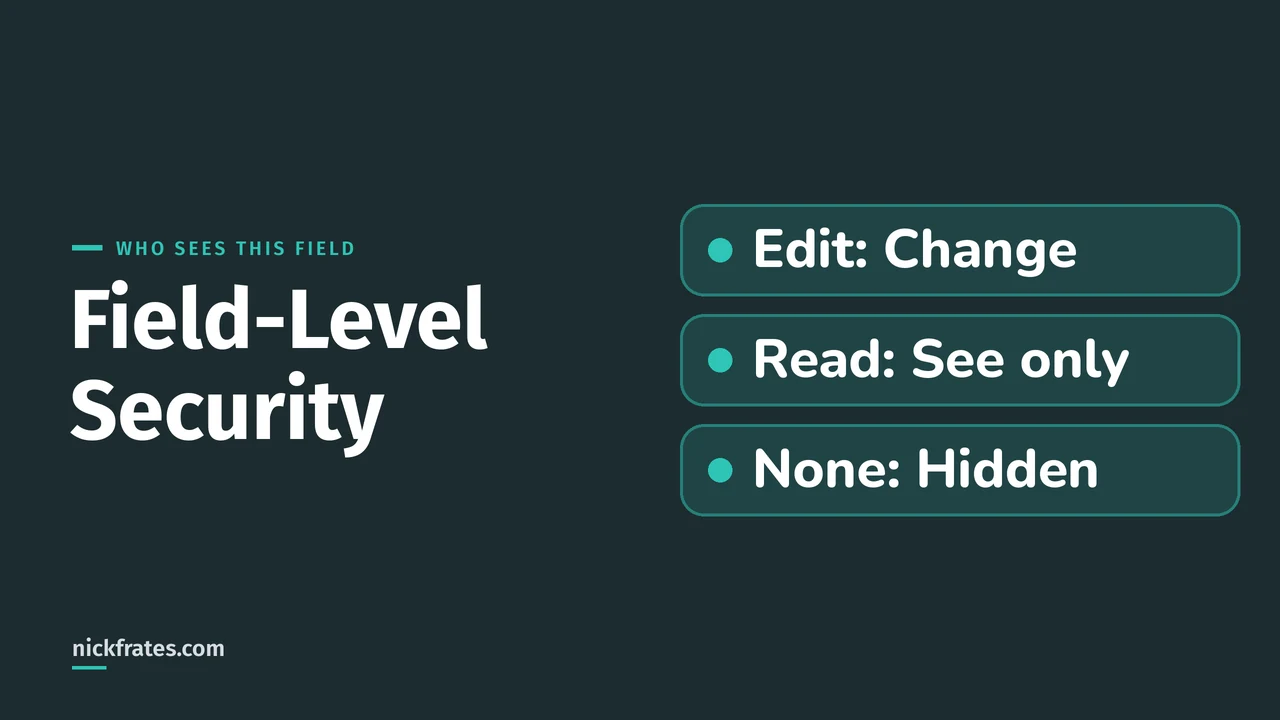
When you set field permissions you choose an access level for the field. In practice a field ends up at one of three levels for a user:
| Level | What the user can do | In a permission set |
|---|---|---|
| Edit | See the value and change it. | Read Access and Edit Access. |
| Read | See the value but not change it. | Read Access only. |
| None | Does not see the field. | Neither Read Access nor Edit Access. |
Trailhead adds that some field permissions are always enabled and can't be changed in permission sets or profiles. In my org's permission set, standard fields such as Account Name showed greyed, ticked boxes, which fits that.
How to set field-level security in a permission set
Salesforce strongly recommends managing field permissions with permission sets and permission set groups instead of profiles, because you can reuse the smaller building blocks instead of building dozens of profiles. If permission sets are new to you, my permission sets post explains them. The steps from the Help page:
- From Setup, enter Permission Sets in the Quick Find box, then select Permission Sets (or Profiles, if you're using a profile).
- Select a permission set.
- In the Find Settings box, enter the object you want, select it, click Edit, and scroll to the Field Permissions section.
- Set the field's access level, then click Save.
To do this you need both the Manage Profiles and Permission Sets permission and the Customize Application permission. Trailhead's version of the steps also enables the Read object permission for the object first. Profiles work the same way in the enhanced profile user interface. In the original profile interface, Help says to click View next to the object in the Field-Level Security section, then Edit.
I did this on a permission set named Demo Read-Only for Contacts. The table below is the Field Permissions section after I saved: the Demo Secret Note row has Read Access and no Edit Access, so anyone with this permission set can see the field but not change it.
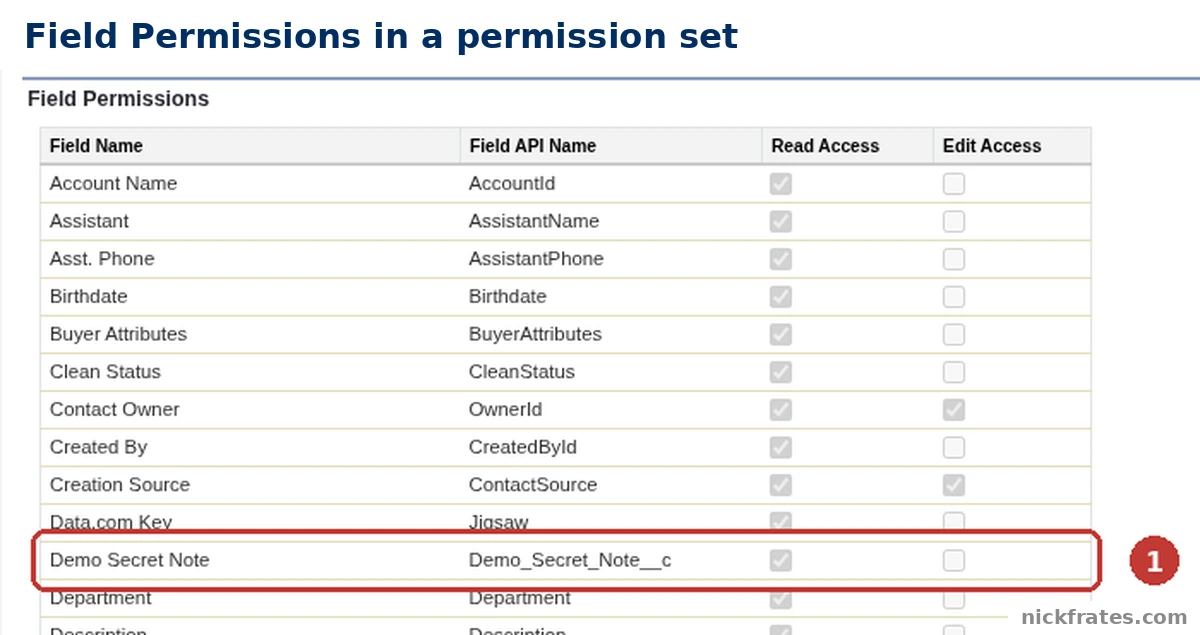
Setup > Permission Sets > Demo Read-Only > Contact object settings: Field Permissions.
- The Demo Secret Note row. The Field Name and Field API Name columns tell you which field you are on. Read Access is ticked and Edit Access is not, so this permission set gives the Read level (the boxes look grey because the page is in view mode).
To see everything a permission set grants, open its detail page and click View Summary. Help says you can see and edit the field permissions that are enabled there.
How to set it on one field
You can also start from the field. In Setup, open Object Manager, choose the object, click Fields & Relationships, open the field and click Set Field-Level Security. In my org that page is a grid with a row for each profile and two columns, Visible and Read-Only. Trailhead says that if you turn on Field-Level Security for Permission Sets during Field Creation in User Management Settings, you can update custom permission sets for the field the same way, and tick Permission sets with object permissions to only see the sets that give Create, Read, Edit or Delete on the object.
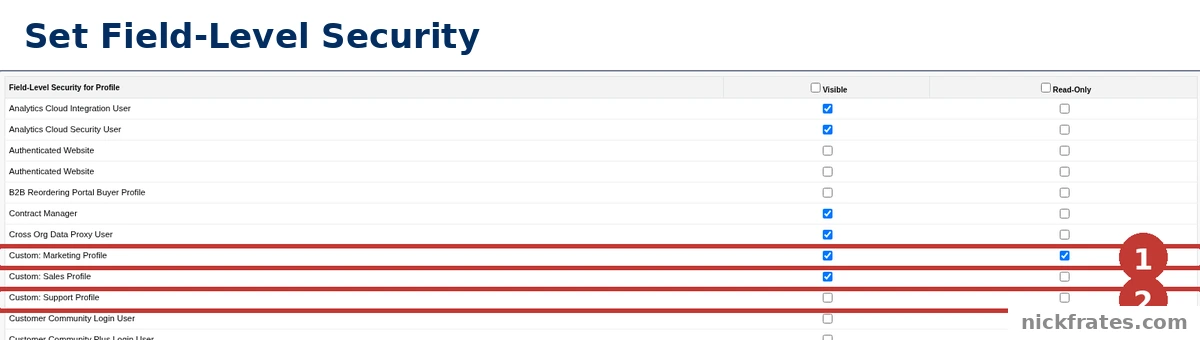
Setup > Object Manager > Contact > Fields & Relationships > Demo Secret Note > Set Field-Level Security.
- Custom: Marketing Profile. Visible and Read-Only are both ticked, so people on this profile can see Demo Secret Note but not edit it.
- Custom: Support Profile. Visible is not ticked, so the field is hidden from this profile.
The New Custom Field wizard has the same grid. It is step 3, Establish field-level security, so you can decide who sees a field while you create it. In my org the defaults had the Support Profile ticked as visible, so I unticked it on the field I was making. My advice: check that step each time instead of trusting the defaults.
How to check who can see a field
The most direct check is to look at the record as the user. In my org I made a test user on the Custom: Support Profile, where Demo Secret Note is not visible, and logged in as that user from Setup. Here is the same Contact, Demo Contact, for me as an admin and for that user:
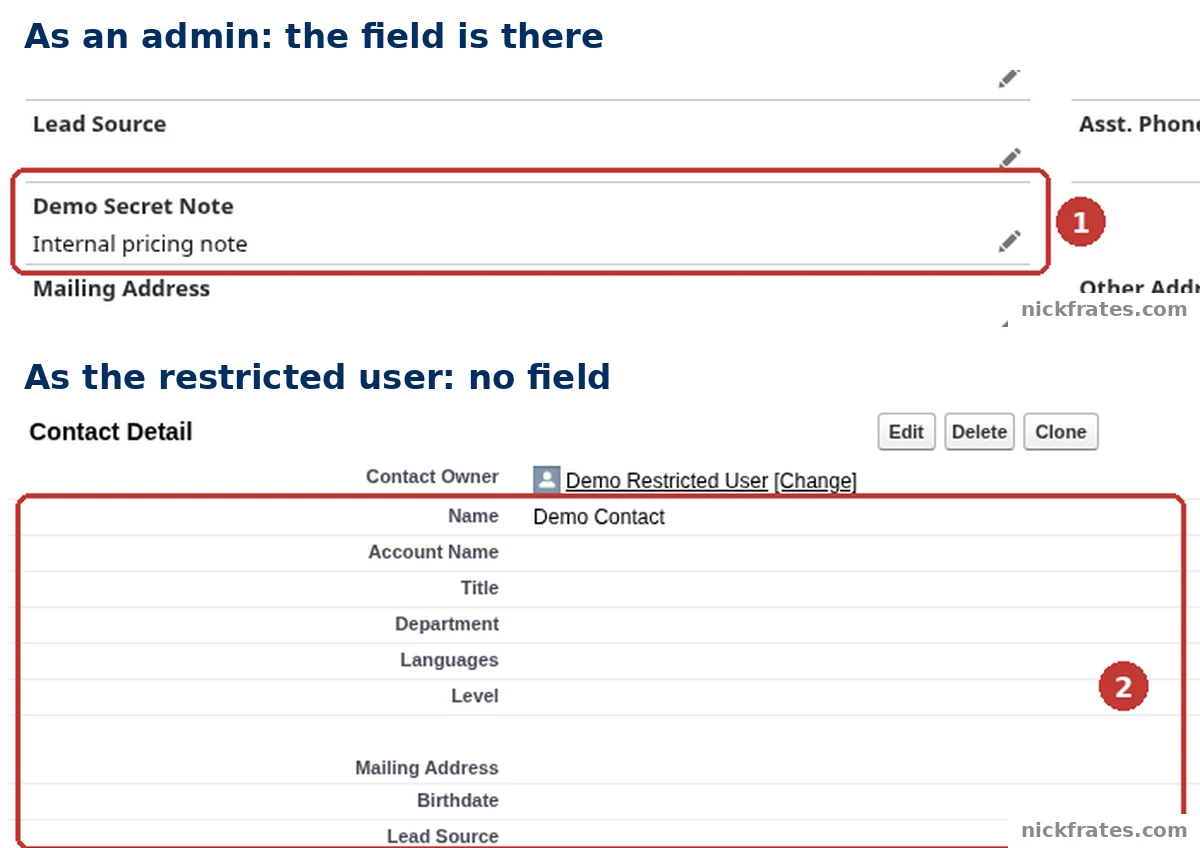
Contacts > Demo Contact > Details, as an admin and as the restricted user: Demo Secret Note is shown, then missing.
- As an admin. The Details tab shows Demo Secret Note with its value, Internal pricing note.
- As the restricted user. The Contact Detail section lists Name, Account Name, Title, Department, Languages, Level, Mailing Address, Birthdate and Lead Source, and there is no Demo Secret Note row at all. The user can open this record only because I made them its owner. Which records a user can open is a separate layer from field access.
This user is in Salesforce Classic in the second picture, because that is what the test profile can use. The field is gone there, as Trailhead describes: field permissions control a field's visibility across the app, not on one page. Logging in as a user needs the Administrators Can Log in as Any User setting, which was off in my org, and I turned it on in Login Access Policies for this test. Only do that if your org's rules allow it. Otherwise read the settings, which Trailhead's tip points to:
- View Field Accessibility. It is a button next to Set Field-Level Security on the field's page. My org's page listed each profile with a Field Access column reading Editable, Read-Only or Hidden. Custom: Marketing Profile showed Read-Only, Custom: Support Profile showed Hidden and System Administrator showed Editable. That matches the grid above.
- Object Manager, Field Access. In Object Manager choose the object and click Field Access. It lists the permission sets, permission set groups and profiles that grant access to one field. In my org, with Demo Secret Note picked, the Permission Sets, Permission Set Groups and Profiles tabs showed 2, 0 and 20, and Demo Read-Only showed Read Access without Edit Access, matching the permission set above. I only checked this page in my own Developer Edition org, so if you don't see it, use the other two checks.
- A user's summary. Trailhead says that from Users you can open a user and click View Summary to see all object, field and user permissions they have and how each is granted.
Cert Lab by Nick Frates
Security is on the Admin exam
The free Admin Cert Lab covers all 8 Admin exam sections with lessons, practice questions that explain every option, and flashcards. Free, no card, no trial.
Start the free Admin Cert Lab →Where field-level security fits with the other layers
Trailhead calls field-level security the second piece of the security puzzle, after object-level access. First you decide who can reach the object, then which fields in it they can see.
Three object-level settings can change the picture, so you should know them:
- View All Fields. Help says users can view all fields and field data in records of that object regardless of assigned field permissions, and they still need at least Read on the object.
- View All Data and Modify All Data. These let users work with all apps and data even if they aren't shared. Help's View All and Modify All overview adds that those users must still be assigned field permissions.
- Sharing. Field permissions control which fields a user sees. Which records appear is a separate question, covered with the other layers in my security model post.
If you want the details of the object permissions that sit under all this, Salesforce lists them in the Help page Object Permissions, and Trailhead's Manage Salesforce Object Access unit walks through them.
Mistakes to avoid
- Hiding a field only with the page layout. Trailhead says a page layout only controls detail and edit pages, so the field can still show in other places such as reports and list views.
- Trusting the defaults on a new field. In my org the wizard's security step had the Support Profile ticked as visible by default, so check who gets Visible before you save the field.
- Forgetting View All Fields. Help says it shows all fields regardless of assigned field permissions, so your field settings don't limit a user who has it.
- Editing profile after profile. Salesforce recommends permission sets and permission set groups for field permissions, so you can reuse them.
FAQ
What is field-level security in Salesforce?
It is the setting that controls whether a user can see and edit the value of a particular field on an object. Salesforce also calls it field permissions.
What is the difference between field-level security and page layouts?
A page layout controls which fields show on detail and edit pages. Field-level security controls access to the field in any part of the app, including related lists, list views, reports and search results.
Where do I set field-level security?
In a permission set or profile (open the object, click Edit and scroll to Field Permissions), or from the field's Set Field-Level Security page in Object Manager. Salesforce recommends permission sets and permission set groups.
How do I check who can see a field?
Open the field in Object Manager and click View Field Accessibility, or use Field Access in Object Manager if your org has it, or open a user and click View Summary.
What permissions do I need to set it?
Help lists both Manage Profiles and Permission Sets and Customize Application.
Do object permissions matter if the field is visible?
Yes. Trailhead calls field-level security the second piece after object-level access. Help also says a user with View All Fields needs at least Read on the object.
Can a user with View All Data see every field?
Help says users with View All Data can view all apps and data even if they aren't shared with them, but they must still be assigned field permissions.
Where to go next
- Salesforce security model explained: profiles, permission sets, roles and sharing in one place.
- Salesforce permission sets and permission set groups: how to reuse the building blocks.
- Administrator certification study guide: security is one of the exam's topics.
- Salesforce Admin certification: cost, exam format and study plan.
- Is the Admin certification worth it?: how to decide.
- Salesforce certification: how it works: where the exams fit.
- To practice security questions for free, try the free Admin Cert Lab.
Hope this helps!
Best,
Nick