Hey friends,
A Salesforce formula field calculates its value from other fields every time the record is viewed. You pick a return type (checkbox, currency, date, date/time, number, percent, text or time), then combine fields with functions like IF, CASE, ISPICKVAL, TEXT and BLANKVALUE. Below are working examples for the jobs that come up most, grouped the way you'll actually search for them.
Function behavior comes from Salesforce Help's Formula Operators and Functions page, and the limits come from the formula limits and cross-object formula pages. The examples are mine, written against standard fields so you can try them in any Developer org.
IF, AND and OR
IF returns one value when a condition is true and another when it's false. Nest them for tiers:
AND is true only if every condition is true. OR is true if any is. You can also write && and ||, which Help lists as alternatives to AND and OR. A checkbox formula that flags open opportunities past their close date:
A checkbox formula returns the condition itself. You don't need IF(condition, TRUE, FALSE), and Help notes that NULL isn't supported as an expression in a checkbox formula.
CASE for buckets
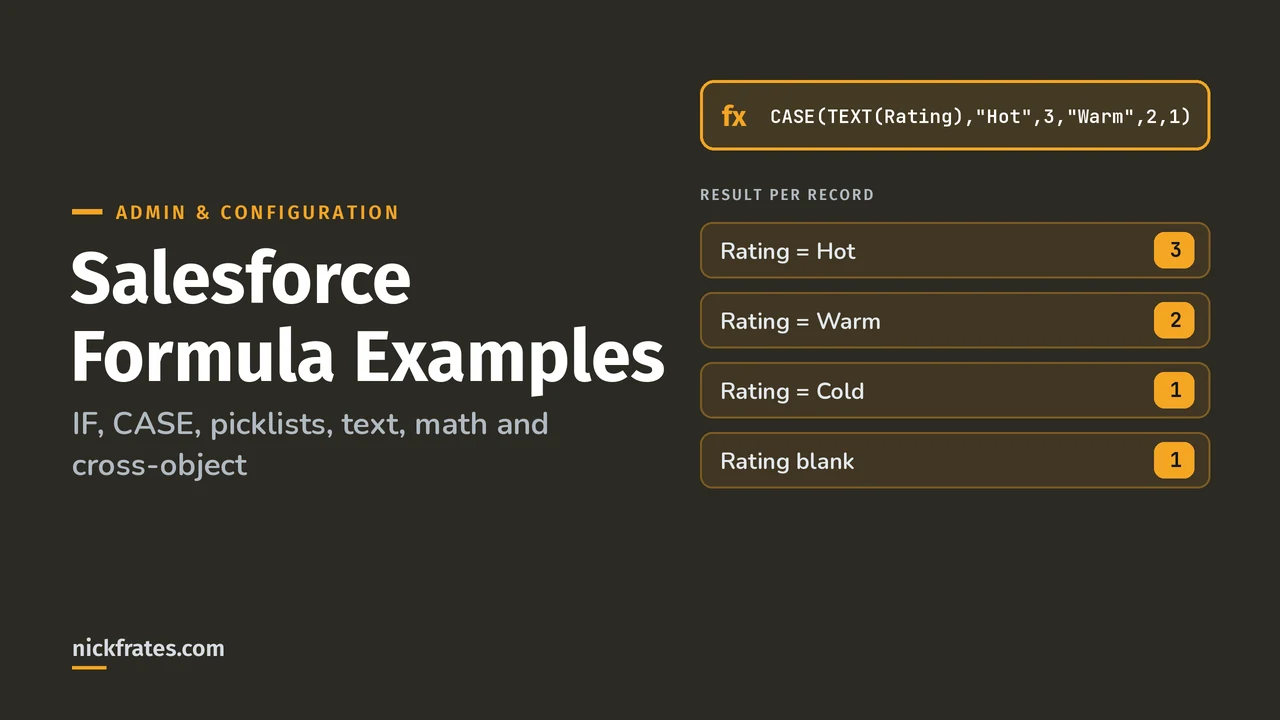
CASE checks one expression against a list of values and returns the matching result, or the last argument (the else result) if nothing matches. It's much easier to read than five nested IFs:
Always include the else result. It's the value for every country you didn't list, including a blank one.
Picklists in formulas: ISPICKVAL and TEXT
Picklists are where I see the most formula errors, because you can't compare a picklist to text with =. Use ISPICKVAL to test a value, or wrap the field in TEXT to turn it into text. Help lists TEXT as converting picklist values to text in formula fields, validation rules and other places.
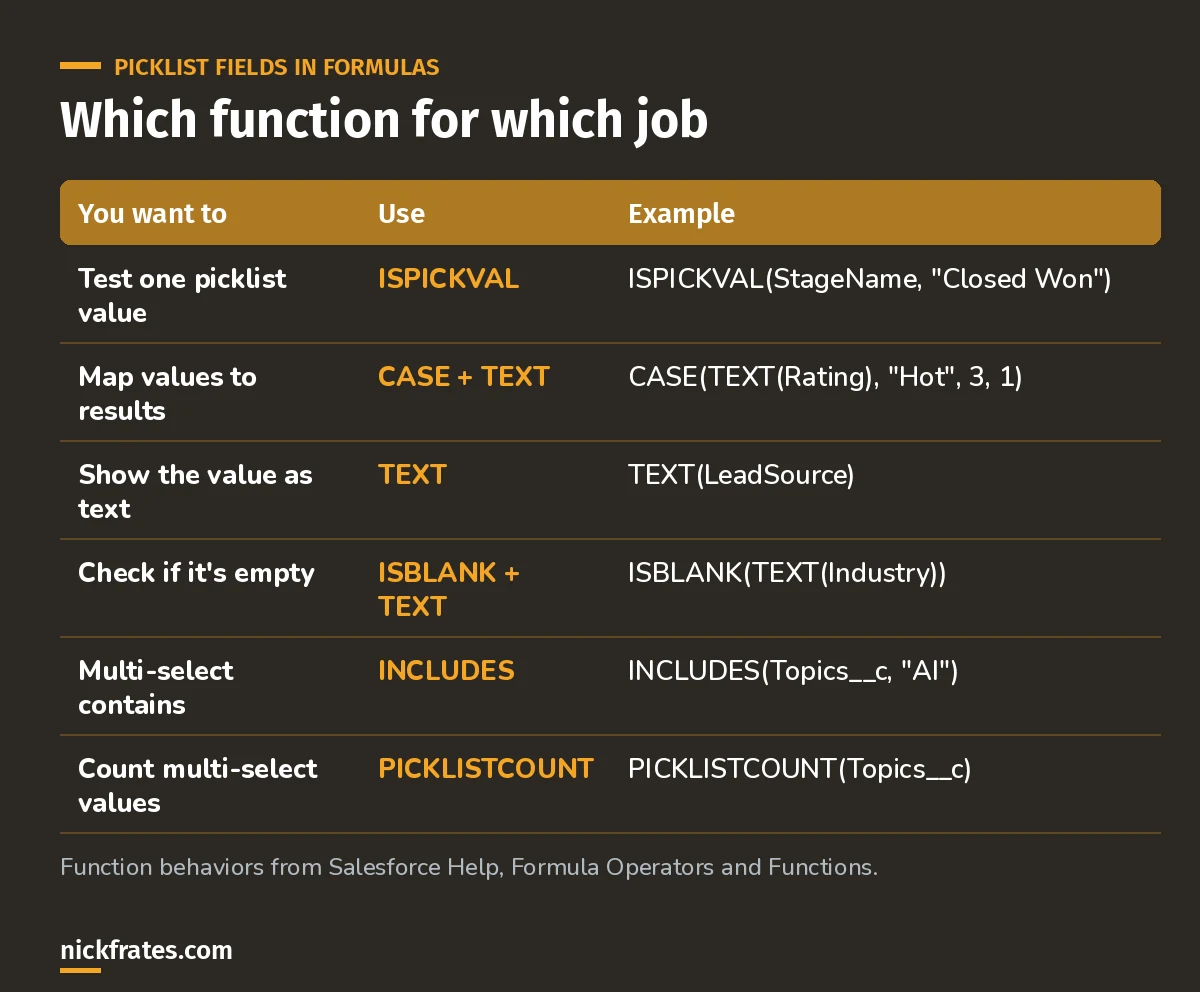
When in doubt, wrap the picklist in TEXT().
For multi-select picklists, INCLUDES checks whether any selected value matches the text you give it, and PICKLISTCOUNT returns how many values are selected.
Handling blanks: ISBLANK and BLANKVALUE
ISBLANK returns TRUE when a field has no value. BLANKVALUE returns a substitute when it's blank. Help says to use these instead of the older ISNULL and NULLVALUE in new formulas, because they also support text fields.
Text functions
Join text with &. The functions I use most: LEFT, RIGHT and MID to pull characters out, LEN for length, FIND for position, SUBSTITUTE to replace text, TRIM to clean spaces, UPPER, LOWER and INITCAP for case, and HYPERLINK to make a clickable link.
URLENCODE matters there: Help explains it replaces characters that aren't allowed in URLs, like spaces, with their encoded form.
Math functions: ROUND, MOD and friends
ROUND rounds to the number of digits you choose. MOD returns the remainder after division. CEILING and FLOOR round up and down to whole numbers, and MAX and MIN pick from a list.
That works because percent fields are stored as decimals: 90% is 0.90. A MOD example, flagging every tenth seat for a volume discount:
Cert Lab by Nick Frates
Formulas are a big part of the App Builder exam
The App Builder Cert Lab covers formula fields, cross-object formulas, roll-ups and validation rules, with practice questions that explain every option.
Start the App Builder Cert Lab, $9.99 →Cross-object formulas
A cross-object formula reads fields from related records by following relationship names with dots. Help's rules:
- You can reach fields up to 10 relationships away.
- It works from the detail side of a master-detail relationship and with lookups.
- You can't reference the related object itself.
Account.Owneris invalid, butAccount.Owner.FirstNameorAccount.OwnerIdare fine. - Cross-object formulas work anywhere formulas do, except default values.
A security gotcha: if you show a cross-object formula on a page layout, users can see that value even if they can't access the related record. Help uses the example of a Case formula showing an Account field. Think about that before you surface sensitive parent data.
Limits you'll hit eventually
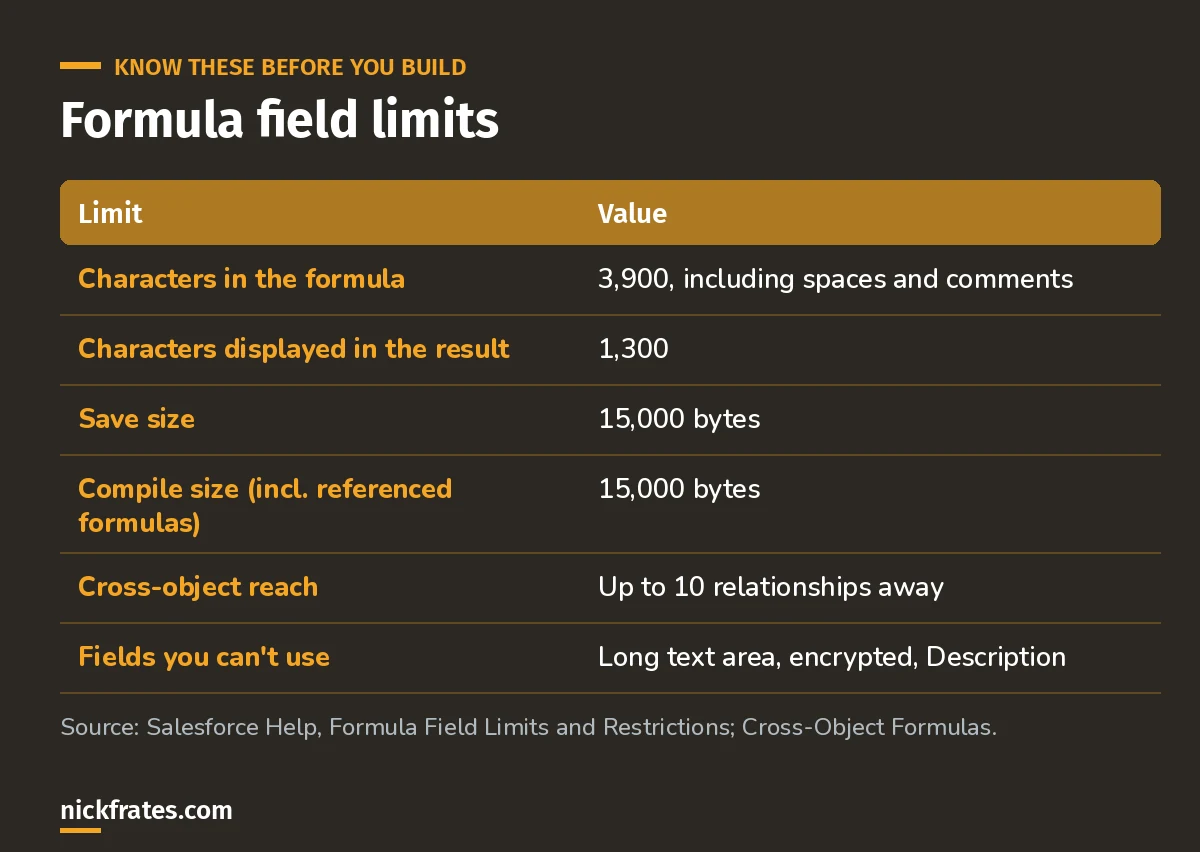
The compile size limit is the one that surprises people.
There's no direct link between characters and compile size. Help points out that functions like TEXT, DATEVALUE, DATETIMEVALUE and DATE add a lot to compile size, and that referencing another formula field pulls its size in too. When a formula gets too big, split it into helper formula fields, or move the logic to a flow or a roll-up.
Two more from the limits page: a field can't depend on a formula that references it, and you can't delete a field that a formula uses. If you need to find every formula that touches a field, my post on finding validation rules with SOQL shows the same idea for rules.
Stuck on a Trailhead formula challenge?
The checks usually fail for one of three reasons: the field's return type doesn't match what the challenge asked for, the API name is different, or a picklist is compared with = instead of ISPICKVAL or TEXT. Check those before you rewrite the logic.
Keep going
- Salesforce validation rule examples: the same functions, used to block bad data.
- Formulas in Salesforce Flow: where formula syntax differs inside flows.
- Salesforce date formulas: TODAY, date math and business days.
- Salesforce report formulas: summary and row-level formulas in reports.
- Two formula tricks: a couple of my favorite shortcuts.
- Platform App Builder practice questions: test yourself on formulas and data modeling.
Cert Lab by Nick Frates
Get the Platform App Builder Cert Lab
Lessons, practice questions and flashcards for all 5 App Builder exam sections, built from the official exam guide.
Start the App Builder Cert Lab, $9.99 →Hope this helps!
Best,
Nick