Hey there,
Salesforce Flow Orchestration is a no-code tool that joins several flows into one process. Each flow becomes a step, and steps are grouped into stages. Interactive steps give work items to people, and background steps run automatically.
It is built for processes that involve several people or teams, like hiring, incident management or mortgage approvals. This guide covers the building blocks, a full build, work assignment, monitoring and common mistakes. The facts come from Salesforce’s Build a Flow Orchestration Trailhead module and its units on steps and flows, building the orchestration and running and monitoring it. Other facts come from the Salesforce Help pages linked in each section. If you’re new to flows, start with my what is Salesforce Flow guide.
Key terms
These terms appear throughout the post. Each one is explained in more detail below.
| Term | Meaning |
|---|---|
| Flow | An automation you build in Flow Builder. It automates one business process. |
| Orchestration | A process that combines and coordinates several flows. |
| Stage | A group of related steps. Stages run one after another. |
| Step | One task in a stage. Each step runs one flow. |
| Interactive step | A step that needs a person. It runs a screen flow. |
| Background step | A step that runs with no person. It runs an autolaunched flow. |
| Screen flow | A flow that shows screens to a user. |
| Autolaunched flow | A flow that runs without screens. |
| Evaluation flow | A flow that decides if a stage or step can start or finish. |
| Work item | A task that an interactive step gives to a user, group or queue. |
| Orchestration Work Guide | A component on a record page. Users complete their work items in it. |
| Run | One time that an orchestration runs from start to end. |
What Flow Orchestration does
A single flow does one job well. For example, it updates a record, shows a screen or sends an email. Real business processes often need many jobs. For example, hiring needs a recruiter, a hiring manager and an email to the candidate. These jobs must happen in the right order, with decisions between them.
Flow Orchestration solves this problem. It combines automated processes into a single workflow without code. First, you build normal flows. Then the orchestration turns each flow into a step and puts the steps into stages.
Salesforce Help’s Compare Flows and Orchestrations page puts the difference neatly. A flow automates a business process. It collects data and does something in your org or an external system. Flows are not tied to one object, but they are record-centric. They focus on records. An orchestration combines and coordinates a series of flows. Orchestrations are user-centric. They focus on people. One orchestration can manage a process across different users and different parts of your organization.
| Flow | Orchestration | |
|---|---|---|
| What it is | An application that automates a business process | An application that combines and coordinates a series of flows |
| Center of gravity | Record-centric | User-centric |
| Built with | Flow Builder | Flow Builder, using flows you already built |
According to Trailhead, an orchestration can:
- Coordinate step-by-step activities across a process
- Show the handoffs between people and teams
- Support parallel workstreams, where several steps run at once
- Combine automated actions with manual work items in one process
- Let you monitor the process and its work items while it runs
The last point is important. If a process uses many separate flows, it is hard to see where a record is stuck. An orchestration gives you one run to check. The run lists every stage and step. The monitoring section explains this.
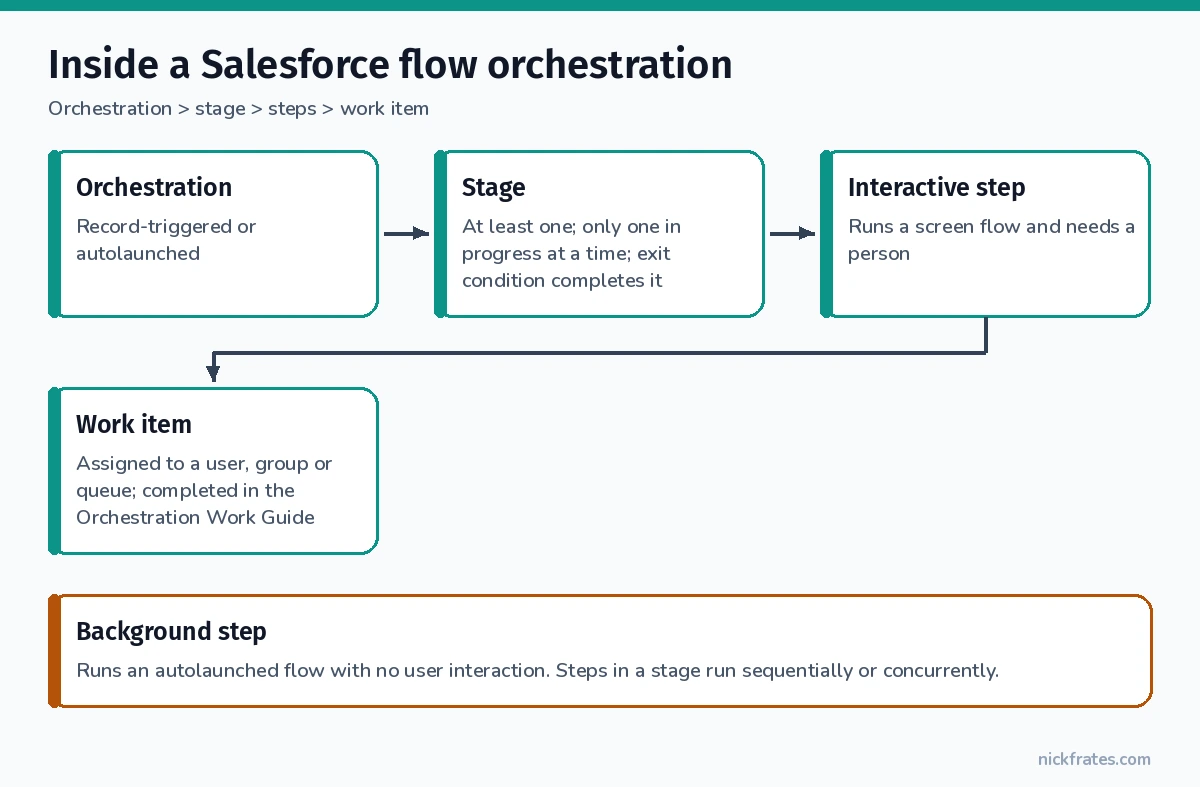
Remember the structure. An orchestration contains stages. A stage contains steps. Every step runs a flow.
The two types of orchestration
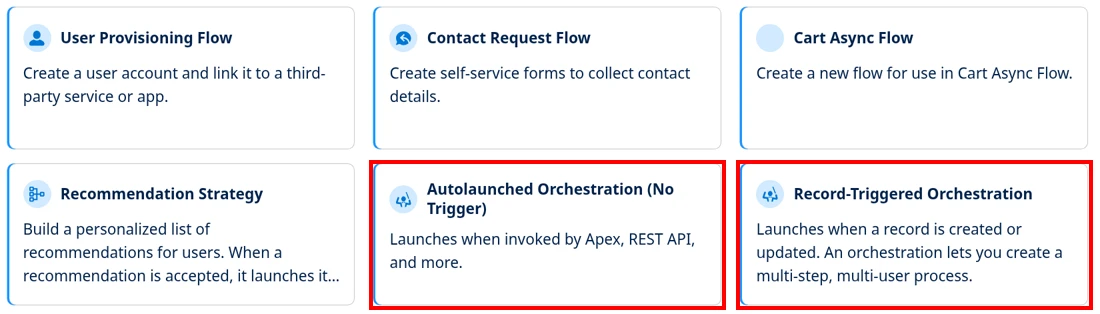
When you create an orchestration you pick one of two types. The type controls how the orchestration starts. It does not change what the orchestration can do.
| Type | How it starts | Typical fit |
|---|---|---|
| Record-triggered orchestration | Runs whenever a specified type of record is created or updated | A process that begins with a record, like a new Position or a new Case |
| Autolaunched orchestration | Invoked from a custom Apex class, the REST API, or a custom URL | A process another system or a developer kicks off on demand |
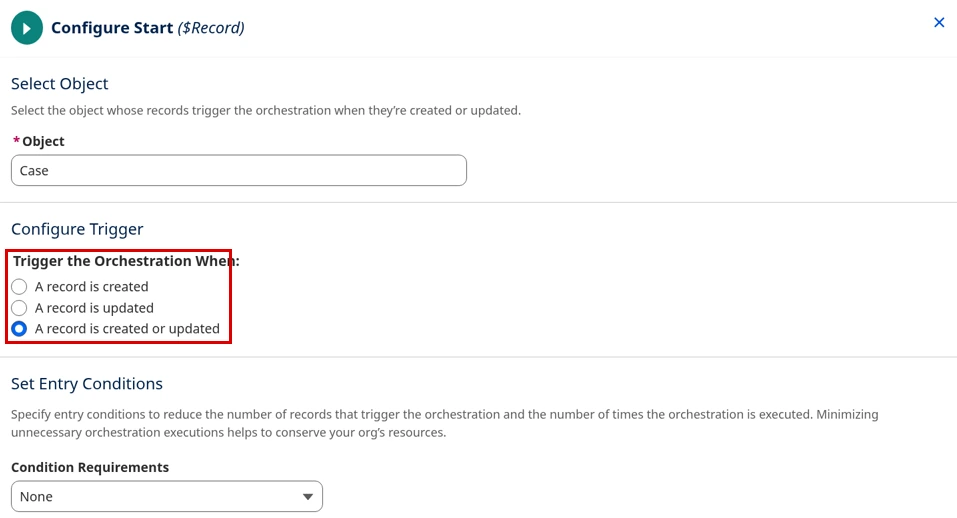
Record-triggered is the type admins build most often. You choose the object and when it starts (when a record is created or updated). You also add entry conditions. Entry conditions are rules that a record must meet before the orchestration starts. Trailhead’s example starts the orchestration when a Position record is created with a Status of New.
Autolaunched orchestrations do not start from a record change. Custom Apex, the REST API or a custom URL must start them.
In the screenshot: In Setup, open Flows, click New Flow, type “orch” in the search box, and both orchestration types appear.
In the screenshot: The Start element is where you choose the object, when the orchestration triggers and the entry conditions.
Building blocks: stages, steps and flows
Every orchestration has three building blocks. When you understand them, the rest is configuration.
Stages. An orchestration needs at least one stage. A stage groups related steps. Stages always run sequentially, and only one stage can be in progress at a time. An exit condition decides when the stage is complete. For example, a stage can complete when all its steps are marked Complete.
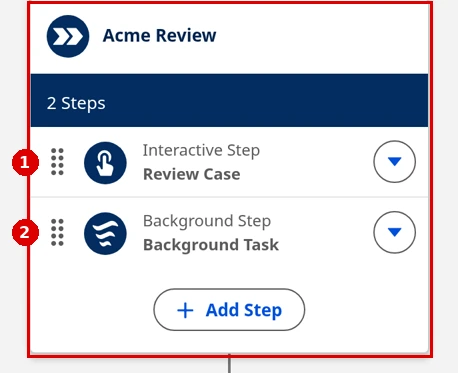
Steps. Steps live inside stages. Unlike stages, steps can run one after another or at the same time. There are two kinds:
| Step type | Needs a person? | Flow it runs | What it does at run time |
|---|---|---|---|
| Interactive step | Yes | Screen flow | Creates a work item and assigns it to a user, group or queue |
| Background step | No | Autolaunched flow | Runs automatically with no user interaction |
Flows. Every step runs a flow, and the step type decides which flow type fits. An interactive step runs a screen flow. A background step runs an autolaunched flow. You can also use an evaluation flow to start a step or to mark an interactive step complete.
Work items. When an interactive step runs, it creates a work item and assigns it to a user, group or queue. Assignees get an email with a link to the record, and they complete the work in the Orchestration Work Guide.
Decisions and connectors. Like a regular flow, an orchestration can branch with Decision elements. A Decision element chooses a path based on a condition. In Trailhead’s hiring example, a Decision checks the recruiter’s score. Then it sends the candidate to the interview stage or the rejection stage.
In the screenshot: One stage on the canvas holding an interactive step (badge 1) and a background step (badge 2). The steps sit inside the stage box.
Evaluation flows: custom start and completion conditions
Most stages and steps use built-in start and finish options. Sometimes you need more than 3 requirements to control a stage or step. In that case, Salesforce Help’s Evaluation Flows in Orchestrations page says to use an evaluation flow.
Creating one. In the New Flow window, select the Evaluation Flow tile. The flow comes with a predefined Boolean output variable named isOrchestrationConditionMet.
How it answers. Initialize the variable to false, and set it to true when your custom conditions are met. Evaluation flows only return a value for isOrchestrationConditionMet; values for any other output variables are discarded.
When it runs. The orchestration checks the conditions again when certain steps in the current stage complete. These are asynchronous background steps, interactive steps and MuleSoft steps. If a condition relies on an evaluation flow, that flow runs. The status decides which check happens:
- For an in-progress stage, whether the stage can be completed
- For each not-started step in the current stage, whether it is ready to start
- For each in-progress interactive step in the current stage, whether it can be marked completed
You can also trigger a re-evaluation of the current stage and its steps by publishing an orchestration event with $Orchestration.Instance.
Running context. In API version 60.0 and later, evaluation flows run only in system context without sharing. This means they can access all data. In API versions 58.0 and 59.0 they always run in system context. In 57.0 and earlier, they follow the flow’s How to Run the Flow setting. So an evaluation flow can see data that the user cannot see.
Plan the process before you open Flow Builder
Trailhead’s module has a full unit on planning. Plan before you build. First, draw the process as a flowchart. Then sort it into steps and stages.
Sort your tasks into steps. For each task, ask whether a person has to do something. If yes, it is an interactive step running a screen flow. If not, it is a background step running an autolaunched flow. Here is how Trailhead sorts its recruiting process:
| Step | Step type | Flow type |
|---|---|---|
| Create the job application | Interactive | Screen |
| Phone screen scheduled | Background | Autolaunched |
| Conduct the phone screen | Interactive | Screen |
| Send a rejection email to a candidate | Background | Autolaunched |
| Schedule an interview with the hiring manager | Background | Autolaunched |
| Conduct the interview with the hiring manager and the candidate | Interactive | Screen |
| Make a hiring decision | Interactive | Screen |
Group steps into stages. Those seven steps fall into three stages: Initial Screening, Hiring Manager Interview, and Candidate Rejected. A Decision element picks which path the process takes after screening.
Build every flow first. Trailhead says this is critical. Build all the required flows before you create the orchestration. Activate each flow when it is done.
Make flows reusable. Do not build one email flow for each message. Build one generic email alert flow instead. Pass the details, like the interview date and time, as input parameters. Trailhead also uses one screen flow for both the recruiter and the hiring manager. Their evaluation criteria are the same. Fewer flows are easier to maintain.
Write descriptions. Use the Description field on each flow to explain your intent and design. This helps anyone who maintains the orchestration later.
How to build a record-triggered orchestration, step by step
This is the full pattern from the Trailhead recruiting example. The example uses the Position object.
1. Create the orchestration.
- From Setup, enter
Flowsin the Quick Find box and select Flows. - Click New Flow. In the New Automation window, search for
orch. - Select Record-Triggered Orchestration. You land in edit mode for the Start element.
2. Configure the Start element.
- For Object, select the object (Position in the example).
- For Trigger the Orchestration When, select A record is created.
- For Condition Requirements, select All Conditions Are Met (AND) and add Status Equals New.
- Save, then give the orchestration a label and a description.
3. Add a stage.
- On the path after the Start element, click the add button and choose Stage.
- Enter a label, like Recruiter Screening, and a description.
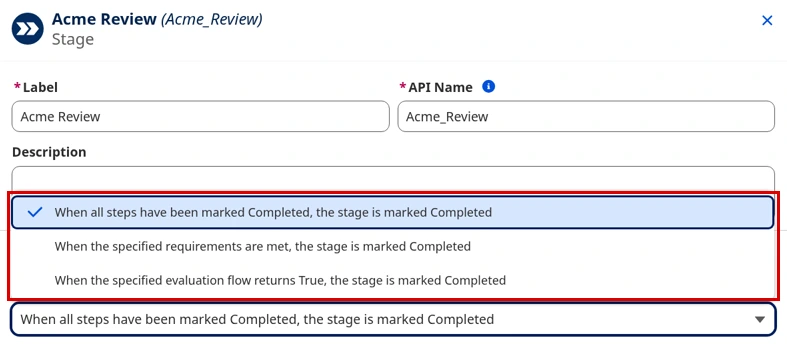
- For Select When to Complete the Stage, choose When all steps have been marked Complete, the stage is marked Completed.
In the screenshot: The stage panel, with the setting that decides when the stage is complete.
4. Add an interactive step.
- In the stage, click Add Step and choose Interactive Step.
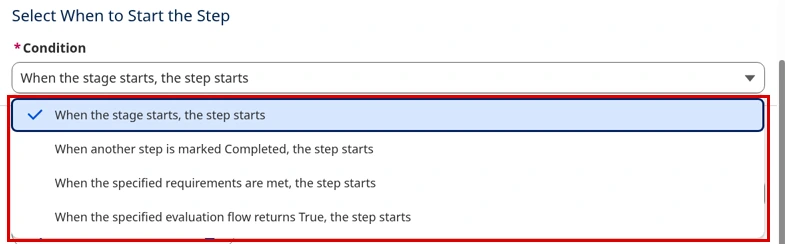
- For Select When to Start the Step, choose When the stage starts, the step starts.
- For Select an Action to Run, pick the screen flow.
- Under Set Input Values, map the flow inputs. For example, use the triggering record’s Record ID.
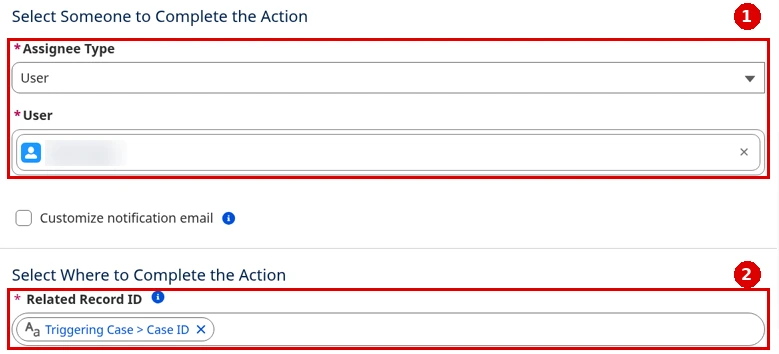
- Set Assignee Type to Resource and pick the triggering record’s Owner ID > Username.
- Set the Related Record ID to the triggering record’s Record ID.
- For completion, choose When the assigned user has completed the action, the step is marked Completed.
In the screenshot: The interactive step panel. The two settings people most often get wrong, the assignee and the Related Record ID, are boxed.
5. Add a background step that waits for the first one.
- Click Add Step and choose Background Step.
- For Select When to Start the Step, choose When another step is marked Complete, the step starts. Then pick the interactive step.
- Pick the autolaunched flow as the action.
- Under Set Input Values, use an output from the earlier step. For example: Recruiter Screening > Create a job application > Outputs > varCandidateId.
In the screenshot: The step start setting. This is where you choose between running in parallel (start with the stage) and running in sequence (start after another step).
In the screenshot: A background step whose input comes from the earlier step’s output, which is how data moves between steps.
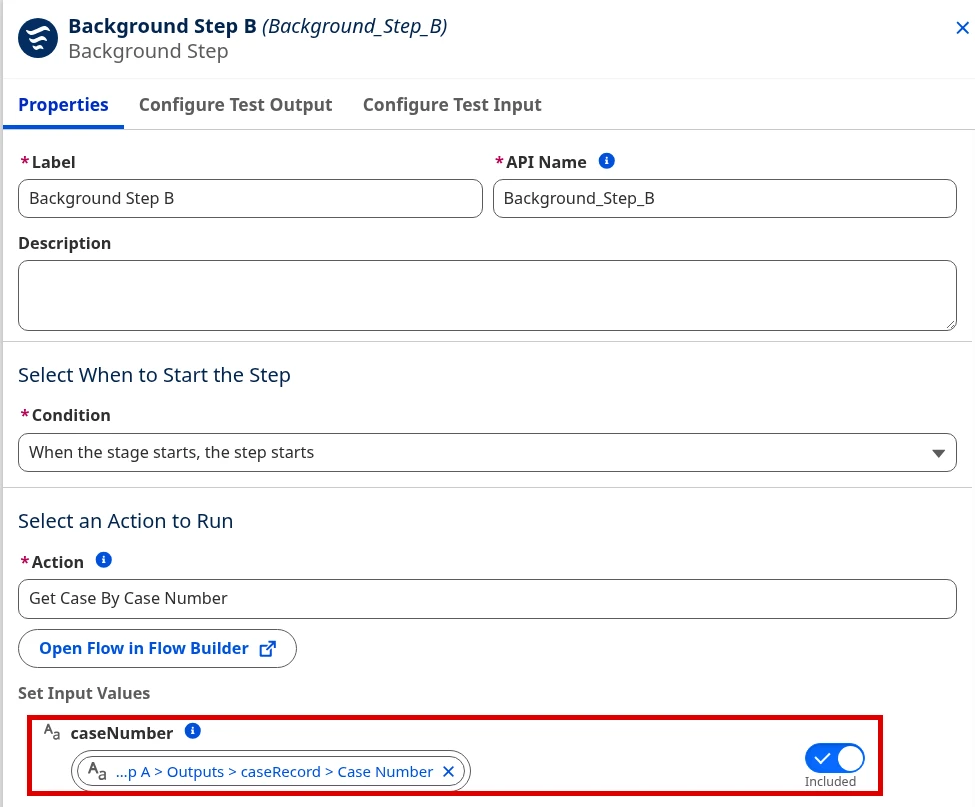
This is how data moves between steps. A flow saves a value in an output variable. A later step reads that value.
6. Add another interactive step if the stage needs one. Trailhead adds a third step, the recruiter phone screen. It starts when the background step completes, and it runs another screen flow. Its screen flow stores the candidate’s score in an output variable.
7. Add a Decision after the stage. Between the stage and the End element, add a Decision. A Decision works like an if-then statement in code. In the example, the Yes outcome checks the score output from the phone screen step:
A score of 3 or more moves the candidate to the Hiring Manager Interview stage. Other scores go to the Candidate Rejected stage.
In the screenshot: A Decision after the first stage, with one connector to each next stage.
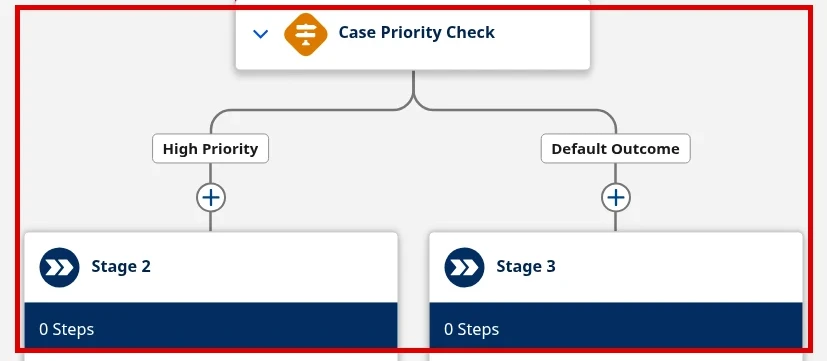
8. Save and activate. Click Save, then Activate. Activation makes the orchestration available to the Work Guide component. Trailhead notes that you may see warnings when you save.
9. Test it. Create a record that meets the entry conditions. In the Trailhead example, you save a new Position with Status New. This starts the orchestration. The first work item then appears in the Work Guide.
Cert Lab by Nick Frates
Get comfortable with Flow first
Lessons, section checks, flashcards and practice questions for the Platform Administrator exam. Free, no card, no trial.
Start the free Admin Cert Lab →Assigning interactive steps the right way
Assignment decides who does the work. Bad assignment can stop a process.
Use Resource, not a typed username. Set Assignee Type to Resource Then the assignee comes from a resource that contains a username. A resource can be a field, variable or formula. For example, use the triggering record’s owner. Trailhead advises against hard-coding usernames in any automation. Hard-coding means typing a specific username into a field.
Use queues and public groups to avoid bottlenecks. You can assign interactive steps to a queue or public group instead of one person. All members of the queue or public group receive an email when the work item is created.
Set the Related Record ID. The Related Record ID links the work to a specific record page. The assignee completes the step in the Orchestration Work Guide component on that page. So that page must have the component.
Pick the completion rule deliberately. Usually, an interactive step is marked Completed when the assigned user completes the action. An evaluation flow can also mark an interactive step complete.
| Assignment choice | When it fits | Watch out for |
|---|---|---|
| Resource (for example, record owner’s username) | The right person depends on the record | The resource must resolve to a username |
| Queue | A team shares the work | Every member is emailed |
| Public group | A group of people can each pick it up | Every member is emailed |
| A single named user | Avoid it | Trailhead advises against hard-coding usernames |
Work items and the Orchestration Work Guide
Every interactive step creates a work item. This is what the assignee experiences:
- The interactive step runs and creates a work item assigned to a user, group or queue.
- The orchestration emails every assigned user a link to the related record page.
- The assignee opens the record and finds the work in the Orchestration Work Guide component.
- They complete the screen flow there, and the step is marked Complete.
The Work Guide component has to be on the record page that the Related Record ID points to. Without it, the email link opens a page with no work on it.
Setting up the Work Guide. Salesforce Help’s Make Assigned Work Items Accessible on a Record Page page covers the setup. You need the Customize Application permission to create and save Lightning pages. Then:
- Open a record page for the record type that your interactive steps use. Click the gear and select Edit Page.
- Or build a new page. In Setup Quick Find, enter App Builder and select Lightning App Builder. Click New and choose Record Page. Enter a label (up to 80 characters) and pick a template.
- Under Components, drag Orchestration Work Guide onto the page.
- Set the optional properties you want (below).
- Save, and activate the page if prompted.
- Activate your orchestration.
| Work Guide property | What it does |
|---|---|
| Title | The component name users see at run time |
| Sort Order | Default sort order for work items |
| Show Orchestration Run Name / Stage Name / Step Name | Shows that name for each work item |
| Hide Work Guide When Empty | Hides the component when the user has no assigned work items |
| Automatically Open Next Work Item | Opens the next work item from the same run after one is completed. By default, the component shows a refreshed list instead. |
In the screenshot: The record page in Lightning App Builder with the Orchestration Work Guide component on it.
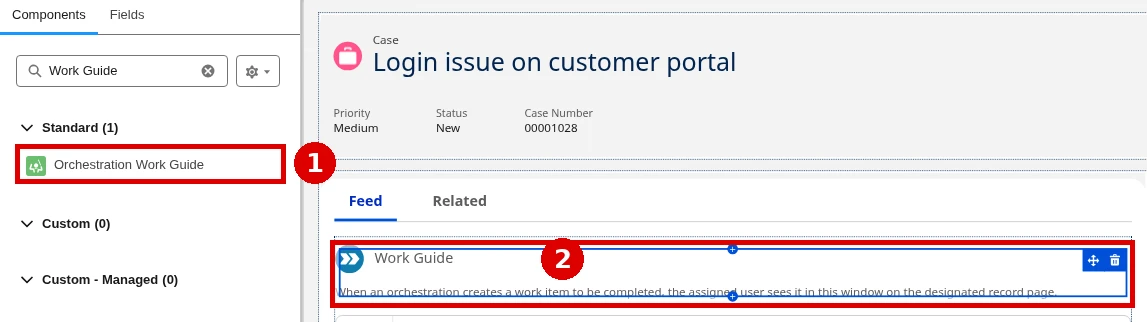
Finding work items in a list. Admins and users can also open Orchestration Work Items from the App Launcher. The list views include All Work Items and All Open Work Items. Assigned users can see and access only their own pending work items there. Click a work item to jump to it on its record page.
Monitoring, canceling and debugging runs
Admins monitor runs on the Orchestration Runs tab. Open the App Launcher and search for Orchestration Runs.
| Status | Meaning |
|---|---|
| Not Started | The orchestration hasn’t started |
| Started | The orchestration started |
| Completed | The orchestration completed |
| Canceled | The orchestration was manually canceled |
| Error | The orchestration, a stage, a step, or the flow behind a step hit an error |
Find bottlenecks. Click a run, then click the Related tab. You see its stages, steps and run history. The history shows what is complete, who completed it and how long it took. Trailhead suggests that you use this to find bottlenecks. A bottleneck is a point where work slows down or stops.
Full history and custom comments. Per Salesforce Help’s View Orchestration Runs page, under Orchestration Run Log click View All for the full run history. Who can see runs depends on sharing settings. You can also add your own comments to the Orchestration Run Log. Use variables in the flows that your steps call.
Cancel a run. To stop a run, click the run’s dropdown arrow and choose Cancel Orchestration. All pending work items are terminated.
Debug a run. For a run in progress, choose Debug Orchestration from the dropdown. A blue path shows where the run is. Open Debug Details to see each step or decision that ran. This option is not available for runs related to a flow approval process.
When a run shows Error, check the stage, the step and the flow inside the step. The error can come from any of them.
Versions and activation
An orchestration can have several versions, but only one is active at a time. To change a live orchestration, click Save As New Version, click Save, then click Activate.
Activating the new version automatically deactivates the previous one. You do not need to turn off the old version yourself.
Limits and considerations
Salesforce Help’s Flow Orchestration Limits and Considerations page lists three sets of limits to consider: orchestration limits, flow limits and Apex governor limits. It also covers general, evaluation-flow and security considerations.
The per-org limits on the General Flow Orchestration Limits page, for Enterprise, Unlimited, Performance and Developer Editions:
| Limit | Value |
|---|---|
| Versions per orchestration | 50 |
| Active orchestrations | 2,000 |
| Total orchestrations | 4,000 |
Orchestration and Flow Approval Processes
Flow Approval Processes can replace classic Approval Processes. They use the same building blocks: stages, background steps and Decision elements. Salesforce Help’s Considerations for Migrating from Approval Processes page lists the known gaps:
| Feature | Approval Processes | Flow Approval Processes |
|---|---|---|
| Submitting | Submit for Approval button and Approval History related list | No button needed for a record-triggered flow approval process; otherwise a custom button referencing it |
| Entry conditions | Set on the approval process; unmet conditions show “No applicable approval process was found” | In the Start element of a record-triggered flow approval process; for autolaunched, background steps in the first stage followed by a Decision |
| Submitter picks approver | Supported if enabled | Not supported; approvers are defined in the process (a variable is recommended) |
| Recall | If enabled for submitters | Submitters can recall their own; users with Approval Admin can recall any in-progress approval |
| Recall actions | Recall Actions section in Setup | A recall path on the Start element: 1 stage, background steps only |
| You must define an email template | Default notifications, or text templates per approval step |
Remember: Debug Orchestration is not available for runs related to a flow approval process.
When to use Flow Orchestration
Trailhead says that any business process with multiple roles and functions is a good fit. Its examples are incident management, the sales cycle and mortgage approvals. The module’s hands-on project is employee recruiting.
A process may need an orchestration when:
- Several people or teams each do part of the work, in a set order
- Some tasks need people and other tasks are automatic
- Some work can happen at the same time
- You need to see where each run is stuck and who owns the work
For a single automated action on one record, a regular record-triggered flow is simpler. My Flow Builder guide and screen flow guide cover the flows you’ll plug into your steps.
Org note: Trailhead’s hands-on badge needs a special Developer Edition org with Flow Orchestration. Use the org that the module links to.
Common Flow Orchestration mistakes
- Building the orchestration before the flows. Build and activate every flow first.
- Hard-coding a username as the assignee. Use a Resource like the record owner’s username, or a queue.
- Assigning everything to one person. Use queues and public groups instead.
- Forgetting the Work Guide. Without the Orchestration Work Guide component on the related record page, assignees have nowhere to do the work.
- Pointing the Related Record ID at the wrong record. The work shows up on whichever record page it names.
- Using the wrong flow type in a step. Interactive steps need screen flows; background steps need autolaunched flows.
- Expecting stages to run in parallel. Only one stage is in progress at a time. Put parallel work in steps inside one stage.
- Skipping entry conditions. Add entry conditions so the orchestration starts only for the right records.
- One flow per email. A generic, parameterized flow is easier to maintain.
- Cramming complex conditions into stage settings. For more than 3 requirements, use an evaluation flow.
- Forgetting evaluation flows run in system context. In API 60.0 and later they run without sharing and see all data.
- Forgetting which version is live. Only one version is active at a time, and activating a new one deactivates the old one.
Flow skills show up on more than one exam; my Salesforce Flow certification guide explains where.
Practice questions
Question 1. A process needs a manager to review a record, then an email to go out automatically. Which steps fit?
- A. Two background steps
- B. An interactive step with a screen flow, then a background step with an autolaunched flow
- C. Two interactive steps
- D. One stage per task with no steps
Show the answer and explanation
Answer: B. The review needs a person, so it is an interactive step running a screen flow. The email needs no person, so it is a background step running an autolaunched flow.
Question 2. An admin wants two approvals in the same phase to happen at the same time. What should they do?
- A. Put each approval in its own stage
- B. Put both steps in one stage and start both when the stage starts
- C. Use two orchestrations
- D. Use a Decision element
Show the answer and explanation
Answer: B. Only one stage is in progress at a time, so parallel work belongs in steps within one stage.
Question 3. Work items go out, but assignees say the record page shows nothing to do. What is the most likely fix?
- A. Reactivate the orchestration
- B. Add the Orchestration Work Guide component to the record page named by the Related Record ID
- C. Change the step to a background step
- D. Delete old versions
Show the answer and explanation
Answer: B. Assignees complete work in the Work Guide component on the related record page.
Question 4. A process must start when another system calls Salesforce through the REST API. Which type fits?
- A. Record-triggered orchestration
- B. Autolaunched orchestration
- C. Screen flow
- D. Scheduled flow
Show the answer and explanation
Answer: B. Autolaunched orchestrations are invoked from Apex, the REST API or a custom URL.
Question 5. An admin needs to stop an in-progress run and clear its pending work. What should they do?
- A. Deactivate the orchestration
- B. Cancel Orchestration from the run’s dropdown on Orchestration Runs
- C. Delete the work items one by one
- D. Debug the orchestration
Show the answer and explanation
Answer: B. Canceling a run terminates all its pending work items.
Question 6. A step should start only when five field conditions are all true. What should the admin use?
- A. A Decision element
- B. An evaluation flow that sets isOrchestrationConditionMet
- C. A second stage
- D. A background step
Show the answer and explanation
Answer: B. Help says to use an evaluation flow when you need more than 3 requirements to control stage and step execution.
Cert Lab by Nick Frates
Go deeper on automation for Admin II
Lessons, section checks, flashcards and practice questions for the Platform Administrator II exam.
Start the Platform Administrator II Cert Lab for $9.99 →FAQ
What is the difference between a flow and a flow orchestration?
A flow automates one process. An orchestration combines several flows into stages and steps, and can assign work to people along the way.
What are the two types of flow orchestration?
Record-triggered, which runs when a record is created or updated, and autolaunched, which you invoke from Apex, the REST API or a custom URL.
What is the difference between an interactive step and a background step?
An interactive step runs a screen flow and assigns a work item to a user, group or queue. A background step runs an autolaunched flow with no user interaction.
Where do users complete orchestration work items?
In the Orchestration Work Guide component on the related record page.
Can two stages run at the same time?
No. Stages run sequentially and only one is in progress at a time. Steps inside a stage can run at the same time.
How do I see where an orchestration run is stuck?
Open Orchestration Runs from the App Launcher, click the run and check the Related tab for its stages, steps and run history.
How many versions can an orchestration have?
Up to 50 versions per orchestration, per Salesforce Help’s general limits page, with only one active at a time.
When do I need an evaluation flow?
When you need more than 3 requirements to control when a stage or step starts or completes.
What happens to work items if I cancel a run?
All pending work items are terminated.
Hope this helps!
Best,
Nick