Hey friends,
A while back I wrote How to Quickly Document Your Flows. The trick: pull a flow's XML down into VS Code, copy it, and paste it into ChatGPT or Claude so the AI can explain or document it.
A reader asked me about it recently, and it made me realize something. That trick still works, but there's a much better way to do it now.
Set up the Salesforce CLI and Claude Code once, and you can just ask the AI about your flows right inside your project. No copying. No pasting. No 3,000-line XML file stuffed into a chat window. Prefer a desktop app with no terminal? See how to connect Codex to Salesforce in the ChatGPT desktop app.
Here's exactly how to set it up, step by step.
Why this is better than copy-pasting XML
Claude Code is an AI assistant that runs in your terminal (or inside VS Code). When you start it in your Salesforce project folder, it can read the files in that folder. That includes everything you've retrieved from your org:
- Flows (
.flow-meta.xml) - Apex classes and triggers
- Custom objects and fields
- Pretty much any metadata you pull down
So instead of copying one file at a time, you ask in plain English:
- “Explain what this flow does.”
- “Find bugs or risky logic in this flow.”
- “Document this flow for an admin who's never seen it.”
And because it can see the whole project, it can connect the dots. If your flow calls an Apex action, it can open that class too. That's something the copy-paste method just can't do.
What you'll need
- Visual Studio Code (free)
- The Salesforce Extension Pack for VS Code (free)
- The Salesforce CLI (free)
- Claude Code (needs a paid Claude plan, like Pro or Max, or a Claude Console account. The free Claude plan doesn't include it.)
- A Salesforce org you can log into. I'd strongly suggest a sandbox or Developer Edition org.
Step 1: Install VS Code
Go to the official site, code.visualstudio.com, and grab the installer for your computer (Windows, Mac, or Linux). Run it and accept the defaults.
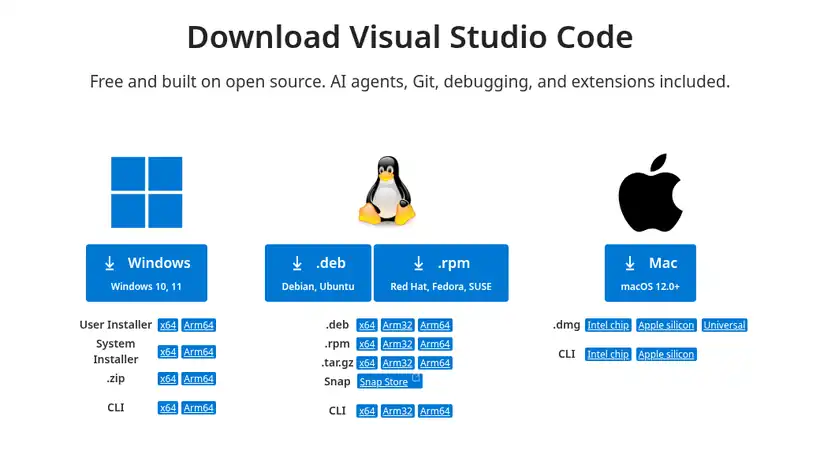
The official VS Code download page (code.visualstudio.com/download).
Step 2: Install the Salesforce CLI
Head to the Salesforce CLI page on developer.salesforce.com and download the installer for your operating system. There are installers for macOS (Apple Silicon and Intel), Windows (x64 and ARM64), and Linux.
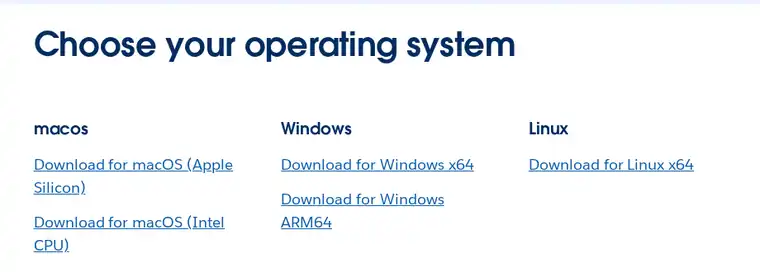
Pick the download that matches your computer.
Once it's installed, open a new terminal window and check that it worked:
sf --version
If you see a version number, you're good. If you get “command not found,” close and reopen your terminal (or restart VS Code) and try again. Salesforce's official install guide covers the other options, like installing with npm.
Step 3: Install the Salesforce Extension Pack
In VS Code, open the Extensions panel (the four-squares icon on the left), search for Salesforce Extension Pack, and click Install. Make sure the publisher is Salesforce. Here's the official Marketplace listing.
The extension pack uses the Salesforce CLI under the hood, which is why we installed the CLI first.
Step 4: Install Claude Code
Anthropic's official install docs have the current commands. At the time I'm writing this, the recommended “native install” is one line in your terminal.
macOS, Linux, or WSL:
curl -fsSL https://claude.ai/install.sh | bash
Windows PowerShell:
irm https://claude.ai/install.ps1 | iex
The docs also list Homebrew (brew install --cask claude-code) and WinGet (winget install Anthropic.ClaudeCode) if you prefer those.
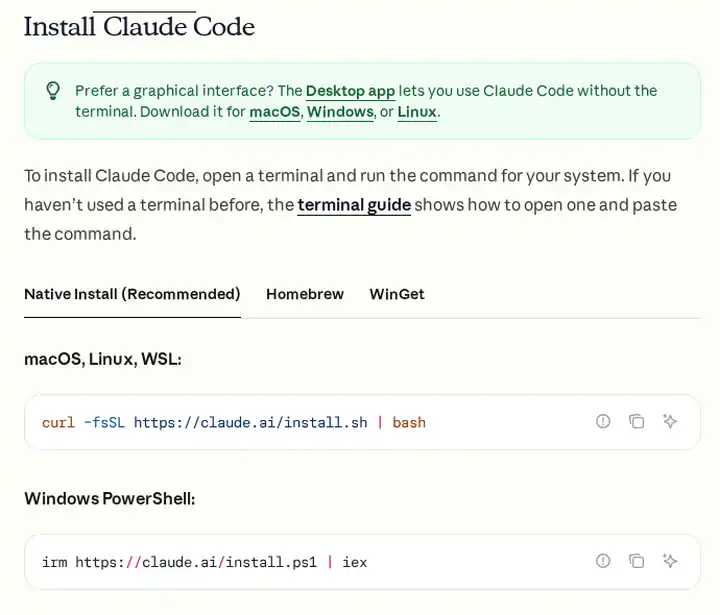
The install section of the official Claude Code docs. Always copy the command from there, since it can change.
Then open a new terminal and confirm it's installed:
claude --version
The first time you run claude, it'll open your browser so you can log in to your Claude account.
Prefer buttons over a terminal? There's also an official Claude Code extension for VS Code that gives you a chat panel right in the editor. Details are in the VS Code section of the docs.
Step 5: Salesforce CLI basics (create a project, log in, pull your flows)
Open the terminal in VS Code (Terminal > New Terminal) and run these one at a time.
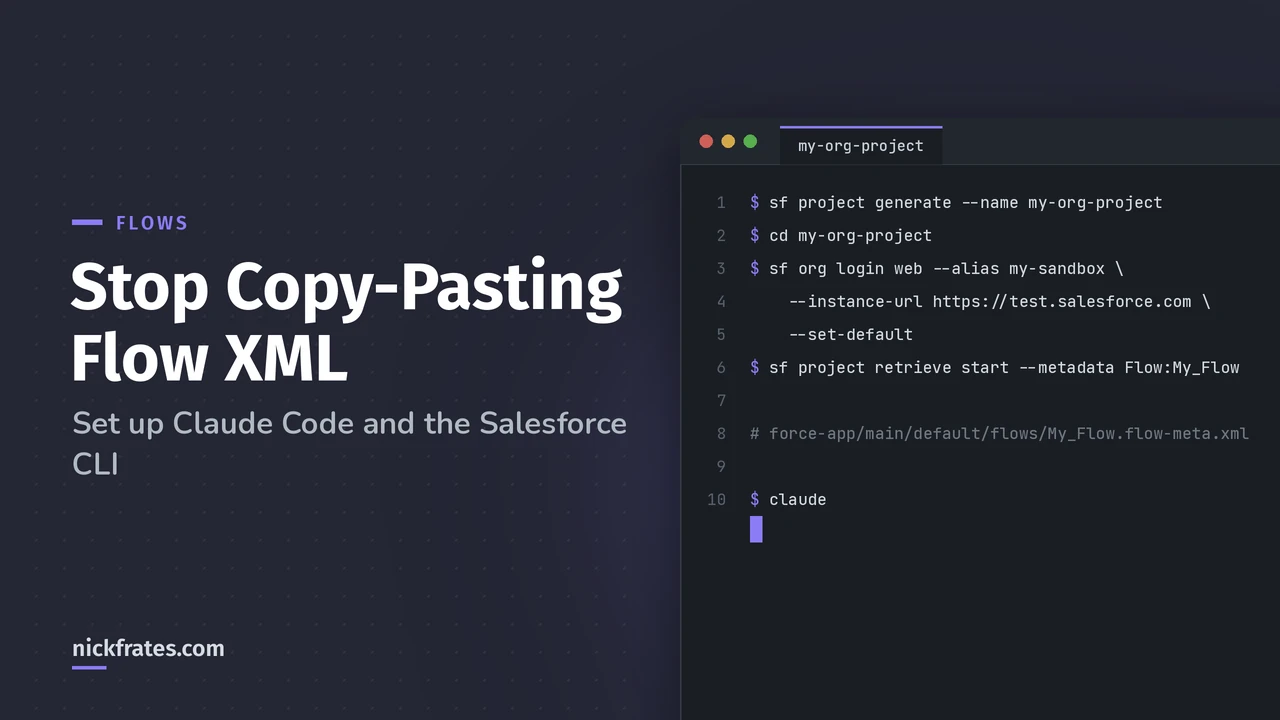
1. Create a project (this makes a folder with the standard Salesforce DX structure):
sf project generate --name my-org-projectcd my-org-project
2. Log in to your org. This opens a browser window. Give the org a short alias and make it your default:
sf org login web --alias my-sandbox --instance-url https://test.salesforce.com --set-default
Use https://test.salesforce.com for sandboxes. For production or a Developer Edition org, leave off --instance-url (it defaults to login.salesforce.com). If your company uses a My Domain login, use that URL instead.
3. Retrieve a flow. Use the flow's API name, not its label:
sf project retrieve start --metadata Flow:My_Flow
Or grab all of your flows at once:
sf project retrieve start --metadata Flow
Your flows land here:
force-app/
You can pull other metadata the same way. For example, this pulls every Apex class and custom object so Claude has more context:
sf project retrieve start --metadata ApexClass CustomObject
Step 6: Ask Claude Code about your flow
From inside your project folder, start Claude Code:
claude
Now just ask. Here are some prompts I like:
- “Explain what
force-app/does in plain English. What triggers it, what does it check, and what does it update?”main/ default/ flows/ My_Flow.flow-meta.xml - “Review this flow for bugs. Look for missing null checks, DML or queries inside loops, hard-coded IDs, and paths that never end.”
- “Write documentation for this flow for an admin: purpose, trigger, entry criteria, each decision and what happens on each path, and the fields it touches. Save it as
docs/My_Flow.md.” - “Which of my flows update the Opportunity object? List them with a one-line summary of each.”
- “This flow calls an Apex action. Find that class and explain how the two work together.”
- “On a scale of 1 to 10, how well built is this flow? What would you change first?”
- “Create a Mermaid diagram of this flow's logic.”
Claude Code will ask for permission before it creates or edits files, so you stay in control. And if you only want answers, just say “don't change any files.”
Tips and tricks
- Use a sandbox. Retrieving metadata is read-only, but get in the habit of pointing your tools at a sandbox, not production.
- Set a default org. If you skipped
--set-default, runsf config set target-org my-sandboxfrom your project folder. Now you don't have to type--target-orgon every command. - See which orgs you're connected to:
sf org list. - Use .forceignore. Your project already has a
.forceignorefile. Add paths there for anything you don't want the CLI to touch. Salesforce has a short guide on how it works. - Re-retrieve before you ask. Your local files are a snapshot. If someone changed the flow in the org, pull it again first so Claude is reading the latest version.
- Use
--help. Every command has it, likesf project retrieve start --help. Or runsf commandsto see everything. - Keep the CLI updated. Run
sf updateevery so often if you used the installer. (If you installed with npm, update with npm instead.) - Give Claude some project context. Run
/initinside Claude Code to create aCLAUDE.mdfile. Add notes like “This is a Salesforce DX project. Flows are in force-app/main/default/flows.” Claude reads it every session. - Use Git. Commit your retrieved metadata. Then you can see exactly what changed between retrieves, and undo anything you don't like.
Stuck installing something? Ask the AI.
This is my biggest tip. When an install fails, don't spend an hour on forums.
Copy the exact error message and paste it into an AI. If Claude Code is already working, ask it right there in the terminal. If it isn't installed yet, use a chat AI like Claude or ChatGPT. Tell it:
- Your operating system (Windows, Mac, Linux)
- What you were trying to install
- The command you ran
- The full error text
Nine times out of ten you'll get a fix in a minute or two. It's usually a PATH issue or an old terminal window that needs to be reopened. Claude Code also has a troubleshooting page, and claude doctor will check your install for you.
The old XML trick still works
If you can't install Claude Code at work, or you just want a quick answer on one flow, the copy-paste method from my original post still does the job. Retrieve the flow, open the XML, paste it into your AI of choice, and ask away.
But if you're going to do this more than once or twice, take 20 minutes and set up the CLI and Claude Code. You'll never go back.
Hope it helps.
Nick