Hey everyone,
To use Agentforce in Slack, add Slack actions to your agent, connect the agent to Slack in Agentforce Builder, activate it, and give users access with a permission set. Then a Slack admin approves it in Slack’s Organization settings.
It’s two halves: Salesforce setup, then Slack setup. I’m following Salesforce’s Trailhead module Agentforce Configuration for Slack Deployment, which assumes your org is already connected to Slack through its Quick Start.
What can an agent actually do in Slack?
Two kinds of things. People can find agents in the Agentforce tab in Slack, read each agent’s bio, and message it directly.
And the agent itself can take Slack actions. Trailhead lists 16. Here are the ones I’d look at first:
| Action | What Trailhead says it does |
|---|---|
| Search Slack | Performs search on Slack |
| Summarize a Slack Channel | Finds relevant messages, files, and sources in a channel for a timeframe |
| Create / Update / Share a Slack Canvas | Creates, appends to, or shares a canvas |
| Send a Slack Direct Message | Sends a DM |
| Reply to a Slack thread | Replies in a thread |
| Create a Salesforce Channel in Slack | Creates a channel for a Salesforce record |
Trailhead’s use cases are mostly internal: HR agents answering benefits questions, IT agents handling help-desk tickets, and so on.
Is it secure to put an agent in Slack?
Trailhead says the Einstein Trust Layer and Slack’s security standards cover things like secure data retrieval, data masking, zero data retention, and access controlled by workspace owners and admins.
It also says agents respect standard Salesforce access controls, like permissions, field-level security, and sharing settings. Slack respects those permissions by default.
What do I set up on the Salesforce side?
Four things, per Trailhead unit 2.
1. Install the Slack connected app. In Setup, search Quick Find for Connected Apps OAuth Usage. On the Slack row, click Load Actions, then Install, then Install again to confirm.
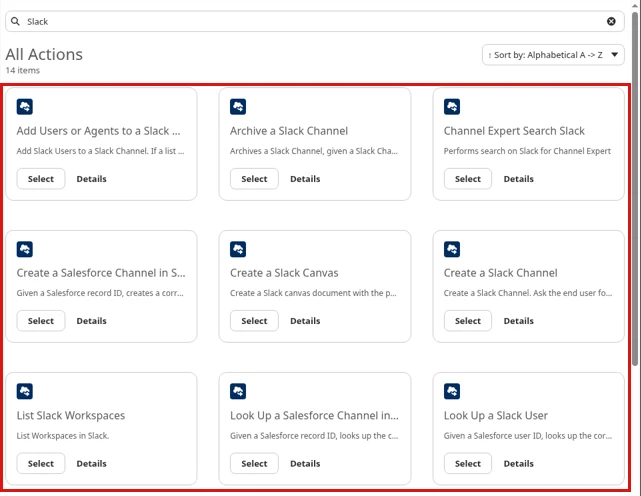
2. Add Slack actions. In Agentforce Studio, open your agent and a subagent. Under Actions Available For Reasoning, add a line, click Select action, then Add from Asset Library. Pick your Slack actions, click Add to Agent, and save.
3. Tell it when to use them. Trailhead notes that new actions have no context until you add instructions. Its example: “Always ask for a title when a user asks you to create a canvas.”
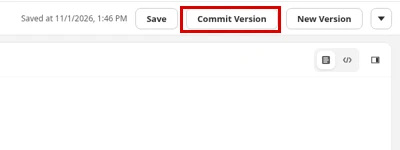
4. Connect and activate. Hover over Connections in the Explorer, click +, then Add connections. Select Slack and click Add to Agent. Then Commit Version and Activate.
Why does my canvas action fail in Preview?
Because Preview runs in Salesforce. Trailhead’s example hits an error creating a canvas in Preview and says that’s expected: it needs to be done in Slack.
So test the Slack actions in Slack. (No point debugging something that isn’t broken.)
How do users get access?
With a permission set, which Trailhead calls best practice. In Setup, open the permission set, find Agent Access, click Edit, add your agent to Enabled Agents, and save.
Agentforce Specialist Cert Lab
Agent actions are the core of the exam
Get exam-style questions on subagents, actions, and channels like Slack, each answer explained, plus hands-on tasks in your own org.
Start the Agentforce Specialist Cert Lab for $9.99 →What does the Slack admin need to do?
Approve it. Trailhead unit 3 says the connection request shows up in your Slack org. Someone with Slack org and workspace owner or admin privileges, plus a Salesforce admin system role, approves it:
- Click your Slack org name, then Tools & settings > Organization settings.
- Open the Salesforce | Agentforce tab.
- Click Review next to the agent, check its permissions, and click Allow.
- Pick the workspaces, add the agent, and click Save.
Users then go to Tools > Agents in Slack. Refresh Slack if it was already open.
Later, admins can manage the agent’s workspaces, member permissions, and agent permissions from that same tab.
How do I change the agent once it’s live?
Deactivate it first. Trailhead says that to modify a live agent, like adding or removing actions, you deactivate it, make your changes, then reactivate it.
Is this on the Agentforce Specialist exam?
Yes. The exam guide has an AI Agents objective on connecting agents to channels, and it names Slack. It also lists experience with Slack itself as not expected, so focus on the channel setup, not Slack admin depth.
Related: Agentforce Employee agent, Agentforce permissions setup, and the Salesforce certification study guides.
Agentforce Specialist Cert Lab
Get exam-ready for the AI Agents section
Practice every exam section with explained answers, including channel and action scenarios.
Start the Agentforce Specialist Cert Lab for $9.99 →The key idea here: set the agent up and give access in Salesforce first, then a Slack admin approves it and picks the workspaces.
Hope this helps!
Best,
Nick