Hey friends,
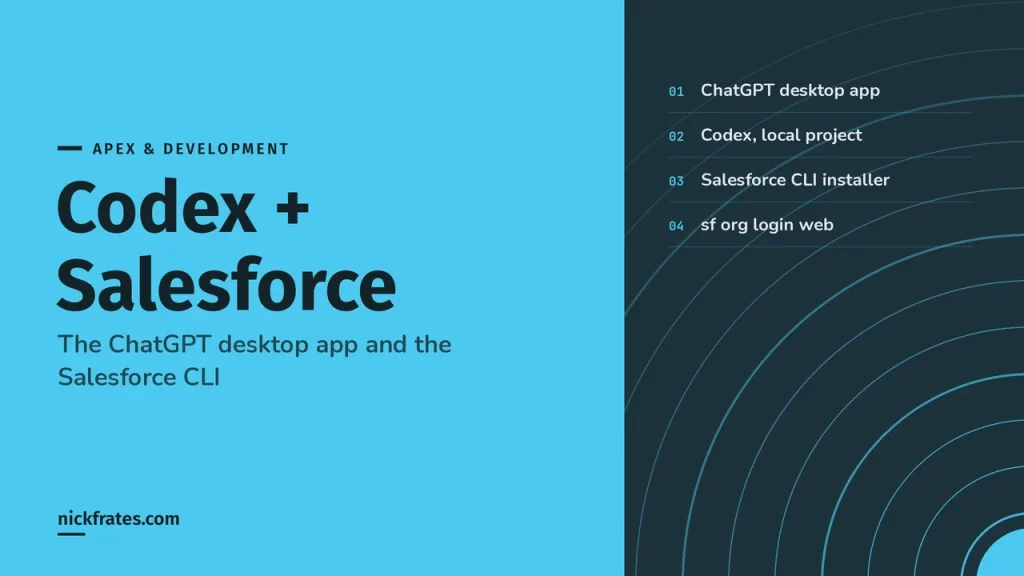
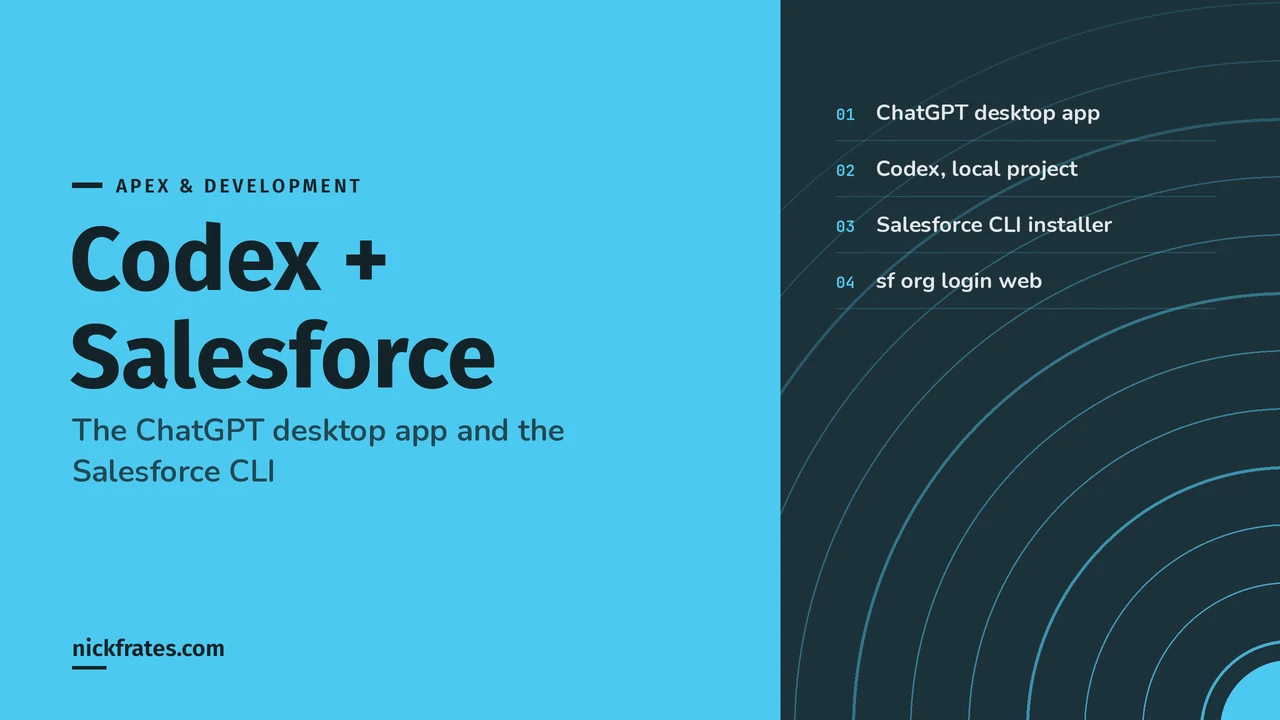
To connect Codex to Salesforce in the ChatGPT desktop app, install the Salesforce CLI with its regular installer, pick Codex, open your Salesforce project folder, and ask Codex to run sf org login web. Codex pauses for your approval because the login needs network access, a browser opens, you sign in and click Allow, and Codex can then retrieve and read your org's metadata. You don't have to type in a terminal at any point.
I'm Nick Frates, a senior Salesforce developer with 17 Salesforce certifications. Codex now lives inside the ChatGPT desktop app, next to Chat and Work. This guide follows OpenAI's docs at learn.chatgpt.com and Salesforce's CLI docs, and I link each one where it applies. If you use Claude instead, I wrote the Claude desktop app version too.
What you need before you start
- A ChatGPT account to sign in to the desktop app. Codex features and limits depend on your plan, which OpenAI lists on its Pricing page.
- A Salesforce sandbox or Developer Edition org. Leave production out of it until you trust the setup.
- The Approve Uninstalled Connected Apps permission, which Salesforce requires for the browser login (Salesforce DX Developer Guide). Admins have it by default.
Step 1: Install the ChatGPT desktop app and choose Codex
- Download ChatGPT for macOS or Windows from chatgpt.com/download. Linux has its own install guide.
- Open the app and sign in with your ChatGPT account.
- Select Codex from the ChatGPT dropdown. OpenAI's quickstart says to use Codex for software development with codebase context and developer tools.
Per OpenAI's desktop app page, ChatGPT is for Chat and Work, and Codex is where you get developer views and technical detail. Salesforce metadata work belongs in Codex.
Step 2: Install the Salesforce CLI with the installer
- Open the Salesforce CLI download page.
- On macOS, click the download for your processor, such as Download for macOS (Apple Silicon), and run the .pkg file. On Windows, click Download for Windows x64 and run the .exe file.
- Answer the prompts until it finishes, then quit and reopen the ChatGPT app.
Salesforce's install guide says to restart terminals and IDEs after installing, and to pick only one install method, because the installer plus npm can cause path issues. On Windows, it also says the CLI works best in the native command prompt and PowerShell, not in a Linux subsystem.
Step 3: Open a folder and create a Salesforce DX project
OpenAI's quickstart puts it simply: "Start a chat, create a project, or open a folder. ChatGPT can read and modify files in the folder you choose." Make an empty folder (mine is called Salesforce) and open it as a local project.
Below the composer is the permissions control. Choose Ask for approval, which OpenAI's Permissions page recommends for most work. Then send:
Prompt: Run sf --version to check the Salesforce CLI works, then create a Salesforce DX project called my-org-project in this folder.
The second command is Salesforce's standard project generate command. It creates my-org-project with sfdx-project.json and a force-app folder.
Now point the project at that folder. Per OpenAI's Projects and chats page, open the project's menu, select Edit project, then Add folder to attach my-org-project. Point to it and select Make primary. New chats start in the primary folder, and that's where Codex looks for AGENTS.md and skills.
Step 4: Connect Codex to your Salesforce org
Start a new chat in the project and ask Codex to log in with your sandbox's My Domain URL:
Prompt: Log in to my sandbox with sf org login web. Use the alias my-sandbox, make it the default org, and use https://MyDomainName--SandboxName.sandbox.my.salesforce.com
Expect an approval request here. OpenAI's security docs say that by default the agent runs with network access turned off, and Codex asks for approval to run commands that require network access. When it offers scopes like once or for the session, OpenAI says to choose the narrowest one that lets the task continue.
After you approve, Salesforce's browser flow takes over: sign in to your org in the browser window, click Allow, and close the window. Use the My Domain URL that ends in my.salesforce.com, not the lightning.force.com address.
Step 5: Pull your metadata and put Codex to work
Prompt: Retrieve all flows and Apex classes from my-sandbox, then list every record-triggered flow on Case and summarize what each one does.
That's project retrieve start with one --metadata flag per type (Salesforce examples). Retrieving from the org needs the network again, so approve it the same way. The files land in force-app.
Prompts I like once the metadata is local:
- "Which flows, triggers and validation rules fire when a Case is closed?"
- "Rewrite this trigger to be bulk-safe and explain each change. Don't deploy."
- "Write a test class for CaseService that covers the escalation branch."
- "Compare these two flows and tell me which one would run first."
Cert Lab by Nick Frates
Let the PD1 Cert Lab test you to success
Reviewing real Apex and flows with Codex is great practice. Lock it in with Platform Developer I questions that explain every option.
Start the PD1 Cert Lab for $9.99 →Which Codex permission mode should you use for Salesforce?
OpenAI says two controls work together: the sandbox sets which files and network resources Codex can reach, and approvals decide when it stops to ask. Changing who reviews a request doesn't widen the sandbox.
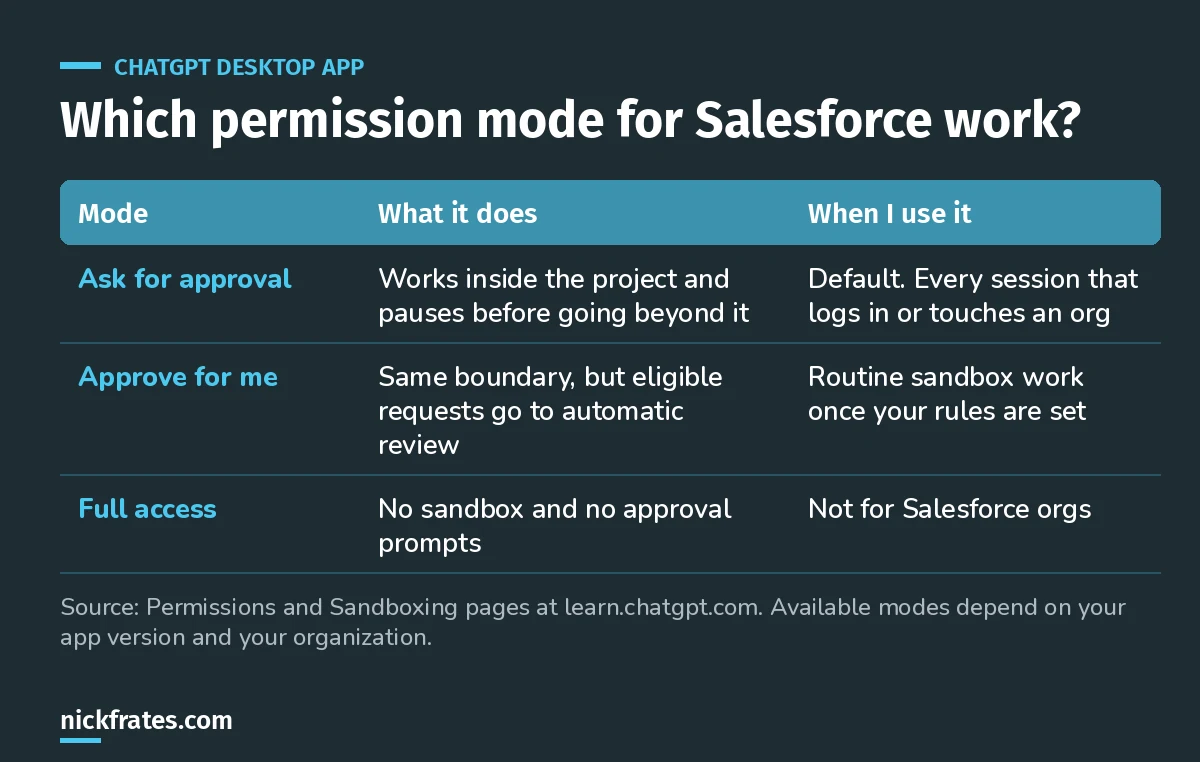
Logins and retrieves need the network, so with Ask for approval you see each one before it runs.
Give Codex Salesforce rules with AGENTS.md
OpenAI's AGENTS.md guide says Codex reads AGENTS.md files before doing any work, starting with a global file in ~/.codex and then the project's files. Ask Codex to write one:
Prompt: Create an AGENTS.md for this Salesforce DX project. Rules: never run sf project deploy without asking me, never log in to production, use the my-sandbox alias, and keep Apex bulkified.
Now every new chat in the project starts with those rules.
Should you add Salesforce Skills or the MCP server?
Use Salesforce Skills, not the DX MCP server, for new setups. The MCP server README says the local server (@salesforce/mcp) reaches end of life on November 2nd, 2026. The Salesforce Skills library lists Codex as a supported tool, with this install command (it needs Node.js):
Salesforce warns the skills change often and may be renamed or removed between releases, so treat them as a moving target.
Do you ever need the terminal?
No, but it's there if you want it. Each chat has an integrated terminal scoped to the project: select New tab, then Terminal, or press Ctrl+`. Codex can read its output, which helps when you want to run sf org list yourself.
Mistakes I see when connecting Codex to Salesforce
- Denying the network approval. sf org login web and retrieves need the network. Approve once, not broadly.
- Wrong primary folder. If Codex runs sf in the parent folder, retrieves fail. Make the DX project folder primary.
- Jumping to Full access. It removes the sandbox and approvals. Not worth it near an org.
- Lightning URLs. Use the my.salesforce.com My Domain URL with
--instance-url. - Starting in production. Prove your prompts and AGENTS.md in a sandbox first.
- Not restarting after the CLI install. Quit and reopen the app so it picks up sf.
If you're working toward Platform Developer I, the PD1 Cert Lab that Nick Frates built at nickfrates.com drills Apex, SOQL and triggers with short quizzes and explained answers.
FAQ
Is Codex part of the ChatGPT desktop app now?
Yes. In the ChatGPT desktop app you choose ChatGPT (Chat or Work) or Codex. Codex is the option for software development.
Can Codex connect to Salesforce without the terminal?
Yes. Codex runs Salesforce CLI commands for you after you approve them, and you sign in to Salesforce in your browser.
Why does Codex ask permission for sf org login web?
By default the agent runs with network access turned off, so commands that need the network wait for your approval.
Does Codex see my Salesforce password?
No. You type your Salesforce credentials into Salesforce's own login page in your browser, then click Allow.
Where should you go next?
- Connect Claude to Salesforce in the Claude desktop app.
- Claude Code + Salesforce CLI setup for Flows: the VS Code and terminal version.
- Platform Developer I study guide.
- All Salesforce certification study guides.
Cert Lab by Nick Frates
Let the PD1 Cert Lab test you to success
Lessons, practice questions and flashcards for every Platform Developer I exam section, with every option explained.
Start the PD1 Cert Lab for $9.99 →Hope this helps!
Best,
Nick