Hey friends,
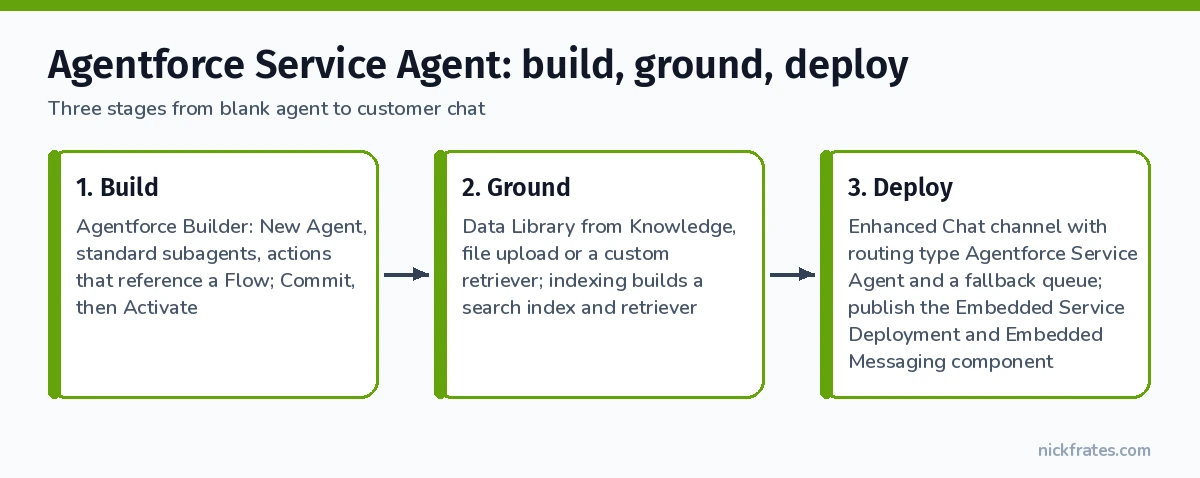
An Agentforce Service Agent is a customer-facing AI agent you build in Agentforce Builder, ground in your own knowledge (such as Salesforce Knowledge articles through an Agentforce Data Library), and deploy to customers through an Enhanced Chat messaging channel that routes conversations to the agent, with a fallback queue for when no agent is available. Build, ground, deploy: that’s the whole job, and each step has one trap that stops most first builds.
This walkthrough follows Salesforce’s Trailhead quick start and the Agentforce developer docs, so you can repeat it in a Trailhead playground or Developer Edition org.
Agentforce Service Agent vs Employee Agent
Salesforce’s Agentforce Developer Guide splits agents by audience. A Service Agent is for customer-facing support deployed through Enhanced Chat. An Employee Agent is for internal users and productivity inside your org.
| Question | Service Agent | Employee Agent |
|---|---|---|
| Who talks to it | Customers | Your own users |
| Typical channel | Enhanced Chat on a website or Experience Cloud site | Inside Salesforce |
Step 1: Build the agent in Agentforce Builder
Create it. From the App Launcher, open Agentforce Studio and click New Agent. Agentforce Builder opens in a new tab. Describe what the agent should do in plain language, give it a name, and assign it a user record (in the Trailhead org that’s the EinsteinServiceAgent User). That user record manages the agent’s access, so its permissions shape what the agent can read and change.
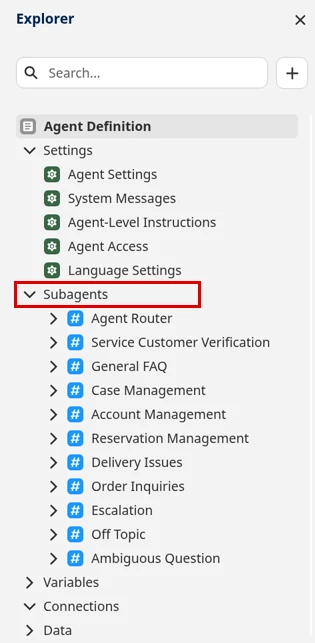
Know the layout. The Explorer panel has five sections:
- Settings: name, role, description, language.
- Subagents: the Agent Router, which picks a subagent from the user’s message and conversation history, plus the subagents themselves.
- Variables: values the agent stores and reuses in its reasoning.
- Connections: the channels the agent talks through, like Messaging, Slack or Voice.
- Data: the knowledge sources it can retrieve from.
Add a subagent and actions. Every new service agent comes with a set of standard subagents. For your own use case, add a subagent with a clear description, then add actions. An action points at a reference action, like a Flow, or you can pull existing actions from the Asset Library. Mark required inputs so the agent asks for them before running the action.
Write reasoning instructions that name the action. Type @ to open the resource picker and reference the exact action. Script view shows the same instructions as text. Here’s the shape from the Trailhead quick start:
Commit, then activate. Click Commit, then Activate. If commit fails, enter “scan and fix” in Builder’s AI assistant panel to fix common issues.
Step 2: Ground it in your knowledge
Grounding means the agent answers from your content, not from general model knowledge. The tool for that is an Agentforce Data Library. A library’s source can be Salesforce Knowledge articles, uploaded files, or an existing custom retriever.
For Knowledge, you pick two kinds of fields. Identifying (primary index) fields, like Title and Summary, describe each article. Content fields hold the detail the agent pulls into answers. Both must be text or text area fields on the Knowledge object.
Then wait for indexing. Behind the scenes the library builds a search index and a retriever in Data 360. Salesforce’s developer example says the status reaches Ready “after a few minutes,” and you can’t update a library while indexing runs.
An uploaded FAQ PDF works too. Agentforce Builder lists those sources in the agent’s Data section.
The trap: the identifying fields can’t be changed after you create the library. Content fields can be updated later, once indexing finishes. Choose your identifying fields carefully, because fixing them means building a new library.
Step 3: Deploy to customers with Enhanced Chat
Create the messaging channel. Connections in Agentforce Builder are what link an agent to channels like Messaging, Slack or Voice. For a website chat, the channel itself is an Enhanced Chat messaging channel.
In Setup > Messaging Settings, click New Channel and choose Enhanced Chat. Enter a channel name and the domain of the site where chat should be available. In Channel Routing, choose Agentforce Service Agent as the routing type, pick your agent, and pick a fallback queue that sessions route to if no agent is available.
Publish the deployment. Setup > Embedded Service Deployments, open the deployment, and publish. Publishing can take up to 10 minutes.
Put it on a site. For an Experience Cloud site, open the site in Experience Builder, drag the Embedded Messaging component onto a page, and publish the site. A first site publish can take a few minutes before the agent connects.
If you route with a flow, set the routing flow’s Route To input to Agentforce Service Agent and pick your agent, then save and activate a new flow version. If your agent isn’t in the list, it isn’t activated yet.
Test before customers see it
Use Preview in Agentforce Builder. The Interaction Details panel shows exactly what the agent is executing. Watch the Live Test Mode setting: in live mode the agent can change real data in your org. Switch to Simulate to test with no impact on live data.
Common mistakes with an Agentforce Service Agent
- Agent not in the routing picker. It isn’t activated. Commit and activate first.
- Agent doesn’t respond on the site. The deployment or site publish hasn’t finished. Republish the site and give it a few minutes.
- Agent can’t find records. Check the assigned agent user’s access, not yours.
- Grounded answers missing. The data library isn’t Ready yet. Check its indexing status before testing.
- Instructions say “the appropriate action.” Name the action with
@instead, so the agent doesn’t guess. - No fallback queue planned. The channel needs a queue for sessions when no agent is available. Pick one that’s staffed.
Practice this for the Agentforce Specialist exam
Building, grounding and deploying agents is core material for the Agentforce Specialist certification. The Cert Lab gives you exam-style questions and hands-on tasks to practice them.
Cert Lab by Nick Frates
Practice building agents before the exam
Agentforce Specialist Cert Lab: lessons for every exam section, practice questions that explain every option, and flashcards. $9.99.
Start the Agentforce Specialist Cert Lab for $9.99 →Practice questions
1. A customer-facing Agentforce agent won’t show up when you set Routing Type to Agentforce Service Agent on a messaging channel. What’s the most likely cause?
The agent isn’t activated. Only activated agents can be selected for routing.
2. Where do you set what happens when the agent can’t handle a conversation?
The fallback queue in the Enhanced Chat messaging channel’s routing settings.
3. Which user’s permissions control what a Service Agent can read and update?
The user record you assign to the agent when you create it.
FAQ
What is an Agentforce Service Agent? A customer-facing AI agent built in Agentforce Builder and deployed through Enhanced Chat, with a human fallback queue.
How do I ground a Service Agent in Knowledge? Create an Agentforce Data Library with Knowledge as the source, choose identifying and content fields, and wait until indexing reaches Ready.
Does it need Data 360? Agentforce Data Libraries build their search index and retriever in Data 360, so plan for it when you ground on Knowledge or files.
Can I test without changing data? Yes. Switch Preview from Live Test Mode to Simulate.
Next up: Agentforce for Service use cases and Einstein Bots vs Agentforce Service Agents.
Sources: Trailhead: Creating a Service Agent with Agentforce Builder, Agentforce Developer Guide: Before You Begin, Agentforce Developer Guide: Knowledge Library Example, Salesforce CLI: agent adl create.
Hope this helps!
Best,
Nick