Hey friends,
You’ve built a service agent. Now you want customers to chat with it on your Experience Cloud site. Here’s how the pieces connect.
To add an Agentforce agent to an Experience Cloud site, you need four things: an Enhanced Chat messaging channel routed to the agent, a published embedded service deployment, the Embedded Messaging component on the site, and the site’s domain on your CORS allowlist.
These steps follow Salesforce’s Agentforce workshop and a Trailhead deployment unit. Start with an activated agent. If you don’t have one, my Agentforce Builder walkthrough covers that.
What do I set up in Messaging first?
- In Setup, open Messaging Settings and set Messaging to On.
- Create a Routing Configuration.
- Create a Queue for the Messaging Session object. This is the fallback queue. Conversations go there when the agent hands off to a person.
- Create a presence status, a permission set that grants it, and a presence configuration. This lets service reps go online.
What domain do I enter?
Publish your Experience Cloud site and copy its URL. The channel wants just the domain, with no https:// and no path (workshop).
So https://mydomain.my.site.com/s/ becomes mydomain.my.site.com. (Pasting the full URL is an easy mistake to make here.)
How do I connect the channel to the agent?
- In Messaging Settings, click New Channel, then Start.
- Select Enhanced Chat.
- Enter a channel name, set Deployment Type to Web, and paste the domain.
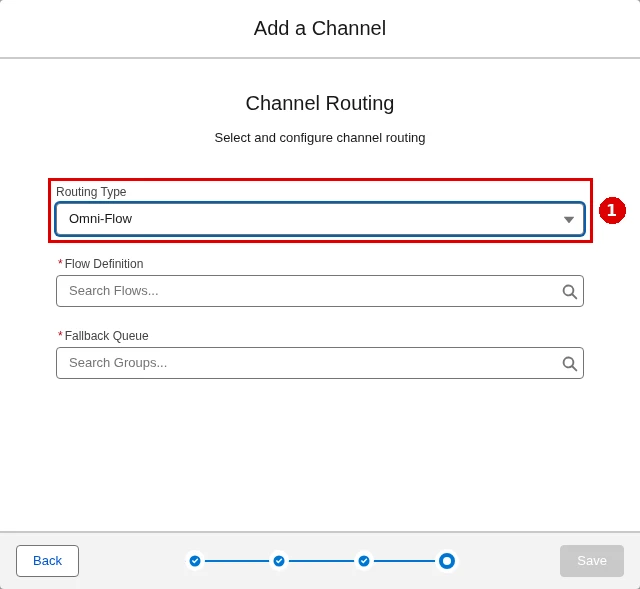
- For Routing Type, choose Agentforce Service Agent and pick your agent. Or choose Omni-Flow and pick an inbound flow (Omni-Flow is a flow that decides where a conversation goes).
- Choose the fallback queue, accept the terms and save.
How do I publish the embedded service deployment?
An embedded service deployment is the settings package for the chat window. Trailhead notes that creating the channel can create one for you. If you need to make it yourself:
- In Setup, open Embedded Service Deployments and click New Deployment.
- Select Messaging for In-App and Web, then Web.
- Use the same domain and select your channel.
- Save, then click Publish.
Want a pre-chat form that asks for a name and email first? In the deployment, click Edit Pre-Chat and activate it. Parameter mappings on the channel pass those values to your flow. Use Test Messaging to try it before it goes on the site (Trailhead).
Cert Lab by Nick Frates
Practice deployment questions
Exam-style questions on deploying and testing agents, with each answer explained, plus lessons for all six Agentforce Specialist sections.
Start the Agentforce Specialist Cert Lab for $9.99 →How do I add the chat to the site?
- In Setup, go to All Sites and click Builder next to your site.
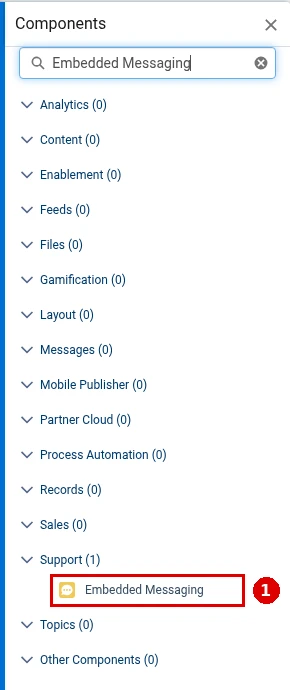
- Open the Components panel, search for Embedded Messaging, and drag it onto the page.
- Make sure your messaging configuration is selected.
- Click Publish.
Publishing can take a few minutes. Then open the site and look for the messaging icon in the lower-right corner (workshop).
Why won’t the chat window load?
Check CORS first. CORS (cross-origin resource sharing) is the list of outside domains Salesforce trusts. Without your site on it, the chat window won’t load, and you get no obvious error (Trailhead).
- In Setup, open Digital Experiences > Settings and copy the default domain name.
- In Setup, open CORS, click New, and enter that domain with https:// in front.
- If the *.live-preview domain gives you trouble, add it too.
How do I test the handoff to a person?
Start a chat on the site as an existing contact. With no reps online, ask for a human. The agent should say no one is available and offer to create a case.
Then set yourself Online in Omni-Channel in the Service Console, ask again, and accept the request. If both work, you’re done.
If the agent can’t read data during the chat, check the agent user’s access. My Agentforce permissions setup post covers that. Deploying and testing agents is part of the Testing, Deployment, and Maintenance section (10%) of the Agentforce Specialist exam guide. For more, see the Agentforce guide and my Salesforce certification study guides.
Cert Lab by Nick Frates
Get ready for the Agentforce Specialist exam
Lessons, practice questions and flashcards for every exam section, with each answer explained.
Start the Agentforce Specialist Cert Lab for $9.99 →Where are you putting your agent first? Let me know!
Hope this helps!
Best,
Nick