
Hey everyone,
A regular Decision can compare a date field on a record, or compare almost anything you can write an expression for. That's useful, and it is also more than you need if the only question is where today's date sits relative to a cutoff.
Split by Date is a Winter '27 decision type in Flow Builder that branches a flow on today's date, not on a date stored on a record. The operators are Before, After, Between, and Is On. Like Split by Field Value, it is a simpler version of a regular Decision, and you still can't put more than one condition on a single branch.
Salesforce's Winter '27 release notes say you add a Decision element, select Split by Date, and route based on the current date, configuring values with inline pickers, without writing expressions. The official note does not claim this runs any faster than a Decision, so don't choose it for performance.
The part that trips people up is right there in that wording: current date. If you need to branch on Close Date, Created Date, or any other field on the record, this is the wrong tool. Use a regular Decision for those. For a wider map of Flow itself, see What Is Salesforce Flow.
What Split by Date actually checks
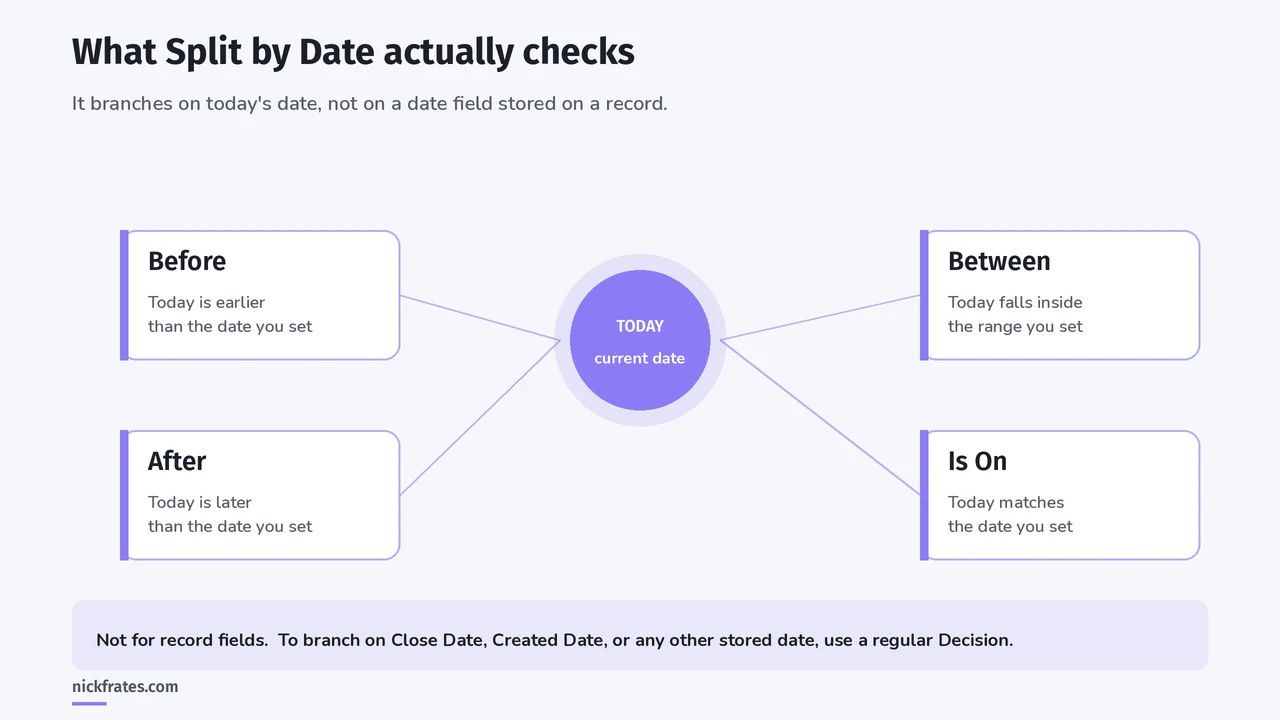
Split by Date looks at today's date and asks whether today is before, after, between, or on the values you set. It does not read a date field on the triggering record.
Use this when the calendar itself should change the path: a promotion that is only valid in a window, a cutoff after which a different email should go out, or a check against a specific date. If the question is "is this opportunity past Close Date?" you are looking at a record field, and you want a regular Decision.
The four operators
- Before. Today's date is earlier than the date you set.
- After. Today's date is later than the date you set.
- Between. Today's date falls inside the range you set.
- Is On. Today's date matches the date you set.
The official release note does not list these operator names. In the configuration screenshot later in this post, the Date Operator dropdown shows Before, Between, After, and Is On, which matches community write-ups from August 2026, including Salesforce Ben and Salesforce Time.
How to add Split by Date in Flow Builder
The official How section is short, and it is the right place to start:
- Open your flow in Flow Builder.
- Add a Decision element.
- Select Split by Date.
- Define each path with the inline picker, using Before, After, Between, or Is On.
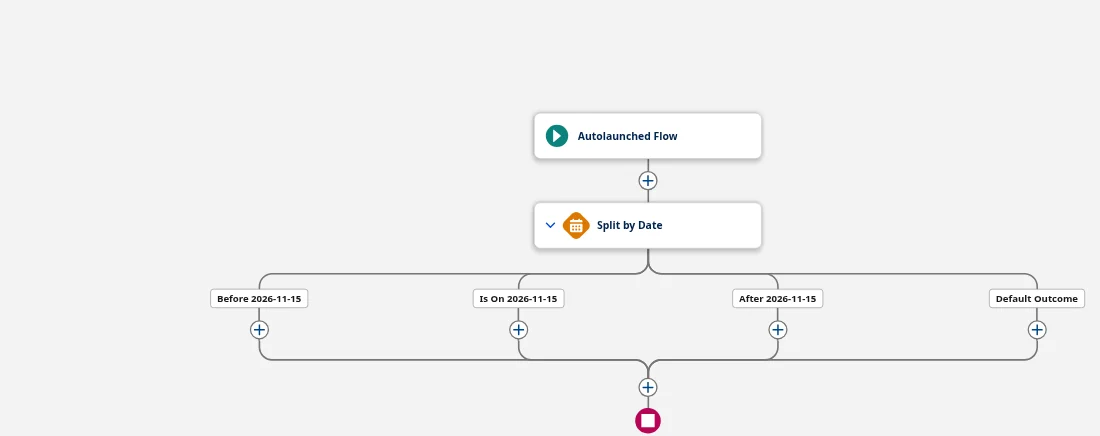
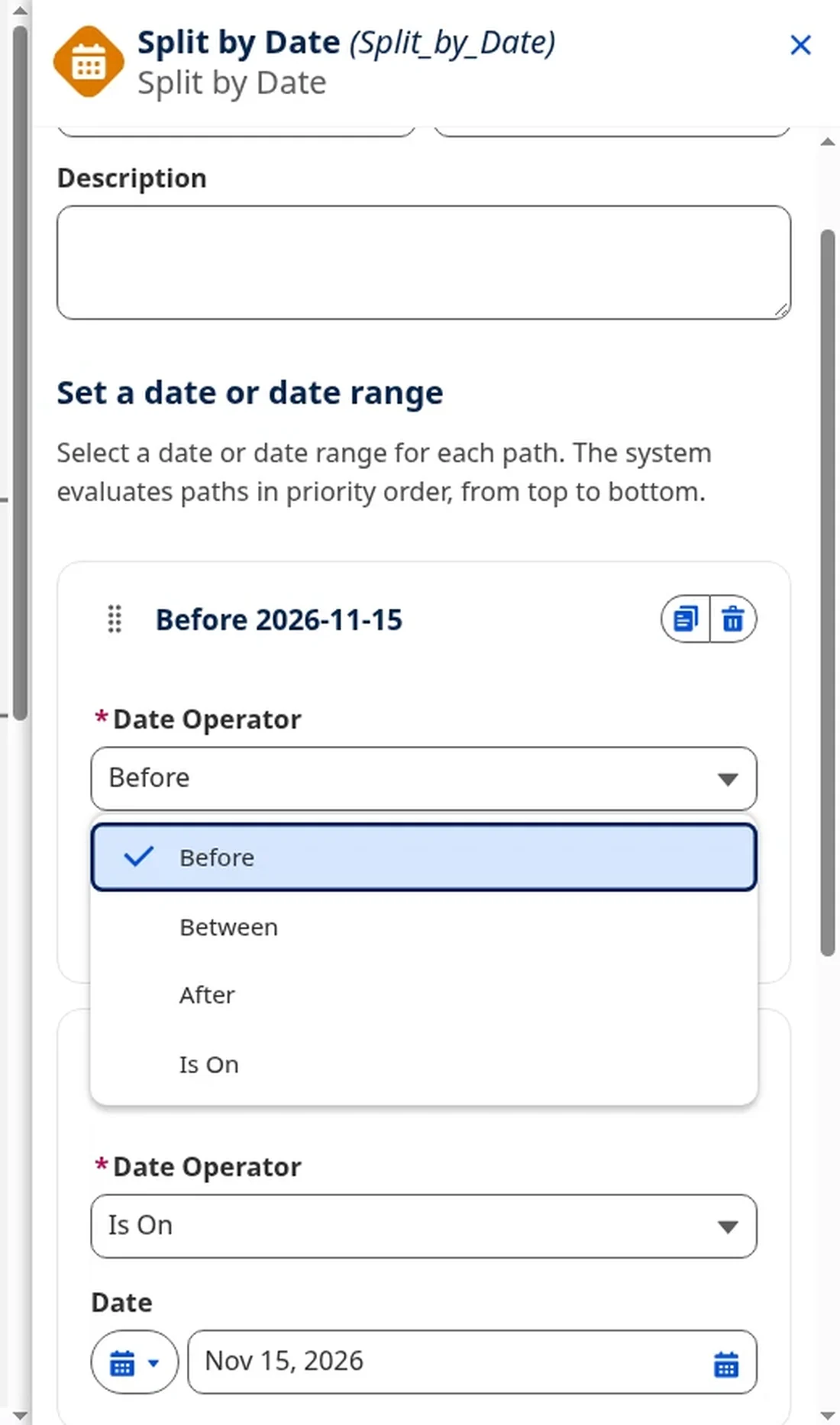
The example above is an autolaunched flow. The canvas has branches for Before 2026-11-15, Is On 2026-11-15, After 2026-11-15, and Default Outcome. In the configuration panel, each path takes an operator and a date value. The Date Operator list shows Before, Between, After, and Is On. This demo does not include a Between branch. There is no separate field for a date to evaluate, which fits the official description: the decision type routes on the current date.
Because this decision type keys off the current date, the path a record takes can change if the same flow runs on a later day. That is the point, but it is also worth checking when you debug. If a path looks wrong, confirm the date the interview ran, not only the fields on the record. For record-triggered flows that do not fire when you expect, I have a separate walkthrough on debugging record-triggered flows.
When to use a regular Decision instead
Keep Split by Date for current-date questions with one condition per branch. Switch to a regular Decision as soon as the logic gets more complicated.
| Use Split by Date when | Use a regular Decision when |
|---|---|
| The question is where today's date sits relative to a cutoff or window | You need to compare a date field on the record, such as Close Date or Created Date |
| One operator per branch is enough: Before, After, Between, or Is On | A branch needs more than one condition, or AND/OR logic |
Mistakes to avoid
- Using it to branch on a date field on the record. Close Date, Created Date, and similar fields belong in a regular Decision.
- Picking it because you think it is faster. Salesforce has not said these decision types run any faster than a Decision.
- Forgetting that today's date can move the path. The same interview run on a later day can take a different branch. Test with that in mind.
- Forcing AND/OR logic into this decision type. One condition per branch. Anything more complex is a regular Decision.
Cert Lab by Nick Frates
Practise Flow decisions before exam day
Get exam-style questions and hands-on practice tasks on Flow and process automation, including when a Decision is the right tool.
Start the Platform App Builder Cert Lab for $9.99 →FAQ
Does Split by Date look at a date on the record? No. The official release notes say it routes based on the current date. If you need to evaluate a date field, use a regular Decision.
Is there a similar option for field values? Yes. Split by Field Value in Salesforce Flow branches on the value of a field or other resource.
Which editions get it? The official release note lists Lightning Experience in Essentials, Professional, Enterprise, Performance, Unlimited, and Developer editions.
When did this arrive? It is part of Winter '27. The official release note for this feature was added the week of August 24, 2026, which is when preview orgs and community write-ups started covering it. I would confirm it is in your org before you depend on it in production.
Is this on the App Builder or Admin exam? Those exams already test Flow decision logic. I would know that Split by Date uses the current date, and that a record date field still needs a regular Decision. The Platform App Builder study guide covers the App Builder exam outline, and Salesforce automation tools is a useful companion if you are choosing among automation tools.
If you have a question or feedback, share it and I'll take a look.
Hope this helps!
Best,
Nick
Cert Lab by Nick Frates
Start the free Admin Cert Lab
Free, no card, no trial. Lessons and exam-style questions for the Platform Administrator exam, including Flow and automation.
Start the free Admin Cert Lab →