Hey everyone,
To set up products and price books in Salesforce, create each product, give it an active standard price in the Standard Price Book, then create custom price books (for partners, regions or segments), add the products to them with their own list prices, and activate the books. Sales reps then choose one price book on each opportunity and add products from it. The order matters: a product needs an active standard price before you can add it to any other price book.
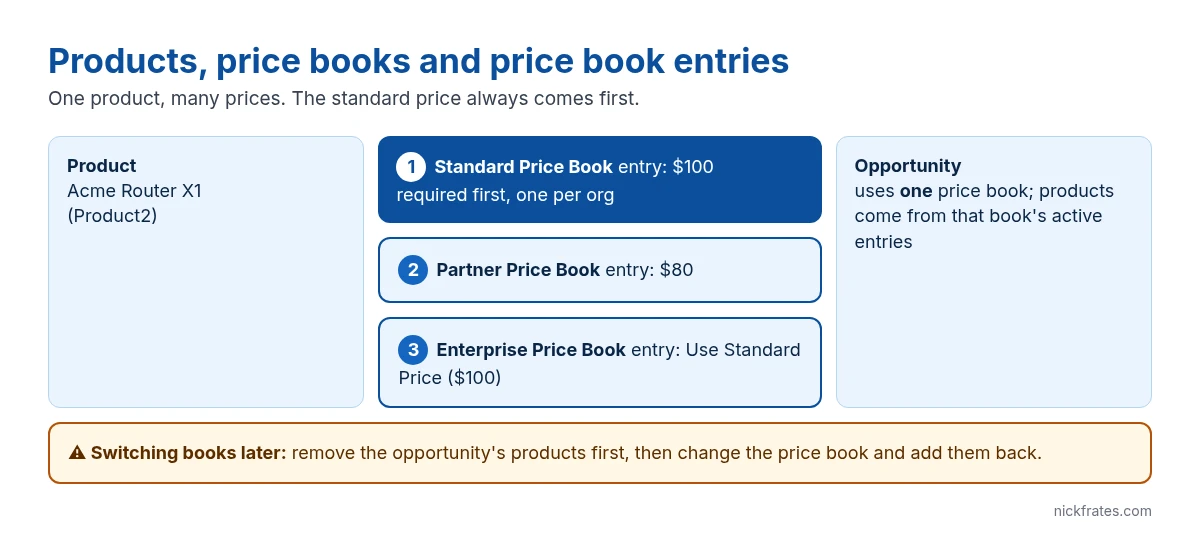
How products and price books fit together
| Object | What it is | Key rule |
|---|---|---|
| Product (Product2) | Something you sell: name, code, family, active flag | Must be Active to be used in price books, opportunities and quotes |
| Price book (Pricebook2) | A list of products with prices | One Standard Price Book per org; you can add as many custom books as you need |
| Price book entry (PricebookEntry) | One product’s list price in one price book (and one currency) | The standard entry must exist first; custom entries can Use Standard Price |
| Opportunity product | A product on an opportunity, with quantity and sales price | Comes only from the opportunity’s chosen price book |
Salesforce’s product and price book field reference and the Pricebook2 object reference are the official sources for these rules. Products, price books and product schedules are available in Professional, Enterprise, Performance, Unlimited and Developer Editions.
How to set up products and price books, step by step
1. Create the product. Open the Products tab and click New. Fill in Product Name, Product Code, Product Family, and check Active. Example: Acme Router X1, code AR-X1, family Hardware.
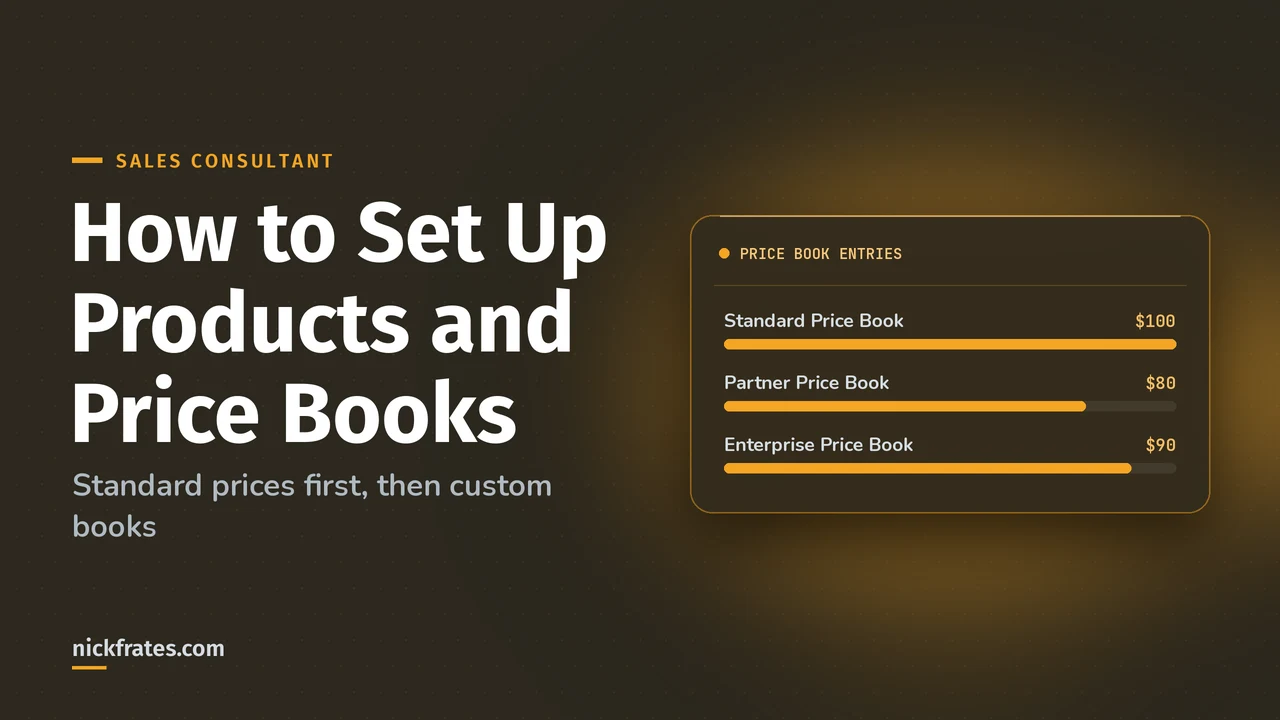
2. Add the standard price. On the product, go to the Price Books related list and click Add Standard Price. Enter the list price ($100 in our example) and keep it active. This creates the entry in the Standard Price Book.
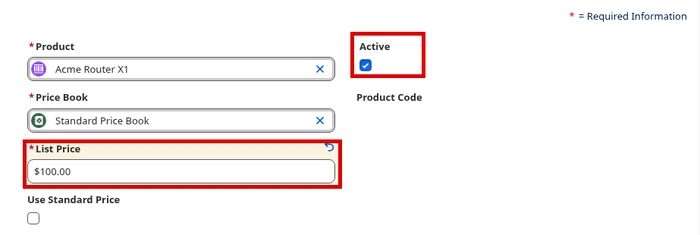
The screenshot above shows step 2. It’s the step most people miss, and without it the product won’t show up anywhere else.
3. Activate the Standard Price Book. Open Price Books from the App Launcher, select Standard Price Book, and make sure Active is checked.
4. Create custom price books. In Price Books, click New, name the book (for example Partner Price Book), add a description, and check Active.
5. Add products to the custom book. From the custom price book, use Add Products, select the products, and set a list price for each ($80 for partners) or check Use Standard Price to inherit the standard one.
6. Give reps access. Share the custom price books with the users or groups who should use them, and make sure their profiles or permission sets can read products and price books.
7. Test on an opportunity. Open an opportunity, use Add Products, choose the price book when asked, and add the product. Check that the list price matches the book.
Cert Lab by Nick Frates
Practice Sales Consultant scenarios
Lessons, section checks, flashcards and practice questions on the sales lifecycle, including products, price books and quotes.
Start the Sales Consultant Cert Lab for $9.99 →How many price books should you have?
As few as possible. Every price book is another list to maintain whenever a price changes. I’d create a custom book only when a group of customers really pays a different list price: partners vs direct, regions with different pricing, or a public sector list.
For one-off discounts, don’t create a price book. Let reps change the sales price or discount on the opportunity product, and control it with an approval process. For complex bundles, tiered pricing or rules, standard price books get painful fast; that’s when people look at Revenue Cloud. See my comparison of Revenue Cloud vs CPQ.
Multiple currencies? In a multi-currency org, each price book entry has a currency, so you add an entry per currency for each product in each book you sell it in.
Mistakes with products and price books
- Skipping the standard price. Products need an active standard price before they can go into a custom price book.
- Switching price books on an opportunity that has products. An opportunity uses one price book at a time. Remove its products first, change the price book, then add them back.
- Leaving the book or entry inactive. Reps only see active price books and active entries, so an inactive one just looks like a missing product.
- Making a price book per discount. Use sales price, discounts and approvals instead.
- Forgetting sharing. If reps can’t see a custom price book, they can’t choose it.
For where products sit in the rest of the sales process, see opportunity management and Sales Cloud. My Sales Consultant study guide covers the full exam.
Cert Lab by Nick Frates
Prep for the Agentforce Sales Consultant exam
Lessons, section checks, flashcards and practice questions mapped to all five sections of the exam guide.
Start the Sales Consultant Cert Lab for $9.99 →FAQ
What is the Standard Price Book in Salesforce?
It’s the one price book every org has, holding each product’s standard list price. A product needs an active standard price before it can be added to any custom price book.
Can an opportunity use more than one price book?
No. An opportunity uses one price book at a time. To switch, remove its products, change the price book and add the products again.
What does Use Standard Price mean on a price book entry?
The entry inherits its list price from the product’s entry in the Standard Price Book instead of having its own.
Do I need a separate price book for each currency?
No. In a multi-currency org, you add a price book entry per currency inside the same price book.
How many products can I have in Salesforce price books?
Salesforce recommends keeping the number of products below 2,000,000 for fast price book performance.
Hope this helps!
Best,
Nick