Hey friends,
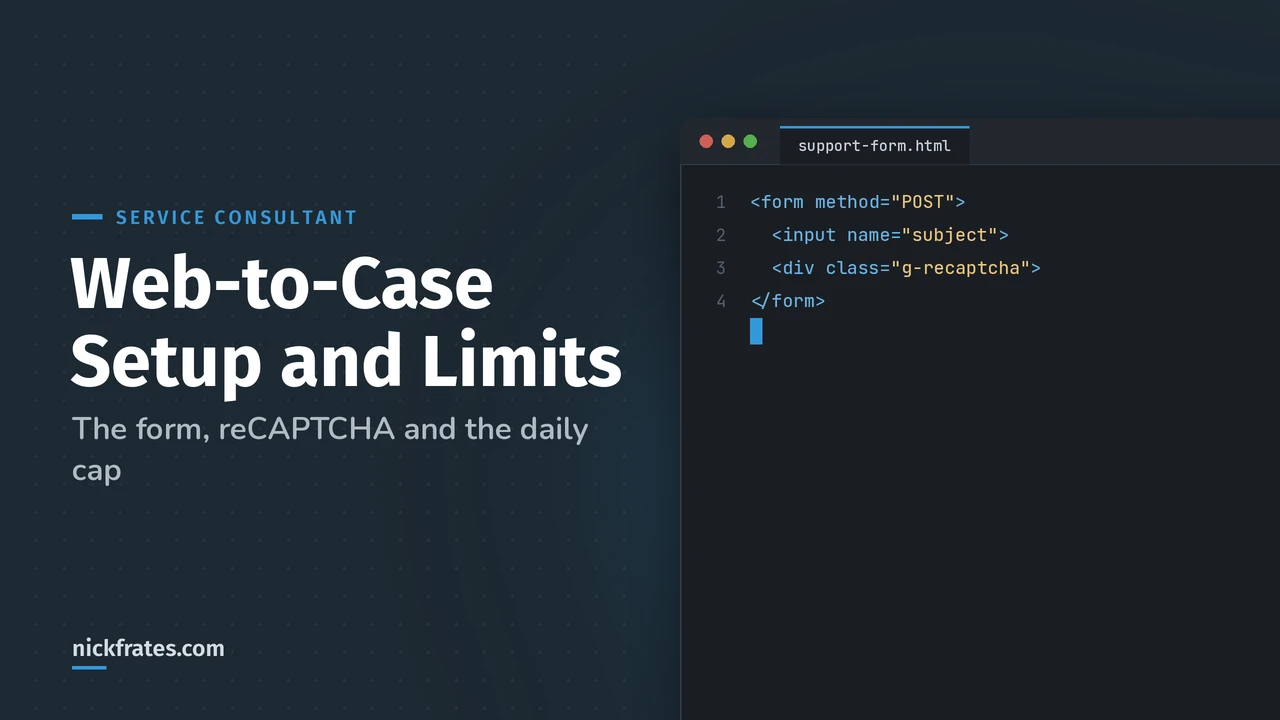
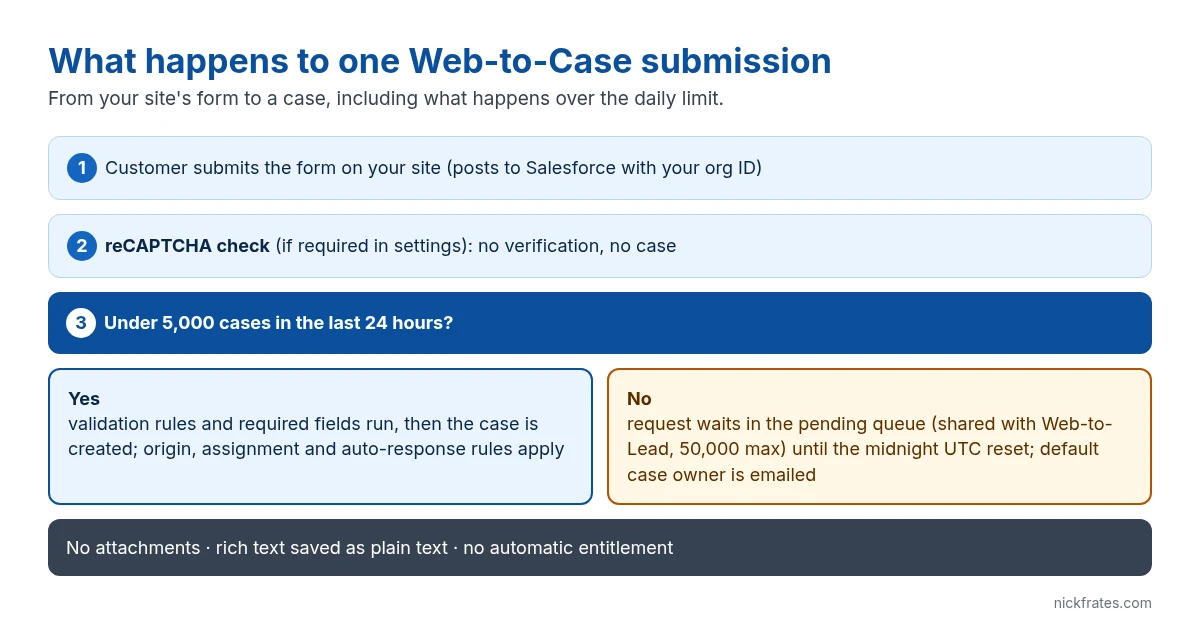
Web-to-Case turns a form on your website into new Salesforce cases, up to 5,000 cases in a 24-hour period; extra submissions wait in a pending queue shared with Web-to-Lead that holds up to 50,000 requests. Setup is three parts: enable it and pick a default origin and owner, generate the HTML form, then put it on your site with reCAPTCHA. The limits and the spam problem are what catch teams out, so I’ll cover those too.
How to set up Web-to-Case
- Prepare the basics. Make sure case fields you want on the form exist and are visible, and set a default case owner in Support Settings.
- Enable it. Setup > Quick Find “Web-to-Case” > Web-to-Case, then check Enable Web-to-Case.
- Require reCAPTCHA. Check the reCAPTCHA option. Salesforce’s setup page recommends it: once it’s on, requests without reCAPTCHA verification don’t generate cases.
- Set the default origin. Usually “Web”. Use a custom value if a form belongs to a specific service process.
- Pick a default response template if you want customers emailed that their case was created (the template must be available for use). Leave it blank to send nothing.
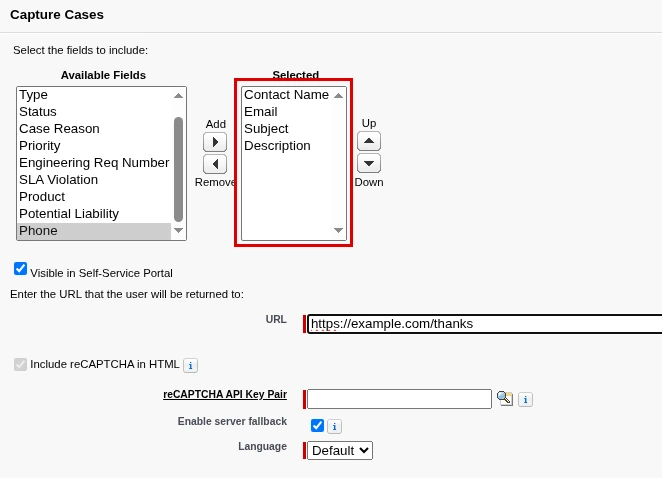
- Generate the HTML. Setup > Web-to-Case HTML Generator. Choose the fields, enter the return URL (your thank-you page), and generate.
- Hand the HTML to your web team. Add your site’s reCAPTCHA keys, style the form, and test a submission end to end.
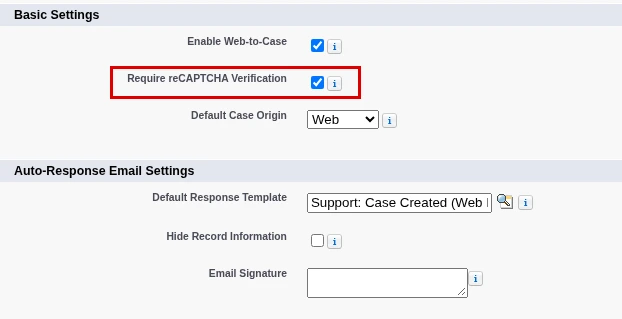
The settings screen above is the one to get right, especially the reCAPTCHA box. Setup path: Setup > Quick Find “Web-to-Case” > Web-to-Case.
What the generated form looks like
The generator gives you a plain HTML form that posts to Salesforce. Trimmed, it looks like this. With Require reCAPTCHA on, it also loads Google’s reCAPTCHA script, sends a hidden captcha_settings value, and runs a small timestamp() script that keeps it fresh. Leave all three in, or Salesforce rejects the submission. Your org ID and reCAPTCHA keys are unique to your org:
Always regenerate the form from Setup instead of hand-editing field names: custom fields post by field ID, and the generator gets them right.
Cert Lab by Nick Frates
Web-to-Case is a Service Consultant exam topic
Lessons, flashcards and practice questions cover case intake, limits, routing and entitlements.
Start the Service Consultant Cert Lab for $9.99 →Web-to-Case limits you’ll actually hit
| Limit | What happens |
|---|---|
| 5,000 new cases per 24 hours | Over the limit, the default case owner gets an email, and extra requests go to the pending queue |
| Pending queue: 50,000 combined Web-to-Case and Web-to-Lead requests | Queued requests are created when the limit refreshes; past 50,000, requests are rejected and the admin is emailed for the first five |
| Daily reset at midnight UTC | A temporary limit increase from Salesforce Support doesn’t process the queue until the next reset |
| No attachments | The form can’t upload files; use an Experience Cloud site or a custom form for that |
| Validation rules and required fields still apply | A submission that fails them doesn’t become a case |
| Rich text area fields | Saved as plain text |
Sources: Salesforce Help’s Web-to-Case and Web-to-Lead daily limits article and the Set Up Web-to-Case page. Salesforce Support can’t clear the pending queue, which is why spam is the real risk.
Keeping spam out
- Turn on reCAPTCHA in Web-to-Case settings and on the form.
- Add a validation rule once you spot a spam pattern (for example a blank description with a link in the subject).
- Don’t leave the raw generated form sitting in your page source if you can avoid it. Salesforce Help calls it a best practice to avoid easily accessible form source code on your website and to submit through other HTML or API methods (for example a server-side handler) to fully protect web submissions.
- Watch for the over-limit email to the default case owner; it’s often the first sign of a spam run.
Mistakes I see with Web-to-Case
- Assuming cases get an SLA. Web-to-Case cases don’t get an entitlement automatically. Add a flow to set it.
- No assignment rule. Without one, every web case lands with the default case owner.
- Expecting contact matching to always work. Salesforce links the case to a contact by email when it can; unknown emails, or emails shared by more than one contact, create cases with no contact.
- Forgetting the thank-you page. Without a return URL customers don’t know their case was received.
For the email channel, see how to set up Email-to-Case, and to give agents a good place to work these cases, see how to set up the Service Console. My Service Cloud overview ties it together.
Cert Lab by Nick Frates
Get exam-ready for Service Consultant
Practice questions with explanations for case intake, routing, knowledge and the rest of the guide.
Start the Service Consultant Cert Lab for $9.99 →FAQ
How many cases can Web-to-Case create per day?
Up to 5,000 new cases in a 24-hour period. Extra requests go into a pending queue shared with Web-to-Lead, which holds up to 50,000 requests.
Does Web-to-Case support attachments?
No. The standard Web-to-Case form can’t upload files; use an Experience Cloud site or a custom integration instead.
Does Web-to-Case filter spam?
Not by itself. Turn on reCAPTCHA in the Web-to-Case settings and add validation rules for known spam patterns.
When does the Web-to-Case daily limit reset?
At midnight UTC. Queued requests are created after the reset and count toward the next day’s limit.
The Cert Lab gives you lessons, practice questions and flashcards so prep like this goes faster.
Hope this helps!
Best,
Nick