Hey friends,
To set up the Service Console in Salesforce, open Setup > App Manager, edit the standard Service Console app (or click New Lightning App and choose Console navigation), add your navigation items and utility bar items, assign it to the right user profiles, and then tune the case page reps land on. The wizard takes ten minutes. The choices inside it decide whether agents love the console or work around it, so here’s what each step does and what I’d pick.
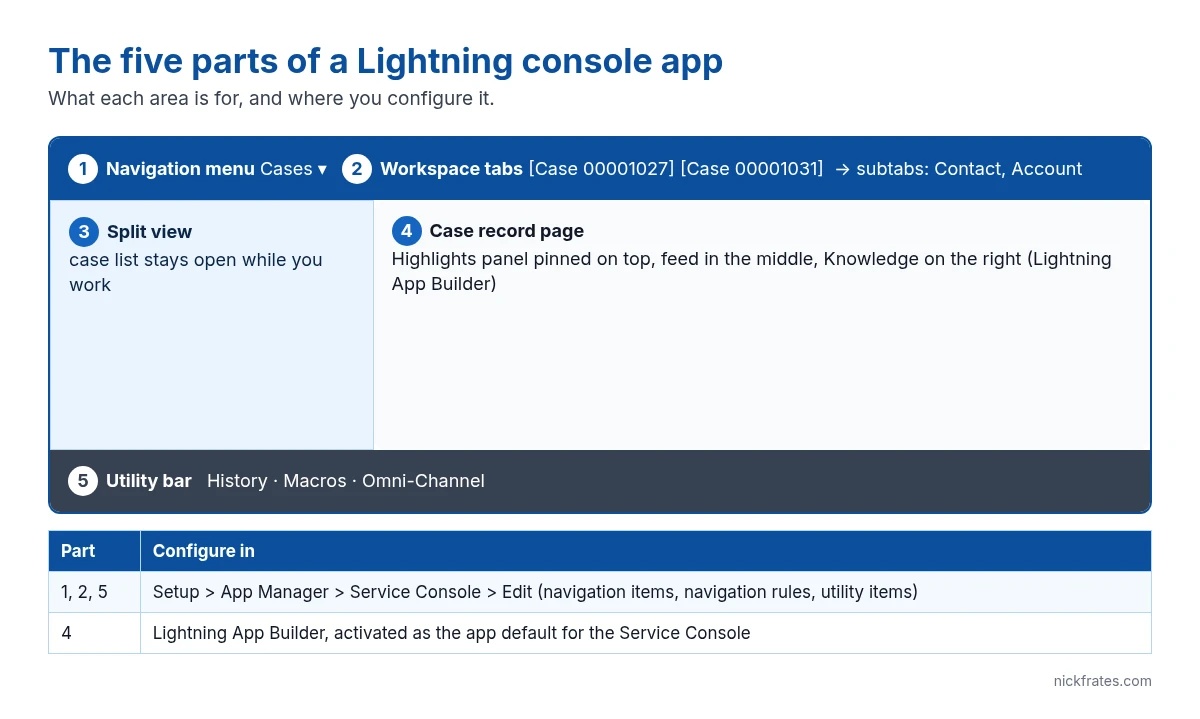
What makes a console app different
A console app opens records as workspace tabs, and related records (the contact, the account) open as subtabs inside them, so an agent can work several cases without losing context. Split view keeps a list on the left while records open on the right, and the utility bar along the bottom holds tools like History, Macros and Omni-Channel (Salesforce Help: Lightning Console Apps). Salesforce Help notes that in some editions Lightning console apps cost extra per user, so check your edition and contract before you promise one to a team.
How to set up the Service Console, step by step
- Open the app. Setup > App Manager. Find Service Console, click the row’s dropdown, then Edit. To build your own, click New Lightning App instead.
- App details and branding. Name, color and logo. Keep the name obvious (for example “Support Console”).
- App options. Under Navigation Style choose Console navigation (already set on the standard app). Leave Disable end user personalization of nav items off unless you need a locked-down menu.
- Utility items. Add History, Macros and Omni-Channel if you route work. Notes or Recent Items are optional; each item takes space on smaller screens.
- Navigation items. Add Cases, Contacts, Accounts, Knowledge and Reports, in the order agents use them. Fewer is better.
- Navigation rules. Decide how each object opens: as its own workspace tab, or as a subtab of another record. Contacts as a subtab of their account is common.
- User profiles. Assign the app to your support profiles, then Save & Finish.
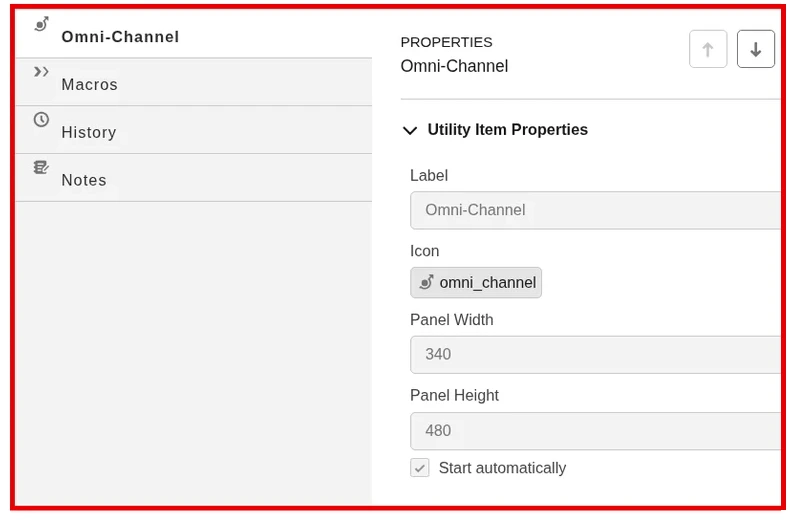
The utility items step is the one people rush. It’s where you add the tools agents reach for on every case, and the screenshot above shows a sensible starting set. Setup path: Setup > App Manager > Service Console > Edit > Utility Items.
Tune the case page agents land on
The app is the frame; the case record page is where agents spend their day. In Lightning App Builder, start from a console template (for example Pinned Header and Left Sidebar (2 regions)), keep the Highlights panel pinned at the top, and put the case feed or activity where the eye lands. Add Knowledge on the right so agents can search articles without leaving the case. Then activate the page as the app default for the Service Console, not the org default, so other apps keep their pages.
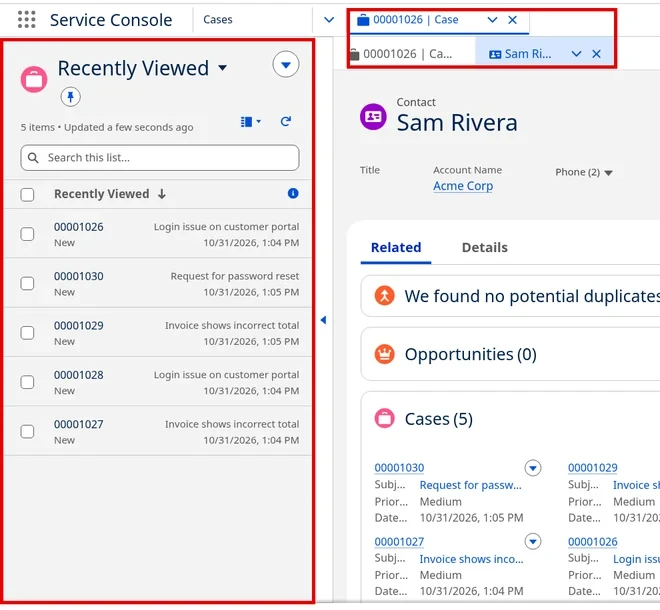
This is what an agent should see after setup: list on the left, the case and its contact as tabs, tools along the bottom.
Cert Lab by Nick Frates
The console is a Service Consultant exam staple
The Service Consultant Cert Lab covers console design, Omni-Channel, knowledge and entitlements with lessons, flashcards and practice questions.
Start the Service Consultant Cert Lab for $9.99 →Mistakes I see in console setups
- Too many navigation items. Twelve items in the menu means agents never find Knowledge. Start with five.
- Assigning the page as the org default. Activate console pages for the Service Console app specifically, or you’ll change the page for sales users too.
- No tab limit on busy teams. Agents who open 30 tabs slow their browser. Setup lets you limit the maximum number of loaded console tabs.
- Forgetting the profile assignment. If the app isn’t assigned to a profile, those agents won’t see it in the App Launcher, no matter how good it is.
Cases still need a way in: see how to set up Email-to-Case and Web-to-Case setup and limits. To put SLAs on those cases, read entitlements and entitlement processes, and for the bigger picture see my Service Cloud overview.
Cert Lab by Nick Frates
Get exam-ready for Service Consultant
Practice questions with explanations and current links for all eight sections.
Start the Service Consultant Cert Lab for $9.99 →FAQ
Is the Service Console the same as a Lightning console app?
Yes. The Service Console is the standard Lightning console app Salesforce provides for support teams; you can edit it or build your own console app in App Manager.
Can I turn an existing standard-navigation app into a console app?
Yes. In App Manager, edit the app and change Navigation Style to Console navigation under App Options.
Where do I add Omni-Channel to the console?
Add Omni-Channel as a utility item in the console app’s Utility Items step in App Manager.
Why can’t my agents see the Service Console?
The app usually isn’t assigned to their profile. Edit the app in App Manager and add their profile under User Profiles.
The Cert Lab gives you lessons, practice questions and flashcards so prep like this goes faster.
Hope this helps!
Best,
Nick