Hey friends,
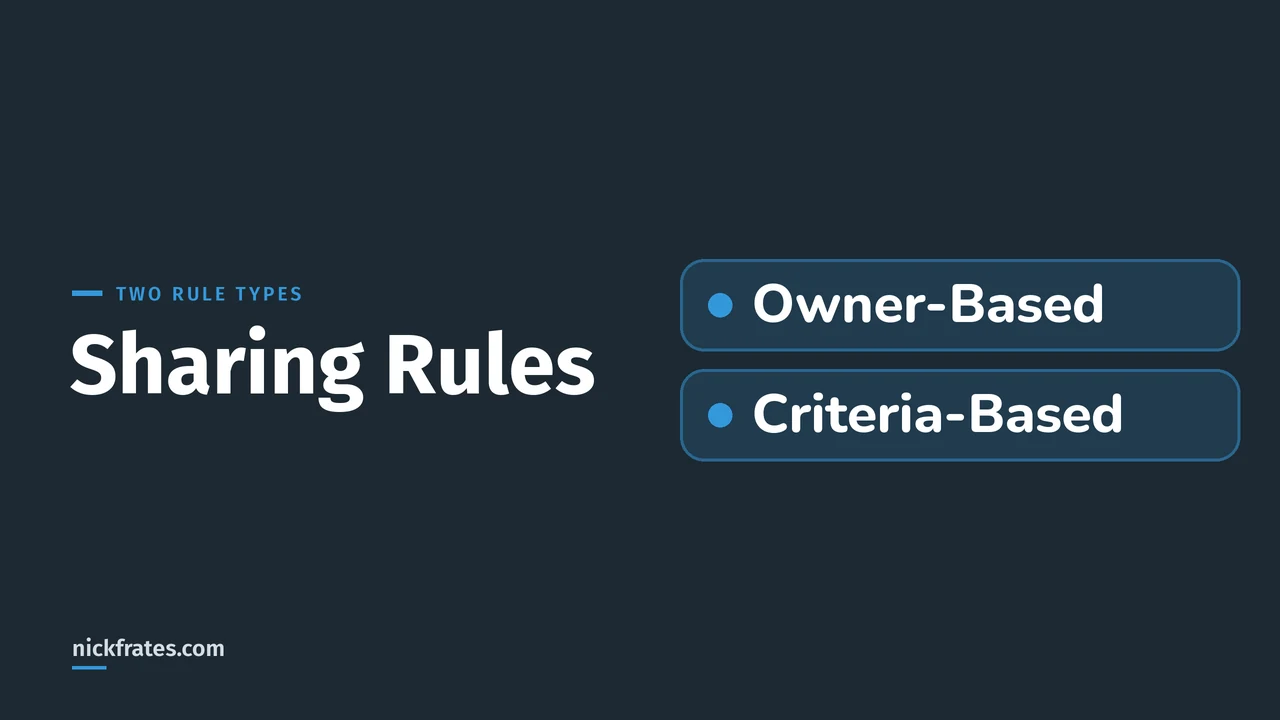
A sharing rule is an automatic exception to your org-wide defaults that gives a group of users, in a public group, role or territory, more access to records they don't own. You create it in Setup under Sharing Settings, choosing Based on record owner to share the records owned by certain users, or Based on criteria to share the records whose field values match. A sharing rule can only open access up: it can never be stricter than your org-wide default. That is how Salesforce's Help pages Sharing Rules, Create Owner-Based Sharing Rules and Create Criteria-Based Sharing Rules describe it. I read them and Trailhead's Improve Record Access Control in Your Org unit on October 28, 2026, and I mark my own opinions as mine.
I filled in both kinds of rule in a Developer Edition org on that date, and then clicked Cancel. I did not save a rule or change a default, so I can't show a rule at work. The pictures are the forms, so you know what you will be asked for.
Where sharing rules fit
Trailhead says you control record-level access in four ways, listed in order of increasing access: organization-wide defaults, role hierarchies, sharing rules and manual sharing. You lock data down with the org-wide defaults first, then open it up for the people who need it. My post on changing org-wide defaults covers the first step, and my security model post puts all the layers together.
Record access also sits on top of two other layers. Trailhead says a user's baseline permissions on an object come from their permission sets, permission set groups and profile, and that org-wide defaults can never grant more access than the object permission does. That is the subject of my object-level security post and my field-level security post.
In my org the Account default was Public Read/Write for internal users and Private for external users. My reading of the rule that a sharing rule can only grant more access: a Read Only rule on an object that is already Public Read/Write would add nothing. A rule matters when the default is stricter, such as Private.
Owner-based vs criteria-based
| Owner-based | Criteria-based | |
|---|---|---|
| Shares | Records owned by certain users. | Records whose field values match your criteria. |
| Rule type to pick | Based on record owner | Based on criteria |
| Help's example | All account records owned by the Sales Rep role, shared with the same role so reps can see each other's accounts, when the Account default is Private. | All job applications where a Department picklist is IT, shared with all IT managers. |
| Editable after saving | Label, rule name and sharing access level. | Label, rule name, criteria filters and sharing access level. |
For both types, Help says that if you need to change who is granted access, you delete the rule and create a new one. Help also says you can have up to 300 sharing rules for each object, including up to 50 criteria-based or guest user rules, if the object supports them. My take: if you can say who owns the records, use owner-based, and if you can say what the records have in common, use criteria-based.
How to create an owner-based rule
You need the Manage Sharing permission. The steps from Help:
- If your rule will include public groups, check they have been created.
- From Setup, enter Sharing Settings in the Quick Find box, then select Sharing Settings.
- In the Sharing Rules related list for the object, click New.
- Enter the label and the rule name. The label shows in the interface, and the rule name is a unique name for the API and managed packages. A description of up to 1,000 characters is optional.
- For the rule type, select Based on record owner.
- For owned by members of, choose a category and then a set of users. This says whose records are shared.
- For Share with, choose a category and a set of users. This says who gets access.
- Choose the access settings, then click Save.
Here is the form in my org. I picked Roles, CEO as the owners and Roles, CFO as the recipients:
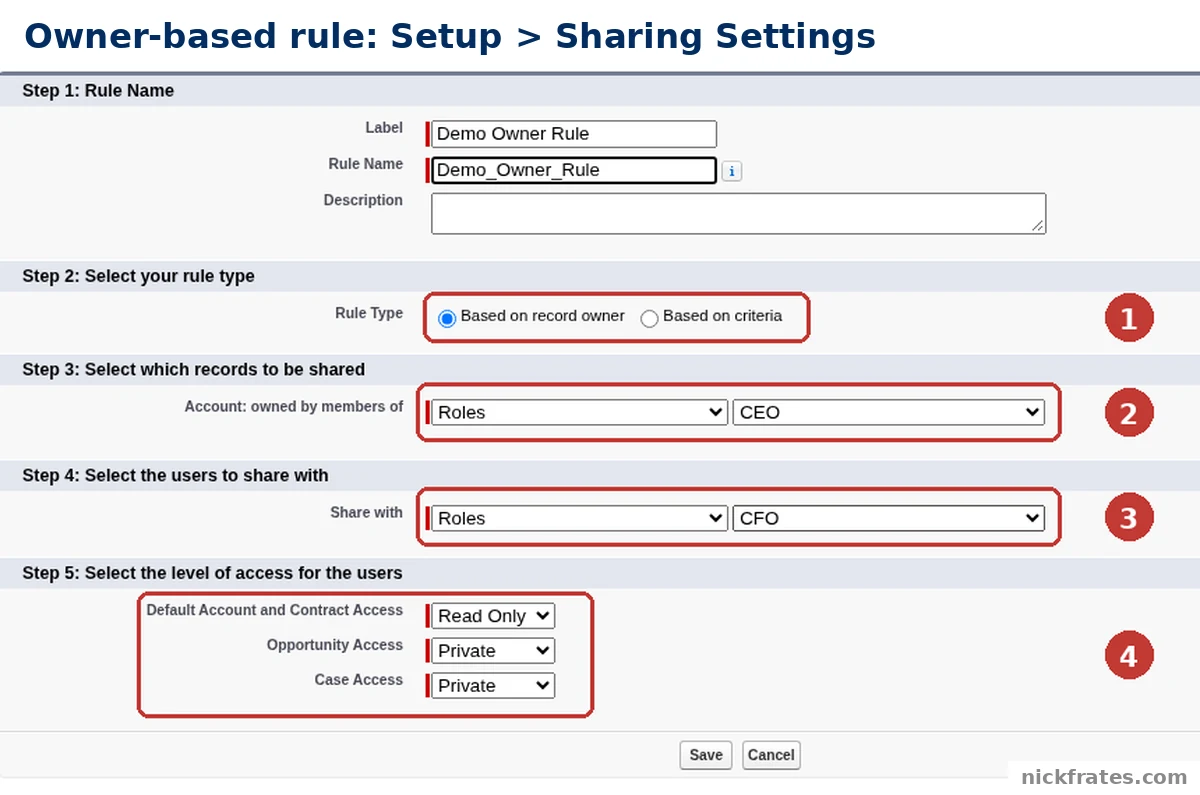
Setup > Sharing Settings > Accounts > Account Sharing Rules > New: an owner-based rule (not saved).
- Rule Type. Based on record owner is selected.
- Account: owned by members of. A category and a set of users. I chose Roles and CEO.
- Share with. The recipients, again a category and a set of users. I chose Roles and CFO.
- The level of access. Step 5 has Default Account and Contract Access, Opportunity Access and Case Access. I set Read Only, Private and Private.
How to create a criteria-based rule
The first five steps are the same as above, except you pick Based on criteria as the rule type. Then:
- Specify the field, operator and value that records must match. The fields available depend on the object, and the value is always a literal number or string. Click Add Filter Logic to change the AND relationship between filters. Help says the value is limited to 240 characters.
- If the option is available, choose whether to include records owned by users who can't have an assigned role, such as high-volume users and system users. Help says it is enabled by default and can't be edited after you save the rule.
- For Share with, choose who gets access, then the access settings, and save.
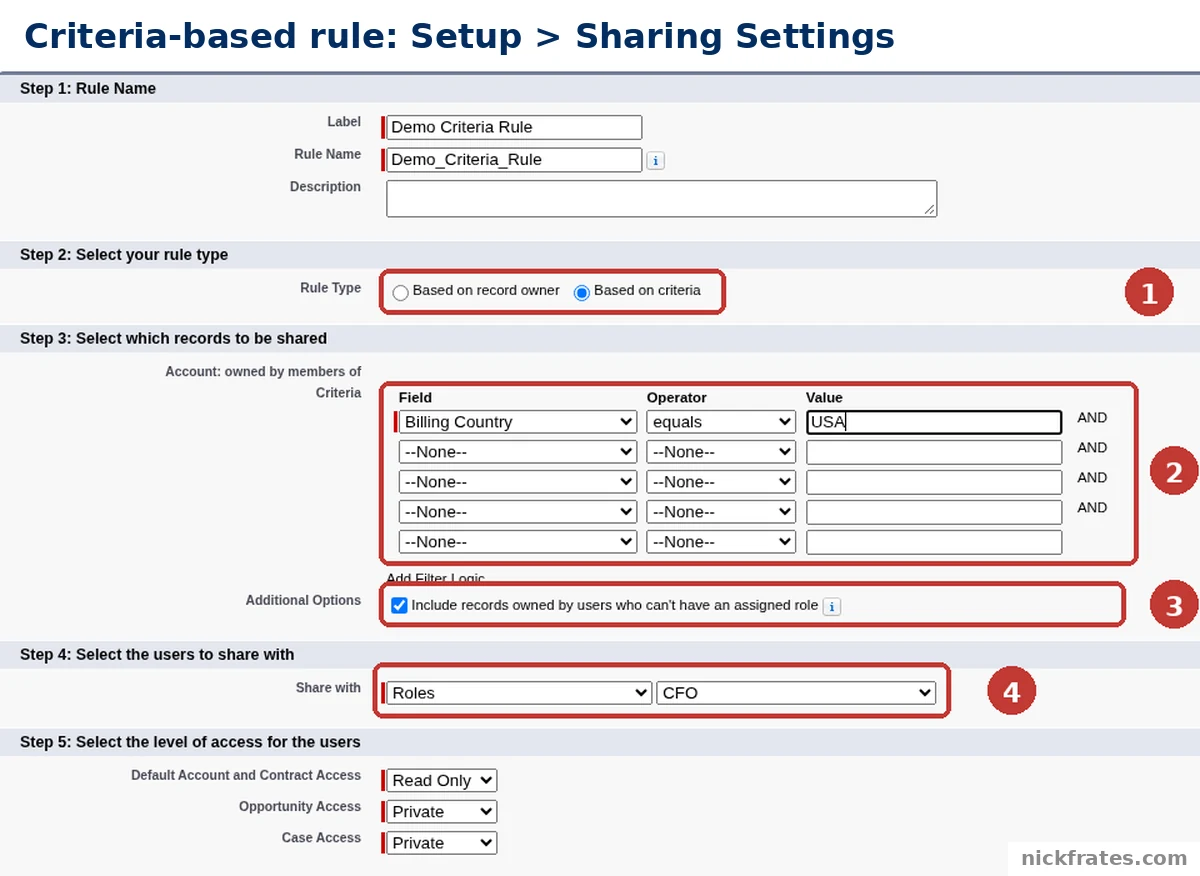
Setup > Sharing Settings > Accounts > Account Sharing Rules > New: a criteria-based rule (not saved).
- Rule Type. Based on criteria is selected.
- The criteria grid. There are five rows, each with a field, an operator and a value. I used Billing Country equals USA in the first row and left the rest empty. AND appears between the rows.
- Include records owned by users who can't have an assigned role. Ticked, which matches Help saying it is on by default.
- Share with. Roles and CFO.
If a field you need isn't supported by criteria-based rules, Help says you can create a workflow rule or Apex trigger to copy its value into a text or numeric field, and use that field as the criterion.
The access levels you can give
Help lists four access settings, and some aren't available for some objects:
- Private. Users can't view or update records unless access is granted outside this rule. It is available only for associated contacts, opportunities and cases.
- Read Only. Users can view but not update records.
- Read/Write. Users can view and update records.
- Full Access. Users in the selected group, role or territory can view, edit, transfer, delete and share the record like its owner. It is available for campaigns only.
Help adds that Contact Access isn't available when the organization-wide default for contacts is Controlled by Parent.
After you save
Help says sharing rules are recalculated after updates, to add or remove access as needed, and that this can take a while depending on your changes and your org. For large updates it suggests deferring sharing calculations and recalculating later. In my org, the Account Sharing Rules list on the Sharing Settings page showed No sharing rules specified, with New and Recalculate buttons above it, and the intro on that page points to Background Jobs to follow the progress of a change to a default or a sharing recalculation.
Cert Lab by Nick Frates
Sharing is on the Admin exam
The free Admin Cert Lab covers all 8 Admin exam sections with lessons, practice questions that explain every option, and flashcards. Free, no card, no trial.
Start the free Admin Cert Lab →Mistakes to avoid
- Expecting a sharing rule to restrict access. Trailhead says sharing rules can only grant additional access, not restrict it beyond the org-wide defaults.
- Editing the wrong thing. You can't change who is granted access on a saved rule. Help says to delete it and create a new one.
- Forgetting the recalculation. Changes are applied by a recalculation that can take a while, so don't test the result at once and assume it failed.
- Creating the rule before the public groups. Help's first step is to confirm the groups exist.
- Assuming the include setting can be changed later. For criteria-based rules, the option to include records owned by users who can't have an assigned role can't be edited after you save.
FAQ
What is a sharing rule in Salesforce?
It is an automatic exception to your org-wide sharing settings that gives users in public groups, roles or territories greater access to records.
What is the difference between owner-based and criteria-based sharing rules?
An owner-based rule shares records owned by certain users. A criteria-based rule shares records whose field values match the criteria you set.
Can a sharing rule restrict access?
No. A sharing rule can only give more access than the org-wide default. It can never be stricter.
Where do I create a sharing rule?
In Setup, enter Sharing Settings in the Quick Find box, open Sharing Settings, and click New in the Sharing Rules related list for the object. You need the Manage Sharing permission.
How many sharing rules can I have?
Help says up to 300 per object, including up to 50 criteria-based or guest user rules if the object supports them.
Can I edit a sharing rule after I save it?
You can edit the label, rule name and access level, and for criteria-based rules the criteria filters. To change who is granted access, delete the rule and create a new one.
Do sharing rules replace org-wide defaults?
No. Defaults come first, and Trailhead says you use them to lock data down and then open it up with sharing rules and the other tools.
Where to go next
- Changing org-wide defaults without breaking sharing: the layer that comes before sharing rules.
- Salesforce security model explained: profiles, permission sets, roles and sharing in one place.
- Object-level security in Salesforce: control create, read, edit and delete.
- Field-level security in Salesforce: who can see each field.
- Salesforce permission sets and permission set groups: how to reuse the building blocks.
- Administrator certification study guide: security is one of the exam's topics.
- Salesforce Admin certification: cost, exam format and study plan.
- Is the Admin certification worth it?: how to decide.
- Salesforce certification: how it works: where the exams fit.
- To practice security questions for free, try the free Admin Cert Lab.
Hope this helps!
Best,
Nick