Hey friends,
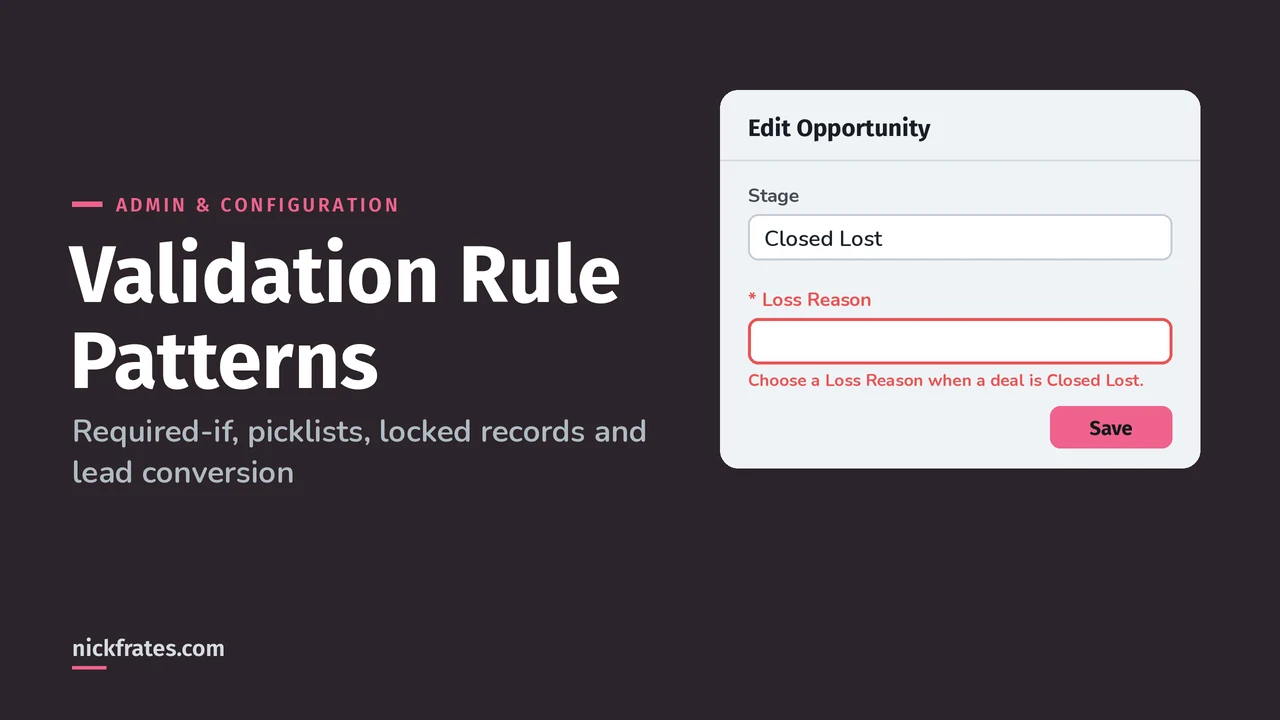
A validation rule is a formula that blocks the save when it returns TRUE. Most rules you'll ever write are one of a few patterns: required-if (AND a condition with ISBLANK), picklist checks (ISPICKVAL or TEXT), locking a record after a stage (PRIORVALUE), firing only on change (ISCHANGED) or only on create (ISNEW), and date ranges.
My validation rule examples post is the big list. This one is about the patterns behind them, plus where rules run and where they don't, based on Salesforce Help's About Validation Rules and Validation Rules Considerations.
The patterns
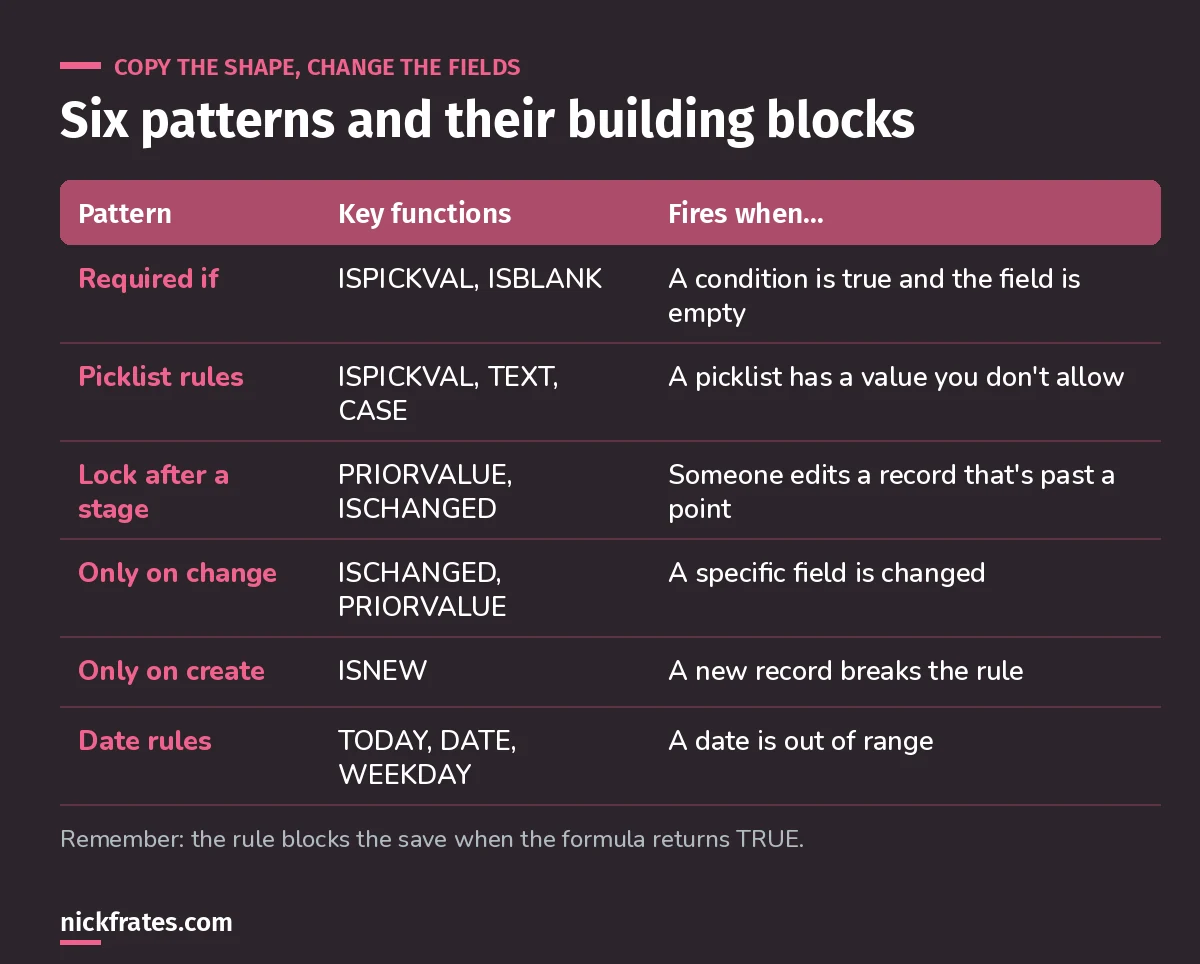
Write the condition that describes bad data. TRUE means blocked.
1. Required if
Make Loss Reason required only when the opportunity is Closed Lost:
Loss Reason is a picklist here, so it's wrapped in TEXT before ISBLANK. For a text field, use ISBLANK(Loss_Reason__c). For a lookup, check the ID field: ISBLANK(Primary_Contact__c).
If you only need the field required on a layout, there are other options; I compared them in conditionally requiring fields.
2. Picklist rules
You can't compare a picklist with =. Use ISPICKVAL, or TEXT when you need CASE or text functions. Block a discount over 20% unless the deal type is Strategic:
Percent fields are stored as decimals, so 20% is 0.2. For multi-select picklists, use INCLUDES.
3. Lock a record after a stage
Stop edits once a deal was already Closed Won, while still letting it be saved as Closed Won the first time. PRIORVALUE returns the field's previous value:
That blocks every edit to a deal that was already Closed Won. To lock only some fields, replace the condition with OR(ISCHANGED(Amount), ISCHANGED(CloseDate)).
4. Only when a field changes, 5. only on create
ISCHANGED compares a field to its previous value. ISNEW is true only while a record is being created. Help's considerations page calls out both as reasons to choose a validation rule over a lookup filter.
That one lets old records keep their past close dates, but stops anyone from moving a date into the past.
Cert Lab by Nick Frates
Validation rules are core App Builder content
The App Builder Cert Lab covers validation rules, formulas and roll-ups in its Business Logic section, with practice questions that explain every option.
Start the App Builder Cert Lab, $9.99 →6. Date rules
Salesforce's sample date validation rules include end date before begin date, a date in the current month, and a date within a year of today:
Salesforce notes that example assumes a 365-day year. More date logic is in my formula examples and date formulas posts.
Where validation rules run, and where they don't
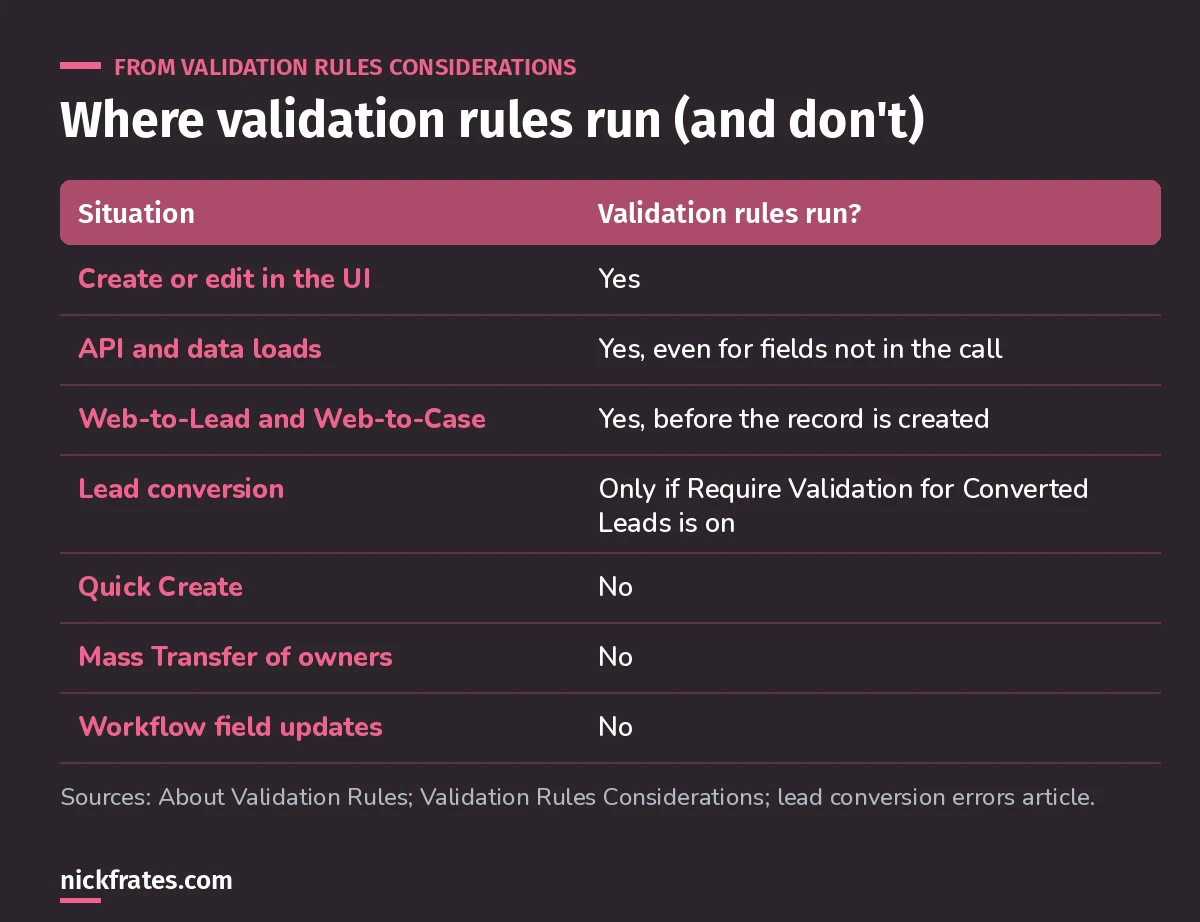
Data loads are not a way around your rules.
A few details from Help that matter in real orgs:
- Rules apply to new and updated records even if the fields they reference aren't on the page layout or in the API call. A Data Loader update to one field can fail because of a rule about another.
- When one rule fails, Salesforce keeps checking the others and shows all the error messages at once.
- Rules run on Web-to-Lead and Web-to-Case submissions before the records are created.
- Workflow field updates and scheduled process actions don't trigger validation rules, so they can leave a record invalid.
Lead conversion
Validation rules on Leads, Accounts, Contacts and Opportunities are enforced during conversion only if Require Validation for Converted Leads is on in Lead Settings (Salesforce Help). When it is, the errors show under the Converted Status picklist. If a rule on activities fails during conversion, the lead still converts, but the task isn't created.
Data loads and deployments
Because rules run on API saves, a big data load or an integration can hit rules that were written for people. The usual answer is a bypass: a custom permission checked in the rule, assigned only to the integration or data-load user. I walk through it in bypassing validation rules in Flow. Add the bypass deliberately, document who has it, and never give it to regular users.
What validation rules can't do
- Block deletes. Rules run when a record is saved, not deleted. Use permissions: remove Delete on the object for users who shouldn't delete.
- Look at other records. A rule can read parent fields through a lookup, but not sibling or child records. That's a job for Flow or a roll-up.
- Fix the data. A rule only blocks. If you want to correct or default a value, use a before-save flow.
Validation rule or Flow?
Use a validation rule when the rule must hold for every save, from every source, and the check can be written as a formula on the record and its parents. Use Flow when you need to query other records, change data, or guide a user through a screen. Many orgs need both. My Flow for the Admin exam post covers the Flow side.
Keep going
- Salesforce validation rule examples: the big list.
- Find validation rules with SOQL: audit what you already have.
- Order of execution: where rules fit in a save.
Cert Lab by Nick Frates
Get the Platform App Builder Cert Lab
Lessons, practice questions and flashcards for all 5 App Builder exam sections, built from the official exam guide.
Start the App Builder Cert Lab, $9.99 →Hope this helps!
Best,
Nick