Hey friends,
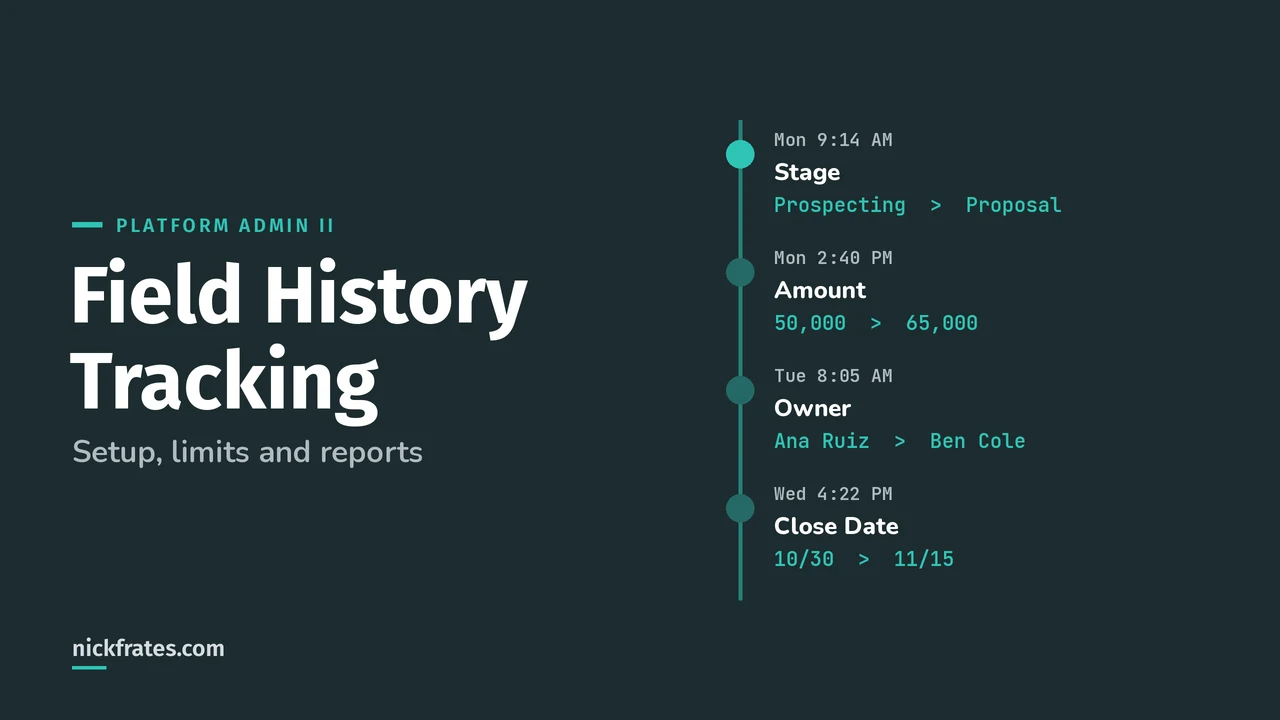
Salesforce Field History Tracking records who changed a field, when, and the old and new value, for up to 20 fields per object. You turn it on per object in Setup, pick the fields, and the changes show up in the object's History related list and in history reports. It costs nothing in data storage, but history only goes back to the moment you switched it on.
It's one of those features every admin uses, and the Platform Administrator II exam loves to poke at the edges: what you can't track, how long history sticks around, and who can see it. Everything below comes from the Field History Tracking Overview and related pages in Salesforce Help.
How do you turn on field history tracking?
You need the Customize Application permission. Then follow Track Object Field History:
- From Setup, enter Field History Tracking in Quick Find and select it.
- Click View next to the object you want to track.
- Select Enable Account History (or whatever your object is called).
- Pick fields under Track old and new values. Multi-select picklists and large text fields go under Track changes only.
- Save, then add the object's History related list to your page layouts so people can actually see it.
You can also get there from the object in Object Manager: Fields & Relationships, then Set History Tracking.
What are the limits?
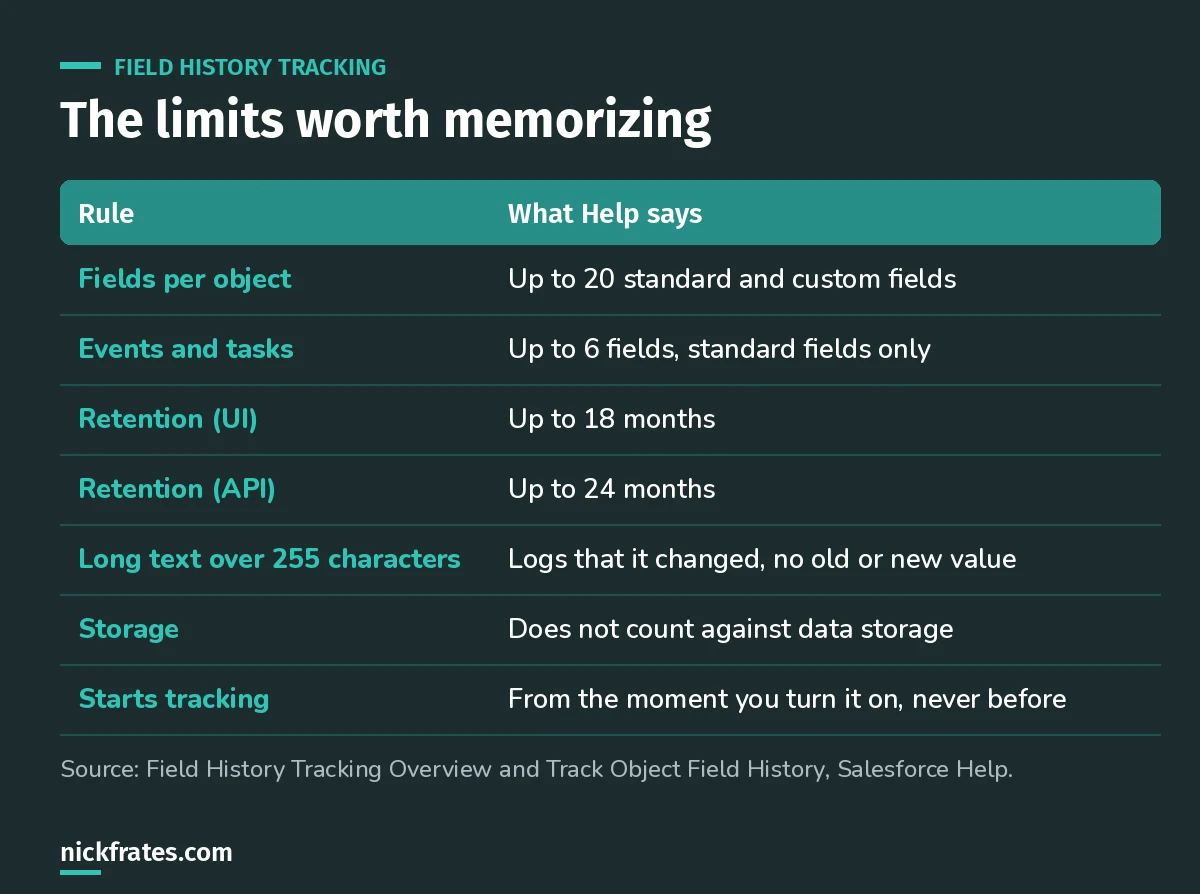
The numbers that show up most in real orgs and on the exam.
Accounts share one budget. If you use person accounts, the 20-field limit covers business accounts and person accounts together, and changes to a person's contact record aren't tracked.
Which fields can't you track?
- Formula, roll-up summary and auto-number fields
- Created By and Last Modified By
- Fields with the AI Prediction checkbox selected
- Expected Revenue on opportunities
- Custom fields on events and tasks (only standard activity fields are supported)
My rule of thumb: if Salesforce calculates the value for you, you can't track it. Track the inputs instead. For a formula like discount percent, track the fields it reads from.
Quick story. I loved Focus on Force on my way to 17 Salesforce certifications, but what really made things stick was taking practice tests rapid-fire, over and over, and reading why every miss was wrong. That's why I built Cert Labs around fast testing, with up-to-date Help links and screenshots in every explanation. The payoff from certs has been real for me: I learned what matters fast, got a credential people recognize, and it turned into interviews and raises.
Cert Lab by Nick Frates
Let the Platform Administrator II Cert Lab test you to success
Scenario questions on field history, audit trails, sharing and the rest of the Admin II exam, with every option explained and linked to the Help page behind it.
Start the Platform Administrator II Cert Lab for $9.99 →Who can see field history?
Access to history follows the parent record. Per Enable Access to History Objects for a Profile, a user needs at least Read on the object, Read field-level security on each tracked field, and a page layout that includes the History related list. If someone can't see a field, they can't see its history either.
What are the gotchas that trip people up?
- No backfill. Changes made before you enabled tracking are never recorded.
- Automation and permissions. If a flow or Apex trigger changes a field the current user can't edit, that change isn't tracked on most objects. Activities are the exception.
- Triggers create two entries. If a user saves 12345 and a trigger rewrites it to 94619, history shows both changes.
- Same-second edits. Timestamps are precise to the second, so two updates in the same second can display out of order.
- Apex blocks turning it off. If Apex references one of the object's fields, you can't disable tracking for that object.
- Values aren't translated. History shows the value in the language it was entered in, unless you translated it in Translation Workbench.
How long is history kept?
Without Field Audit Trail, Salesforce keeps field history for up to 18 months, and up to 24 months through the API. Use Data Loader or the queryAll() API to pull history that's 18 to 24 months old. Help also notes these numbers are reminders, so don't treat history as a guaranteed archive.
If you need more than 20 fields or longer retention, that's what Field Audit Trail is for. I compare the two in Field Audit Trail vs standard field history.
What happens when you turn it off?
From Disable Field History Tracking: deselect the fields in Set History Tracking and the History related list is removed from page layouts. On a standard object you can still report on history up to the moment you turned it off. On a custom object, you lose reporting on its field history. That difference is exam bait.
How do you report on field history?
Each tracked object gets a history report type, like Account History or Opportunity Field History, and the data lives in objects named AccountHistory or MyObject__History. I walk through the report types, filters and the Opportunity History trap in How to Report on Field History in Salesforce.
FAQ
How many fields can you track per object?
Up to 20 standard and custom fields per object. Events and tasks allow up to 6 standard fields.
Does field history count against storage?
No. Field history tracking data doesn't count against your data storage limits.
Can you see changes made before tracking was enabled?
No. Salesforce starts tracking from the date and time you turn it on for a field.
Why don't I see old and new values for a long text field?
For long text fields over 255 characters, Salesforce records only that the field changed, not the values.
Where should you go next?
- Platform Administrator II practice questions.
- The Salesforce security model, since history access follows record and field access.
- The Platform Administrator II study guide for the full exam map.
Cert Lab by Nick Frates
Let the Platform Administrator II Cert Lab test you to success
Lessons, flashcards, section quizzes and four 60-question practice exams for all seven Platform Administrator II sections, every answer explained.
Start the Platform Administrator II Cert Lab for $9.99 →Hope this helps!
Best,
Nick