Hey friends,
To open the Developer Console, click the gear icon (the quick access menu) in Salesforce and choose Developer Console. If you do not see it, it is probably switched off: since Winter '27, Salesforce makes Web Console the default in-browser editor, and the Developer Console is inactive until an admin turns it on at Setup > Web Console. Salesforce also says the Developer Console is in maintenance mode, with no new features being added.
Everything below comes from Salesforce's own pages, checked on October 28, 2026: the Developer Console help page, the Apex Developer Guide, the anonymous blocks page, the debug log page, the Enable Web Console page, the Web Console general availability announcement and a Trailhead project. The code in this post was only checked for syntax, not run in an org.
How to open the Developer Console
The Apex Developer Guide gives two routes. In Lightning Experience, click the quick access menu (the gear icon), then click Developer Console. In Salesforce Classic, click your name, then click Developer Console.
Step: click the gear icon at the top right of Salesforce (1), then click Developer Console (2).
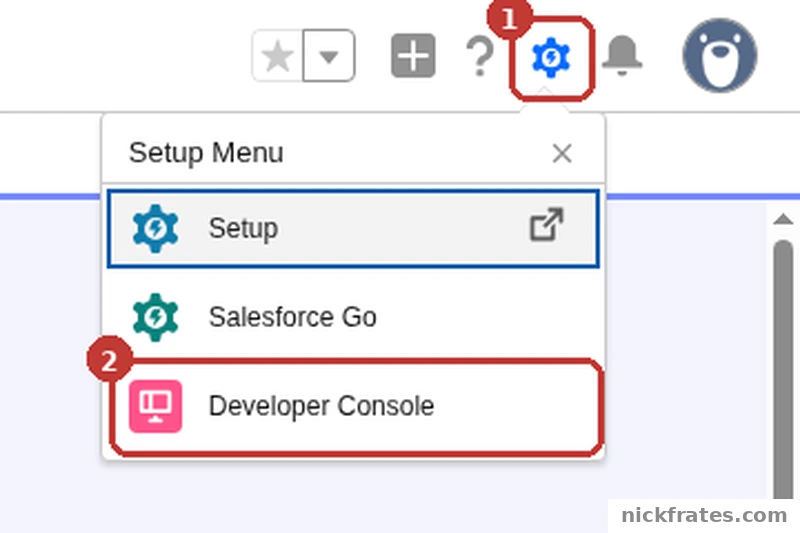
Gear icon (quick access menu) > Developer Console, in Lightning Experience.
If the Developer Console is not in the menu, turn it on. You need to be able to open Setup:
- Click the gear icon and choose Setup.
- In the Quick Find box, enter Development, then select Web Console.
- Switch Enable Developer Console to Active.
- Close the Setup page, then refresh the page or wait a few seconds for the gear menu to update.
Those steps come from Salesforce's Enable Web Console page and match the Trailhead project, which tells you to set Enable Developer Console to Active, refresh, and then pick Developer Console from the menu. The announcement says Web Console is now enabled by default for users with admin permissions, and that you can re-enable the Developer Console in the same place. Here is what the two switches do together:
| Web Console | Developer Console | What you get |
|---|---|---|
| Active | Inactive | Only Web Console in the Setup menu. Clicking Edit next to an Apex class, trigger or job opens Web Console. |
| Inactive | Active (the default in that case) | Only Developer Console in the Setup menu. Edit opens the Apex editor window. |
| Active | Active | Both are in the Setup menu. Edit opens Web Console, but you can launch either one. |
To use Web Console, users need the Web Console User and View All Data permissions.
What the Developer Console is
Salesforce's help page calls it an integrated development environment with a collection of tools you can use to create, debug and test applications in your org. An IDE (integrated development environment) is a code editor with the extras around it, such as running, testing and debugging, in one window. The Apex Developer Guide says you can use it to:
- Write and edit Apex code with color coding and autocomplete.
- Compile code when you save a class or trigger.
- Debug with logs and checkpoints.
- Run tests and check performance.
- Run SOQL queries in the Query Editor. SOQL is Salesforce's query language, and I explain it in my post on how Apex works.
One more thing to know. The help page says the Developer Console is in maintenance mode, that no new features are being added and that only high-severity security bugs are addressed. It still works for what it does, but new tooling work goes into Web Console and VS Code.
Run Apex without saving it
The fastest thing to do in the Developer Console is run an anonymous block: a piece of Apex that runs once and is not saved in your org. The anonymous blocks page says the code is compiled and executed every time you run it, runs as the current user, and needs the API Enabled and Author Apex permissions. In the Developer Console, follow the Trailhead steps:
- Click Debug, then Open Execute Anonymous Window.
- Enter your code in the Enter Apex Code window.
- Select Open Log, then click Execute.
- In the execution log that opens, select Debug Only to see just your debug lines.
Step: in the Enter Apex Code window, type or paste your code, leave Open Log ticked and click Execute (1). The snippet in this capture is a different one from the block below.
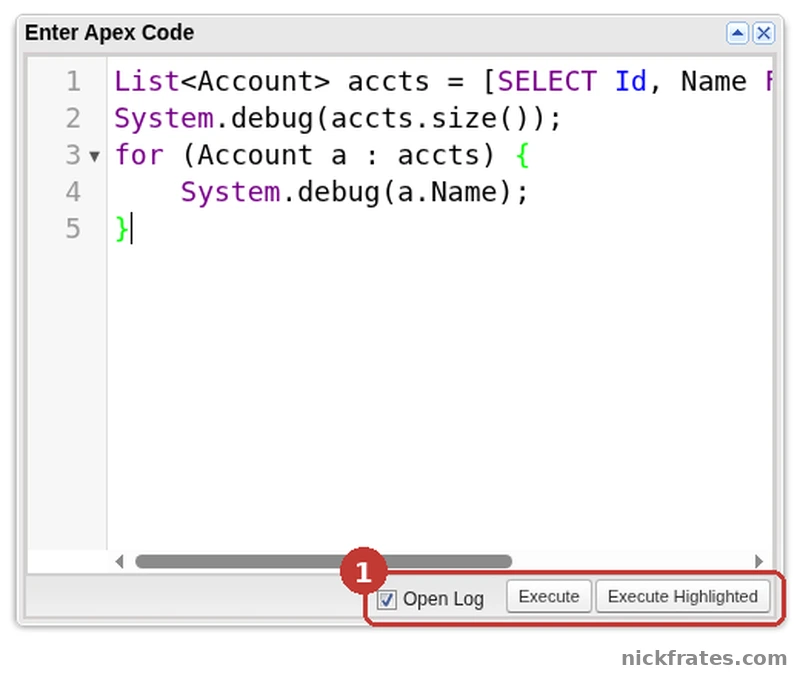
Developer Console > Debug > Open Execute Anonymous Window.
Here is a small block to try. It prints a greeting and counts the accounts in the org, using a COUNT() query:
In the log you will see two lines with the event name USER_DEBUG, one for each System.debug statement. That is the same filter the Trailhead project describes. Anonymous Apex changes real data if your code does DML, so practice in a Developer Edition org or a sandbox, not production. I have a longer example of this window in my post on mass deleting records with Execute Anonymous, and more code you can paste in my Apex code examples.
Step: in the execution log, tick Debug Only to see just your USER_DEBUG lines. In this capture the first line shows the debug text 5, from a System.debug call that printed a count. Account names are blurred.
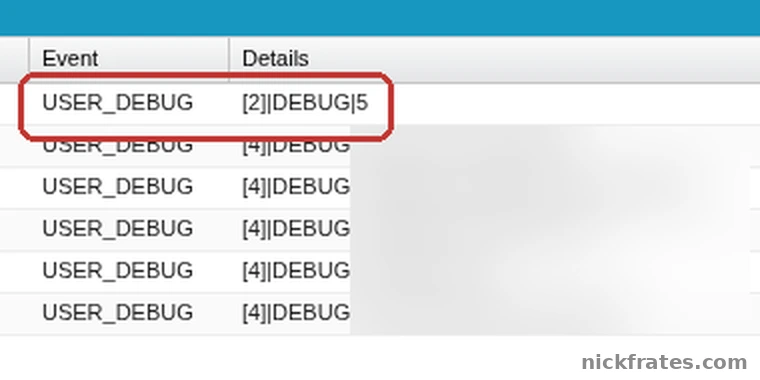
Execution Log with Debug Only ticked, in the Developer Console.
Read a debug log
The debug log page explains that a log can record database operations, system processes and errors that happen during a transaction or a test run. Each log line has a timestamp, an event identifier and extra details, separated by pipe characters. To see the raw version in the Developer Console, open the Logs tab, right-click a log and choose Open Raw Log. The timestamps in the raw log include elapsed time in nanoseconds, which the Execution Log view leaves out.
A few limits from the same page are worth knowing: each log must be 20 MB or smaller, system debug logs are kept for 24 hours and monitoring debug logs for seven days. Salesforce also warns that if the Apex Code level is FINEST, the log includes every Apex variable assignment, so avoid it when your code handles sensitive data like passwords.
If you are reading a log because a transaction ran out of time, my post on the Apex CPU time limit exceeded error shows the limit lines to look for.
Query data with the Query Editor
The help page says the Query Editor runs a SOQL query or a SOSL search on the data in your org. A SOQL query reads records from one object or related objects. A SOSL search is a free-form text search across several objects. A first query to try:
The query lists up to ten accounts in name order with their phone numbers. Paste only the query into the Query Editor. Do not wrap it in Apex square brackets, which you only need inside a code file. For the full syntax, see my beginner post on SOQL in Salesforce.
Developer Console or Web Console?
Salesforce's announcement calls Web Console a modern, browser-based IDE built on VS Code for the Web with the Salesforce Extensions for Visual Studio Code. It says Web Console does what Developer Console does and adds things Developer Console never had, such as Lightning Web Component editing, an Org Browser for all metadata and a declarative SOQL Builder. Here are the same tasks side by side:
| Task | Developer Console | Web Console |
|---|---|---|
| Run anonymous Apex | Debug, then Open Execute Anonymous Window | Command Palette, run SFDX: Create Anonymous Apex Script, then right-click and run SFDX: Execute Anonymous Apex |
| Run SOQL | Query Editor tab | Command Palette, run SFDX: Create Query in SOQL Builder, then Run Query |
| View debug logs | Logs tab | Command Palette, run SFDX: Get Apex Debug Logs |
| Run Apex tests | Built-in test tools | Testing view (beaker icon) in the Activity Bar |
| Edit Lightning Web Components | Not available | Yes, through the Org Browser |
The announcement also says that in production orgs Apex editing in Web Console is read-only, while sandboxes and other non-production orgs allow inline edits. The Apex Developer Guide says the same about the Setup code editors in production, so make code changes in a sandbox or Developer Edition org and deploy them.
My take: if your org already has the Developer Console turned on, nothing forces you to stop using it for quick anonymous Apex and logs. If you are learning, though, spend time in Web Console and VS Code too, because that is where Salesforce is putting new work. I also wrote a first look at Salesforce Code Builder.
Mistakes to avoid
- Thinking it was removed. It is hidden, not gone. Enable Developer Console in Setup, then refresh.
- Running DML in production. An anonymous block can insert, update or delete real records.
- Forgetting Open Log. If you do not select it before clicking Execute, you have to find the log in the Logs tab.
- Turning on FINEST logging for sensitive code. It records variable assignments, which can include secrets.
- Using it as your only tool. The help page says no new features are coming, so learn Web Console and VS Code as well.
Cert Lab by Nick Frates
Learning Apex for the exam?
The Platform Developer Cert Lab has lessons weighted like the exam, practice questions that explain every option, flashcards and timed practice exams, so you can see which Apex topics you still need to work on.
Start the Cert Lab, $9.99 →Frequently asked questions
How do I open the Developer Console in Salesforce?
In Lightning Experience, click the gear icon (quick access menu) and choose Developer Console. In Classic, click your name and choose Developer Console. If it is missing, an admin can turn it on at Setup > Web Console by setting Enable Developer Console to Active, then refresh.
Why is the Developer Console missing?
Salesforce made Web Console the default in-browser editor with Winter '27, and the Developer Console is inactive unless someone switches it on. Setup > Web Console has the switch.
Is the Developer Console going away?
Salesforce's help page says it is in maintenance mode: no new features, only high-severity security fixes. The announcement says you can re-enable it at any time. I did not find a removal date.
What permissions do I need to run anonymous Apex?
The Apex Developer Guide says API Enabled and Author Apex.
What is an anonymous block?
A piece of Apex that is compiled and run once without being saved in your org. It runs as the current user.
How do I see the output of System.debug?
Run the code with Open Log selected, then choose Debug Only in the execution log. Each System.debug statement shows as a USER_DEBUG line.
Can I run SOQL in the Developer Console?
Yes. The help page says the Query Editor runs SOQL queries and SOSL searches on the data in your org.
What replaces the Developer Console?
Salesforce positions Web Console, built on VS Code for the Web, as the modern alternative. VS Code with the Salesforce extensions is the full desktop option.
Hope this helps!
Best,
Nick