Hey friends,
"Apex CPU time limit exceeded" means one transaction used more than its share of processing time on Salesforce's servers: 10,000 milliseconds (10 seconds) for synchronous Apex, 60,000 milliseconds (60 seconds) for asynchronous Apex. To fix it, find which code is burning the time using a debug log, then do less work in that code: replace loops inside loops with a Map, let SOQL do the adding up, query only what you need, and move non-urgent work to async Apex. You cannot catch this error with try/catch, so the fix has to be in the code or the automation around it.
Everything below is based on the Apex Developer Guide limits page and two Salesforce Help articles, Troubleshoot Apex CPU Time Limit Exceeded Errors and Code more efficiently to avoid 'Apex CPU time limit exceeded', all checked on October 28, 2026. The code samples are mine. I checked that they are valid Apex syntax, but I did not run them in an org, so test them in a sandbox first. The one screenshot is a real debug log from my own Developer Edition org.
What the error means
A transaction is everything that happens from one save, click or scheduled run until it finishes. That includes your triggers, any flows that fire, and any installed package code that runs along the way. CPU time is the time Salesforce's application servers spend running all of that. It is not the same as how long you wait for the page.
| Context | CPU time limit |
|---|---|
| Synchronous Apex (you click Save and wait) | 10,000 milliseconds |
| Asynchronous Apex (Batch Apex, future methods, Queueable) | 60,000 milliseconds |
Three details from the limits page are easy to miss:
- The limit is per transaction. For Batch Apex, it resets for each execution of a batch of records in the
executemethod. - Salesforce says that although scheduled Apex is asynchronous, synchronous limits apply to scheduled Apex jobs. The Help article lists scheduled jobs under the 60-second limit, so the two pages disagree. I would plan for the 10-second limit in scheduled Apex, because that is the Developer Guide's wording.
- Installed packages do not give you extra CPU. A certified managed package gets its own count for most limits, but the page lists maximum CPU time as one of the limits that counts for the whole transaction.
When a limit is exceeded, the governor raises a runtime exception that can't be handled, so there is no way to catch it and carry on.
What counts toward CPU time, and what doesn't
| Counts toward CPU time | Does not count |
|---|---|
| Your Apex code, and anything it calls, such as package code and workflows | Time the database spends on SOQL, SOSL and DML |
| Application server CPU spent in DML operations | Time spent waiting for a callout to an outside system to answer |
| Library functions exposed in Apex | Time spent compiling Apex |
| Flows, formula field calculations, validation rule formulas and workflow rules that run in the same transaction | Time your browser spends drawing the page |
The two Help articles list slightly different examples of automation that counts (one names flows and formula fields, the other names workflow rules and validation rule formulas), so treat those as examples, not a full list. The takeaway is the same either way: the error is not always your Apex. A trigger, a flow and a package can each use part of the same 10 seconds.
Step 1: find what is using the CPU time
Do not start rewriting code until you know where the time goes. Salesforce's article recommends a debug log first.
A debug log is a record of everything that ran in a transaction. To capture one, go to Setup, open Debug Logs, and add a trace flag for the user who hits the error. A trace flag tells Salesforce to record that user's transactions. Then create a debug level, which controls how much detail goes into the log. The article suggests these settings for CPU problems:
- Apex Profiling: Finest. The article calls this the most critical setting for CPU analysis.
- Apex Code: Finer or Finest, which shows when each method starts and ends.
- Database, Workflow, Validation, Callout: Info, which keeps the log smaller.
- System: Debug.
Reproduce the error, then open the log. A log can't be bigger than 20 MB, and when it is, the end gets cut off. That is a problem, because the CPU summary is at the end. If your log is truncated, reproduce the problem with a smaller job, for example 10 records instead of 200.
Then search the raw log for these lines:
CODE_UNIT_STARTEDandCODE_UNIT_FINISHEDmark the start and end of each method, trigger or flow. Compare the timestamps on a matching pair to see how long that piece took.LIMIT_USAGE_FOR_NSlines are checkpoints that show how much of each limit has been used so far, includingCPU_TIME. Salesforce's example readsCPU_TIME|8560|10000, which is 8,560 milliseconds used out of 10,000.CUMULATIVE_PROFILINGappears when profiling is set to Finest, and it lists the most time-consuming methods. Salesforce calls it an excellent starting point.
Here are the limit usage lines at the end of one of my own logs. I ran a deliberately CPU-heavy snippet in my Developer Edition org to produce it. The other counters show zero because that snippet ran no queries or DML. The log flags the CPU line as close to the limit.
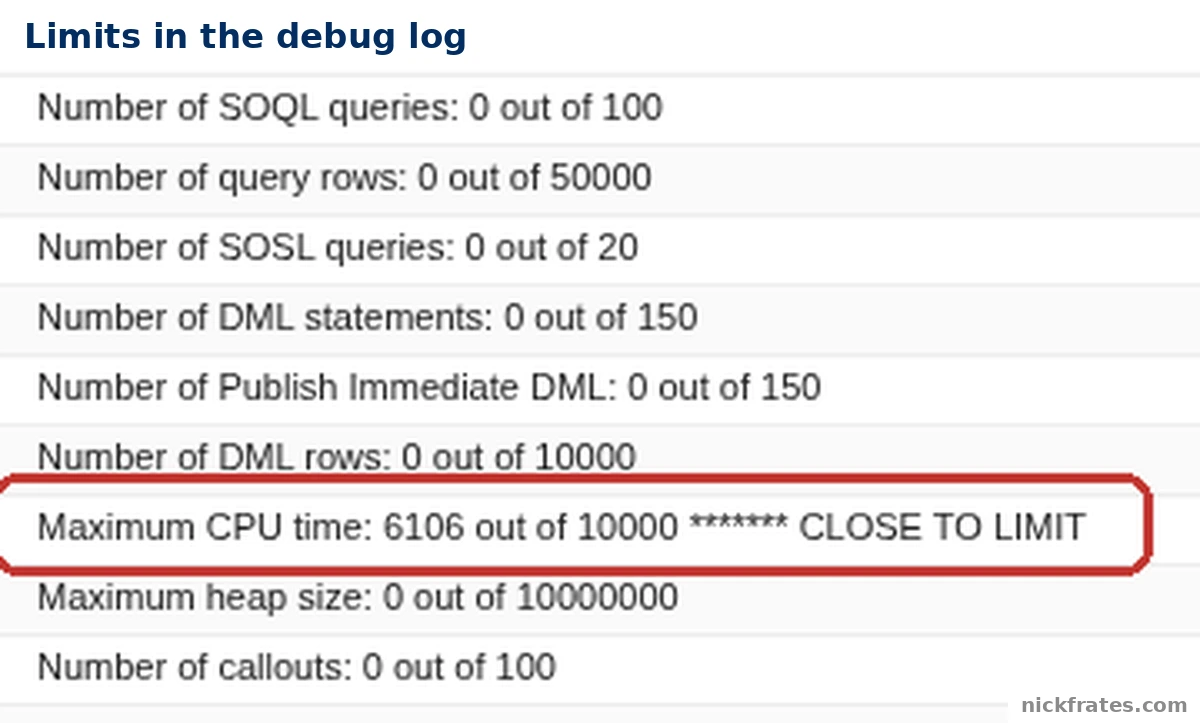
Limit usage lines in a Salesforce debug log. Maximum CPU time: 6106 out of 10000.
Two more ways to read the log
The Developer Console. Open the log, choose Debug, then Switch Perspective, then Analysis. In the Executed Units tab, sort by Total Time from highest to lowest. The article explains the two columns: Total Time includes the other methods a method calls, and Self Time counts only the method itself. A high Self Time points at a slow loop or calculation inside that method. The Timeline tab draws the same thing as bars, so the longest bar is the longest-running piece. Salesforce warns that the Developer Console can be very slow or even crash on large logs.
Apex Log Analyzer. The same article recommends this free Visual Studio Code extension. Its Call Tree view lets you expand the methods with the highest total duration until you reach the one with a high self duration, which is where the CPU is going.
Checkpoints in your own code. If logs keep getting truncated, the Limits class can print the CPU used so far. Salesforce suggests a distinct logging level such as WARN, so that you can set the log's Apex Code level to WARN and get a tiny log with only your checkpoints.
The last checkpoint that prints before the failure tells you which step to look at first.
Step 2: do less work
Once you know which code is slow, these are the fixes Salesforce's articles give, in the order I would try them.
1. Replace a loop inside a loop with a Map. A Map is a lookup table that finds a record by its Id without scanning a list. This trigger scans the whole list of accounts once for every contact, so 200 contacts and 2,000 accounts is 400,000 comparisons:
This version collects the account Ids, queries only those accounts into a Map, and looks each one up directly:
Salesforce's Common Bulk Trigger Idioms page covers the same pattern. For the full set of habits, see my Apex trigger best practices post.
2. Let SOQL do the adding up. Database time doesn't count toward CPU time, so work that SOQL can do is cheaper than the same work in an Apex loop. Aggregate functions like SUM(), COUNT(), AVG() and GROUP BY do the math in the database:
3. Query only what you need. Filter by the records you need and select only the fields you use. Salesforce says retrieving more data than necessary makes your loops bigger and adds processing.
4. Stop calling Apex once per item in a flow. Salesforce's example is a record-triggered flow that loops through an account's contacts and calls an Apex action for each one. With 150 contacts, that action runs 150 times, and each call has CPU overhead. The fix is to add each contact to a collection inside the loop, then call the action once after the loop. The Apex action itself has to accept a list, which is what bulk-safe means. My Apex vs Flow post covers when to use each.
5. Don't re-query in a Batch Apex finish method. The Help article's example counts records by type in finish by querying every processed record again. Instead, implement Database.Stateful and add to a running count in each execute, so finish already has the answer. My asynchronous Apex post explains the async options.
6. Move non-urgent work to async Apex. If a process doesn't need to finish before the user sees the page, a future method or Queueable Apex runs in a separate transaction with the 60,000 millisecond limit instead of 10,000. Remember the scheduled Apex caveat above. This is a way to fit a job that is genuinely large, not a way to hide a loop that should be a Map.
One more factor from the limits page: CPU and heap are related. A bigger heap means more time spent on heap checks, so code that is close to both the heap and CPU limits at once is more likely to hit the CPU limit.
Mistakes that keep the error coming back
- Wrapping the code in try/catch. The limit exception can't be handled, so this does nothing.
- Testing with one record. A loop inside a loop looks fine with one record and fails on a bulk update or data load. Test with 200 records, which is the trigger batch size.
- Fixing only the Apex. If the log shows a flow or a package using the time, rewriting your trigger won't help.
- Reading a truncated log. If the log ends before the limit summary, the numbers you see are not the final ones. Shrink the job and capture it again.
- Sending everything to async. You get a higher limit, but a slow loop still wastes CPU and can still fail at 60 seconds.
If you want to practice with small, safe Apex first, start with my Apex code examples, which include a Limits check, and run them in a free Developer Edition org.
Cert Lab by Nick Frates
Learning Apex for the exam?
The Platform Developer Cert Lab has lessons weighted like the exam, practice questions that explain every option, flashcards and timed practice exams, so you can see which Apex topics you still need to work on.
Start the Cert Lab, $9.99 →Frequently asked questions
What does Apex CPU time limit exceeded mean?
It means a transaction used more CPU time on Salesforce's application servers than the platform allows: 10,000 milliseconds for synchronous Apex and 60,000 milliseconds for asynchronous Apex.
What is the Apex CPU time limit?
10,000 milliseconds (10 seconds) for synchronous Apex and 60,000 milliseconds (60 seconds) for asynchronous Apex. Salesforce notes that synchronous limits apply to scheduled Apex jobs.
What counts toward CPU time?
Application server processing for your Apex, the code and workflows it calls, package code, and the application server CPU used in DML. Salesforce's Help articles also list flows, formulas, validation rule formulas and workflow rules that run in the transaction.
Do SOQL queries count toward CPU time?
The time the database spends running a query doesn't count. The Apex that prepares the query and loops over the results does.
Can I catch the CPU time limit exception?
No. Salesforce says a governor raises a runtime exception that can't be handled when a limit is exceeded.
Can I increase the CPU time limit?
The limits page gives fixed values (10,000 and 60,000 milliseconds) and says nothing about raising them, so I would not plan around it. The practical options are to reduce the work or move it to an asynchronous context.
How do I find the code causing it?
Capture a debug log with Apex Profiling set to Finest, then look at CODE_UNIT_STARTED and CODE_UNIT_FINISHED timestamps, LIMIT_USAGE_FOR_NS lines and CUMULATIVE_PROFILING. The Developer Console's Analysis perspective and the Apex Log Analyzer extension show the same data visually.
Hope this helps!
Best,
Nick