Hey friends,
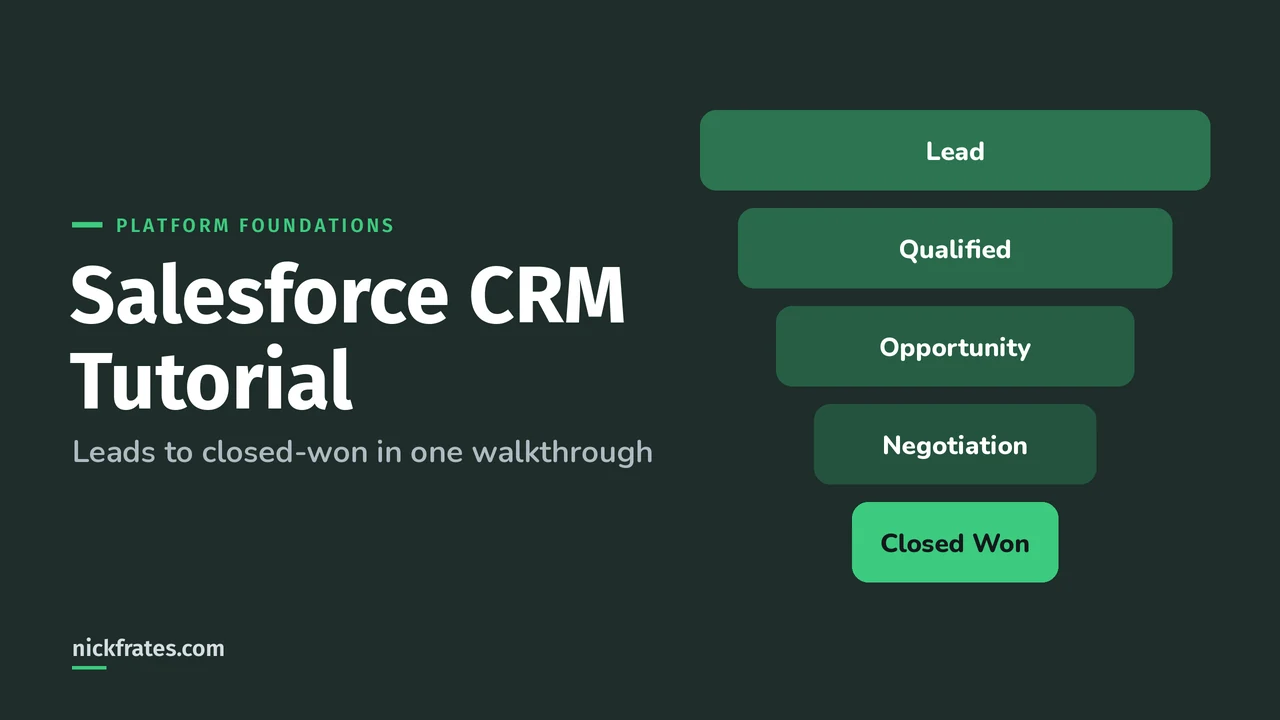
The fastest way to understand Salesforce CRM is to walk one deal all the way through: create a lead, qualify it, convert it into an account, contact and opportunity, move the opportunity through its stages, and close it won. That's what this tutorial does. It follows the same path as Trailhead's Leads and Opportunities module.
If you want the big-picture explanation first, read what is Salesforce CRM. Otherwise, grab a free Developer Edition org or a Trailhead Playground and follow along.
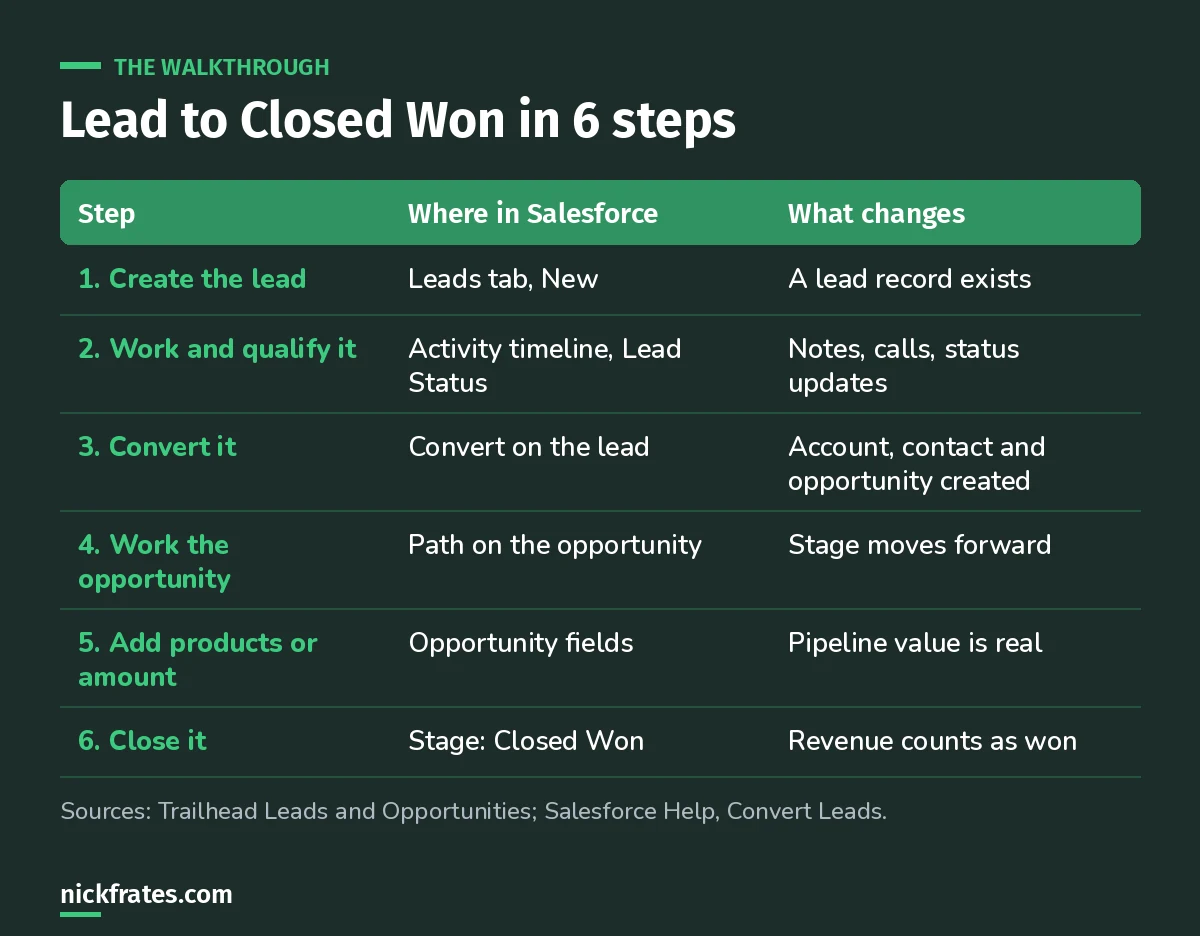
Six steps, three objects, one deal.
Step 1: Create a lead
A lead is a person or company that showed interest but isn't a customer yet. Trailhead lists typical sources: referrals, website forms, partners, ads and events.
- Open the App Launcher and choose the Sales app.
- Go to the Leads tab and click New.
- Enter a name, company and Lead Source (say, Web). Save.
In real orgs, leads are often assigned automatically by territory or to a queue. Your admin sets that up with assignment rules.
Step 2: Work and qualify the lead
Log a call from the activity timeline, add a note about what they need, and update Lead Status as you go. Qualification is the point where you decide this is a real deal worth tracking as an opportunity.
Step 3: Convert the lead
Click Convert. Per Salesforce Help's Convert Leads article, you can:
- Create a new account or pick an existing one.
- Create a new contact or pick an existing one.
- Create a new opportunity or, in Lightning Experience, choose an existing one.
- Optionally create a follow-up task.
Two things to know: you can't reverse a lead conversion, and Salesforce warns you about possible duplicate records based on matching rules. Attached files and notes move to the new records.
Quick backstory. I loved Focus on Force and used it on my way to 17 Salesforce certifications. Over time I noticed I learned way faster when I took practice tests rapid-fire, over and over, and read the explanation for every miss. So I built Cert Lab around fast testing, with up-to-date Help links and screenshots in every explanation. It's designed to test you to success.
Cert Lab by Nick Frates
Let the Platform Foundations Cert Lab test you to success
Rapid quizzes on the core objects, navigation, data visibility and reports, with every answer explained, so concepts like lead conversion stick fast.
Start the Platform Foundations Cert Lab for $9.99 →Step 4: Work the opportunity through its stages
Open the new opportunity. The Path at the top shows the stages. Trailhead's example sales process uses these:
| Stage | What's happening |
|---|---|
| Prospecting | Finding and assessing the prospect |
| Qualification / needs identification | Understanding needs, challenges and goals |
| Proposal / price quote | Presenting what you offer and the terms |
| Negotiation / review | Back-and-forth on terms |
| Closed Won | They agreed; the deal is done |
| Closed Lost | It didn't happen, and you record why |
Your company's stages may differ. Admins customize them per sales process. Click each stage on the Path and Mark as Current Stage as the deal progresses.
Step 5: Add an amount and close date
Fill in Amount and Close Date. These drive pipeline reports and forecasts. If your org uses products, add them from the Products related list and the amount calculates for you.
Step 6: Close it won
Choose Closed Won on the Path and save. That opportunity now counts as won revenue in reports. Build a quick report of opportunities by stage to see your deal move. My reports and dashboards guide shows how, and calculating win rate is a nice next step.
Why this matters for Platform Foundations
The Platform Foundations exam guide puts Data Model at 25%, starting with "the relationship between the core standard objects (account, contact, lead, opportunity, case)." This walkthrough is exactly that relationship in action.
FAQ
Can you undo a lead conversion?
No. Salesforce Help says lead conversion can't be reversed.
Do I have to use leads?
No. You can create opportunities directly on existing accounts. Leads help when you want to track and qualify prospects separately.
Where should you go next?
- Platform Foundations study guide
- Platform Foundations practice questions
- Sales and service apps cheat sheet
Cert Lab by Nick Frates
Let the Platform Foundations Cert Lab test you to success
Lessons, flashcards, a quiz for each of the four exam sections and full practice exams, every answer explained.
Start the Platform Foundations Cert Lab for $9.99 →Hope this helps!
Best,
Nick