Hey friends,
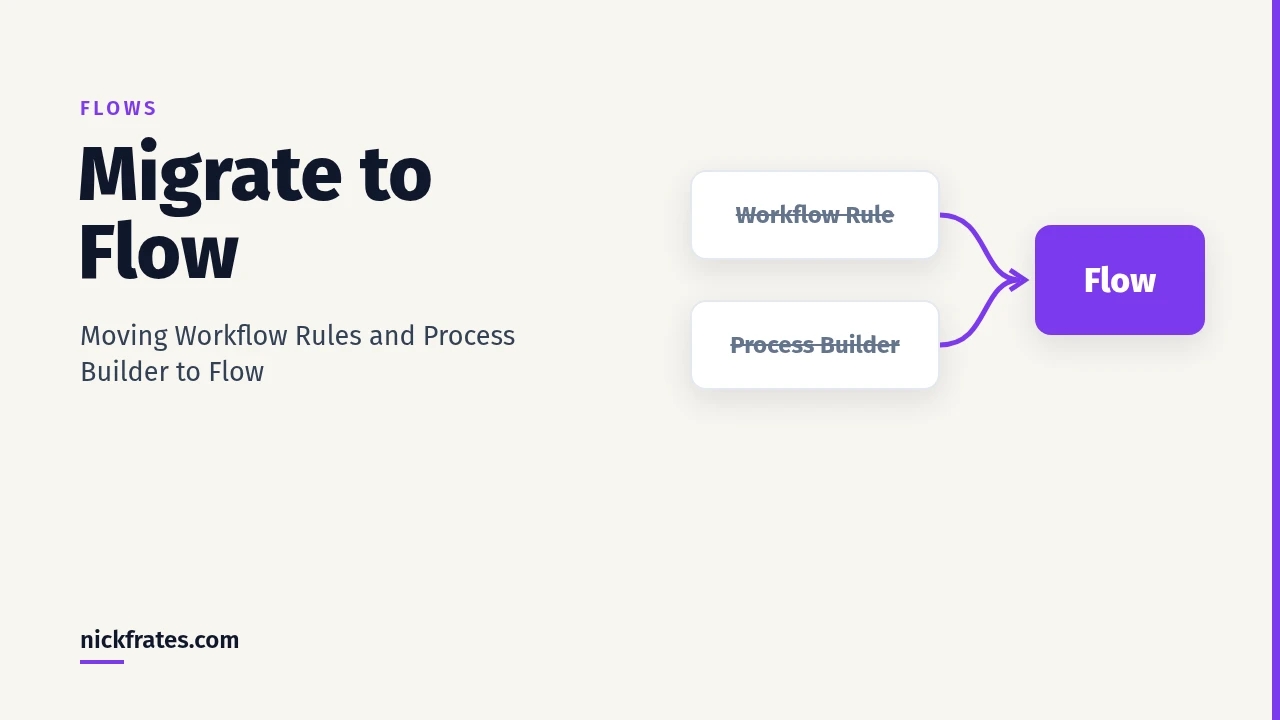
Migrate to Flow is the Salesforce Setup tool that converts a workflow rule or a Process Builder process into a flow, so you can test it in Flow Builder and then turn it on in place of the old automation.
Salesforce stopped supporting Workflow Rules and Process Builder on December 31, 2025. Your active rules and processes still run, but Salesforce no longer provides customer support or bug fixes for them (Salesforce Help). Salesforce recommends migrating to Flow Builder as soon as possible, and warns that it can take significant time and testing.
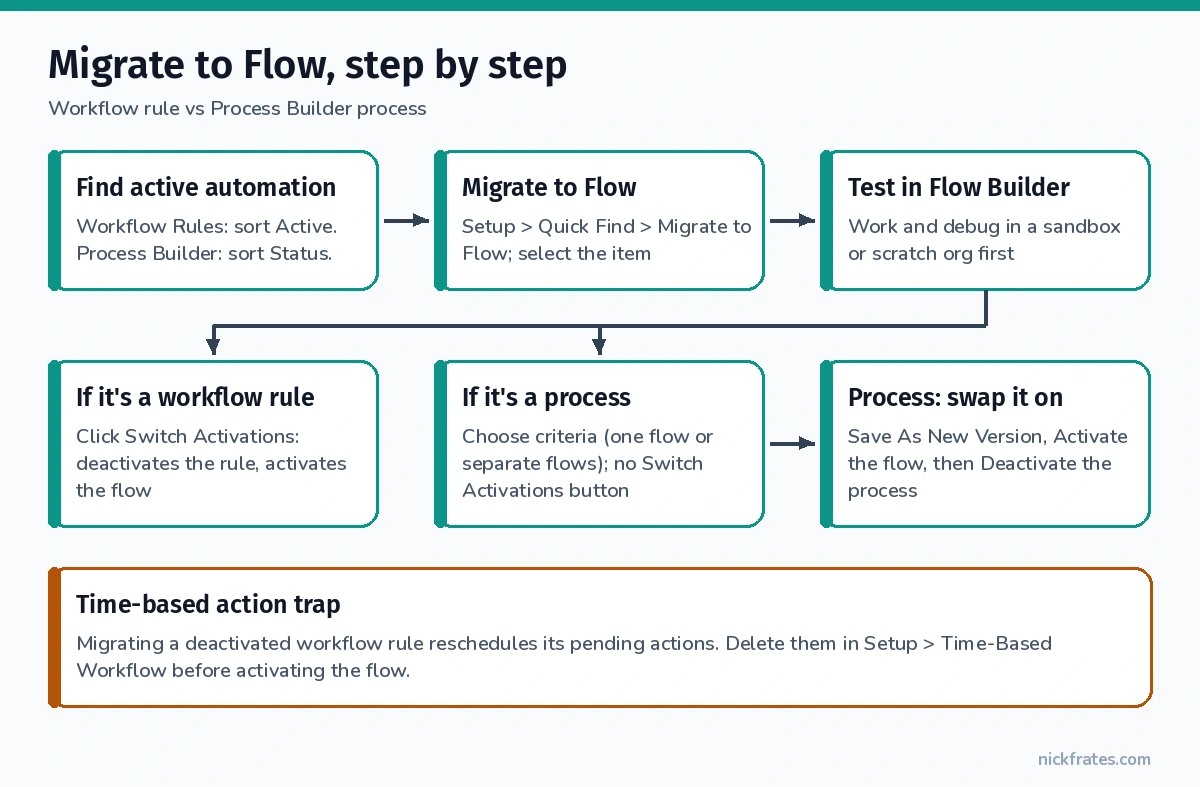
Step 1: Find the automation that’s still active
- Workflow rules: Setup > Process Automation > Workflow Rules, then sort the Active column.
- Processes: Setup > Process Automation > Process Builder, then sort the Status column for Active.
Both paths come from Salesforce’s end of support article. Do the migration work in a sandbox or scratch org first; Trailhead gives the same advice to keep your data safe.
How to migrate a workflow rule to Flow
- From Setup, enter Migrate to Flow in Quick Find and select it. If you see the Migrate to Flow with Ease intro screen, close it to reach the list of workflow rules and processes.

Setup > Quick Find "Migrate to Flow". Select the workflow rule or process you want to convert, then click Migrate to Flow. - Select the workflow rule and click Migrate to Flow.
- The Migration details window shows the new flow, plus Test in Flow Builder and Switch Activations.
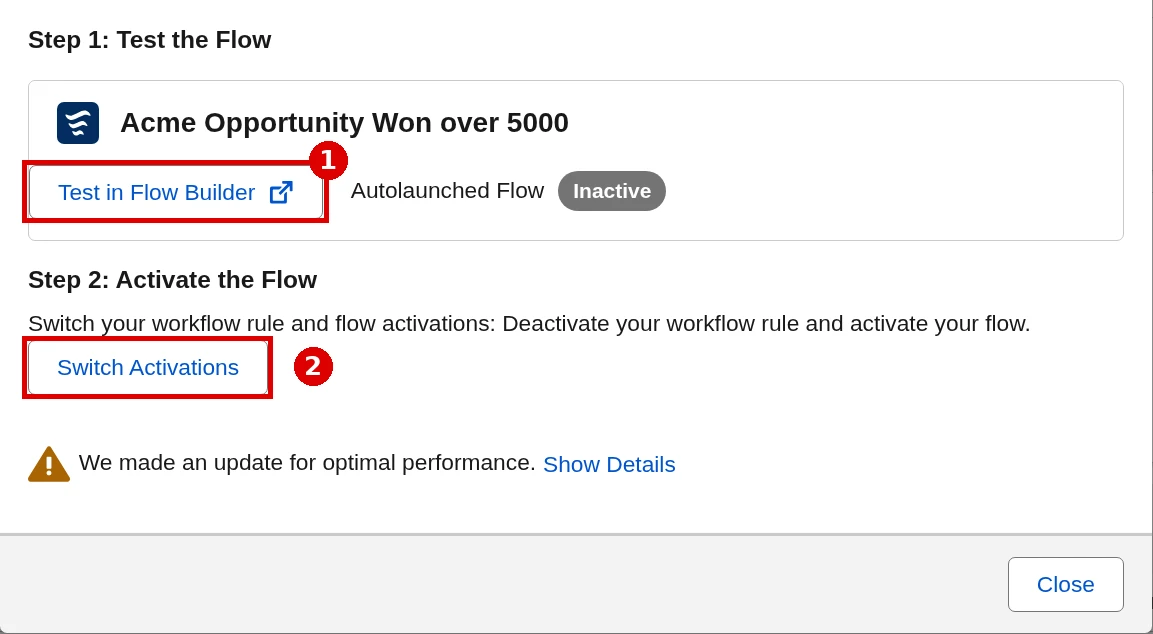
After migrating, (1) click Test in Flow Builder to debug the new inactive flow, then (2) click Switch Activations to deactivate the workflow rule and activate the flow. - Test first. When you’re happy, click Switch Activations, which deactivates the workflow rule and activates the flow in one step.
- Click View in Flow Builder to open the new flow on the canvas.
These steps follow the Trailhead workflow rule unit.
How to migrate a Process Builder process to Flow
Processes give you more options, per the Trailhead process unit:
- In Migrate to Flow, select the process and click Migrate to Flow.
- Choose the criteria to migrate (the diamonds in Process Builder). You can migrate all criteria to one flow or put criteria in separate flows.
- Click Migrate to Flow. There’s no Switch Activations button for a process.
- Click Test in Flow Builder. If the flow only updates the record that triggered it, open the Start element and set Optimize the Flow for to Fast Field Updates so it runs faster.
- Click Save As New Version, save, then Activate.
- Go back to Process Builder, open the process, click Deactivate and confirm.
| Workflow rule | Process Builder process | |
|---|---|---|
| Choose which criteria? | No | Yes, all in one flow or separate flows |
| Switch Activations button | Yes | No: activate the flow, then deactivate the process |
| Sources | Trailhead | Trailhead |
Cert Lab by Nick Frates
Learn Flow the exam way
Lessons, section checks, flashcards and practice questions for the Platform Administrator exam. Free, no card, no trial.
Start the free Admin Cert Lab →The time-based action trap
Deactivating a workflow rule with time-based actions normally removes its pending actions from the queue. But if you migrate that deactivated rule, the newly active flow reschedules those removed actions, and they can fire when nobody expects them.
Salesforce’s fix (Salesforce Help): before you activate the migrated flow, go to Setup > Time-Based Workflow, search for the pending actions tied to the deactivated rule, select them and click Delete. Then activate the flow.
Common Migrate to Flow mistakes
- Waiting because it still runs. It does, but there’s no support or bug fixes, and migration takes time and testing.
- Migrating straight in production. Work and debug in a sandbox or scratch org first.
- Expecting Switch Activations on a process. It’s only there for workflow rules. For a process, activate the flow and deactivate the process yourself.
- Skipping Time-Based Workflow cleanup. Delete pending actions for a deactivated rule before activating its flow.
- Leaving easy speed wins. A flow that only updates its triggering record can use Fast Field Updates.
New to the differences between the old tools? See my workflow vs Process Builder guide. For building and testing the new flows, my Flow Builder guide and debugging record-triggered flows guide will help.
Cert Lab by Nick Frates
Go further with automation for Admin II
Lessons, section checks, flashcards and practice questions for the Platform Administrator II exam.
Start the Platform Administrator II Cert Lab for $9.99 →FAQ
Do workflow rules still work after December 31, 2025?
Yes. Active workflow rules and processes keep running, but Salesforce no longer provides customer support or bug fixes for them.
Is there a Switch Activations button for Process Builder?
No. For a process, you activate the migrated flow and then deactivate the process yourself.
Can I split one process into several flows?
Yes. When you migrate a process, you can move all criteria into one flow or migrate criteria to separate flows.
Why did my migrated flow fire old time-based actions?
Migrating a deactivated workflow rule reschedules its removed pending actions. Delete them in Setup under Time-Based Workflow before activating the flow.
Hope this helps!
Best,
Nick