Hey friends,
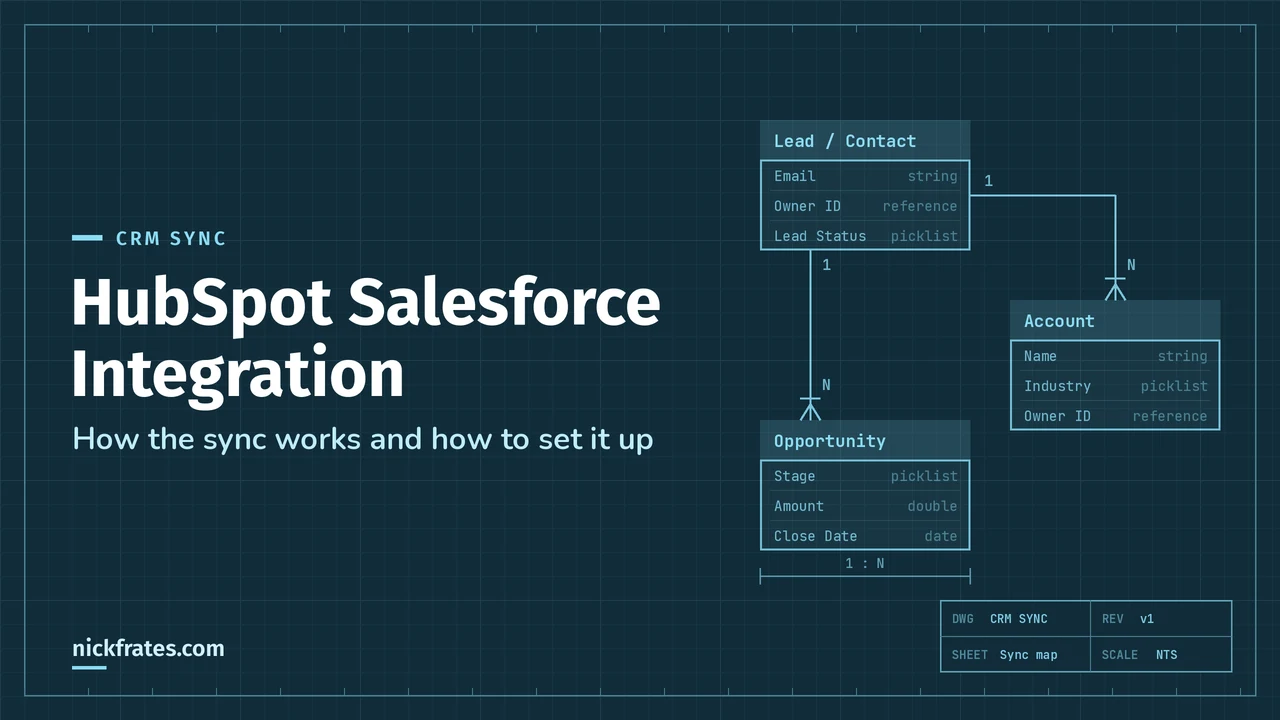
The HubSpot Salesforce integration is an app you install from the HubSpot Marketplace that syncs records between the two systems in both directions. Salesforce leads and contacts become HubSpot contacts, accounts become companies, opportunities become deals and cases become tickets. Field mappings and sync rules decide which side wins when a value changes, and you can limit what syncs with inclusion segments and selective sync.
This guide follows HubSpot's own setup documentation, as I read it on October 28, 2026, and adds the Salesforce side a Salesforce admin needs to know. HubSpot lists the integration for Professional and Enterprise subscriptions of its Marketing, Sales, Service, Content and Data Hubs and Smart CRM. If you're still deciding whether you need both tools, read Salesforce Alternatives first.
What syncs between HubSpot and Salesforce
HubSpot's planning guide maps the two data models like this.
| Salesforce | HubSpot | Notes |
|---|---|---|
| Leads and contacts | Contacts | Both sync to contacts, matched by email. |
| Accounts | Companies | Switch on per object. |
| Opportunities | Deals | Switch on per object. Stages must exist in HubSpot. |
| Cases | Tickets | Switch on per object. |
| Tasks and activities | Activities | Timeline sync is one-way. Activity sync is two-way. |
| Campaigns | No direct equivalent | HubSpot's campaigns tool has a different purpose. |
| Custom objects | Custom objects | Each gets its own settings tab. |
One more detail from HubSpot's leads and contacts page: Salesforce leads and contacts aren't created in HubSpot just by installing the app. They appear when you import them or when a sync is triggered.
What to prepare before you connect
Most failed setups come down to permissions and planning. HubSpot's install guide lists what you need on the Salesforce side:
- A Salesforce edition with API access, or Salesforce Professional. Government Cloud is supported and Group Edition isn't.
- A Salesforce system administrator to connect it.
- Profile permissions: API Enabled, View Setup and Configuration, Modify All on each object you want to sync, Download AppExchange Packages, and Customize Application if you want the HubSpot Embed window. The Task Type field must be visible.
- On the HubSpot side, Account Access permissions.
The connected user matters. HubSpot performs every sync action with that Salesforce user's permissions. If the user can't view leads, leads won't sync. I'd use a dedicated integration user instead of a person's login, so a password change or a departure doesn't break the sync. Whoever replaces that user later needs permissions equal to or greater than the old one.
API calls are the shared budget. HubSpot says a single contact sync can use up to four API calls. Salesforce's API limits page says Enterprise Edition orgs get 100,000 calls per 24 hours plus calls per license, and that calls from installed managed packages count against the org limit. Plan for that before a big import. If API calls are new to you, Salesforce API Types explains what they are.
Also decide these five things on paper before you click Install, which HubSpot recommends in its planning guide:
- Which records sync. For example, only marketing qualified leads from HubSpot to Salesforce.
- Which platform is the source of truth for each field. It can differ by field.
- Who owns record assignment, HubSpot or Salesforce, so the two don't fight.
- Which Salesforce user connects the integration.
- Which activities each team needs to see, such as emails, calls and meetings.
Last, test in a sandbox. HubSpot says to test your sync settings in a Salesforce sandbox, a HubSpot developer test account or a HubSpot sandbox account before you connect production, and its install page has a checkbox for connecting a sandbox.
How to set up the HubSpot Salesforce integration
- Install the app. In HubSpot, click the Marketplace icon in the top navigation, choose HubSpot Marketplace, search for the Salesforce app and click Install. If you're connecting a sandbox, tick the box that says it will connect to a sandbox.
- Log in to Salesforce. Enter the credentials of your integration user in the pop-up and click Log In. HubSpot sends you back to its settings.
- Set the contact sync rules. Go to Settings > Integrations > Connected Apps > Salesforce > Data sync > Contacts > Sync rules. HubSpot lets you choose whether a Salesforce lead or contact update creates or updates a HubSpot contact, whether a HubSpot contact creates a Salesforce contact or lead, what happens on delete, whether opportunity stages move the HubSpot lifecycle stage, and which inclusion segment limits what syncs.
- Map the fields. On the object's tab, open Property mappings and click Add new field mapping. Pick a HubSpot property and a compatible Salesforce field, then choose a sync rule. See the next section.
- Turn on the other objects. Open each object's tab, such as Companies, Deals or Tickets, click Sync rules and switch the sync on. Contact sync is always on.
- Import your Salesforce records. In HubSpot, go to Contacts, click Add contacts > Import, then Import data > Objects from an app > Salesforce records. Choose the object, add a filter if you only want part of it, and click Begin import. HubSpot says large imports can take several hours so they stay within your Salesforce API calls.
- Check Sync Health. In the Data sync tab, open Sync Health to see API call use and any sync errors. Turn on error notifications there too.
Nothing syncs on its own the moment you finish. HubSpot says records won't sync automatically after setup. You can import them or let them sync gradually from the triggers below.
How the sync works
A record syncs when something triggers it. HubSpot lists form submissions, marketing and sales emails, meetings, calls, notes, tasks, property changes in either system, new Salesforce leads or contacts, new HubSpot contacts, owner changes and lifecycle stage transitions. HubSpot also checks both systems about every 15 minutes and triggers a sync if needed.
Two details trip people up. Updates to a Salesforce formula field don't trigger a sync, although updating a mapped field inside the formula does. And removing a lead from an active Salesforce campaign doesn't trigger one either.
Sync rules decide who wins. Each field mapping has one of these, per the HubSpot mapping guide:
| Sync rule | What it does |
|---|---|
| Prefer Salesforce unless blank | HubSpot only passes a value if Salesforce has none. If Salesforce has a value, it overwrites HubSpot. Deleting the value in Salesforce deletes it in HubSpot. |
| Always use Salesforce | HubSpot never passes data to Salesforce. A Salesforce value always overwrites HubSpot. |
| Two-way | The most recent value overwrites the other. Deleting it on one side deletes it on the other. |
| Don't sync | Nothing passes between the two systems for that field. |
HubSpot's planning guide also names two HubSpot-first rules, Always use HubSpot and Use HubSpot unless blank, so check which options your account shows. Pick the rule from your source-of-truth plan. For example, use Salesforce for stage and revenue fields and use two-way only where both teams really edit the same value.
New mappings aren't retroactive. HubSpot says existing values in a newly created mapping won't sync until you resync records or run a Salesforce import. On a record's first sync for that field, HubSpot uses the current Salesforce value as the baseline, which can overwrite a newer HubSpot value depending on the rule.
Owners need an exact match. The Owner field can only be mapped two-way. Only a HubSpot owner whose name and email match an active Salesforce user will sync to Salesforce, and otherwise the Owner ID resets to the last Salesforce value.
How to limit what syncs
- Inclusion segment (HubSpot to Salesforce). With no segment, all HubSpot contacts sync to Salesforce. Choosing an active segment limits it to the segment's members, for example only qualified leads. HubSpot supports segments for contacts, tickets and custom objects, and for companies and deals after you upgrade to the newer syncs. Selecting a segment doesn't sync it by itself, so use Resync segment with Salesforce or wait for a trigger.
- Selective sync (Salesforce to HubSpot). Filters under Data sync > object > Sync rules limit which Salesforce records reach HubSpot. HubSpot lists custom objects, tickets, activities, and companies and deals after the upgrade. Contacts aren't on that list. Multiple filters combine with AND.
One gotcha from HubSpot's docs. If new Salesforce leads or contacts are set to create HubSpot contacts, one is created or matched even when it isn't in your inclusion segment. Further updates then won't sync until it meets the segment criteria.
Cert Lab by Nick Frates
Own the Salesforce side of the sync
Lessons for all 8 Platform Administrator exam sections, including configuration, setup and data management, with practice questions and flashcards. Free, no card, no trial.
Start the free Admin Cert Lab →Common HubSpot Salesforce sync errors and fixes
Open Sync Health to see errors by type. After you fix one, select it and click Resync. Here are the ones I'd expect to see first, from HubSpot's sync error guide:
| Error | What it means | Fix |
|---|---|---|
| Email already in use | A Salesforce lead or contact's email already exists on a HubSpot contact. | Remove the email from the existing HubSpot contact. |
| Salesforce duplicate rule | A Salesforce deduplication rule blocked the record. | Have a Salesforce admin review the matching rules and merge, update or delete conflicting records. |
| Salesforce flow, automation or validation rule | Custom logic in Salesforce stopped the update. | Work with your Salesforce admin to fix the logic. |
| Salesforce field permission | The integration user can't read or edit the field. | Give the integration user Read and Edit on the field. |
| Restricted picklist value | The Salesforce picklist is restricted and the HubSpot value isn't in it. | Add the value, or turn off the restriction on that field. |
| Type mismatch | The HubSpot property type and the Salesforce field type aren't compatible. | Change the mapping so the types match. |
| Waiting for account to sync | A record is associated with a Salesforce account that hasn't reached HubSpot yet. | Run an import of Salesforce accounts. |
If syncing stops entirely, check for a suspension. HubSpot's suspension guide lists causes such as Salesforce Organization API Limit Exceeded, API Access Disabled, Object Permissions Missing and HubSpot API Limit Exceeded. For the API limit ones, HubSpot says to set the Allocated to HubSpot number on Sync Health to fit your Salesforce limit, and to raise it if your Salesforce org has spare capacity.
The Salesforce admin checklist
These are the parts of the setup that live in Salesforce, so they're yours to own.
- Give the integration user the right access. HubSpot's suspension guide says the user needs the HubSpot Integration Permission set and Read and Edit on the objects that sync, plus related objects by lookup. It names leads, contacts, accounts, opportunities, campaigns, tasks and users.
- Watch API usage. Salesforce's limits page points you to the API Usage section of System Overview in Setup, and you can set API Usage Notifications to email a user when requests pass a percentage of your allocation.
- Review validation rules, flows and duplicate rules. They are the usual reason a HubSpot update fails in Salesforce.
- Check picklists. Restricted picklists and renamed values cause mismatches. If a mapping includes a picklist, HubSpot has a Refresh option to pull in new Salesforce options.
- Know your lead-versus-contact choice. HubSpot advises turning off automatic company creation if you sync HubSpot contacts to Salesforce as leads, because leads have no account and duplicates appear later.
Mistakes to avoid
- Mapping one property to two fields. HubSpot warns duplicate mappings can overwrite values or create sync loops.
- Mapping Salesforce ID fields. HubSpot says Lead ID and Contact ID are managed automatically, and mapping them can cause unexpected behavior, especially with two-way rules.
- Using the sync for a one-time migration. HubSpot says the integration is for ongoing two-way syncing and recommends Smart Transfer for a one-time move. Don't run both at once, because they match records differently and create duplicates. For the Salesforce side of a move, see Salesforce Data Migration.
- Expecting Company name to sync for every contact. Salesforce leads have a Company Name text field, but contacts have an Account Name reference field. HubSpot says the two can't share one HubSpot property, so a contact synced with a Salesforce contact gets its company from account sync instead.
- Expecting deletes to match. Deleting a Salesforce lead or contact can delete the HubSpot contact if you set it so. Deleting a HubSpot contact doesn't delete anything in Salesforce.
- Forgetting reference fields come through as IDs. HubSpot says Salesforce lookup values arrive as 18-digit record IDs, not labels. Map them to a dropdown property if you need readable segments.
- Syncing everything on day one. Start with an inclusion segment and a small set of mappings, check Sync Health, then widen.
If you want the bigger picture of how Salesforce connects to other systems, read Salesforce Integration Basics and Salesforce Integration Patterns. If you're learning to run the Salesforce side, the free Admin Cert Lab I built covers the setup and data skills behind it.
FAQ
What is the HubSpot Salesforce integration?
It's a HubSpot Marketplace app that syncs contacts, companies, deals, tickets and activities between HubSpot and Salesforce. It runs two ways, based on your field mappings and sync rules.
Which HubSpot subscription do I need?
HubSpot lists the integration for Professional and Enterprise subscriptions of its Marketing, Sales, Service, Content and Data Hubs and Smart CRM. Check your own plan on HubSpot's pages before you plan the project.
How often does HubSpot sync with Salesforce?
Syncs are triggered by events such as form submissions, property updates and new records. HubSpot also checks both systems about every 15 minutes.
Why aren't my Salesforce records in HubSpot?
Installing the app doesn't copy records. Import them or let syncs trigger, then check Sync Health for errors such as permissions, duplicate rules or validation rules.
Does the integration use Salesforce API calls?
Yes. HubSpot says one contact sync can take up to four calls, and Salesforce counts calls from installed packages against the org's daily limit.
Can I test it before connecting production?
Yes. HubSpot supports connecting a Salesforce sandbox and recommends testing there first.
Hope this helps!
Best,
Nick