Hey everyone,
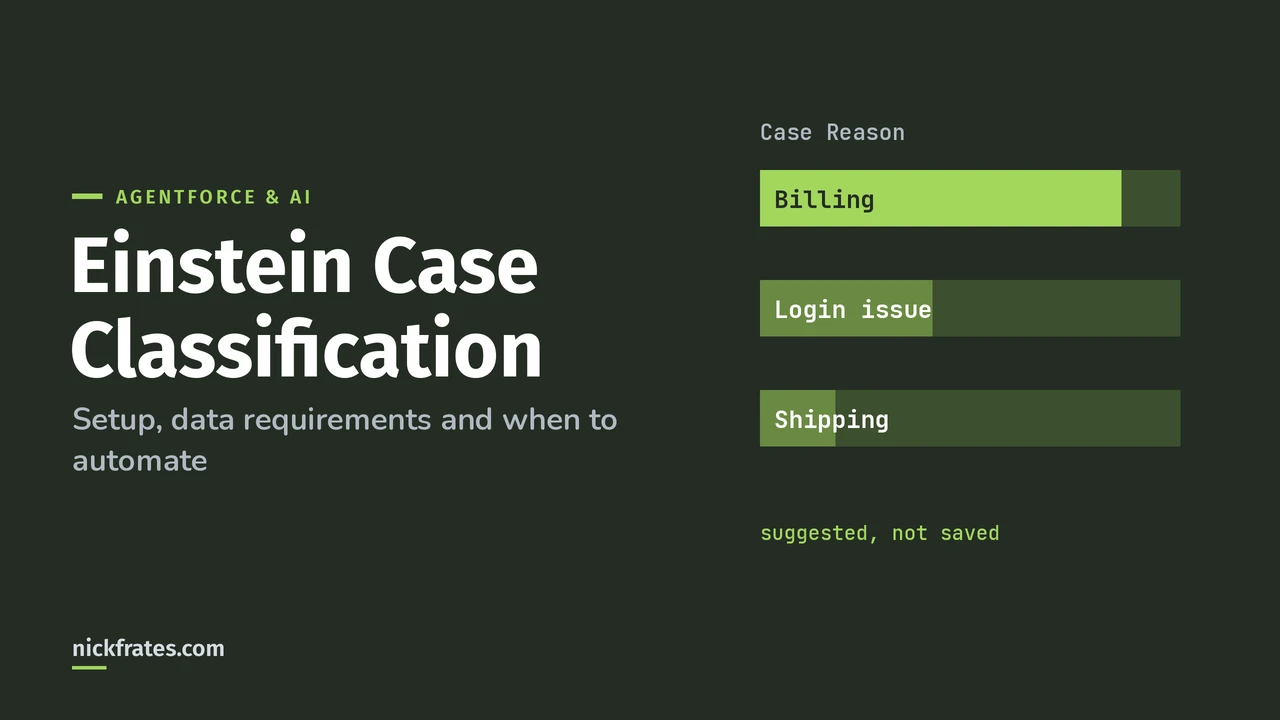
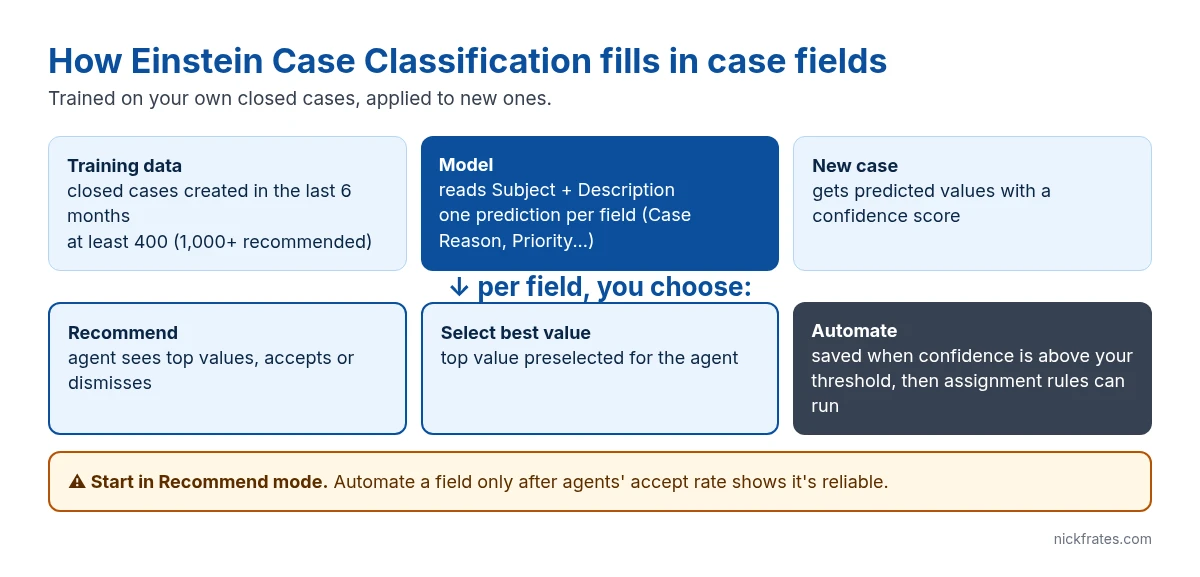
Einstein Case Classification predicts case field values, like Case Reason, Priority or Type, from the subject and description of new cases, and Salesforce recommends at least 1,000 cases from the last 6 months, ideally 10,000. Trailhead lists a hard floor of 400 closed cases from the last six months, with at least 400 having a value in each field you want to predict. It’s included in Service Cloud at no extra per-case cost. You turn it on in Setup, configure and build a model, decide how much to automate, give agents the permission set, and add the recommendations component to the console.
Einstein Case Classification requirements
| Requirement | Detail |
|---|---|
| Editions | Enterprise, Performance and Unlimited (per Trailhead’s Einstein for Service rollout module) |
| Training data | Salesforce recommends at least 1,000 cases from the last 6 months, ideally 10,000; Trailhead’s minimum is 400 closed cases from the last six months |
| Per predicted field | At least 400 closed cases with a value in that field (Trailhead minimum) |
| Fields you can predict | Standard and custom picklist, checkbox and lookup fields |
| Text it reads | Case Subject and Description, which can’t be encrypted |
| License | Included in Service Cloud; no extra credits per case classified |
Sources: Trailhead’s Prepare Data for Classification Apps unit and the Salesforce Help article Case Classification with AI: Options and Key Considerations. If filters limit which cases the model learns from, only matching cases count toward these numbers.
How to set up Einstein Case Classification
- Enable it. Setup > Quick Find “Einstein Classification” > turn on Einstein Classification Apps.
- Configure a model. Create a new model, choose which closed cases Einstein learns from (filter out spam or test cases), and pick the Fields to Predict.
- Build the model. When its status is Ready to Build, build it. Einstein reports how well it predicts each field.
- Choose the automation level per field. Show the top recommendations, select the best value, or automatically save it when confidence is above your threshold. You can also run assignment rules after the values are saved.
- Give agents access. Assign the standard Einstein Case Classification User permission set to your service agents (Setup > Permission Sets > Manage Assignments).
- Add the component. Put Einstein Field Recommendations on the case record page in the Service Console.
- Activate the model. Predictions only start once it’s active.
Fields to Predict is where most of the value is decided: which fields Einstein predicts and how well each one scored. Setup path: Setup > Einstein Classification > your model.
Suggest or save? Choosing how much to automate
Start with recommendations for every field. Agents accept or dismiss them, and that feedback plus the monthly retraining shows you which fields Einstein gets right. Once a field is consistently correct, switch it to save automatically above a high confidence threshold, and run assignment rules so the case lands in the right queue without an agent touching it.
For predictions after a case changes (say, a customer adds detail to the description), use Case Classification in a flow: the Help article describes the ApplyCaseClassificationRecommendations action for this.
Mistakes that sink a classification rollout
- Training on dirty data. If agents picked “Other” for half your closed cases, Einstein learns to predict “Other”. Clean up the field values first.
- Too many picklist values. A field with 80 values and a handful of cases each won’t predict well. Merge rare values before you build.
- Automating on day one. Saving values automatically before you’ve seen accuracy in recommendations mode spreads bad data fast.
- Forgetting the permission set or component. The model can be active and still invisible to agents.
Cert Lab by Nick Frates
Einstein for Service shows up on the Service Consultant exam
Lessons, flashcards and practice questions cover classification, routing and the rest of the AI section.
Start the Service Consultant Cert Lab for $9.99 →Classification works best on cases with a clean subject and description, which is why intake matters: see Email-to-Case and Web-to-Case. Recommendations show up in the Service Console.
Cert Lab by Nick Frates
Going further with Agentforce?
The Agentforce Specialist Cert Lab covers agents, prompt templates and grounding with lessons and practice questions.
Start the Agentforce Specialist Cert Lab for $9.99 →FAQ
How many cases does Einstein Case Classification need?
Salesforce recommends at least 1,000 cases from the last 6 months, ideally 10,000. Trailhead’s minimum is 400 closed cases from the last six months, plus at least 400 with a value in each field you want to predict.
Which fields can Einstein Case Classification predict?
Standard and custom picklist, checkbox and lookup fields on Case, such as Case Reason, Priority, Type or Escalated.
Does Einstein Case Classification save values automatically?
Only if you choose that. Each field can show recommendations, select the best value, or save it automatically above a confidence threshold.
How often does the model retrain?
Salesforce says the models retrain about every 30 days, so they keep up with changes in your cases.
The Cert Lab gives you lessons, practice questions and flashcards so prep like this goes faster.
Hope this helps!
Best,
Nick