Category: Blog

  • 🏔️ Has Salesforce Peaked?

    🏔️ Has Salesforce Peaked?

    Salesforce has been the king of customer relationship management for years. But recently, many are wondering if its cultural and enterprise dominance has peaked.

    New AI tools like ChatGPT make it easier for companies to build their own lightweight solutions quickly. In fact, Salesforce’s big selling point – that you don’t need to write code – is less special now.

    Why? Because AI can write code for you. As one Salesforce expert noted, â€œthe skillset of writing code is no longer a limiting factor. You can buy that skill for $20/month from Claude or other AI models”.

    In other words, a small team with an AI assistant can potentially create custom tools without a huge platform like Salesforce. 

    There are also signs within Salesforce’s own results that growth is slowing. Salesforce’s CFO recently said they expect only 7–8% sales growth next year – the slowest ever for the company.

    This hints that Salesforce’s rapid expansion days might be over.

    Taken together, the rise of easy AI alternatives and Salesforce’s cooling growth suggest that the company may have hit its peak in influence.


    Salesforce’s AI Gamble: Hype vs. User Sentiment

    Salesforce is trying hard to ride the AI wave. They introduced Agentforce, a suite of AI features (like Einstein GPT and AI “agents”) meant to automate tasks. The marketing hype has been huge – CEO Marc Benioff even called 2025 the â€œabsolute year of Agentforce”.

    But so far, users aren’t impressed and adoption is slow. Salesforce boasted that about 5,000 companies have signed up for Agentforce, but many of those are just testing or got it bundled “for free”.

    Even Salesforce’s own finance chief admitted sales of Agentforce will be modest. No surprise, then, that Agentforce is proving a hard sell in the real world.

    Early users say the product isn’t living up to the hype. One veteran Salesforce technical expert found Agentforce â€œfelt a bit early – immature, even,” with not many standard functions available.

    People have to build a lot of groundwork before the AI can do anything useful with their data. In online forums, some admins and developers complain that â€œAgentforce is painfully slow and requires so much spoon-feeding… it’s not even worth the dev time”.

    Many demo sessions have been buggy, and folks are frustrated that it takes weeks or months of setup and training to get an agent working, despite Salesforce claiming you can spin one up in 30 minutes. As one Reddit user bluntly put it, â€œWe have tried and keep bouncing off it. It’s terribly underwhelming.”

    Bottom line: Salesforce’s AI features haven’t wowed users yet. The ideas are exciting, but in practice Agentforce seems half-baked and not ready for prime time. This slow start is contributing to the sense that Salesforce’s dominance is no longer a sure thing.


    Big Companies vs. Small Companies: Who Sticks with Salesforce?

    If Salesforce is losing some luster, does that mean everyone will leave?

    Not exactly.

    Big enterprises have invested heavily in Salesforce over many years. They have thousands of users trained on it, massive amounts of data stored, and many processes built around the platform. These organizations won’t abandon it overnight – there’s a lot of inertia.

    For better or worse, large companies often stick with what’s already deeply integrated. It’s the “nobody gets fired for buying Salesforce” effect. Inertia and high switching costs mean Salesforce will remain the default choice for many large enterprises, even if it’s not as “cool” as it once was.

    However, smaller businesses may skip Salesforce altogether. For a small or growing company in 2025, Salesforce can feel like a heavy, expensive solution. There are leaner options now – or they might piece together their own tools using AI. Cost is a big factor: many small business owners wonder if Salesforce is worth it â€œespecially when they see the price”.

    In fact, plenty of affordable CRM alternatives (like HubSpot, Zoho, or Freshsales) provide enough features without the bloat. As one analysis noted, â€œmany small businesses find that simpler, more affordable alternatives deliver sufficient functionality without the overhead”.

    For a 10-person company, using a $25/user/month CRM (or even just Google Sheets plus some AI) might seem more sensible than buying into Salesforce. They can always upgrade later if needed. So while big corporations will keep Salesforce as a staple, smaller firms may never hop on the Salesforce train to begin with.


    The Lindy Effect: Why Salesforce Isn’t Disappearing Anytime Soon

    With all this talk of peaks and slowdowns, let’s be clear on one thing: Salesforce is not going away overnight.

    In fact, there’s a concept called the Lindy Effect which says that the longer something has lasted, the longer it’s likely to continue lasting.

    Salesforce has been around for over two decades and built a huge ecosystem. That longevity itself is a sign of resilience. Think about it: lots of tech trends come and go, but something that’s deeply embedded in how businesses operate (like Salesforce) tends to stick around.

    It might not grow as explosively anymore, but it’s also not likely to suddenly die off. Salesforce has millions of users and a vast network of partners and third-party apps.

    According to an IDC study, the Salesforce ecosystem is still on track to create millions of new jobs by 2026 and partners will make ~$6 for every $1 Salesforce makes. That’s huge. It means there’s a massive community and economy built around Salesforce, which gives it staying power.

    Moreover, big companies trust Salesforce for critical data and processes – trust that’s been earned over 20+ years. That trust and integration into business workflows won’t vanish easily (this isn’t the next Myspace or Friendster).

    By the Lindy Effect logic, Salesforce could very well be supporting enterprises for decades to come, even if its cultural hype has leveled off. So yes, growth may have plateaued, but Salesforce will likely survive and remain a key player in corporate IT.

    It’s more like a utility now – maybe not exciting, but reliable.


    Practical Takeaways for Salesforce Professionals

    What does all this mean for people building their careers in the Salesforce ecosystem? Here are some key takeaways:

    • Never Stop Learning: The Salesforce world changes fast. New features, AI tools, and best practices keep emerging. To stay relevant, commit to continuous learning. As the Red Queen Effect suggests, you must keep upskilling just to stand still. Block out time each week for Trailhead modules, release notes, or experimenting with new features.

    • Embrace AI as a Tool: Don’t fear that AI like ChatGPT will replace you – instead, use it to boost your productivity. For example, you can have AI help write Apex code or generate a Lightning Web Component in minutes. In Salesforce, try out Einstein GPT, Copilot, or other AI features in a sandbox. The more you can partner with AI to deliver results, the more valuable you become. As one guide put it, get familiar now so you’re ready when someone asks: â€œHow can we use AI in Salesforce?”.

    • Focus on Data Quality and Fundamentals: Fancy AI or automation won’t help if your underlying data and processes are a mess. Many companies learned that “bad data in, bad results out” with AI. So, take the initiative to clean up data, document processes, and improve org health. Master the fundamentals (security, data modeling, flow building). This not only prepares your org for AI, but also makes you the go-to problem solver.

    • Broaden and Deepen Your Skills: The most resilient Salesforce professionals have T-shaped skills â€“ a broad understanding of the platform plus deep expertise in one or two areas. For instance, know a bit of admin, dev, and reporting, but be really skilled in a niche like CPQ, Flow Orchestration, or Marketing Cloud. This versatility means you can add value in many situations, while your specialty makes you stand out for specific high-demand projects.

    • Plan for a Long (But Steady) Career: Salesforce isn’t disappearing, but its wild growth is leveling off. This means opportunities will still be there, just more stable. So think long-term. Continue investing in your Salesforce career, but stay adaptable. If you work with smaller clients, it might help to familiarize yourself with one of the popular Salesforce alternatives too, so you can advise objectively (e.g. know the basics of HubSpot or Zoho). Above all, focus on providing business value, not just technical know-how. Salesforce will likely be around for decades (the Lindy Effect in action), so the skills you build now can pay off for years – as long as you keep them fresh and aligned with what companies need.

    In conclusion, Salesforce may have reached a peak in its cultural hype, but with the right approach, you can build a thriving career in its ecosystem for the foreseeable future. Stay curious, stay adaptable, and you’ll navigate this changing landscape just fine.


    Happy learning!


    Best,

    Nick

  • Instantly Find Validation Rules via SOQL

    Instantly Find Validation Rules via SOQL

    Have you ever wanted to search for a validation rule using only the error message?

    If so, here’s a quick way to save time debugging validation rule errors using only the error message.

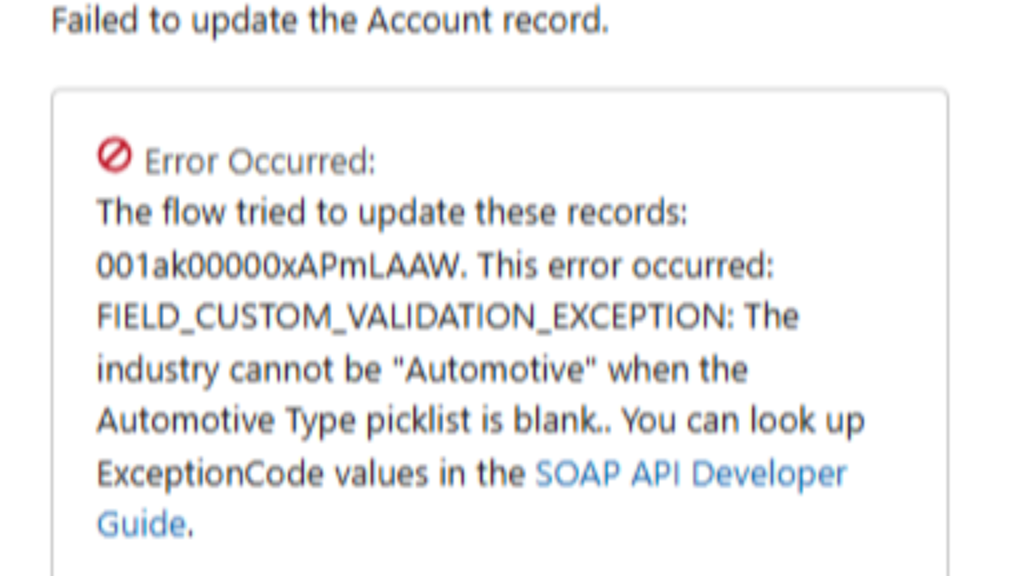
    Sometimes a Flow errors out throwing us this error that might look like this:


    This error occurred: FIELD_CUSTOM_VALIDATION_EXCEPTION ... The industry cannot be "Automotive" when the "Automotive Type" picklist is blank.

    We've all seen this type of error and usually its not too hard to debug.

    But sometimes, and this happens as a consultant, you weren't the one who originally built the validation rule that is causing the error.

    And sometimes you're not even sure which object it's configured on.

    That's okay if you can reconfigure your flow to stop triggering the error.

    But what if you want to change the rule itself?

    In that scenario, it's great to be able to find the validation rule based on the message alone.

    This is how you do it:

    Step 1: Open your SOQL Query editor of choice. I prefer the Salesforce Lightning Inspector Reloaded and would recommend you use it if you aren't currently.

    Step 2:  With the query editor open, make you toggle ON the Tooling API. This is the key step to get this query to work. Without the Tooling API enabled, you'll get an error.


    Step 3: Write the following query:

    SELECT Id, ValidationName, ErrorMessage FROM ValidationRule

    This will pull a full list of all the validation rules in your environment.


    Because these screenshots are from Trailhead, there are only two validation rules and it makes it easy to spot the one we need.

    But if you have hundreds of rules you'll want to filter the list down.

    You can do that with this query

    SELECT Id, ValidationName, ErrorMessage FROM ValidationRule WHERE ErrorMessage LIKE '%industry%'

    Replace the word "industry" in between the % % signs when you run your query in order to fuzzy match on the words in your error message.

    Step 4: Click the Id of the validation rule and then click "View in Salesforce"


    And that will open the rule in a new tab where you can edit it as needed.

    That's it for this week!

    Short and simple method for finding a validation rule based on the error message itself.

    Hope it helps.


    Best,

    Nick

  • ☀️ Summer '25 Release

    ☀️ Summer '25 Release

    The Salesforce Summer '25 release is just around the corner!

    According to the Trust Site, preview sandboxes are being upgraded this weekend, and the actual release is scheduled in three batches on May 16th, June 6th, and June 13th. You can check your instances release date on the trust site.

    As normal, I read through the Summer '25 Release Notes to find goodies to share with you and listed them below.

    Salesforce Flows

    Get Related Records Faster (Beta)

    Now you can get related records in a single query in Flow Builder, making it easier to manage related records. Previously, you managed related records by adding separate Get Records elements. 

    Test Flows for Error Handling

    With the new Has Error operator, you can configure negative assertions in a flow test.

    Get More Control Over Component and Field Layout in Screen Flows

    Customize the width of screen components and record fields, whether they’re in section columns or not. 

    See How Your Screen Looks in Real Time on Different Screen Sizes

    Check how your screen appears on large, medium, or small devices with the Preview Size feature.

    Help Users Make Selections Faster by Adding Icons to Choice Resources

    Reduce the cognitive load on your users by adding icons to each of their choices in choice resources. 

    Display Choices in Tiles with the Visual Picker Component in Screen Flows

    You can make choices in screen flows more visually engaging with the Visual Picker Component. Combining icons and text, the Visual Picker component helps users quickly select what they need without scrolling through long lists or dropdown menus.

    Attach Files to Emails in Flow Builder Without Extra Processing

    Attaching files to emails in Flow Builder is easier now that you can provide a text collection variable in the Attachment ID Collection field in the Send Email action.

    Delivered Ideas

    Delivered Idea: Update Object Permissions for All Custom Permission Sets or Profiles in One Step

    Save time and clicks by editing object access simultaneously in all custom permission sets and profiles.

    View and Manage a User’s Permission Sets, Groups, and Queues More Easily

    With enhancements to the user access summary, you can add or remove a user from one or more permission sets, groups, or queues. You can also search, sort, and refresh the lists in each summary section.

    Edit Permissions Faster in the Permission Set Summary

    Instead of going to many Setup pages, you can now update the user, object, field, and custom permissions in a permission set directly from the summary view.

    Improve Customer Engagement with Rich Text and Media in Case Comments (Beta)

    Add rich text and media to your case comments to improve communication with your customers.

    Close Cases Faster by Adding the Close Case Button to the Case Details Page in Lightning Experience

    After resolving a customer’s case, service reps can close the case directly from the case details page by clicking the Close Case button. 

    Use Dynamic Related Lists on Mobile (Beta)

    With this beta feature, you can now use Dynamic Related Lists on mobile. 

    General

    Salesforce for Outlook Is Being Retired in December 2027

    For the latest integration with Microsoft Outlook, we recommend moving to our next-generation products, the Outlook integration and Einstein Activity Capture.

    Easily Remove Relationships Before Deleting a Custom Object

    When you attempt to delete a custom object, if another standard object, custom object, or a Data Cloud data model object (DMO) contains a lookup field that references that custom object, you’ll now see a more detailed page.

    Choose Which Dashboard Widgets to Refresh (Generally Available)

    Refresh only the dashboard widgets that you need rather than the entire dashboard.

    And that's a wrap.

    Let me know if I missed anything important, and have a great weekend!


    Best,

    Nick

  • Salesforce 15 vs 18 Digit ID: Differences & Conversion Guide

    Salesforce 15 vs 18 Digit ID: Differences & Conversion Guide

    Introduction: The Salesforce ID Puzzle

    Every Salesforce record has a unique identifier—but why do some IDs have 15 characters and others 18? If you've ever tried to match Salesforce IDs from a report with those from an export or integration, you might have run into frustrating mismatches. The root cause: Salesforce uses two ID formats for every record. In this help article, we'll demystify the Salesforce 15-digit vs 18-digit ID issue and give you a clear solution. You'll learn the difference between 15 and 18 character Salesforce IDs, when to use each format, how to quickly convert between them, and how to avoid common errors (like formula or VLOOKUP failures) caused by ID mismatches. Let's solve this ID puzzle so you can work confidently with Salesforce record IDs.

    Quick highlights:

    • 15-digit IDs – The original record IDs used inside Salesforce. These IDs are case-sensitive, meaning 003ABC... vs 003aBc... could be different records. Salesforce displays 15-digit IDs in many places (reports, URLs, formula outputs), but they can cause issues in external systems that don't recognize case differences​.
    • 18-digit IDs – An expanded version of the ID that Salesforce introduced to avoid those case sensitivity problems. The 18-digit ID is case-insensitive, meaning it treats uppercase and lowercase as the same, and includes an extra 3 characters as a checksum. These are the IDs used by the Salesforce API and integration tools, ensuring uniqueness in environments (like Excel or databases) that ignore text case​.
    • When in doubt, use 18-digits. The 18-char ID is safe in all contexts (it will refer to the same record regardless of case)​. You typically see 15-char IDs only within the Salesforce UI. If you need to use an ID outside Salesforce or compare IDs programmatically, convert it to 18 digits first to avoid errors.
    • Easy conversion: Use Salesforce’s built-in formula function CASESAFEID() to get the 18-digit ID from a 15-digit ID on any record. This ensures your workflows and reports use the right format​. We’ll show how to do this, plus other methods to convert IDs.
    • Avoiding errors: We'll also cover scenarios where mixing up 15 vs 18 digits causes problems (for example, flow formulas that never match, or Excel VLOOKUPs failing) and how to fix them​.

    Now, let's dive deeper into what each ID format means and how to seamlessly work with both.

    Salesforce 15 vs 18 Digit IDs: What’s the Difference?

    Salesforce’s two ID formats exist to balance internal use with external compatibility. Here’s a breakdown of how they differ:

    • 15-Digit ID (Case-Sensitive) – This is the original record ID Salesforce used. It consists of 15 alphanumeric characters. Case-sensitive means 001ABC000123XYZ is not the same as 001aBc000123xyz – uppercase vs lowercase letters make it a different ID. Within Salesforce itself, this isn’t a problem because Salesforce always treats the ID with exact case. These 15-digit IDs are what you’ll see in the Salesforce user interface – for example, in reports or in the URL of a record in Salesforce Classic. Every record has a unique 15-character ID (unique when considering the case of letters)​.

    • 18-Digit ID (Case-Insensitive) – Salesforce later introduced an 18-character version of the ID to avoid case sensitivity issues. The first 15 characters of an 18-digit ID are the same as the 15-digit ID. The difference is the extra 3 characters at the end, which act as a checksum or pointer that encodes the case of the first 15. This makes the 18-digit ID case-insensitive – external systems can treat it as an identifier without worrying about letter case​. In other words, 001ABC000123XYZABC and 001abc000123xyzabc (just an example) are treated as identical by Salesforce when using the 18-digit form. Those last 3 characters ensure that even if someone changes the case of the first 15 characters, Salesforce can still recognize the record. The 18-digit format is always used by the Salesforce API and most integration tools. For instance, if you query data via Data Loader or an API call, you’ll get 18-character IDs by default​.

    Why two formats? The main reason is case sensitivity in external tools. In the early days, Salesforce only had 15-character IDs. Users exporting data to Excel or other systems encountered problems: Excel and many databases are not case-sensitive when matching text. So, if you had two different records with IDs 001C000000abcdEFG and 001C000000abcdEfG (notice the subtle case difference), Excel might treat them as the same text and cause a lookup or join error. In fact, you can have two different Salesforce records whose 15-char IDs only differ by letter case​. This is rare but possible (one Reddit user even reported "two records with the same 15 digit ID" in terms of a case-insensitive match​). Salesforce’s answer was to add a three-character suffix, making a unique 18-character ID that eliminates case sensitivity issues. With the 18-digit version, Excel or other systems can reliably treat IDs as unique keys without confusion​.

    In summary: The 15-digit ID is what Salesforce uses internally and shows in many UI contexts (case-sensitive), while the 18-digit ID is an extended, case-insensitive version for external use or anywhere case sensitivity could be a problem​. Both refer to the same record, as long as the first 15 characters match. If you strip the last 3 from an 18-digit ID, you get its 15-digit counterpart​. And if you add the correct 3-character suffix to a 15-digit ID, you get the 18-digit.

    When Should You Use the 15-Digit vs 18-Digit ID?

    Knowing the difference is great, but when do you actually use each ID format? Here are some guidelines:

    Use the 15-digit ID when:

    • Working within Salesforce’s UI: If you are clicking around in Salesforce (e.g. using the record URL, or doing a quick find via record ID in the browser), the 15-digit ID will work. In Salesforce Classic, the URL often shows the 15-digit ID of a record. In Lightning, you might see an 18-digit in the URL, but Salesforce still accepts the 15-digit in many places.

    • You have no choice but 15-digit: Certain native features only provide the 15-digit. For example, Salesforce reports by default show the 15-character ID if you include an ID field. If you use a formula field to display CASESAFEID, that’s different (we’ll get to that), but an out-of-the-box report or list view will typically give you the 15 char ID. Also, if you reference an Id field in a formula or validation rule without special handling, Salesforce treats it as a case-sensitive 15-char text value​. In short, anytime Salesforce itself outputs an ID to you directly, it's often the 15-digit format​.

    • Human readability in small cases: Some admins prefer the 15-digit for quick copying or reading since it's shorter. For instance, if you're quickly comparing two IDs by eye, 15 characters is slightly less to deal with than 18. (However, beware of confusing similar IDs that differ only by case!)

    Use the 18-digit ID when:

    • Integrating with external systems: Anytime an ID leaves Salesforce, you should use the 18-digit. External databases, Excel spreadsheets, BI tools, etc., often do case-insensitive matching. The 18-digit ID ensures those systems treat each record ID as unique. For example, if you're doing a VLOOKUP or JOIN in Excel or another tool, using the 18-digit ID prevents the function from missing distinctions in case​. The 18-digit ID is “safe” for VLOOKUPs and external matching​ – it's actually nicknamed the "case-safe ID". In fact, “CASESAFEID” is literally the name of the Salesforce function to get the 18-digit version (case-safe) of an ID.

    • APIs, Data Loader, and code: Salesforce APIs (REST/SOAP) and tools like Data Loader or Workbench will either return 18-character IDs or expect them. If you’re writing Apex or using automation tools, stick to 18-digit IDs for consistency​. Apex, for instance, will handle either, but it always returns 18-char IDs when you query the database​. Using 18 ensures you're matching what these tools expect.

    • Complex formulas or Flow logic: If you are doing any kind of comparison or logic with IDs (for example, checking if the Owner Id of a record matches some value, or comparing a user’s ID to an Id field), it’s safer to use 18-digit. This avoids the scenario where one ID might be 15 and another 18, causing a false mismatch. (We’ll dive into a real example of this in the error section.)

    • Uncertain environment: Not sure if the system or context you’re working in is case-sensitive? Default to the 18-digit ID just to be safe​. There's rarely a downside to using the 18-character ID in Salesforce; Salesforce will accept an 18-digit ID anywhere it accepts a 15-digit one (the system just ignores the extra 3 if it’s in a context that doesn’t need it). So using the longer ID is a good habit to avoid edge-case issues.

    Think of it this way: 15-digit IDs are mainly for inside Salesforce’s walls (user interface, setup, etc.), while 18-digit IDs are for when you send that ID out into the world or do anything clever with it. If ever in doubt, use the 18-digit format to cover your bases​.

    Why Does Salesforce Still Use 15-Digit IDs at All?

    You might wonder, if 18-digit is "better", why not use it everywhere? The historical reason is legacy and human factors. The 15-digit ID was the original format, and older parts of Salesforce (and longtime admins) were used to seeing it. It’s shorter for URLs and maybe a bit cleaner looking. Also, early on, it wasn’t obvious that case sensitivity would be an issue until people started exporting data. Now, Salesforce can’t just get rid of the 15-digit format because that would break a lot of existing processes and user expectations. Instead, they give us the tools to convert to 18 when needed. So as a Salesforce professional, you’ll encounter both formats and need to handle them accordingly.

    How to Convert Salesforce IDs (15-digit ↔ 18-digit)

    Fortunately, converting between the two ID formats is straightforward. Salesforce provides a built-in function to do it, and there are other handy methods as well. Here are the common ways to convert a 15-character ID to an 18-character ID (and notes on the reverse conversion):

    1. Use the CASESAFEID() Formula Function (in Salesforce)

    The easiest and official method is within Salesforce itself using a formula. Salesforce introduced a formula function called CASESAFEID() specifically to handle ID conversions​. This function takes a 15-character Id and returns the 18-character version. It can be used in formula fields, default values, or even in Flow formulas.

    To use CASESAFEID in a formula field:

    1. Create a new Formula Field on the object where you need the 18-digit ID. (For example, on Account if you want Account IDs in 18-digit form for reports.)

    2. Choose Text as the return type.

    3. In the formula editor, enter:

      CASESAFEID(Id)

      If the field is on the same object whose ID you want to convert, just use Id (which represents the record’s Id). You can also wrap another ID field, e.g. CASESAFEID(ParentId) if converting a lookup Id.

    4. Save the formula field and add it to layouts or reports as needed.

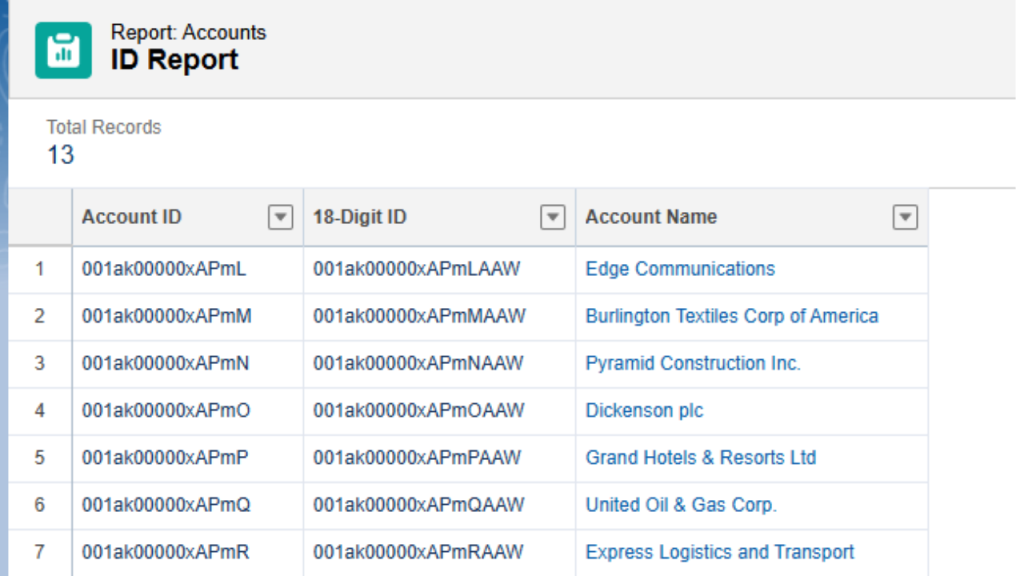
    That’s it – this formula field will display the 18-digit version of the record’s ID​. For example, if a Contact’s AccountId (15) is 001C000000o4OOI, the formula field CASESAFEID(AccountId) would show 001C000000o4OOIIA2 with the extra IA2 at the end​. Now you can use that field in a report and get the full 18 characters, which will reliably match IDs in external tools or other orgs.

    Pro Tip: You can create such a formula field on any object (standard or custom) where you anticipate needing the 18-digit ID. Commonly, admins add a field called "Case-Safe ID" or "18-digit ID" on important objects and include it in report types. This saves time when you need to do Excel analysis or data migrations – you can export the report with the 18-digit IDs included, rather than having to convert them after the fact.

    2. Convert using Salesforce Flow or Apex

    If you’re working in a Salesforce Flow, you can also use the CASESAFEID function in a formula resource. For example, in a Flow you might set a variable FullID = CASESAFEID({!RecordId}) to get the 18-digit version of a record's Id. This is essentially the same approach as the formula field, just within Flow. (We'll discuss a Flow example in the next section where this is crucial.)

    For developers, note that Apex and SOQL will return 18-digit IDs by default for any Id fields. If for some reason you have a 15-character Id string and need to convert it in Apex, you could either query for the record (which will give you the 18), or use a small piece of code to calculate it (there are algorithms posted on forums). But since this article is focused on admin-friendly solutions, the formula or Flow approach is your go-to.

    3. Use an Online Tool or Excel for Quick Conversion

    If you just have a few IDs and need to convert outside of Salesforce, you have options:

    • Online converters: There are free tools where you can paste a 15-char ID and it will return the 18-char. For instance, AdminBooster’s ID converter or other Salesforce community tools. These use the known algorithm to calculate the suffix. Always be cautious with sensitive data, but record IDs alone are generally not sensitive (they're just identifiers without context).

    • Excel formula: If you have a list of 15-character IDs in Excel, you can convert them with a bit of formula magic. One common approach is to split the 15 characters into 3 chunks of 5, and use a lookup table or the Excel CODE() function to compute the additional 3 characters. This is somewhat complex, but Salesforce pros have shared formulas online. (For a simpler route, consider using the EXACT() function in Excel to do case-sensitive comparisons without converting – see note below.) However, given the effort, it's often easier to use a Salesforce report with a CASESAFEID formula field, or an online tool, than to reimplement the algorithm in Excel.

    • Salesforce Workbench or CLI: Tools like Workbench or Salesforce CLI’s force:data:soql command will return 18-char IDs if you query an object. So, you could also use a quick SOQL query to retrieve records by 15-digit ID and get the 18-digit in the result.

    Reverse conversion (18 -> 15): This one is easy – just take the first 15 characters. If you have an 18-digit ID and for some reason need the 15 (perhaps for a legacy system or a quick manual comparison), you can simply truncate the last 3 characters. For example, 001C000000o4OOIIA2 → 001C000000o4OOI. In Salesforce, you could even make a formula like LEFT(Id, 15) to show the first 15 (though such a scenario is uncommon). Be careful: If you drop the last 3, you must preserve the exact case of the remaining 15 or you risk losing the uniqueness. Two different records that only differ by case will look identical once you remove the suffix. This is why using the 18-digit is safer; you rarely actually need to force an 18 back to 15. Salesforce will generally accept an 18-character ID anywhere a 15-character is expected.

    4. Where to Find the 18-Digit ID without a Formula

    Just as a side note: If you’re looking at a record in Salesforce and need the 18-digit ID quickly without creating a formula field, there are a few tricks:

    • Browser URL in Lightning: In Lightning Experience, the URL actually contains the record ID in 18-digit form. For example, lightning.force.com/lightning/r/Account/001...AAA/view – that 001...AAA part is the 18-character Account Id. You can copy it from the URL bar.
    • Salesforce APIs/Dev console: Running a query in Developer Console (Query Editor) like SELECT Id FROM Account WHERE Id = '001...'; will return the full 18. Similarly, the REST API or tools like Workbench show 18-char IDs.
    • Third-party browser extensions: Tools like Salesforce Inspector will show you the record’s details including the 18-digit Id. In fact, this is exactly why one user noticed the discrepancy – the Salesforce Inspector browser plugin showed an 18-digit ID for a record, while a report showed 15-digit​. The underlying record was the same; Inspector was pulling via API (18-digit) and the report was native (15-digit).

    In general, with the above methods or a formula field, you should never be stuck with a 15-digit ID when you need an 18. Conversion is quick and easy with the right approach.

    Avoiding Errors: Common ID Mismatch Scenarios (and How to Fix Them)

    Now for the important part: what kind of errors or issues can happen if you mix up 15 vs 18 digit IDs, and how to prevent them. Here are some real-world examples:

    •  

      Excel VLOOKUP / Power BI mismatch: Perhaps you exported a list of Cases from Salesforce along with their Parent Account IDs (15-digit), and separately exported a list of Accounts. When you try to VLOOKUP the Account Name for each Case using the Account ID, some lookups fail even though the IDs look correct. The culprit could be case sensitivity. Excel’s normal VLOOKUP (and XLOOKUP, and most text comparisons) are not case-sensitive by default​. So, if any of your Account IDs have letters and the case of those letters in the Cases export doesn’t exactly match the case in the Accounts export, Excel might not find the match. This could happen if, say, one export came via report (15-digit, all uppercase letters by convention in Salesforce IDs can be mixed case) and another came via an API or different source. Using the 18-digit ID for the lookup key solves this, because any mismatch in case is irrelevant – the 18-digit is consistently unique regardless of case​. As one Reddit user succinctly said: "The 18 digit ID is great for VLOOKUP in Excel and if any dependent system cannot handle case sensitive unique fields.". In other words, always use the 18 when doing external matches. If you're stuck with 15 in Excel, one trick is to use the EXACT() function in an array formula to force case-sensitive matching​, but that’s a lot of work when Salesforce can just give you the 18-digit to begin with.

      Solution: Whenever you plan to do Excel operations or feed IDs to a BI tool, export or use data with 18-character IDs. You can do this by including a CASESAFEID formula field in your report (e.g., add the "Case Safe ID" field we discussed). If you realize you only have 15-digit IDs, consider quickly converting them using one of the methods above before attempting your analysis. It will save you a headache and ensure 100% match rates on joins.

    • User or Record Id in URLs and Integration APIs: If you manually construct a URL to a Salesforce record (or an API call) using an ID, using 18-digits is more forgiving. Example: Going to https://<yourInstance>.salesforce.com/001C000000o4OOI might work if you get the case exactly right, but if you accidentally lowercase something, Salesforce might not find the record. However, if you use the 18-digit 001C000000o4OOIIA2, Salesforce will find the record regardless of case typos in the ID, because it only looks at the significant 15 and the checksum takes care of the rest. For integrations, if you supply a 15-char ID with wrong case, the API could throw an "ID not found" error or update the wrong record (worst case scenario). Always giving the 18-digit ID to external systems avoids this risk.

    • Report & Dashboard inconsistencies: Maybe you have a dashboard where one component is showing data from an external system joined with Salesforce data. If the join key is the Salesforce record ID, ensure the external data is using 18-digit IDs. A 15 vs 18 mismatch could result in missing data on the dashboard. Also, if someone copy-pastes a Salesforce ID from a report (15-digit) into another tool expecting 18, it could fail. Training users to understand the difference or providing the safer ID in reports (again, via a formula field) can preempt these issues.

    To sum up, ID mismatches typically don’t cause Salesforce to crash, but they do cause logic errors (e.g., comparisons that never succeed) or missing/incorrect data in external processes. The fixes generally involve converting the IDs to the same format, preferably 18-digit, so that everything lines up.

    Whenever you encounter a weird scenario where "this ID looks the same but isn’t working," take a closer look at the character count or case. Count the characters: if it's 15 vs 18, you know what the issue is. And now you know how to fix it in seconds!

    FAQ: Salesforce 15-Digit vs 18-Digit IDs

    To wrap up, here’s a quick FAQ section answering common questions about Salesforce ID formats:

    Q: Why does Salesforce have both 15-digit and 18-digit IDs?

    A: The 15-digit ID was the original record identifier used inside Salesforce. It's case-sensitive, which became an issue when exporting data to case-insensitive environments (like Excel). Salesforce introduced the 18-digit ID as a case-insensitive alternative for external use​. The 18-digit ID includes a checksum so that even if letter case is ignored, the ID remains unique. Essentially, 15-digit IDs serve internal needs, while 18-digit IDs ensure reliability outside Salesforce. Both refer to the same records (the first 15 characters are the core ID).

    Q: Are 15-digit and 18-digit IDs for the same record different?

    A: No – they represent the same record, just in different formats. Every record can be referenced by either its 15-character ID or its 18-character ID. The first 15 characters of the 18-digit are identical to the 15-digit ID. If you take any 18-digit ID and remove the last 3 characters, you get its 15-digit ID​. Conversely, if you have a 15-digit ID, you can generate the unique 18-digit version for that record. Think of the 18-digit as an "expanded" version of the 15-digit for safety. So if someone asks "which one is the real ID?" – they both are; they're just used in different contexts.

    Q: How do I convert a 15-digit Salesforce ID to 18 digits?

    A: The simplest way is to use the Salesforce formula function CASESAFEID(). For example, in a formula field or Flow, CASESAFEID(Id) will output the 18-character ID​. You can also find the 18-digit ID in the record’s Lightning URL or via data export tools. There are online tools and Excel methods as well, but CASESAFEID within Salesforce is quick and foolproof. (No need to manually figure out the checksum – Salesforce does it for you.)

    Q: Can I convert an 18-digit ID back to 15 digits?

    A: Yes. Simply remove the last 3 characters of the 18-digit ID and you have the 15-digit. For instance, 003B0000008XYZABC → 003B0000008XYZ. In Salesforce, you usually don't need to do this (Salesforce will accept the 18-digit in place of 15). But if you do, ensure you keep the same letter case in the first 15. Remember, the 15-digit is case-sensitive, so 003B0000008XYZ is not the same as 003b0000008xyz (one of those might not even exist). The extra 3 characters on the 18-digit helped avoid that confusion.

    Q: What is CASESAFEID() exactly and where do I use it?

    A: CASESAFEID() is a built-in Salesforce formula function that takes a 15-character Id as input and returns the 18-character Id. It's designed to be used in formulas (formula fields, default values, validation rules, or Flow formulas) whenever you need the 18-digit form. For example, you might add a formula field "Full Record ID" with CASESAFEID(Id) on an object to use in reports​. Or in a Flow, use CASESAFEID() to convert a 15-digit ID (like from $User.Id) to 18 digits for comparisons​. Use it any time you're concerned about mixing 15 and 18-digit IDs. It essentially makes an ID “case-safe” for external use, hence the name.

    Q: Where might an ID format mismatch cause errors?

    A: Common places include Excel or Google Sheets (vlookups, pivot table joins), integration middleware or scripts, and even Salesforce Flow or formula logic. For example, comparing a User Id to a record owner Id in a Flow will fail if one is 15 and the other 18​. In Excel, a case difference in a 15-char ID might make a lookup fail or match the wrong record​. Essentially, any case-insensitive comparison or join can misbehave if one ID is in 15-char form. The error might not be a loud error message, but rather data not lining up (missing matches, false mismatches). The fix is to convert all IDs to the same format (ideally 18-digit) in that process.

    Q: Do I always need to worry about 15 vs 18 digits nowadays?

    A: It depends on what you're doing. If you stay completely within Salesforce’s UI and point-and-click tools, Salesforce handles IDs for you and you'll rarely notice the difference (except seeing different lengths in different contexts). But the moment you export data, build automation, or integrate Salesforce with something else, you need to be mindful. Modern Salesforce features (like Lightning) tend to use 18-digit more often by default, but you should still explicitly use 18 when it matters. Best practice: when building reports for export, always include an 18-digit ID (via formula) if those IDs will be used elsewhere. And if you write any custom logic involving IDs, keep the formats consistent. The good news is, once you know about it, it’s easy to avoid issues by just standardizing on the 18-digit ID in your workflow.

    Q: Is the 18-digit ID truly unique across all Salesforce orgs?

    A: The 15-digit (and thus the 18-digit) ID is unique within a single Salesforce org (or across orgs that have shared instance ID space, which generally they do not). Salesforce IDs are not globally unique across all orgs in the world – two different Salesforce orgs can have the same record ID value for different records. So you always pair an ID with its org context (which org it came from). The 18-digit doesn’t change that fact. It just makes the ID safe for case-insensitive handling. To identify records globally, you'd include the org’s domain or Org ID along with the record ID. But that’s beyond our scope here. Bottom line: within one org or data set, an 18-digit ID uniquely identifies a record. Just don't assume you could take an ID from one org and find that same ID in another org (unless there is some relationship like a sandbox copy).

    Hopefully, these FAQs clear up any remaining confusion. Now you have both the knowledge and the practical tools to handle Salesforce IDs like a pro!

    Conclusion: From ID Mastery to Salesforce Mastery

    Understanding Salesforce IDs is just one piece of the puzzle in mastering the platform. You've seen how a tricky detail like 15 vs 18-digit IDs can impact your day-to-day work. The great news is that mastering these details gives you an edge – you can prevent data mistakes and build more robust solutions. But why stop at IDs? This same level of mastery can be applied to Salesforce Flow, the powerful automation engine in Salesforce that every forward-thinking professional is learning today.

    Imagine being the go-to expert who not only handles ID quirks but also builds seamless automations that save your company hundreds of hours. Salesforce Flow skills are in huge demand – in fact, 91% of organizations say they need to automate processes to do more with less, and they're looking for people who can streamline work with tools like Salesforce Flow. Salesforce Flow expertise has become one of the most sought-after skills in the ecosystem (now as highly valued as AI knowledge in job listings)​. That’s a career-making opportunity if you seize it.

    Ready to level up? If you found this article helpful, you’ll love what comes next. We invite you to take the next step in your Salesforce journey and become a true Flow superstar. Check out 2025 Salesforce Flows: The Complete Guide â€“ an in-depth, hands-on course created by Salesforce expert Nick Frates. This program is designed to transform you from a capable admin into an exceptional one – the kind who automates business processes with ease, solves problems in minutes, and propels your career to new heights.

    In the course, you'll learn to build complex automations with clicks, not code, mastering everything from basics to advanced Flow techniques. You'll get step-by-step guidance, real-world examples, and insider tips that you won't find anywhere else. By the end, you'll be confidently tackling tasks that once required developers, saving your company time and money and making yourself indispensable. *(Did you know a well-built Flow can save over 500 hours of work per year for a business? Just imagine the impact – and who gets the credit for that)**.

    Don't let this opportunity pass by. The Salesforce ecosystem is growing rapidly, and those who invest in their skills now will be the ones leading the pack. Whether you aim to automate away tedious tasks, impress your boss, or land a higher-paying Salesforce role, Flow expertise will be your secret weapon.

    Take control of your career: enroll in the 2025 Salesforce Flows course today and join the ranks of high-achievers who don’t just adapt to the future of Salesforce – they drive it. Remember, the difference between a good admin and a great one often comes down to taking action on learning opportunities like this. You've mastered Salesforce IDs; now, let’s master Salesforce automation together.

    👉 Enroll in the 2025 Salesforce Flow Course now and equip yourself with skills that will pay dividends for years to come. Your future self will thank you for it!


    By solving the Salesforce 15 vs 18 ID conundrum, you’ve taken a step toward being a more knowledgeable Salesforce professional. Keep that momentum going! We hope to see you in the course, and until then, happy Salesforce-ing

  • My Focus Tech Stack

    My Focus Tech Stack

    Hey everyone, Happy Saturday!


    Have you ever found yourself short on focus, wishing you could get more done in a day?


    I recently found a few Chrome extensions that are significantly improving my ability to accomplish deep work.


    Today I’d like to share the top three with you.


    1) Momentum 

     This simple extension changes the “New Tab” functionality of Chrome to show a few things:


    • A high resolution picture of nature. I find it helps me get centered.
    • Your “main focus” for the day, which you write into the browser each morning
    • The time, a quote, and the weather


    It looks like this:


    I’m at my most distractible when opening a new Chrome tab. At that moment I can begin a new work item, or as is often the case, get off task by habitually opening YouTube (more on that later) or some other website which was not related to my original intent.


    Momentum gives me that short pause to stay on track.


    2) Focus To Do

     
    This is an easy to use Pomodoro timer. If you haven’t heard about it, the “Pomodoro Technique” has six steps:

    Decide on the task to be done.

    1. Set the pomodoro timer (typically for 25 minutes).
    2. Work on the task.
    3. End work when the timer rings and take a short break (typically 5–10 minutes).
    4. If you have finished fewer than three pomodoros, go back to Step 2 and repeat until you go through all three pomodoros.
    5. After three pomodoros are done, take the fourth pomodoro and then take a long break (typically 20 to 30 minutes). Once the long break is finished, return to step 2.


    You click the Focus To Do icon (once installed) and there is a dashboard page which allows you to set up your tasks:


    You click the start icon next to a task and go to a timer page for your working sessions:


    And a timer page for your breaks:


    The Pomodoro technique works well for me. Having a specific task (or batch of similar tasks) and the goal to get as many done as possible in 25 minutes helps me “Get in the zone”. One reason I think it works is because I know after the 25 minutes I get a break.


    This way, when a distracting thought like “I wonder if I got any emails since I last checked?” pops up in my mind, I can tell myself “I’ll check on that during the 5 min break.” and stay focused. 


    This has both improved the amount of work I get done and decreased the “tired” feeling of slogging through work during the day. It’s a short intense session with a little break, and that has helped my output significantly.


    3) Unhook

     
    I saved the best for last. I have a confession: I have a YouTube “at Work” problem.

    It’s so easy for me to habitually open Youtube, and before I know what happened, click on a recommended video, spend 20 minutes watching, repeat this process several times a day, and around 6pm wonder why I couldn't get more done...

     
    When you think about it, you realize that YouTube is a multi-billion dollar operation designed to feed you cheap dopamine. They employ machine learning, sophisticated rating algorithms, and habit forming cycles (which I can assure you have been meticulously engineered) with one result in mind: getting you to spend more time watching content on the platform.


    Now I love YouTube, and I love the free content and information it has brought to the world. I think the world is better with YouTube than without it - BUT - my poor brain can’t win the fight against cheap dopamine every day without help.


    Enter Unhook:


    Unhook will block any element on YouTube that you think distracts you. Turn off the home feed, subscriber notification, video comments, recommended videos, shorts, etc.


    This allows me to stop the flood of cheap dopamine that overwhelms my poor brain's ability to say no. I can still search for content and watch videos, but then I’m in much greater control of my intent while on the platform.


    Other than the benefits above, I also love that each of these extensions are free. They do offer paid versions, but I haven’t chosen to opt in.

    If you’re interested, here are links to the three extensions:

    1.  Momentum
    2.  Focus To Do
    3.  Unhook
       

    That’s a wrap! Have a great weekend and I look forward to seeing you next week :)


  • A Salesforce Password Reset Trick

    A Salesforce Password Reset Trick

    Happy Saturday!


    Today’s issue is a quick tip for password resets. You can read it in less than 3 minutes.


    Have you ever wanted to quickly set a Salesforce user’s password for them (without leaving Salesforce)?


    I have. A few scenarios where this has come up for me are:


    • Training - Creating “training users” and setting passwords before employees arrive for training day
    • Quick Fix - Temporary access for a user who claims the reset password email didn’t work, didn’t send, or otherwise didn’t solve their problem
    • Sandbox - Setting a user’s password when the user has a dummy email (typically sandbox access for 3rd parties)


    It’s been handy for me to know about the system.setPassword() method in the Developer Console.


    This method lets you specify a specific user, and a text string to become their password.


    The format is:


    system.setPassword(‘userId’, ‘newPassword’);


    The userId above is the 18 character Salesforce User Id for the user you’d like to update the password for, and the newPassword above is, well, the password you want to give that user.


    Here’s how it works:


    Step 1: Open the Developer Console


    Step 2: Once in the Developer Console, Open the Execute Anonymous Window


    Step 3: Use the system.setPassword(‘userid’, ‘password’); method specifying the desired userId and desired password. Press Execute.


    You’re done!


    One tip: the new password must conform to your org’s password policies.


    And on a final note, only use this method in special situations. Manually setting a users password and sharing it with them is much less secure than them setting it themselves.


    Always consider the security implications of using this method and make a decision on the risk before using this quick fix.


    With that, have a great weekend - and I'll see you next week!