Hey everyone,
Sometimes a report needs data from two kinds of records. For example: hot accounts next to their open cases. One normal report can’t do that. A joined report can.
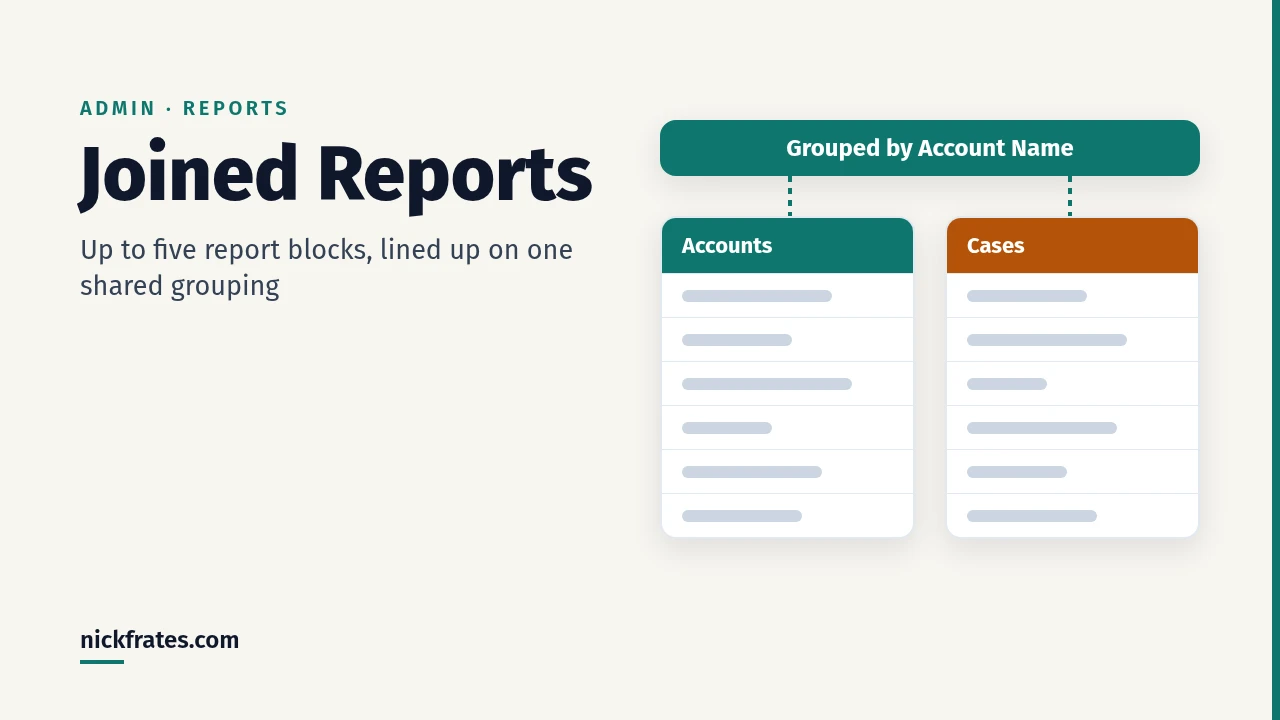
A Salesforce joined report puts up to five blocks in one report. Each block shows data from one standard or custom report type, with its own columns and filters. You group the blocks by a common field, such as Account Name, so the rows line up side by side. Per Salesforce Help, joined reports work in Lightning Experience and Salesforce Classic, in Enterprise, Performance, Unlimited and Developer Editions.
This guide covers how blocks and common fields work, when to use a joined report, the permissions you need, a full build, formulas, charts, dashboards, export, limits and common mistakes. If you’re studying for the Admin exam, do the build by hand in a practice org.
What a Salesforce joined report is
Here are the key words in this guide. Each one is short and simple.
- Report type: a template that decides which objects and fields a report can use. For example, the Cases report type.
- Joined report: one report made of several smaller reports, shown side by side.
- Block: one of those smaller reports. Each block uses one report type.
- Principal report type: the first report type you choose. It decides how shared fields are named.
- Grouping: a field that sorts rows into groups, such as one group per account.
- Common field: a field that every block shares. Only common fields can group the blocks together.
According to Trailhead, each block acts as its own report with its own columns and filters. A joined report can have up to five blocks. You can mix standard and custom report types.
Blocks
When you add a block, its columns appear to the right of the first block. If the blocks use different report types, each one gets a different color in the side panel and column headers. The color tells you which block you are editing.
Blocks are not connected until you group them. Salesforce’s article on grouping says that without a grouping, the blocks are just independent reports in one view.
The principal report type
The first report type you pick becomes the principal report type. Per Salesforce Help, it decides how common fields are named. Salesforce Help gives the reason: some common fields have different names, or appear in different sections, in different report types. So one report type must set the names.
Tip: start with the report type your readers think in. If the report is about accounts, pick Accounts first.
Common fields
Common fields connect the blocks. You can add report types to a joined report if they relate to the same objects. Opportunities and Cases both relate to Accounts, so they can share a joined report grouped by an account field.
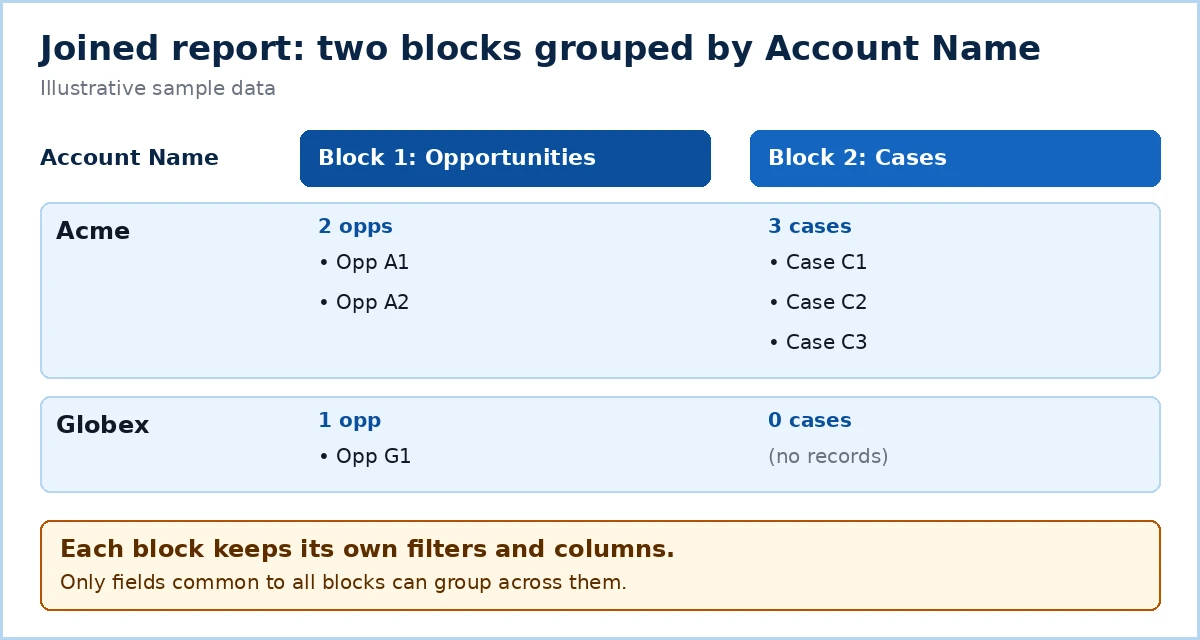
The rule to remember: only fields common to all blocks can group across blocks.
Which report types can be blocks
Not every report type can be a block. In the Reports and Dashboards REST API, every report type has a supportsJoinedFormat flag. It says whether the report type works with joined reports.
How Salesforce stores a joined report
Inside Salesforce, the format of a joined report is called MULTI_BLOCK. The API lists four report formats: TABULAR, SUMMARY, MATRIX and MULTI_BLOCK. MULTI_BLOCK is available in API version 43.0 and later. This matters when you read report metadata or look for joined reports in an org.
When to use a joined report (and when not to)
Joined reports are powerful, but they take more work to maintain than a report with one report type. Here’s how to decide.
Good fits
- Different objects, one view. Accounts in one block, cases in another, grouped by account. This is the Hot Accounts with Open Cases example from Trailhead.
- One object, different conditions. Several Cases blocks, each with a different filter. Trailhead’s example filters one block for closed cases and another for new cases.
- Related objects with the same parent. Opportunities and Cases side by side under the same account.
When something simpler works
- One report type has every field you need. Use a summary or matrix report. It is easier for the next admin to read and change.
- Every block would have the same filters. Then you probably do not need blocks.
- The blocks have no common field. Without a common grouping, the blocks do not line up. You just get two unrelated tables on one page.
A quick test: say the question out loud. If it compares two kinds of records (“next to” or “versus”), a joined report is probably right.
Joined report requirements: editions and permissions
Per Salesforce Help:
- Interfaces: Lightning Experience and Salesforce Classic.
- Editions: Enterprise, Performance, Unlimited and Developer Editions.
- Permissions: to create, edit and delete joined reports, you need Create and Customize Reports and Report Builder.
- Folders: Help also lists Enhanced Folder Sharing.
Exam tip: if a user can run reports but can’t build a joined report, check those two permissions first.
Cert Lab by Nick Frates
Practice reports for the Admin exam
Lessons, section checks, flashcards and practice questions on report types, formats and filters. Free, no card, no trial.
Start the free Admin Cert Lab →Full worked example: hot accounts with open cases
Let’s build Trailhead’s Hot Accounts with Open Cases report. It answers a common question: which important accounts have open support issues? Use a Developer Edition org or a Trailhead Playground so you don’t change real data. The screenshots below come from a Trailhead Playground.
| Block | Report type | Filter |
|---|---|---|
| Accounts block 1 | Accounts | Rating equals Hot |
| Cases block 1 | Cases | Status: Open |
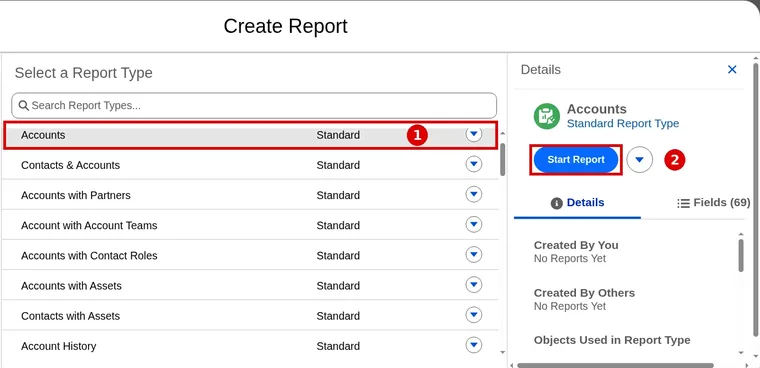
Step 1. Choose Accounts as the principal report type
On the Reports tab, click New Report. Choose Accounts and click Start Report. Accounts is now the principal report type, so it sets the names of the common fields.
Step 2. Switch the format to Joined Report
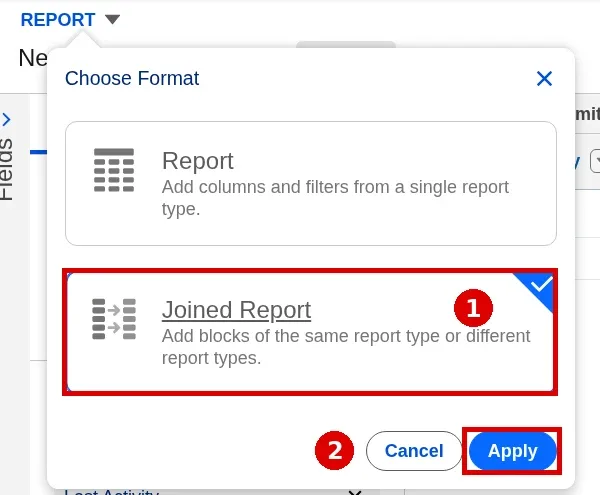
In the upper left of the report builder, open the report format menu. Choose Joined Report and click Apply. Your Accounts report is now the first block.
You can also do this with a report that already exists. Help says you can turn any existing report into a joined report this way.
Step 3. Add a Cases block
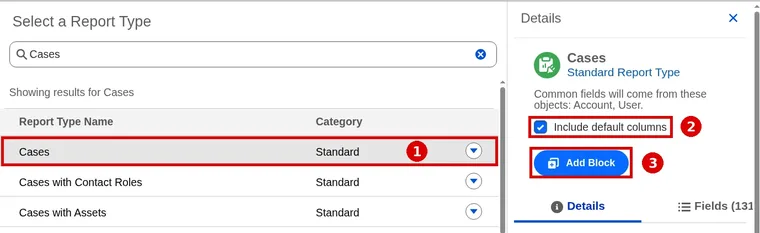
Click Add Block. Choose Cases. Leave Include default columns checked, then click Add Block.
Default columns give you data to see right away. If you uncheck the box, the block starts empty. An empty block does not appear in the preview until you add columns.
Step 4. Check both blocks in the Outline
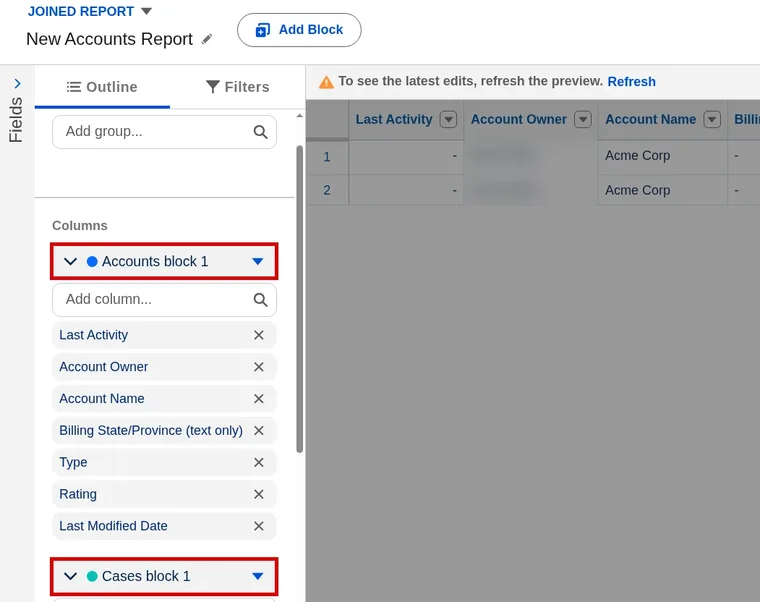
Open the Outline tab. Under Columns you see Accounts block 1 and Cases block 1. Each block has its own list of columns. The Cases columns sit to the right of the Accounts columns, in a different color.
Remove columns you don’t need. Removing a column from one block does not change the other block. You can also rename the blocks, for example “Hot Accounts” and “Open Cases”, so readers understand the report.
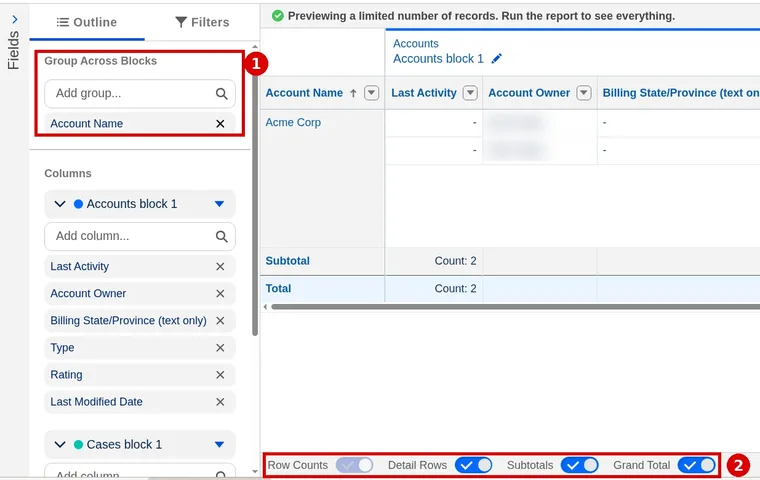
Step 5. Group by Account Name
In the Outline tab, find Group Across Blocks. Click Add group… and choose Account Name.
This step connects the blocks. Before you group, they are two separate reports on one page. After you group, each account’s details and its cases sit in the same row group. If Account Name is not offered, remember: only fields common to all blocks can group across them.
Step 6. Filter each block
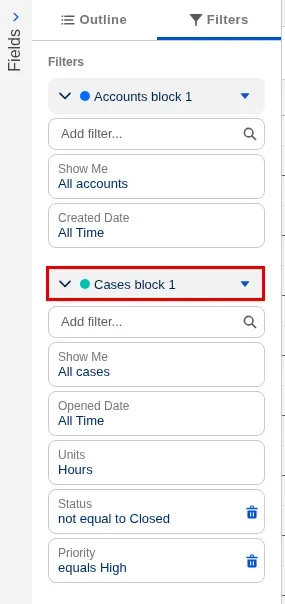
Open the Filters tab. Select a block first, then add its filters. Under Accounts block 1, set Rating equals Hot. Under Cases block 1, add a filter for open cases.
Always check which block you selected. Each block has its own filters. It is easy to put a case filter on the account block by mistake.
Step 7. Save, run and read the result
Click Save. Enter a name, choose a folder and save. Then click Run.
Read the result one account at a time. Each hot account shows its open cases in the same row group. That is the question sales asked.
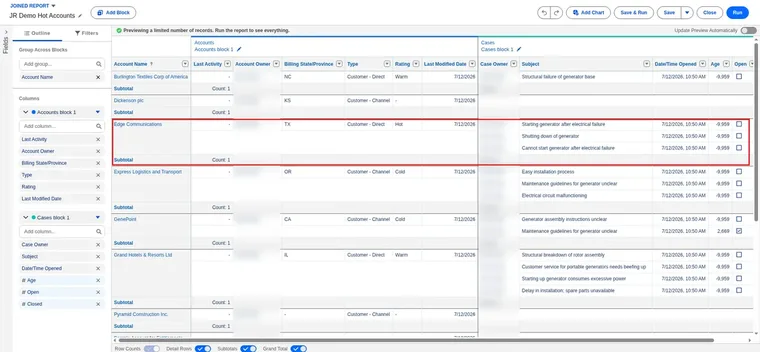
If the numbers look wrong, check each block’s filters first, then the grouping.
If you use Salesforce Classic
The steps are similar, but the labels are different. Per Salesforce Help, in Classic you click New Report…, choose a report type and click Create. Then you change the format with Tabular Format > Joined. To add a block, you click Add Report Type, choose one and click OK. In Lightning, you can also start from the Analytics tab: Create > Report.
Worked example: opportunities next to account details
This short example comes from Salesforce’s grouping article. It shows what grouping changes.
- Create a joined report with an Opportunities block and an Accounts block.
- Run it before you group. The two blocks are not connected. They are two independent reports in one view.
- In the Outline tab, use Group Across Blocks > Add group… and choose Account Name.
- Run it again. Each account’s opportunities appear in Block 1, and that account’s details appear in Block 2, in the same row group.
Look at the Accounts block. Because you grouped by account, Block 2 always has only one record per group. With two report types like Opportunities and Cases, both blocks can have several records under the same account.
Working with blocks
Rename block headers
Default names like “Cases block 1” don’t say much. You can rename each block header, for example to “Open Support Tickets”.
Reorder blocks
In the report builder, you can drag blocks left or right. Put the most important block on the left.
Use the same report type more than once
Blocks don’t need different objects. Several Cases blocks, each with a different filter, give you a side-by-side status view.
Empty blocks
If you uncheck Include default columns, the block does not appear in the preview until you add columns. It is not broken. Help also says you can add or remove a block’s columns after you add the block.
Grouping a joined report by a common field
Grouping turns separate blocks into one readable view. Each block keeps its own columns and filters, but all blocks share the row groups. So data from the first block lines up with data from the second block.
What counts as a common field
A field is a common field if every report type in the report shares it, or if all of them share a lookup relationship to it. In Lightning Experience, an icon marks common fields in the field list (How Joined Reports Work).
Up to three groupings
Groupings apply to all blocks. You can add up to three, the same as a summary report (Salesforce Help).
Rows without a match still show
Salesforce says joined reports are based on a SQL outer join. This means each row in a block appears in the joined report, even if the other blocks have no matching data (Salesforce Help). So an account can show cases next to an empty Accounts block.
Only one shared object shows
A new block can share several objects with the report. If so, only the first one in alphabetical order is shown, and only its fields appear as common fields (Salesforce Help). If a common field you expected is missing, this is often the reason.
Group before you add formulas
Summary formulas need at least one grouping. In Lightning Experience, add one with Group Across Blocks > Add group… in the Outline tab (Salesforce Help).
Cross-object formula fields can’t be common fields
Say two objects each have a cross-object formula that points to the same parent field. You can’t group the blocks by that formula. Salesforce’s workaround: create a custom report type for each object, and add the parent field with Edit Layout > Add fields related via lookup. That lookup field then shows as a common field (Salesforce Help).
Summary and cross-block formulas
A summary formula calculates a value from grouped data, such as a count or a total. A cross-block formula is a summary formula that uses data from more than one block. Joined reports support both (Salesforce Help).
| Formula type | What it evaluates | Where you add it (Lightning) |
|---|---|---|
| Summary formula | Data in one block only | Outline panel > Columns > menu next to a block name > Add Summary Formula |
| Cross-block summary formula | All the data in the joined report | Same menu > Add Cross-Block Summary Formula |
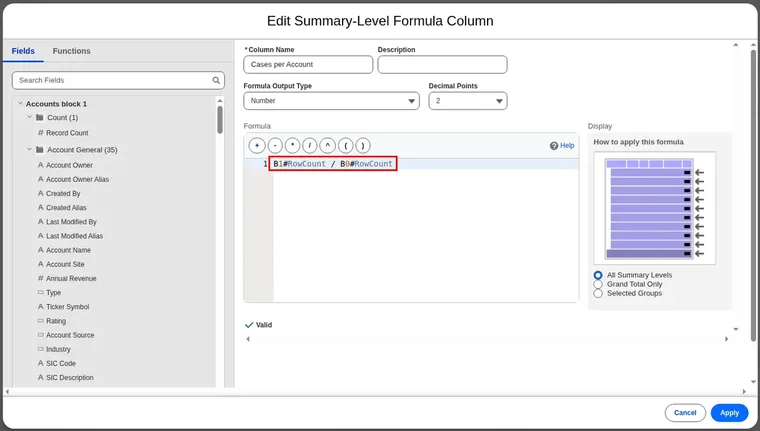
To add one in Lightning Experience, make sure the report has a grouping. Then, in the Outline tab under Columns, open Block Actions next to a block name. Choose Add Summary Formula for one block, or Add Cross-Block Summary Formula to use all blocks. The Edit Summary-Level Formula Column dialog opens. Write the formula and click Apply.
Cross-block formula syntax
A cross-block formula looks like a normal summary formula, but each field reference includes the block title in square brackets. Salesforce’s example divides the number of opportunities by the number of cases for each account (Summary Formulas with Joined Reports):
If you leave out a block title, you get an error when you check the syntax or save. If you rename a block, check that the formula still points to it.
Rules to remember (Salesforce Help):
- A standard summary formula belongs to one report type. A formula built for Cases can only go on Cases blocks.
- A cross-block formula can go on any block.
- In Lightning Experience, a formula is added to the block where you create it. Formulas appear to the right of the standard fields. Cross-block formulas appear to the right of standard formulas.
- Block filters change formula results. The same formula can show different numbers in different blocks, or after a filter changes.
- You can have up to 10 custom summary formulas per block, 50 per joined report, and 10 cross-block formulas per joined report.
- Each formula needs a unique name. Names can’t contain square brackets.
- If you delete a block that a cross-block formula uses, the formula is deleted too.
For how to write summary formulas in general, see my guide to row-level and summary formulas.
Cert Lab by Nick Frates
Go deeper on reporting for Admin II
Scenario practice on advanced reporting, data management and automation for the Platform Administrator II exam.
Start the Platform Administrator II Cert Lab for $9.99 →Charts on joined reports
You can add a chart to a joined report (How Joined Reports Work). In the report builder, click Add Chart. Use the Chart Properties gear to change the chart.
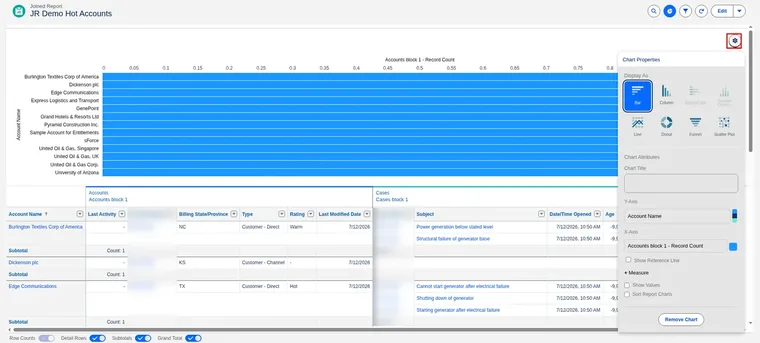
One difference matters. In a normal report, clicking a bar in the chart filters the results to that bar. In a joined report, clicking a bar does not filter (Reports and Dashboards Limits). Use block filters instead.
The chart is also the only part of a joined report you can put on a dashboard. See the next section.
Joined reports on dashboards
You can add a joined report’s chart to a dashboard as a widget, but not the full report (Reports and Dashboards Limits). So add a chart to the joined report first. In the dashboard editor, click Add Widget, choose Chart or Table, then select the joined report.
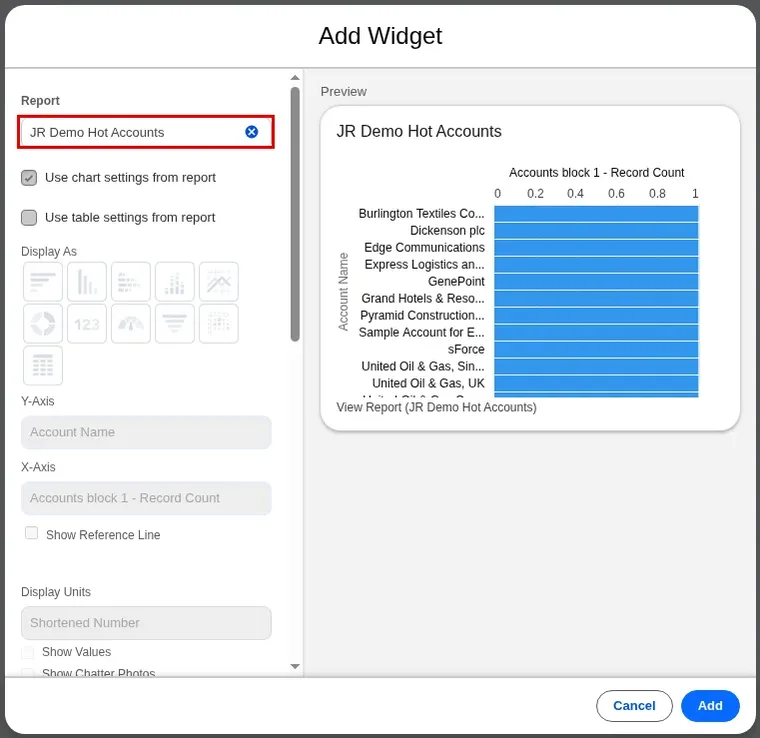
Salesforce lists these limits (Reports and Dashboards Limits, Joined Report Limits):
- No filtering on joined report widgets. Filtering isn’t supported for widgets that use a joined report chart.
- No dashboard filters for joined reports. You can’t filter a joined report in dashboard view. You can’t add a filter to a dashboard that only has joined reports.
- No table settings from the report. When you add a Lightning table to a dashboard, you can’t use the table settings from a joined report.
- Console apps. Joined reports aren’t supported in console apps. In console run mode, the Hide Details and Show Details buttons aren’t available. Click Customize to enter edit mode to use them.
If a dashboard needs filters, add standard summary or matrix reports, or build a separate dashboard for the joined report views.
Exporting and subscribing to joined reports
In Lightning Experience, you can export a joined report as a Formatted Report, but not as Details Only. Salesforce lists “Export as details only” as a missing feature for joined reports, and says Formatted Report export is supported (Salesforce Help).
How to export a report in Lightning Experience (Export a Report):
- From the Reports tab or the report run page, open the menu and select Export.
- Choose Formatted Report. This exports the report as it looks in Salesforce, with the header, groupings and filter details, to an .xlsx file.
- Click Export and save the file.
You need the Export Reports permission. If Export is missing, ask your admin. Long text and rich text fields are cut to 255 characters (Export a Report).
A joined report always exports as a formatted report. The export can have up to 20,000 rows (Reports and Dashboards Limits). If an export takes 10 minutes, it times out. Salesforce’s fix: copy the report, filter each copy to half the data, and export both.
Subscriptions aren’t available for Lightning joined reports yet (Lightning report subscriptions don’t support joined reports, per the limits page). You also can’t schedule or subscribe to joined reports in Salesforce Classic (Salesforce Help). Open in Quip and conditional formatting are also not available yet.
If someone needs a weekly email, or row-level data for spreadsheet math, give them a standard report on the same report type. Standard reports support Details Only export.
Joined report limits and considerations
A joined report can have up to five blocks. Each block uses one standard or custom report type (Salesforce Help).
Things you can’t do with joined reports, per Salesforce’s limits page:
- Add bucketed fields.
- Add cross filters.
- Drag and drop filters from the Fields pane onto the Filter pane.
- Apply conditional highlighting.
- Change the hierarchy for account, activity, lead and opportunity reports.
- Create reporting snapshots based on joined reports.
- Schedule or subscribe to joined reports in Salesforce Classic.
Some report types can’t be used. Several standard report types can’t be blocks, including Account History, Contact History, Case History, Lead History, Opportunity Field History, Campaign Member, and Opportunities with Contact Roles and Products (Salesforce Help). If a report type is missing from the Add Block list, check this first.
Report builder must be on. If report builder isn’t turned on for the whole org, users can run joined reports but can’t create them (Salesforce Help).
A record can appear because of any block. Each block has its own filters. A record shows up if it meets the filters of any block, like an OR across blocks (Trailhead). In the hot accounts example, an account with open cases can appear even if it isn’t rated Hot.
Columns and rows. Each block can have up to 100 columns. Reports display up to 2,000 rows. Row counts and summaries can be wrong in a joined report with more than 2,000 rows when one block has most of the rows (Reports and Dashboards Limits). If totals look wrong, tighten the block filters.
Theme. Joined reports need the new user interface theme. Users without it can’t create, edit or run them (Salesforce Help).
Formulas. Up to 10 custom summary formulas per block, 50 per report, and 10 cross-block formulas per report (Salesforce Help).
Groupings. Up to three groupings across blocks (Salesforce Help).
Other Lightning gaps. Salesforce also lists trend report data in CRM Analytics and Einstein Discovery in Reports as not yet available for Lightning joined reports (Salesforce Help).
Common joined report mistakes
- Grouping by a field only one block has. Only fields common to all blocks can group across them. Choose the shared field, like Account Name.
- Filtering the wrong block. Select the block in the Filters tab before you add a filter.
- Thinking an empty block failed. It does not show in the preview until you add columns.
- Choosing the wrong principal report type. It sets how common fields are named. Start with the object the report is about.
- Keeping default block names. “Cases block 1” means little to a sales manager. Rename it.
- Using a joined report when a summary report would work. If one report type has every field, keep it simple.
- Assuming every report type can join. Report types have a supportsJoinedFormat flag. If it is false, that type can’t be a block.
- Forgetting the edition. Joined reports are listed for Enterprise, Performance, Unlimited and Developer Editions. Don’t promise one to a Professional Edition team.
- Following Classic steps in Lightning. Classic uses Tabular Format > Joined and Add Report Type. Lightning uses the report format menu > Joined Report > Apply, and Add Block.
Practice questions
Try these before you look at the answers. They’re my own scenario questions based on the Salesforce docs cited above.
Question 1. A sales manager wants hot accounts and their open cases side by side in one report. What do you build?
Show the answer and explanation
Answer: A joined report with an Accounts block filtered to Rating equals Hot and a Cases block filtered to Status equals Open, grouped by Account Name.
Question 2. You try to add a cross-block summary formula, but you can’t. What’s the most likely missing piece?
Show the answer and explanation
Answer: A grouping. Summary formulas on joined reports need at least one grouping, so add one with Group Across Blocks > Add group… first.
Question 3. A user wants a weekly subscription email for a Lightning joined report. What do you tell them?
Show the answer and explanation
Answer: Subscriptions aren’t available for Lightning joined reports yet. Offer a standard report they can subscribe to instead.
Question 4. Your dashboard only contains joined reports, and the VP wants a Region filter on it. What happens?
Show the answer and explanation
Answer: You can’t add a filter to a dashboard that only has joined reports. Add standard reports to the mix or rethink the design.
Question 5. You want to group two blocks by a cross-object formula field that points to the same Account field. Why won’t it work, and what’s the fix?
Show the answer and explanation
Answer: Cross-object formula fields can’t be common fields. Create custom report types and add the parent lookup field with Add fields related via lookup, then group by that field.
Question 6. Your cross-block formula throws a syntax error. The fields look right. What’s the likely cause?
Show the answer and explanation
Answer: A missing block title. Cross-block field references must include the block title, like [Cases block 2]RowCount.
Question 7. A finance user needs every row of a Lightning joined report in a spreadsheet to run their own calculations. What do you suggest?
Show the answer and explanation
Answer: Details Only export isn’t available for joined reports. Export the Formatted Report, or give them a standard report on the same report type that they can export as Details Only.
FAQ
How many formulas can a joined report have?
Up to 10 custom summary formulas per block, 50 per report, plus up to 10 cross-block formulas.
Can a joined report use bucket fields or cross filters?
No. Salesforce lists both as unavailable in joined reports.
Can I export a joined report?
Yes, as a formatted report. Export as details only isn’t available for Lightning joined reports yet.
Can I subscribe to a joined report?
Not in Lightning Experience yet, and you can’t schedule or subscribe to joined reports in Salesforce Classic.
Why does an account appear that doesn’t match my first block’s filter?
Records are included if they meet the criteria for any block, so another block’s filter can bring them in.
Which permissions do I need to build a joined report?
Create and Customize Reports and Report Builder.
How many blocks can a joined report have?
Up to five, each with one standard or custom report type.
Can I put a joined report on a dashboard?
Only its chart, as a widget, and filtering isn’t supported for that widget.
How many rows can a joined report export?
Up to 20,000, and it always exports as a formatted report.
Can I use the same report type in two blocks?
Yes. Trailhead’s example compares case priority and status with three Cases blocks, each filtered differently.
Can I turn an existing report into a joined report?
Yes. Open it in the report builder and click Report > Joined Report > Apply.
Hope this helps!
Best,
Nick