Hey friends,
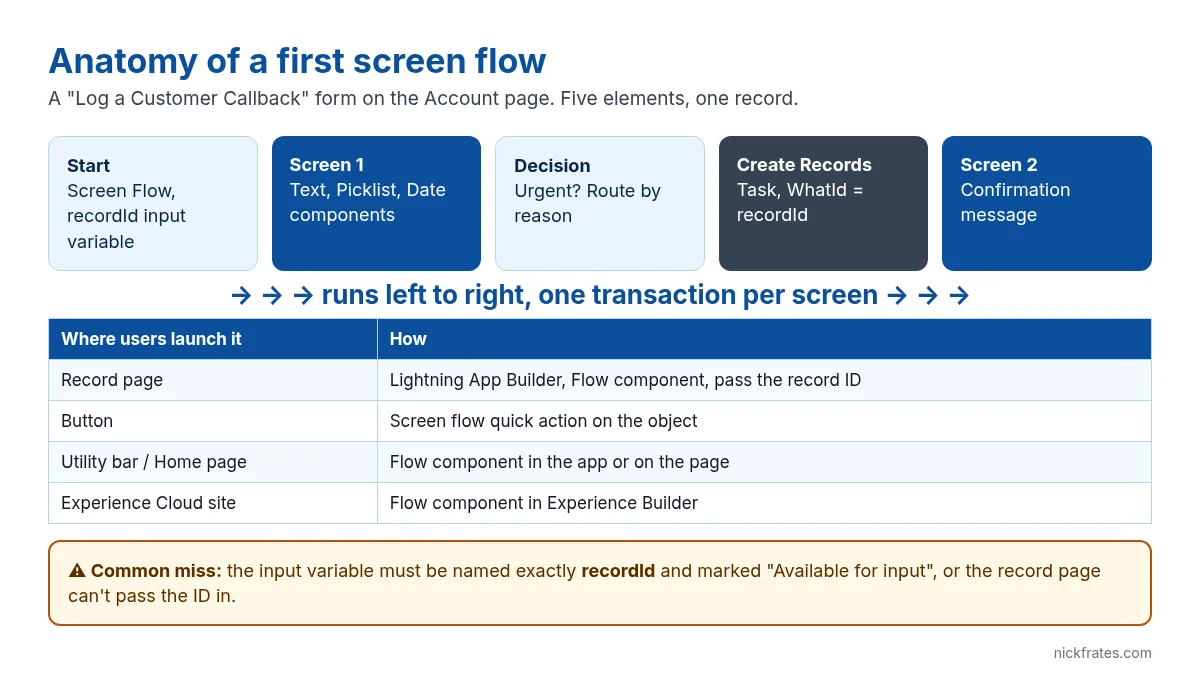
A screen flow is a guided form you build with clicks: screens to collect input, logic to decide what happens, and elements that create or update records. It’s the first flow most admins build and a staple of the Admin exam. Instead of describing every component, let’s build one that’s genuinely useful: a Log a Customer Callback button on the Account page that collects a reason and a date, then creates a follow-up task.
Step 1: Create the flow and the recordId variable
- Setup > Flows > New Flow > Screen Flow.
- In the Toolbox, create a New Resource: Variable, API name
recordId, data type Text, Available for input checked. - That exact name matters. When the flow runs from a record page or quick action, Salesforce passes the record’s ID into a text variable called recordId.
Step 2: Build the input screen
Add a Screen element called Callback Details and drag in three components:
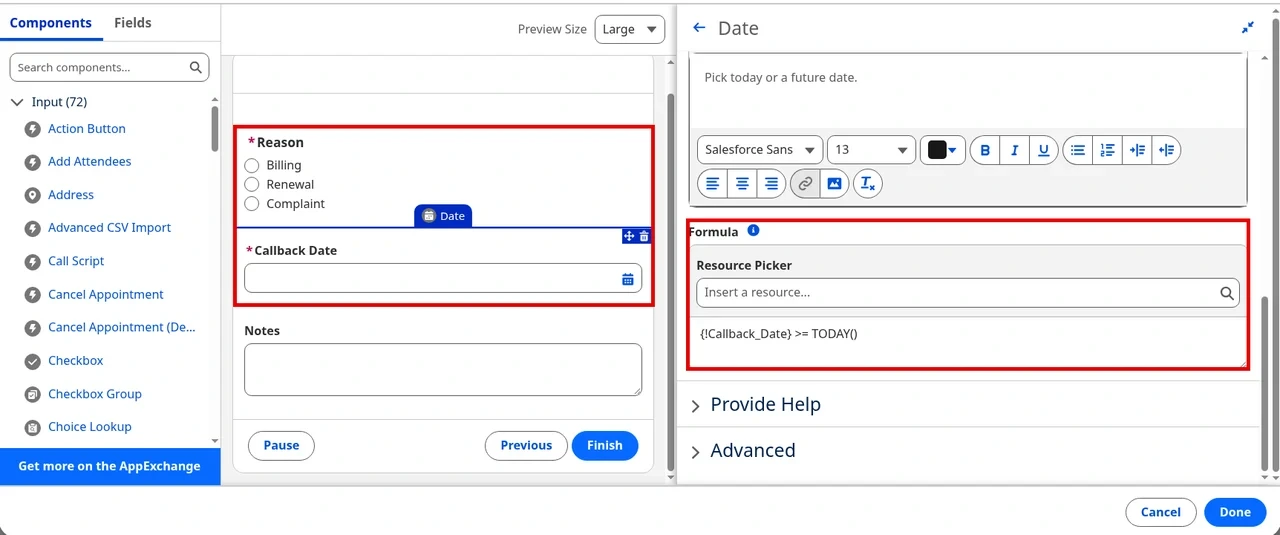
- Picklist (or Radio Buttons) Reason with a choice set: Billing, Renewal, Complaint. Make it required.
- Date Callback Date, required.
- Long Text Area Notes, optional.
Add input validation on Callback Date so nobody schedules a callback in the past. In the Formula box under Validate Input, the formula must be true for the value to be accepted:
Set the error message to something a rep can act on, like “Pick today or a future date.”
Step 3: Add a decision and create the task
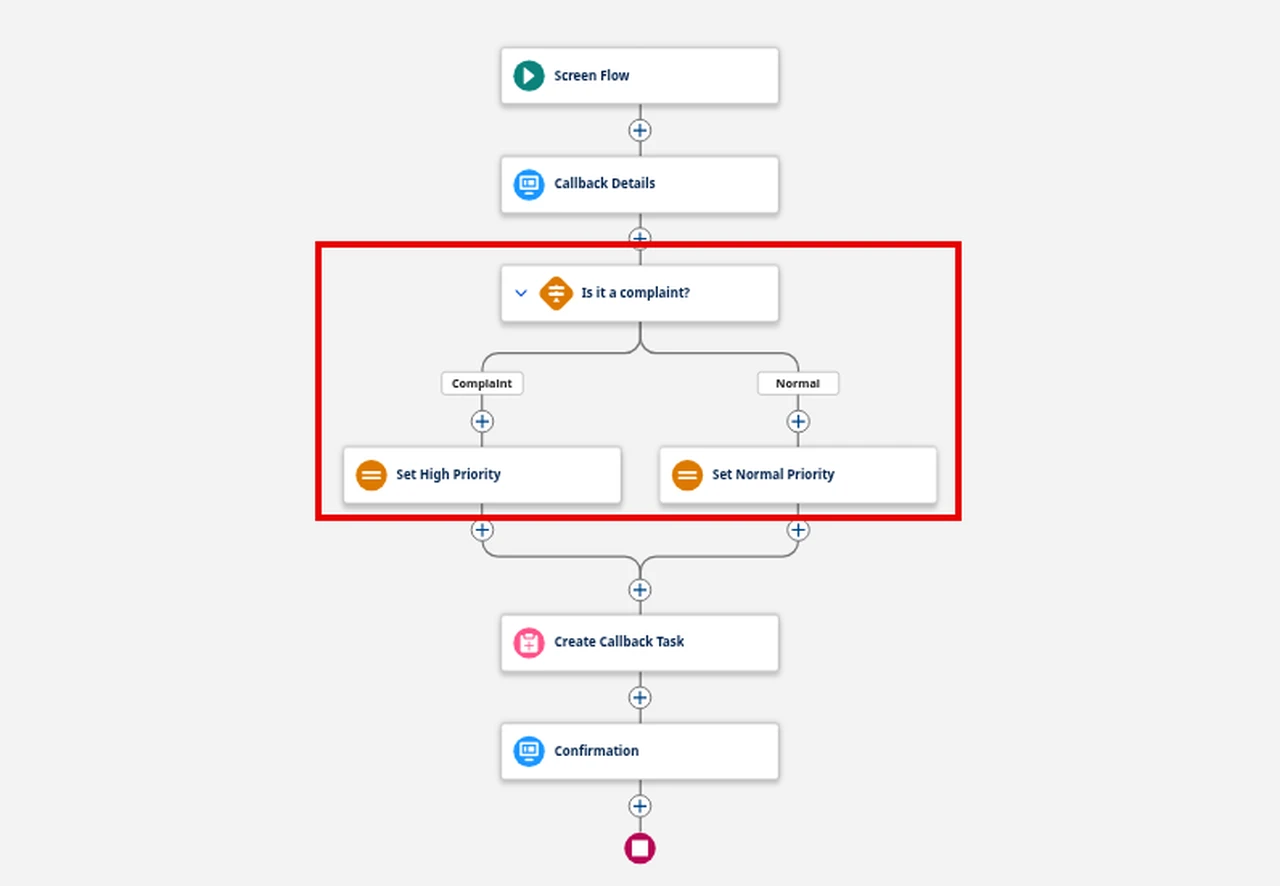
Add a Decision called Is it a complaint? with one outcome where Reason equals Complaint. Use it to set priority: create a Text variable varPriority, then an Assignment on each path that sets it to High or Normal.
Then add Create Records: create one Task, set fields individually:
| Task field | Value |
|---|---|
| Subject | Callback: {!Reason} |
| WhatId | {!recordId} |
| ActivityDate | {!Callback_Date} |
| Priority | {!varPriority} |
| Description | {!Notes} |
| OwnerId | {!$User.Id} |
Finish with a second Screen that confirms the task was created. Turn off the Previous button on it, so users can’t go back and create a duplicate.
Step 4: Debug, activate and put it on the page
- Click Debug, paste an Account ID into recordId and run it. Debug really creates the task. Screen flows don’t offer “Run flow in rollback mode” (that option is only for autolaunched and record-triggered flows), so debug in a sandbox or Developer Edition.
- Save, then Activate.
- On the Account object, create an Action of type Flow, pick your flow, and add the action to the page layout or the Dynamic Actions bar. A quick action passes recordId automatically.
- Alternatively, edit the Account record page in Lightning App Builder, drag the Flow component on and tick “Pass record ID into this variable”.
Mistakes that break first screen flows
- recordId is empty: the variable is misnamed, not Text, or not available for input.
- Users can’t run it: they need the Run Flows permission or the flow’s access override, plus create access on Task.
- Duplicate records: a Previous button after the Create Records element lets users go back and submit again.
- DML inside a loop: if you loop over records, collect them and create or update once after the loop, or you’ll hit governor limits.
Cert Lab by Nick Frates
Practise flow questions for free
The Admin Cert Lab is free: lessons and exam-style questions for every section of the Platform Administrator exam, including Flow and automation.
Start the free Admin Cert Lab →FAQ
What’s the difference between a screen flow and an autolaunched flow?
A screen flow has screens and needs a user to run it. An autolaunched flow has no screens and is started by a record change, a schedule, a platform event, Apex or another flow.
Can a screen flow run in an Experience Cloud site?
Yes. Add the Flow component in Experience Builder. Guest users need the flow and object access granted through the guest profile.
Can a screen flow update the record it was launched from?
Yes. Use Get Records with recordId, change the values, then Update Records. Or use Update Records with recordId directly.
Should I build this in a screen flow or a Lightning web component?
Start with a screen flow. Move to a Lightning web component when you need pixel-level layout control or complex client-side behaviour.
Hope this helps!
Best,
Nick