Instantly Find Validation Rules via SOQL

Have you ever wanted to search for a validation rule using only the error message?

If so, here’s a quick way to save time debugging validation rule errors using only the error message.

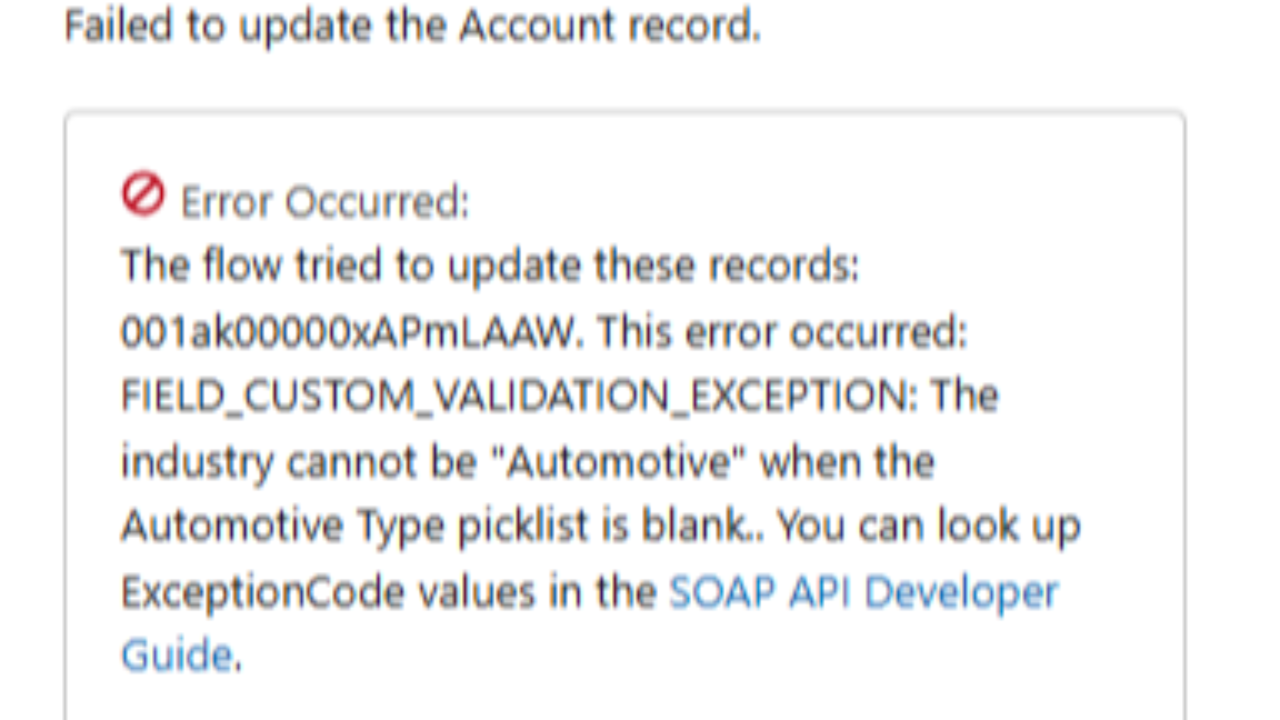
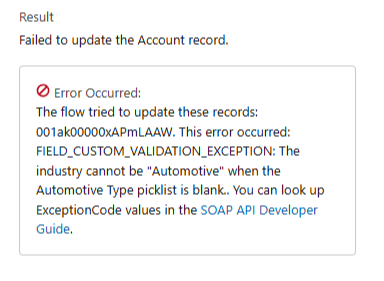
Sometimes a Flow errors out throwing us this error that might look like this:


This error occurred: FIELD_CUSTOM_VALIDATION_EXCEPTION ... The industry cannot be "Automotive" when the "Automotive Type" picklist is blank.

We've all seen this type of error and usually its not too hard to debug.

But sometimes, and this happens as a consultant, you weren't the one who originally built the validation rule that is causing the error.

And sometimes you're not even sure which object it's configured on.

That's okay if you can reconfigure your flow to stop triggering the error.

But what if you want to change the rule itself?

In that scenario, it's great to be able to find the validation rule based on the message alone.

This is how you do it:

Step 1: Open your SOQL Query editor of choice. I prefer the Salesforce Lightning Inspector Reloaded and would recommend you use it if you aren't currently.

Step 2:  With the query editor open, make you toggle ON the Tooling API. This is the key step to get this query to work. Without the Tooling API enabled, you'll get an error.


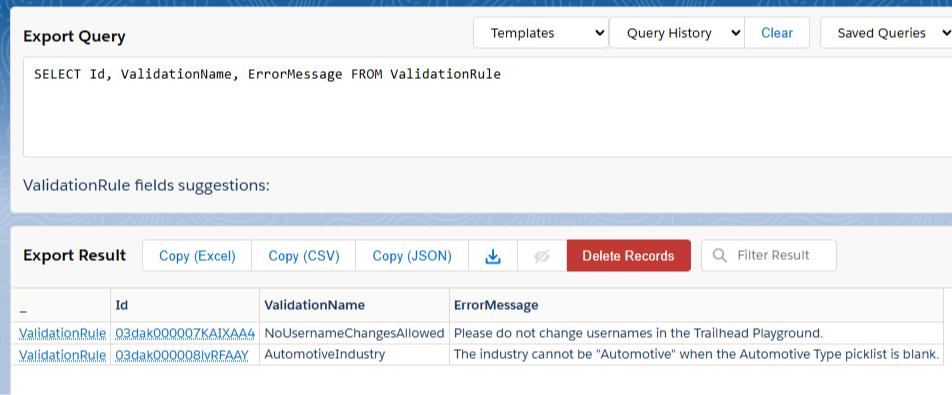
Step 3: Write the following query:

SELECT Id, ValidationName, ErrorMessage FROM ValidationRule

This will pull a full list of all the validation rules in your environment.


Because these screenshots are from Trailhead, there are only two validation rules and it makes it easy to spot the one we need.

But if you have hundreds of rules you'll want to filter the list down.

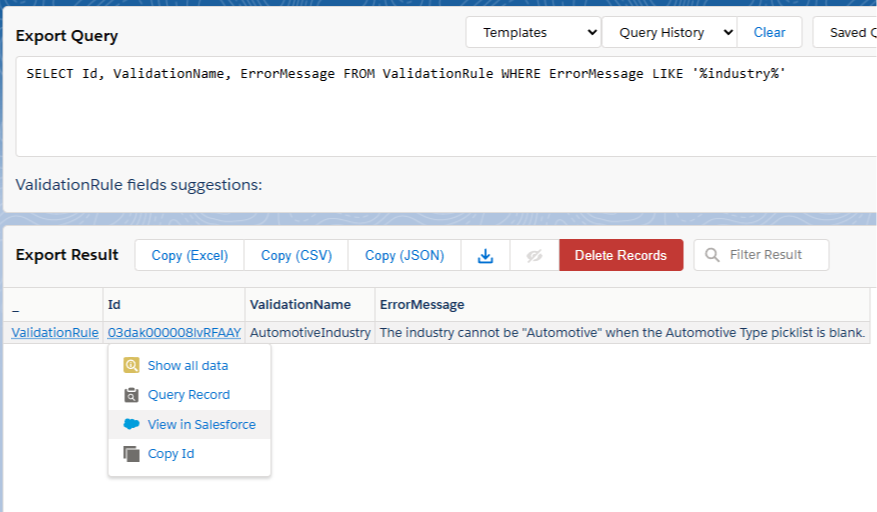
You can do that with this query

SELECT Id, ValidationName, ErrorMessage FROM ValidationRule WHERE ErrorMessage LIKE '%industry%'

Replace the word "industry" in between the % % signs when you run your query in order to fuzzy match on the words in your error message.

Step 4: Click the Id of the validation rule and then click "View in Salesforce"


And that will open the rule in a new tab where you can edit it as needed.

That's it for this week!

Short and simple method for finding a validation rule based on the error message itself.

Hope it helps.


Best,

Nick