Salesforce Scheduled Flow: How to Automate Processes on a Schedule (No Code Guide & Examples)
Salesforce Scheduled Flows (also known as Schedule-Triggered Flows) let you automate tasks on a timetable – no Apex code required. Imagine scheduling a job to run nightly data syncs or weekly email reminders without ever writing a script. Sounds great, right? In this guide, we’ll show you exactly how to set up a Salesforce Scheduled Flow step by step, with practical examples you can use today. We’ll keep it casual and straightforward, so you can start automating those routine processes ASAP. Let’s dive in and get your flows working on your schedule!
What is a Salesforce Scheduled Flow?
A Salesforce Scheduled Flow is an autolaunched flow that runs in the background at a specific date/time and frequency you define (daily, weekly, or once). Unlike record-triggered flows (which fire when a record is created/edited) or screen flows (which require user interaction), scheduled flows are time-based – they run independently of any single record change. You set the criteria, schedule the run, and Salesforce executes the flow for all records that meet your criteria at the scheduled time.
In other words, a scheduled flow is like a cron job for admins: you configure it with clicks, not code, to perform repetitive tasks on a regular cadence. Salesforce will batch-process records that match your conditions. For example, you could use a scheduled flow to find all accounts with an expired contract and send out renewal reminder emails every week, or do a nightly data cleanup on records that need updates. All of this happens automatically once you set it up – no manual intervention needed.
Why use scheduled flows? They’re perfect for routine maintenance, weekly/daily summaries, or any process that needs to run for multiple records on a schedule rather than immediately at record save. Prior to this feature, admins often had to ask developers to write batch Apex jobs for such tasks. Now, you can accomplish many batch jobs with scheduled flows (clicks not code!). Keep in mind, though, that scheduled flows have some limits compared to code – for instance, an org can run up to 250,000 schedule-triggered flow interviews per 24 hours (or 200 times your number of user licenses, whichever is greater). That’s plenty for most admin use cases, but if you ever need to process millions of records or complex logic, a developer might still reach for Apex.
Note: Don’t confuse Schedule-Triggered Flows with Scheduled Paths in record-triggered flows. A scheduled path is a delay added to a record-triggered flow (for example, “do X 7 days after a case is created”) – it’s still tied to a specific record event. A Scheduled Flow, on the other hand, runs at a fixed time regardless of any single record change. Both are useful, but here we’re focusing on true schedule-triggered flows that run on a set timetable.
How to Create a Salesforce Scheduled Flow (Step-by-Step)
Ready to set one up? Let’s walk through creating a scheduled flow without writing code. In this example, we’ll build a flow that runs on a schedule and performs actions on a batch of records. You can adapt these steps for your own use case (we’ll also cover two examples in detail next). Follow along in Salesforce Flow Builder:
-
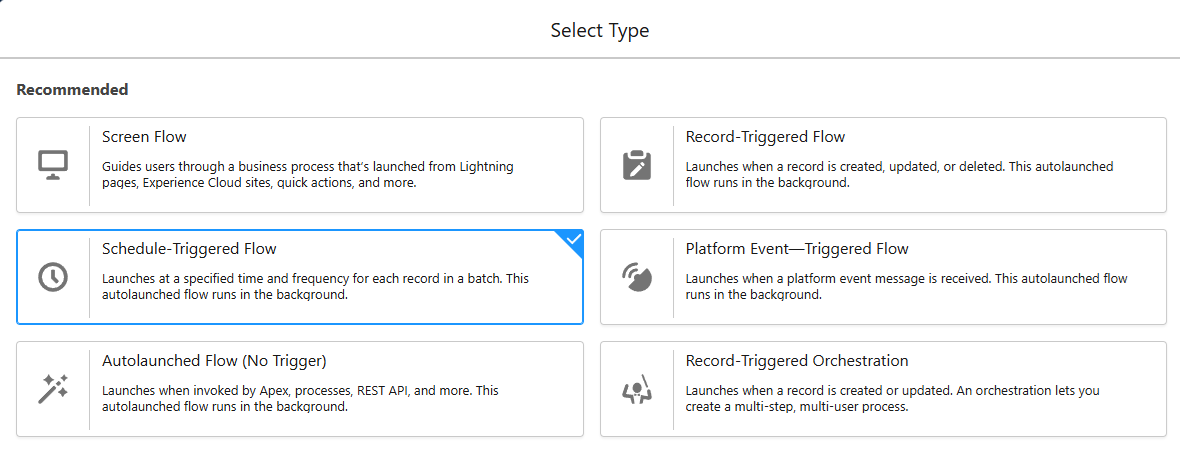
Go to Flow Builder and start a new Flow: In Setup, navigate to Process Automation > Flows, then click New Flow. Choose Scheduled Automations, then Schedule-Triggered Flow. This is the flow type that allows scheduling.
-
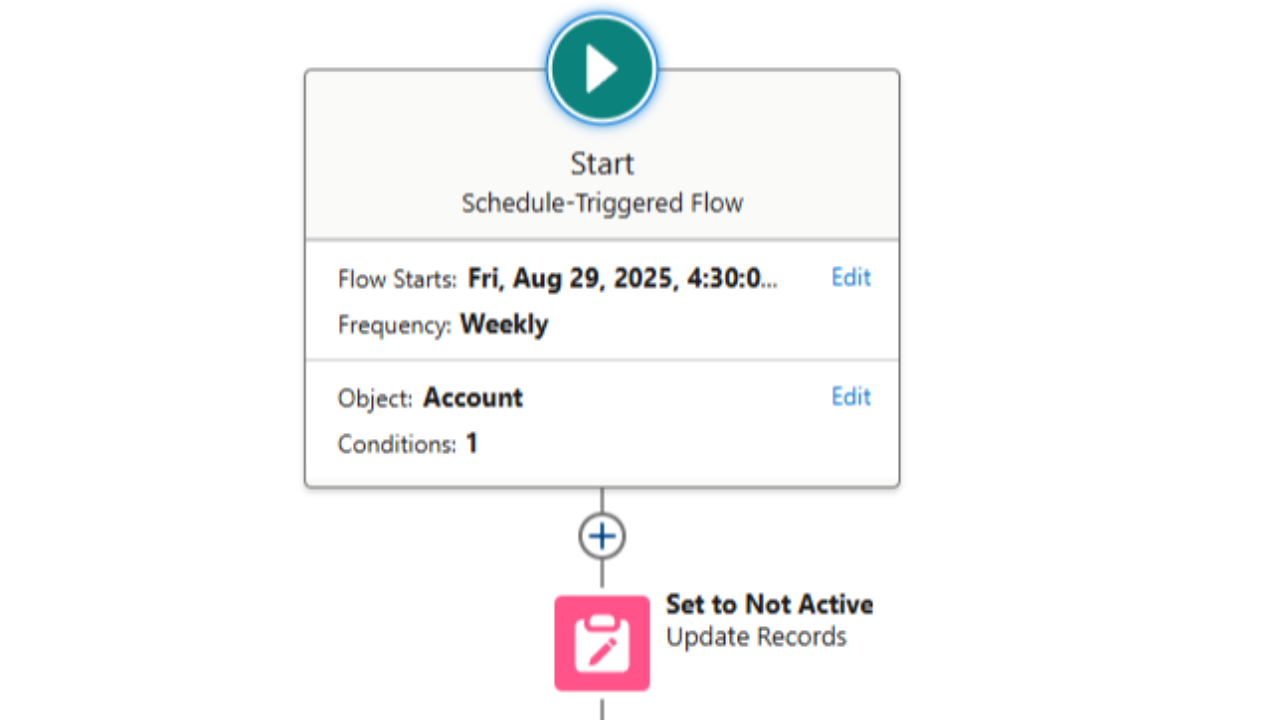
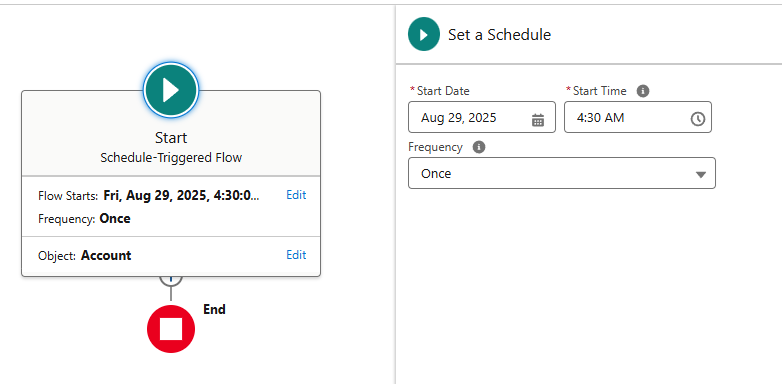
Choose Start Date, Time, and Frequency: After selecting Schedule-Triggered Flow, Salesforce will prompt you to set the schedule. Pick the Start Date and Start Time for when the flow should first run. Then set the Frequency to either daily, weekly, or once. For example, you might choose tomorrow’s date at 2:00 AM, repeating Daily, to run a nightly job. By default, Salesforce only offers Once, Daily, or Weekly recurrences. (If you need a monthly or annual schedule, don’t worry – we’ll mention a workaround later.)
-
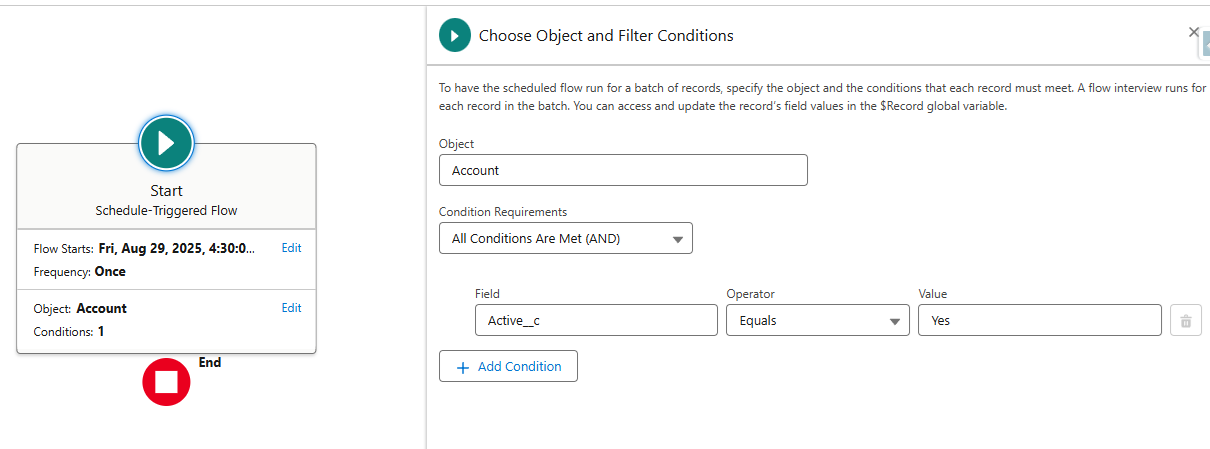
Specify the Object and Filter Conditions (Optional): Next, you can tell Salesforce which records to process when the flow runs. You’ll see options to Select Object and set Filter Conditions. This step is like building a report: you choose an object (e.g., Contact, Account, Opportunity, etc.) and define criteria so that the flow will run once per record that meets those conditions. For example, if you want to process all Contacts with a missing email, you’d select Object: Contact and set a filter like “Email equals Null”. Salesforce will then create an individual flow interview for each record matching the filter at runtime. (If your automation doesn’t relate to a specific set of records, you can skip specifying an object – the flow will then just run its actions once at the scheduled time.) Pro Tip: Keep your filter specific to avoid hitting limits – Salesforce allows up to 250,000 records (flow interviews) per 24 hours for scheduled flows, so make sure you’re not trying to process more records than that.
-
Build the Flow Logic: Now design what you want the flow to do for each record (or just once if you didn’t specify an object). This works like a normal Autolaunched Flow. Common elements you might use include:
- Get Records: to retrieve related data needed for your actions. For example, if your flow is on Contact, you might Get Records for that contact’s Account.
- Decisions: to branch logic depending on conditions. Maybe only perform an action if certain criteria are met.
- Assignment: to set or calculate values in variables.
- Loop: to iterate over a collection of records if needed (for instance, if you used a Get Records to gather a bunch of related records and need to handle each one – see our Looping in Salesforce Flow guide for tips on using loops efficiently).
- Actions: like Update Records, Create Records, or Send Email to do the actual work. For example, update each record’s fields, or send an email notification. You can also use Subflows (to call another flow) or invocable actions as needed.
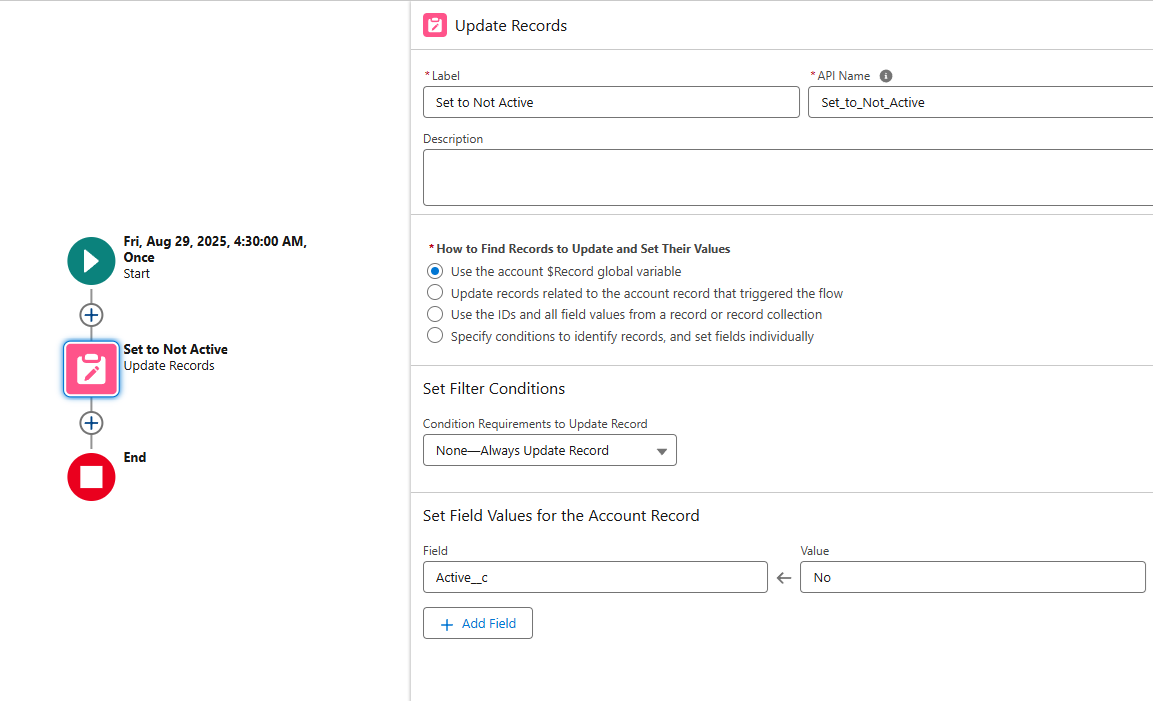
Design your flow as you normally would for an autolaunched flow. Each scheduled run will execute this logic. For example, you might build a flow that, for each Contact (from step 3) with missing email, fetches an alternate email from a related record and sends a notification to the owner. Use the canvas to add your elements and connect them in the right order.
-
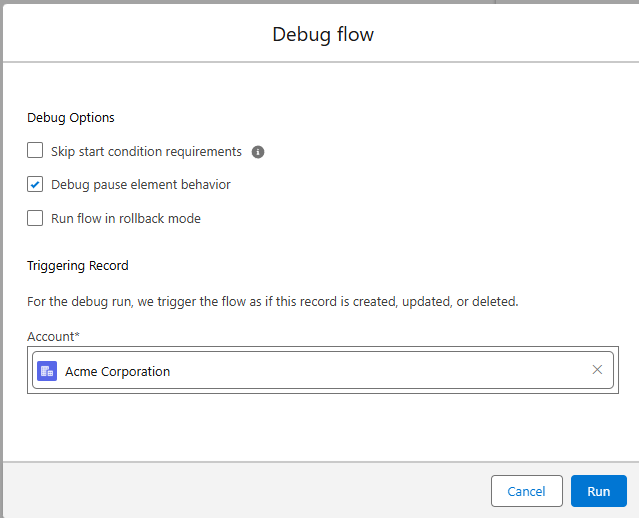
Test (if possible) and Activate the Flow: Before activation, it’s a good idea to test your flow. Click Debug. For a schedule-triggered flow, the debugger starts the flow for only one record, so it tests your logic rather than the whole batch. Turn on Run flow in rollback mode if you don't want the debug run to change data; without it, the flow really performs its actions. Once you’re confident, Save the flow and click Activate. Activation will schedule it according to the start time you set. You can verify it’s scheduled by going to Setup > Scheduled Jobs – your flow should be listed there.
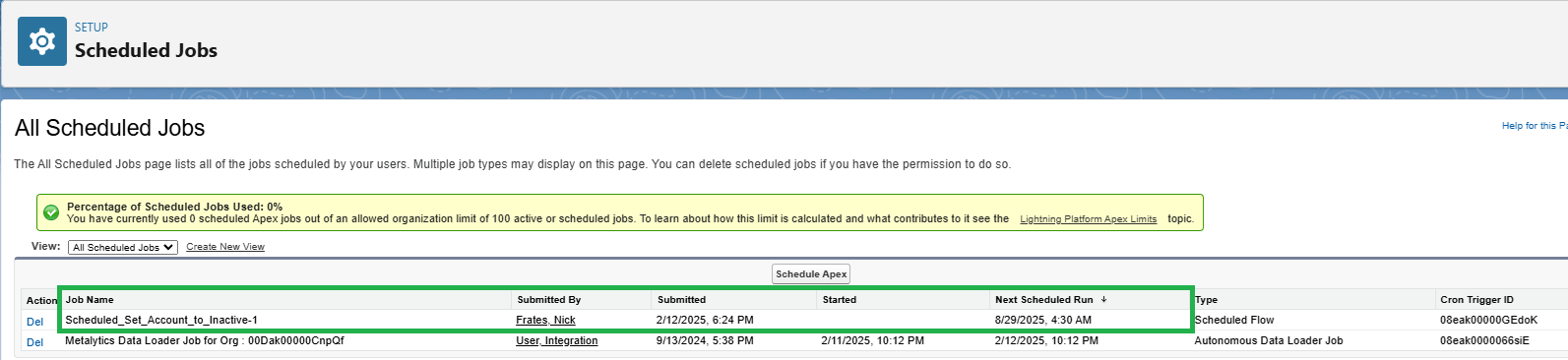
That’s it! You’ve now set up a scheduled flow. It will run at the next scheduled time and start performing the actions you configured. No cron jobs, no Apex classes – just pure Salesforce automation with clicks. 🎉
Before we move on to real examples, here are a couple of best practices to remember:
- Off-Peak Hours: Schedule heavy-duty flows for non-business hours (like late night or early morning) to avoid conflicts with users. This ensures your automation doesn’t slow down record updates while users are actively working.
- Avoid Hitting Limits: As mentioned, if you’re processing a lot of records, use filters to keep the batches reasonable. Salesforce will send an error email if you ever hit the 250k records/day limit. If you need to handle more, consider splitting into multiple flows with different criteria or times, or opt for an Apex solution.
- No Monthly Option: Currently, Salesforce doesn’t offer a monthly or yearly recurrence in the UI for scheduled flows. If you need something like an annual job, you can implement a clever workaround by scheduling the flow daily and using a formula condition. (Essentially, the flow runs daily but only does stuff on one day of the year when the formula is true). Check out How to Schedule a Salesforce Flow Annually for a step-by-step solution to that.
- Follow General Flow Best Practices: Just because it’s on a schedule doesn’t mean normal flow best practices don’t apply. Make sure to bulkify your updates (e.g., avoid SOQL or DML inside tight loops, use collections where possible) and test thoroughly. If you’re new to flow optimization, see our guide on Salesforce Flow Best Practices to build efficient, error-free automations.
Now, let’s look at a couple of concrete examples of scheduled flows in action, so you can visualize how to use this in real life.
Step by Step: A Nightly Scheduled-Triggered Flow on Opportunity Records
This is the setup I'd use when you want a flow to run every night against Opportunities. The example flags open opportunities whose close date has passed, so reps start the morning with an honest pipeline. Swap in your own fields and actions; the setup is the same.
Before you start, add two fields to Opportunity:
- Past Due (
Past_Due__c), a checkbox the flow will set. - Close Date Passed (
Close_Date_Passed__c), a checkbox formula field:AND(NOT(IsClosed), CloseDate < TODAY()). The Start element can only compare a date field to a date you type in, not to today, so this formula does the date math for it.
- Create the flow. From Setup, enter Flows in Quick Find, select Flows, then click New Flow and choose Scheduled Automations, then Schedule-Triggered Flow.
- Set the schedule. On the Start element, set Start Date to tomorrow, Start Time to 1:00 AM and Frequency to Daily. The Start Time uses your org's default time zone (Setup, Company Information), not your personal time zone. Frequency only offers Once, Daily and Weekly.
- Choose the object and conditions. Click Choose Object and select Opportunity. For Condition Requirements, choose All Conditions Are Met (AND) and add two conditions: Close Date Passed equals True, and Past Due equals False. The second condition skips opportunities you've already flagged, so each record is handled once instead of counting against your limits every night.
- Leave the batch size at 200 unless you have a reason not to. Salesforce now lets you set the batch size anywhere from 1 to 200. Smaller batches put fewer records in each transaction, which helps when Opportunity has heavy triggers or record locking, but the whole run takes longer.
- Use $Record for the current opportunity. Each matching Opportunity gets its own flow interview, and that record's field values are stored in the
$Recordglobal variable (Flow Builder shows it as Triggering Opportunity). So$Record.OwnerIdor$Record.CloseDateis always the one opportunity this interview is working on. You don't need a Get Records or a Loop to find the opportunities; the Start element already did that. - Add an Update Records element. Choose to update the Opportunity record that triggered the flow and set Past Due to True. Set only the fields you need. If you instead update using the ID and all field values from
$Record, Salesforce Help says to turn on Filter inaccessible fields from flow requests in Process Automation Settings, or the update fails on system and read-only fields. - Optional: tell the owner. Add a Create Records element for a Task with Assigned To ID set to
$Record.OwnerId, Related To ID set to$Record.Id, and a subject like Close date passed, update or close this opportunity. Salesforce bulkifies data elements across the interviews in a batch, so these creates run together instead of one at a time. - Save, test and activate. Click Debug and turn on rollback mode so nothing is committed. Debugging a schedule-triggered flow starts it for only one record, so it checks your logic, not the whole batch. Then click Activate (you need the View All Data permission). The flow now shows on the Scheduled Jobs page in Setup.
At 1:00 AM in your org's time zone, Salesforce queries the opportunities that match, splits them into batches of up to 200, and runs one interview per record.
Example 1: Nightly Data Sync (Scheduled Flow for Daily Updates)
Let’s say you want to perform a nightly data sync to keep your Salesforce data tidy and up-to-date. For instance, imagine you need to ensure that every Contact’s phone number is in sync with its Account’s phone number. Maybe during the day, Account phone numbers change, and you want all related Contacts to get the updated number as well. You decide to run a fix every night to copy Account phone values to Contacts that are missing a phone. Here’s how you could do that with a scheduled flow:
-
Use Case: Sync contact data nightly. Every night at 2:00 AM, find all Contact records that have a blank Phone field, and update them with the Phone number from their related Account (if available). This ensures no contact is missing a phone number if the account has one on file.
-
Flow Setup: Create a scheduled flow on the Contact object:
- Schedule: Daily at 2:00 AM (off-hours).
- Object & Criteria: Object = Contact. Filter:
Phone EQUALS null.This filter will target contacts lacking a phone. - Flow Logic: For each Contact record the flow runs on, use a Get Records element to retrieve that contact’s Account (you can use the
$Record.AccountIdto fetch the Account). Then use a Decision: if the Account’s Phone is not blank, proceed. Next, use an Update Records element to set the Contact’s Phone to the Account Phone. Because the scheduled flow treats each record separately in this configuration, you don’t even need a loop here – Salesforce will handle each Contact as a separate interview. Make sure to mark the update to run only on that Contact record (you can use the IDs stored in the $Record global or the Get Records result). - Activate: Once tested, activate the flow. Now each night Salesforce will find all contacts without a phone and populate them.
-
Outcome: At 2:00 AM every day, Salesforce will automatically fill in missing contact phone numbers from the account. By morning, your sales reps find their contacts updated. No more manual data patching or worrying about out-of-sync records!
Why it’s great: This scheduled flow example shows how you can perform data maintenance on a schedule. We did a simple field sync, but you could extend this idea to all sorts of nightly jobs – recalculating fields, closing stale records, or syncing other related info across objects. All done with configuration, not code.
Example 2: Weekly Email Automation (Scheduled Flow for Weekly Reminders)
Now let’s tackle a weekly email automation scenario. Imagine you want to send a reminder email every week to account owners for any accounts that have an expired contract and haven’t been addressed yet. This is a common business need: regularly nudge owners about renewing contracts or following up on lapsed customers. With a schedule-triggered flow, you can have Salesforce do this every week like clockwork.
-
Use Case: Weekly contract renewal reminders. Every Monday at 9:00 AM, find all Account records where the contract end date is in the past (expired) and a renewal has not been logged yet. For each such account, send an automated email to the Account Owner (or maybe create a task or chatter post – but we’ll do email here) reminding them to reach out for renewal.
-
Flow Setup: Create a scheduled flow on the Account object:
- Schedule: Weekly on Monday at 9:00 AM. (When configuring the schedule, after choosing Weekly, make sure to select Monday at 9:00 AM as the start date/time for the first run.)
- Object & Criteria: Object = Account. Filter: for example,
Contract_End_Date__c LESS THAN TODAY AND Renewal_Status__c EQUALS 'Not Renewed'. (Adjust field API names as needed.) This criteria ensures we target accounts with expired contracts that haven’t been renewed. - Flow Logic: For each Account record that meets the criteria, we’ll send an email:
- Option 1 (simple): Use the Send Email core action in Flow. You can create a Text Template for the email body (e.g., “Hi, the contract for Account {!Account.Name} expired on {!Account.Contract_End_Date__c}. Please reach out to discuss renewal.”) and use the owner’s email as the recipient. This requires the flow to run with an email action – ensure you have an Email Alert or template ready if using the dedicated Send Email action.
- Option 2: Use an Email Alert (if you prefer using a predefined email template and alert). In Flow, add an Action element to send an Email Alert (you must have an Email Alert that’s set up for the Account object). Map the Account as the record and it will send to whoever is defined in that alert (likely the owner or a specific field).
- You might also log an activity or update a field (like mark that a reminder was sent). This is optional but helps prevent duplicate emails. For simplicity, we’ll assume one email per week is fine even if it repeats until the account is renewed.
- Activate: After testing with a sample account (perhaps temporarily change the schedule to run once immediately for a test record), activate the flow.
-
Outcome: Every Monday morning, Salesforce will automatically send out renewal reminder emails to the owners of all accounts with expired contracts. The account team gets an inbox full of helpful nudges to take action, without anyone having to manually pull a report or send emails. This weekly automated flow ensures no lapsed contract falls through the cracks.
This weekly email example illustrates how scheduled flows can handle scheduled communications and notifications. You could adapt this pattern for things like weekly customer follow-ups, summary reports, or any regular email that should go out based on criteria. And since it’s all automated, it happens whether or not you remembered to do it – Salesforce becomes your personal assistant for these tasks!
Scheduled Flow Not Running? A Troubleshooting Checklist
If your flow didn't run, or ran and seemed to do nothing, work through these in order.
- Is it active and scheduled? Saving a new version doesn't activate it. Make sure the version you expect is active, then look for the flow on the Scheduled Jobs page in Setup. If someone deleted it from Scheduled Jobs, that canceled all future runs too. Deactivate and reactivate the flow to schedule it again.
- Check the start date, time and time zone. The Start Time is read in the org's default time zone, so a flow you set for 1:00 AM can run hours earlier or later than you expect if your user time zone is different. A flow set to run Once at a date and time that has already passed never runs.
- Check the running user. Schedule-triggered flows run as the Default Workflow User set in Process Automation Settings, so make sure one is set. Without one, the flow runs as the Automated Process user, which is also who you'll see in debug logs for flows on API versions below 53.0. These flows run in system context without sharing, so record access is rarely the problem, but anything tied to a user, like a named credential, can be. If the flow sends email, set the Automated Process User Email Address (an org-wide email address) in Process Automation Settings.
- Remember the conditions are checked at run time. The Start element's conditions are applied when the scheduled run queries records, not when you save or activate the flow. If nothing matches at 1:00 AM, the run creates zero interviews and nothing appears to happen. Build a list view or report with the same filters and check it right before the scheduled time.
- Look for failed interviews and error emails. Failed runs show up under Paused and Failed Flow Interviews in Setup. Error emails go to whoever Send Process or Flow Error Email to points at in Process Automation Settings, either the user who last modified the flow or your Apex exception email recipients.
- Use a debug log. In Setup, open Debug Logs and add a trace flag for the running user (choose Automated Process as the traced entity type if that's who runs it), then let the flow run. The SCHEDULED_FLOW_DETAIL event shows how many records the run picked up, which tells you right away whether the problem is your conditions or your logic.
- Debug carefully in Flow Builder. Debug starts a schedule-triggered flow for only one record, and unless you turn on rollback mode, it really changes data. A clean debug run proves your logic, not that the nightly batch will run.
- Calling Apex? If the Require User Access to Apex Classes Invoked by Flow release update is turned on, schedule-triggered flows fail when they run Apex.
- Can't activate or deactivate it? You need the View All Data permission. If Manage Data Export requires a high assurance session in your Session Security Level Policies, you also can't activate or deactivate a schedule-triggered flow until you meet that requirement.
- Just refreshed a sandbox? Scheduled flows that were active can run right after the refresh, so deactivate any you don't want running against sandbox data.
Scheduled Flow Limits and Batching
I checked these against Salesforce Help in October 2026. Salesforce adjusts them from time to time, so check the links below before you design around a number.
- Interviews per 24 hours: 250,000, or the number of user licenses in your org multiplied by 200, whichever is greater. Each record the Start element's query returns creates one interview. If your org reaches the limit, Salesforce sends a flow error email.
- Interviews for a single flow: 250,000 maximum.
- Batch size: records are retrieved in batches of 200 by default, and you can set the batch size from 1 to 200. Each batch runs as its own transaction, so the per-transaction governor limits are shared by every interview in that batch.
- Partial failures: if a Create, Update, Delete or Get Records element processes multiple records and some fail, all of them are rolled back and the successful ones are tried again. If a later data element processes the same failed records, the whole transaction fails.
- Callouts: a schedule-triggered flow that processes a batch of records and runs on API version 63.0 or later can make callouts directly. Otherwise it needs to run a Wait element first.
- Frequency: Once, Daily or Weekly only. For monthly or yearly jobs, run the flow daily and check the date in a Decision, as in the annual workaround above.
Sources: Schedule-Triggered Flow Limits and Considerations, Schedule-Triggered Flows, Process Automation Settings and Flow Builder Debugger Considerations in Salesforce Help.
Wrapping Up & Next Steps
By now, you’ve seen how Salesforce Scheduled Flows empower you to automate routine tasks on your own timetable. No more waiting for a record change event just to kick off your automation, and no need to beg a developer for a batch Apex job. With a few clicks, you scheduled a flow to handle your nightly cleanups and weekly reminders – and Salesforce does the heavy lifting every time, right on schedule.
Think about what this means for you: those tedious, repetitive tasks that used to eat up your time can be delegated to Salesforce, reliably and accurately. You free yourself (and your team) to focus on more important work, while the system quietly keeps everything in order behind the scenes. Pretty powerful stuff, isn’t it?
If you'd like a structured way to learn the rest of Flow, my course Salesforce Flows: The Complete Guide covers scheduled flows along with every other flow type.