Hey friends,
A Salesforce approval process is an automated process that sends a record to the right people for approval before the record moves on. To build one, go to Setup, open Approval Processes, pick an object, choose the Jump Start Wizard for a single step or the Standard Setup Wizard for several, set the entry criteria and the approver, add actions, and activate it.
One naming note first. Salesforce Help now calls these "classic approval processes" and suggests trying Flow Approval Processes as a modern alternative. This guide covers the classic version, because that's what the Approval Processes page in Setup builds. I followed Salesforce Help and Trailhead as I read them on October 28, 2026, and I built the walkthrough in a Developer Edition org so the screens are real.
What an approval process does
Trailhead's Build an Approval Process unit and the travel approval project describe it the same way. An approval process specifies the criteria a record must meet before it can be submitted, the steps a record goes through to be approved, and who must approve at each step. It also specifies what happens when a record is first submitted, approved, rejected or recalled. The criteria a record must meet to enter the process are called entry criteria.
Think of a discount over a set percentage that needs a manager's yes, or a trip that needs the traveler's manager to sign off. The record waits, locked, until someone approves or rejects it.
Classic or Flow approval process?
Salesforce Help says Flow Approval Processes are more flexible and flow-based, can trigger on record changes, support Apex, keep detailed logs and route dynamically based on data and business rules. Classic approval processes are tied to specific objects and have limited support for conditions. Neither one consumes automation credits or orchestration runs. Help also notes that classic approval processes can't be created on the User object, while Flow Approval Processes can. The Approval Processes page in Setup shows a "Try Flow Approval Processes!" banner too.
If your use case is a simple record and one or two approvers, classic is quick to build and easy to read. For anything with changing routing rules, look at Flow first. If you're learning Flow for the Admin exam, the Flow certification guide is a good next stop.
Jump Start Wizard or Standard Setup Wizard?
- Jump Start Wizard. For a classic approval process that uses a single step. It chooses some default options for you.
- Standard Setup Wizard. For a more complex process where you want to define specific steps.
Salesforce Help lists what the Jump Start Wizard decides for you. Records are locked when submitted and stay locked until approved or rejected, and rejected records are unlocked. Only the record owner can submit it. Only admins can recall it after it's submitted. The approver has to log in to Salesforce. And these are the things it does not do: no email notification on approval or rejection, no automatic field updates, no auto-approve or auto-reject, and no automatic delegate. You can change these on the detail page afterward and add more steps, except the Record Lock action on the Initial Submission Actions list, which you can't modify (see Default Selections for the Classic Approval Process Jump Start Wizard).
Before you start
- Edition and permission. Classic approval processes are available in Enterprise, Performance, Unlimited and Developer Editions. You need the Customize Application permission to create them.
- Sketch the steps on paper first. Salesforce Help says to draw out the steps of your approval process before you start.
- Know your approver. A specific person, or a field on the user such as Manager. A hierarchy field is just a user field that points to another user, like Manager, which Salesforce can use to find the approver automatically.
- Plan for the email. An email template for approval requests is optional. If you leave it blank, Salesforce uses a default one.
How to create an approval process with the Jump Start Wizard
I built a demo process for Opportunities: anything with an Amount over 10,000 needs an approver. Here are the steps.
- From Setup, enter Approval Processes in the Quick Find box and select it. In my org it sits under Process Automation.
- In Manage Approval Processes For, select the object. I chose Opportunity.
- Click Create New Approval Process and select Use Jump Start Wizard.
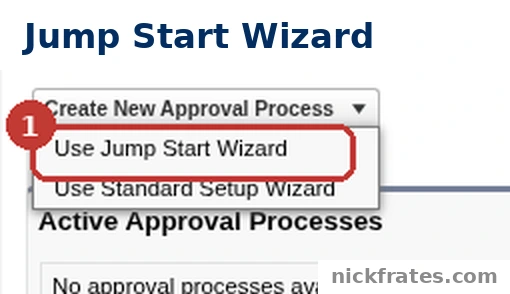
Setup > Process Automation > Approval Processes > Create New Approval Process > Use Jump Start Wizard.
- Enter a Name. The Unique Name fills in when you tab out of the Name field. Mine is Demo Discount Approval.
- Leave Approval Assignment Email Template blank to use the default template, as Trailhead does in its Account and Travel examples.
- Select Add the Submit for Approval button and Approval History related list to all page layouts if you want users to be able to submit and track requests from their layouts.
- Under Specify Entry Criteria, choose "criteria are met" and set a field, operator and value. Mine is Opportunity: Amount greater than 10000.
Next, choose who approves.
- Let the submitter choose the approver manually. Each submitter picks an approver. This is the option I used, and it's the one Trailhead's discount example uses.
- Automatically assign an approver using a standard or custom hierarchy field. Pick a field such as Manager. Trailhead's travel project routes to the employee's manager this way.
- Automatically assign to approver(s). Pick a user, and Trailhead's account example shows the follow-up choice: approve or reject based on the first response, or require unanimous approval from all selected approvers.
- Click Save. A browser alert reminds you that you can't use the process until it has been activated. Click OK.
- Salesforce shows a confirmation that you've created a one-step approval process and suggests five next moves: add more steps, and add initial submission, final approval, final rejection and recall actions. Click View Approval Process Detail Page.
The detail page is where you finish the job. In my demo org it already listed a Record Lock action under Initial Submission Actions and Final Approval Actions, and an unlock under Final Rejection Actions and Recall Actions. It also showed Step 1 with a manually chosen approver.
Add steps and actions, then activate
Salesforce Help describes approval steps as the chain of approval. Each step decides which records advance to that step, who gets the request, and whether each approver's delegate can respond. The first step also defines what happens when a record doesn't advance to it. Later steps define what happens if an approver rejects. You can attach actions to the steps, to initial submission, to final approval, to final rejection and to recall. The wizard's own examples are a field update that changes a Status field and an email alert to the record owner.
Then activate. A classic approval process needs at least one step before you can activate it, and Salesforce Help recommends testing it in a sandbox first. After activation you can't add, delete or reorder steps, or change reject or skip behavior, even if you deactivate the process later. If you're not sure how sandboxes differ, see Salesforce sandbox types. From the process detail page, click Activate.
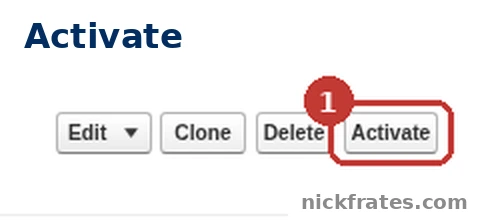
Setup > Approval Processes > Opportunity > Demo Discount Approval, the process detail page with the Activate button.
Real examples from Trailhead
Discount approval. In Trailhead's unit, an Opportunity needs approval when Discount Percent is greater than 40. The approver is chosen manually, and an email template tells the record owner's manager. Two field updates finish the job: Final Approval sets Discount Percent Status to Approved, and Final Rejection sets it to Not Approved.
Travel approval. In the travel approval project, every request goes to the employee's manager using the Manager hierarchy field. A second step sends out-of-state trips to a travel coordinator, and the entry criteria for that step check an Out-of-State field. Final actions set the Status to Approved or Rejected.
Both examples keep the pattern small: one clear entry rule, one or two approvers, and one field that says where the request ended up.
How records get submitted and answered
Users need a way to start the process. Trailhead's unit adds the Submit for Approval button to the Opportunity page layout from Object Manager. If your org uses Lightning record pages with Dynamic Actions, add the Submit for Approval action to the record page instead. Trailhead also points out that a record-triggered flow can use the Submit for Approval action, so nobody has to remember to click the button.
On the answering side, Salesforce Help in Prepare Your Org for Classic Approval Processes describes four ways to let approvers respond: from the Home page or navigation bar, by email, from Chatter or from Slack.
Limits to know
| Limit | Value |
|---|---|
| Steps per approval process | 30 |
| Approvers per step | 25 |
| Active approval processes per object | 300 |
| Active approval processes in the org | 1,000 |
| Total approval processes in the org | 2,000 |
These come from Salesforce Help's Classic Approval Processes Limits page.
Mistakes to avoid
- Forgetting to activate. The wizard warns you, but it's easy to leave a process inactive and wonder why nothing happens.
- No way to submit. If the Submit for Approval button isn't on the layout, users can't start the process. Check the page layout option in the wizard, or add the button yourself.
- Expecting the Jump Start Wizard to send emails or update fields. By default it doesn't. Add the actions you need.
- Not telling users the rules. Salesforce Help says users can't see which classic approval process is triggered when they click Submit for Approval. If the record doesn't meet the entry criteria or they aren't an allowed submitter, Salesforce shows an error. Tell your users which records qualify.
- Using random values in criteria. Help says not to use expressions that resolve to random values in entry or step criteria, so a record is evaluated the same way each time.
- Activating without a test. You can't change the steps after activation, so test in a sandbox first.
- Deleting too fast. Before you delete a process, make sure it's inactive and delete its approval requests and the Recycle Bin copies. Help says if you can't delete it, try again after 2 days.
Cert Lab by Nick Frates
Study all 8 Admin exam sections in one place
All 8 Admin exam sections with lessons, practice questions that explain every option, and flashcards. Free, no card, no trial.
Start the free Admin Cert Lab →For the wider exam picture, see my Salesforce Administrator certification study guide and the Admin practice test.
FAQ
What is an approval process in Salesforce?
It's an automated process that specifies the criteria a record must meet to be submitted, the steps to approve it, and who approves at each step. It also defines what happens when a record is submitted, approved, rejected or recalled.
What is the difference between the Jump Start Wizard and the Standard Setup Wizard?
The Jump Start Wizard creates a one-step process and picks default options for you. The Standard Setup Wizard is for more complex processes where you define specific steps.
Who can submit a record for approval?
With the Jump Start Wizard defaults, only the record owner can submit it. You can change who can submit on the process detail page.
Can I edit a record that's waiting for approval?
Records are locked when submitted. Users with the Modify All Records permission on the object or the Modify All Data permission can edit them.
Can I edit the steps after I activate a process?
No. After activation you can't add, delete or reorder steps or change reject or skip behavior, even if you later deactivate the process.
Should I use a classic approval process or a Flow Approval Process?
Salesforce recommends trying Flow Approval Processes, which are flow-based, can trigger on record changes and route dynamically. Classic works for simple, object-based cases and is what the Approval Processes page in Setup builds.
Hope this helps!
Best,
Nick