Hey friends,
Email-to-Case turns emails sent to your support address into cases. Turning it on takes five minutes. Getting it right takes a little longer, because three things decide whether it works in real life: how mail reaches Salesforce, how replies thread back to the right case, and which limits you’ll hit first. Here’s the full setup and the parts the quick guides skip.
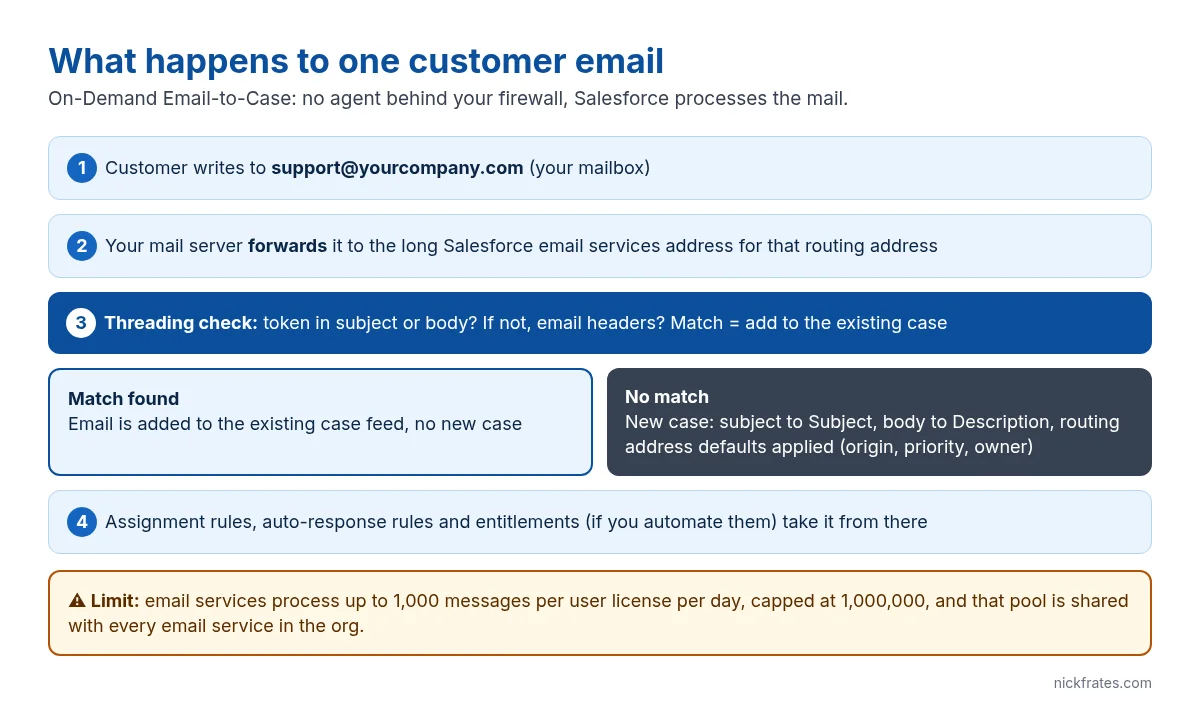
On-Demand vs the Email-to-Case agent
| On-Demand Email-to-Case | Email-to-Case agent | |
|---|---|---|
| Where mail is processed | Salesforce, through an email services address | A Java agent you install behind your firewall |
| Daily limit | 1,000 emails per user license, up to 1,000,000, shared with all email services | 2,500 cases per day, can’t be raised |
| When to use | Almost always | Only if email must never leave your network |
The daily limits come from Salesforce’s own knowledge article (Increase Email-to-Case Limit). The On-Demand limit is shared with every Apex email service in the org, so a busy inbound email handler eats into your case budget.
Setup, step by step
- In Support Settings, pick a Default Case Owner and an Automated Case User. Cases that no assignment rule catches land with the default owner.
- Create the email templates reps will reply with. Include the case number so customers can quote it.
- Setup > Email-to-Case > Edit: select Enable Email-to-Case, then Enable On-Demand Service. This also creates the Send Email quick action.
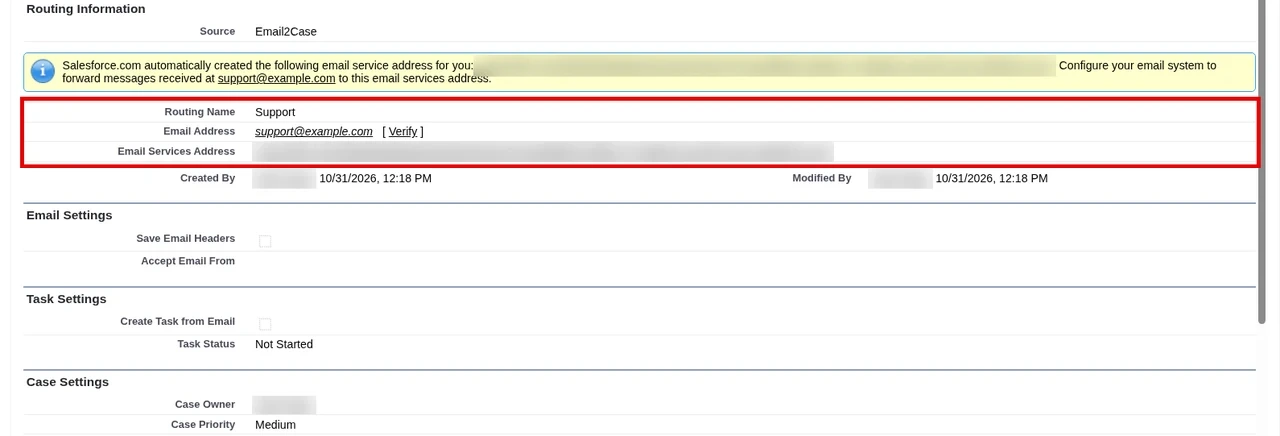
- Add a routing address for each support mailbox (support@, billing@). Each one sets defaults for new cases: Case Origin, Priority, owner and whether to create a task.
- Click Verify, open the verification email in that mailbox and confirm it.
- Copy the long Email Services Address Salesforce generated for the routing address, and set up forwarding from your real mailbox to it in Gmail, Microsoft 365 or your mail server.
- Add the Email related list or the case feed with the email publisher to the case page, and turn on assignment and auto-response rules for Case Origin = Email.
- Send a test email from an outside address and check the new case.
Steps 3 to 5 follow Turn On Email-to-Case in Salesforce Help.
Threading: make replies land on the same case
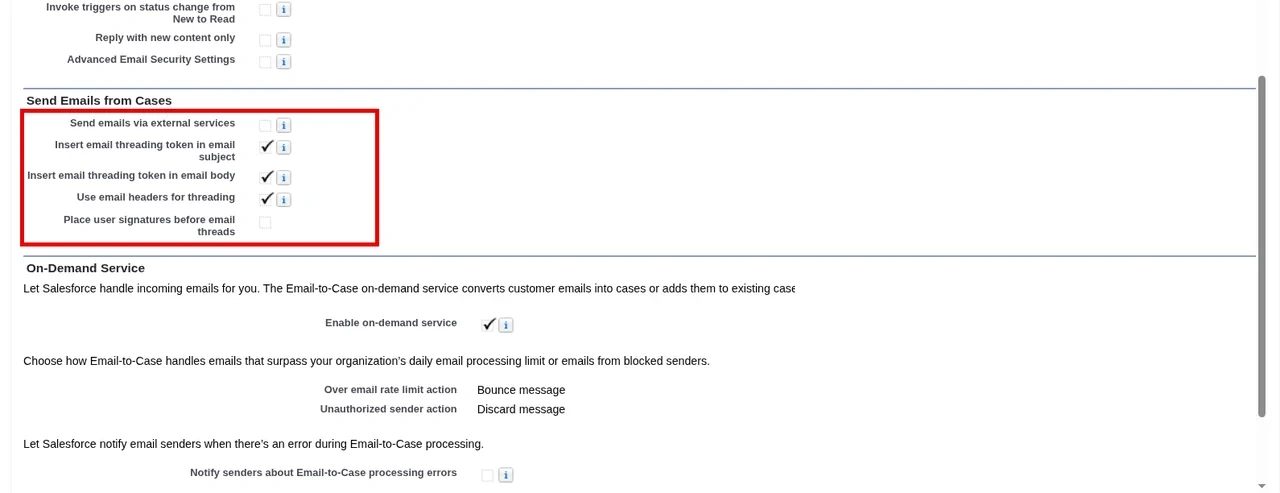
When a customer replies, Salesforce has to recognise the reply and attach it to the existing case instead of opening a new one. Orgs created since Spring ’23 use Lightning threading: a secure token is added to the subject or body of outgoing emails, and if no token is found, Salesforce falls back to the email headers. Only if both fail does it create a new case.
Older orgs may still use Ref ID threading (the old ref:_00D... string). Ref ID is in maintenance mode. If your Email-to-Case settings show “Insert thread ID in the email subject”, enable the release update Disable Ref ID and Transition to New Email Threading Behavior after testing it in a sandbox, then turn on the token and header options (Salesforce knowledge article 000389648). Update any templates that use Case.Thread_Id to the token merge field.
If you send case emails from Apex, add the token yourself:
Limits and gotchas
- Message size: On-Demand rejects mail over 35 MB in total; because of encoding, the practical attachment limit is about 25 MB (knowledge article 000386265). Bounced mail creates no case.
- Auto-reply loops: an auto-response rule replying to another system’s auto-reply can create case after case. Exclude no-reply and auto-reply senders in your auto-response rule criteria, and test with an outside mailbox that has an out-of-office reply turned on.
- No entitlement: email cases don’t get entitlements automatically. Add them with a flow if you track SLAs.
- Forwarding, not redirect rules that rewrite the sender: if your mail system changes the From address, Salesforce can’t match the contact.
Cert Lab by Nick Frates
Practise Email-to-Case questions
The Agentforce Service Consultant Cert Lab ($9.99) covers Email-to-Case, routing, entitlements and the Service Console with exam-style scenarios.
See the Service Consultant Cert Lab – $9.99 →FAQ
Can I use Email-to-Case in Developer Edition?
Yes. On-Demand Email-to-Case works in Developer Edition, which makes it a good place to test forwarding and threading.
Why did a reply create a new case?
The reply lost both the token and the original headers, usually because the customer started a fresh email or a mail system rewrote the message. Check your threading settings and that outgoing emails include the token.
Does Email-to-Case run assignment rules?
Yes, if you enable them for the routing address. Otherwise new cases go to the routing address owner or the default case owner.
What’s the difference between Email-to-Case and Web-to-Case?
Email-to-Case creates cases from inbound email. Web-to-Case creates them from a form on your website, with its own limit of 5,000 cases a day.
Hope this helps!
Best,
Nick