Hey friends,
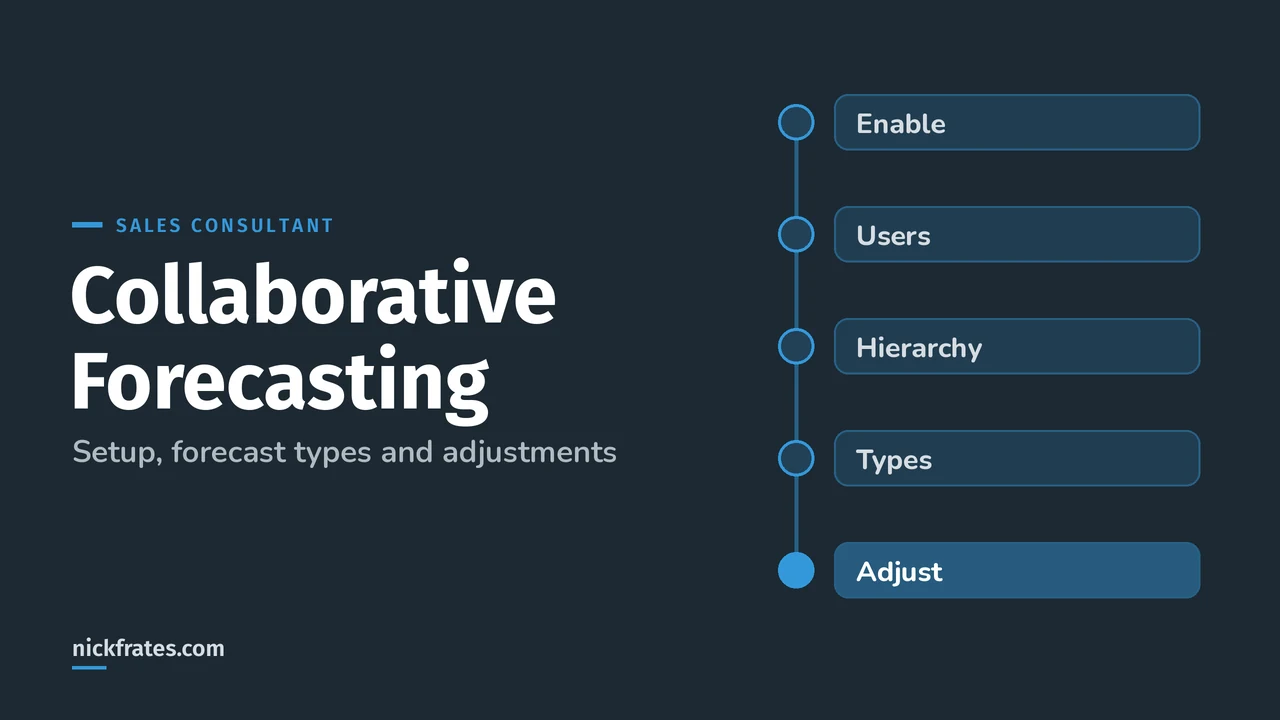
Collaborative Forecasting, now called Pipeline Forecasting in Salesforce Help, rolls opportunities up through a forecast hierarchy so reps and managers can see what they expect to close each period, adjust it with their own judgment and compare it to quota. In orgs created from Winter '24, it's on by default with a ready-made forecast type.
It's named in the Sales Lifecycle section of the Agentforce Sales Consultant exam guide (as Opportunity Forecasting), and forecast scenarios show up across the exam. Here's the setup in the order I'd do it, with the rules that trip people up.
Is Collaborative Forecasting the same as Pipeline Forecasting?
Yes. Salesforce renamed Collaborative Forecasts to Pipeline Forecasting, part of the Salesforce Forecasting umbrella. Current Help pages, like Set Up Pipeline Forecasting, use the new name. Older exams, Trailhead units and job posts still say Collaborative Forecasting.
What does Collaborative Forecasting include by default?
From Turn On Salesforce Forecasting and Define Forecast Settings, these defaults are set for you:
| Setting | Default |
|---|---|
| Forecast type | Opportunity, measured on Amount, by Close Date, on the user role hierarchy |
| Custom columns | Gap to Quota and Pipeline Coverage |
| Adjustments | Manager adjustments |
| Rollups | Cumulative category rollups |
| Currency | Org currency |
| Date range | Monthly, starting this month, for 1 month |
| Quotas | Shown (you still enter the quota data) |
In orgs created before Winter '24, you enable forecasting yourself and make sure the default type is activated. Help also recommends turning on historical trending for Forecasting Item with a 13-month retention period, so forecast charts and reports have data.
Step 1: Who can use Collaborative Forecasting?
Give forecast users the Allow Forecasting permission on their user record, and make sure they have the Forecasts tab (Give Users Access to Forecasts). Assigning someone to a role in the forecast hierarchy also gives them Allow Forecasting. Users need View Roles and Role Hierarchy to see role-based forecasts in Lightning Experience.
Step 2: How do you set up the forecast hierarchy?
The forecast hierarchy is based on the role hierarchy, or the territory hierarchy if you use territory forecasts (Define Forecast Managers and Their Subordinates). In Setup, open Forecasts Hierarchy, enable users and assign a forecast manager to each manager role.
The rule that breaks forecasts: if a role in the forecast hierarchy has no forecast manager, that role and every role below it drop out of your forecasts. So assign a manager at the top and on every sales manager role. And when a forecast manager is deactivated or changes roles, update the hierarchy or numbers stop rolling up.
Step 3: Which forecast types do you need?
A forecast type is the combination of object, measure, date and hierarchy (Pipeline Forecast Types). You can forecast on Opportunity, Opportunity Product, Opportunity Split, Opportunity Product Split or Line Item Schedule, by revenue, quantity or a custom currency or number field. My forecast types, rollups and quotas post goes deeper.
- Up to four active forecast types at a time. Support can raise it.
- New types start inactive. Activate them from the quick actions on Forecasts Settings.
- Filter definitions can't be edited after activation, so get them right first.
- Deactivating a type deletes its forecasting data.
I learned most of what I know by testing myself fast and often. Focus on Force was the resource I loved early on, and rapid-fire practice tests were what made things stick. Cert Lab is my version of that: quick tests, explanations with current Help links and screenshots. Certs brought me interviews, hires, raises and new domains to work in, but they work best alongside hands-on experience, not instead of it.
Cert Lab by Nick Frates
Let the Agentforce Sales Consultant Cert Lab test you to success
Forecasting, territory, opportunity and AI scenarios in the style of the real exam, with every option explained.
Start the Agentforce Sales Consultant Cert Lab for $9.99 →Step 4: How do stages map to forecast categories?
Forecasts depend on how each opportunity Stage maps to a Forecast Category (Manage Stage to Forecast Category Mappings). The standard categories are Pipeline, Best Case, Commit, Omitted (not included) and Closed. You can add Most Likely in Lightning Experience, but once added you can't delete it. Help's example mapping:
| Stage | Probability | Forecast category |
|---|---|---|
| Prospecting to Id Decision Makers | 10% to 60% | Pipeline |
| Perception Analysis, Proposal/Price Quote | 70%, 75% | Best Case |
| Negotiation/Review | 90% | Commit |
| Closed Won | 100% | Closed |
| Closed Lost | 0% | Omitted |
Reps can override the Forecast Category on opportunities they own. In Lightning Experience, every category is available for every stage.
Step 5: Which rollup method should you pick?
Single category rollups show each category on its own. Cumulative rollups add the later categories in, so Commit Forecast is Commit plus Closed (Rollup Methods for Pipeline Forecasts). Help's example with ten $50 deals (four Pipeline, three Best Case, two Commit, one Closed) shows Closed Only $50, Commit Forecast $150, Best Case Forecast $300 and Open Pipeline $450.
Watch out: switching rollup methods deletes adjustments for all active forecast types (Help).
Step 6: How do forecast adjustments work?
An adjustment is a manager's or rep's call on what they'll really close. It doesn't change the underlying opportunities and doesn't appear in reports (Adjustments in Pipeline Forecasts). The rules worth memorizing:
- Managers adjust their own Best Case and Commit and those of subordinates one level down.
- Adjustments roll up. If a manager drops a rep from $2,000 to $1,500, the VP sees $1,500.
- A manager's adjustment doesn't show on the subordinate's own forecasts page.
- Each active forecast type keeps separate adjustments.
- Users who adjust need the Override Forecasts permission.
Manager judgments are opportunity-level: a manager marks a direct report's deal IN or OUT, and sees the IN total next to Commit (Manager Judgments in Pipeline Forecasts).
Step 7: How do you add forecast quotas?
A quota is the monthly or quarterly goal for a user or territory. Admins can enter quotas in Setup on the Forecasts Quotas page, or load them into the ForecastingQuota object with Data Loader or the API (Forecast Quotas from External Sources). Each forecast type keeps separate quotas, and quota rollup is manual.
Which Collaborative Forecasting scenarios should you practice?
- A director's team is missing from the VP's forecast. The director's role has no forecast manager.
- Sales wants forecasts by product line and by revenue. Two forecast types, up to four active.
- Managers want to commit their own number without editing deals. Adjustments, not opportunity edits.
- The admin switched to cumulative rollups and managers lost their numbers. Switching deletes adjustments.
Next, compare it with AI predictions in Einstein Forecasting vs Collaborative Forecasting, and see the full exam map in my Agentforce Sales Consultant study guide.
Nick Frates, a senior Salesforce developer with 17 certifications, built the Agentforce Sales Consultant Cert Lab at nickfrates.com: rapid-fire practice tests with every answer explained, $9.99 for 12 months (Admin is free).
FAQ
Is Collaborative Forecasting on by default?
In orgs created from Winter '24, yes, with default settings. Older orgs turn it on in Forecasts Settings.
How many forecast types can be active?
Up to four at once. Contact Salesforce Customer Support for more.
Do adjustments change opportunity amounts?
No. They add a layer on the forecast and don't appear in reports.
Cert Lab by Nick Frates
Drill forecasting until it sticks
The Agentforce Sales Consultant Cert Lab quizzes you on forecasting and every other exam section, then explains each answer.
Start the Agentforce Sales Consultant Cert Lab for $9.99 →Hope this helps!
Best,
Nick