Hey friends,
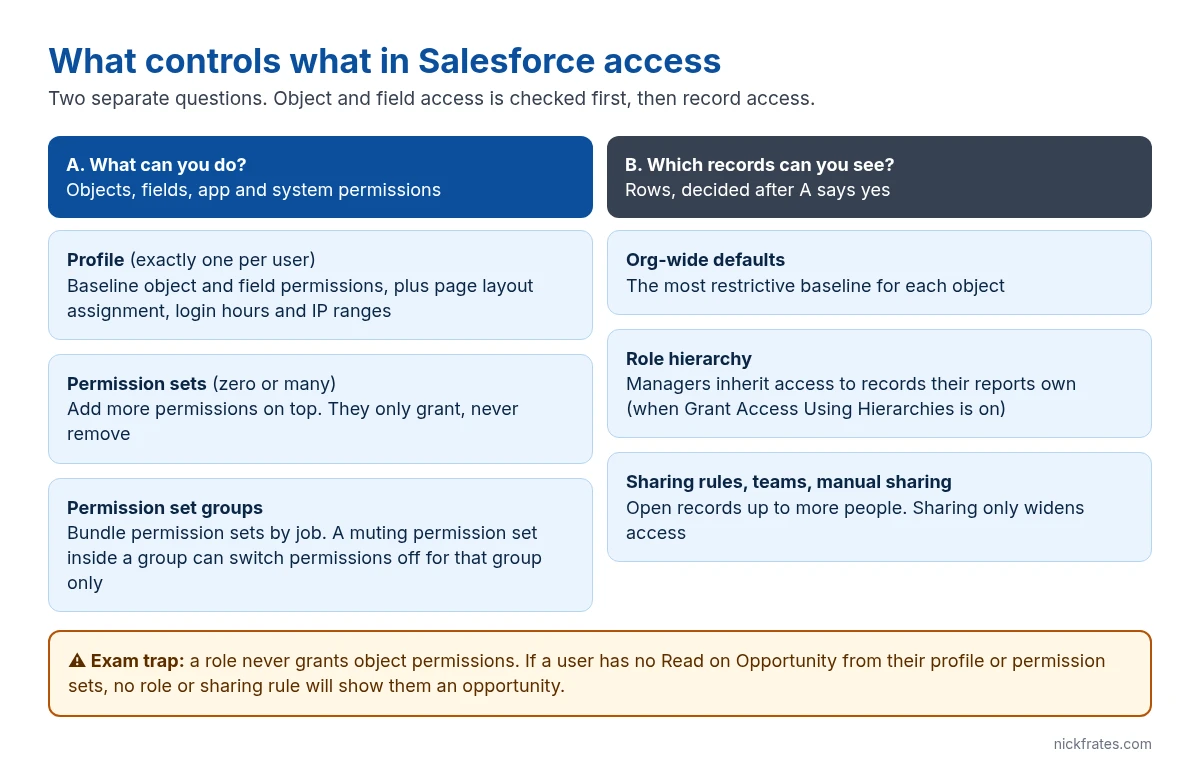
Short version: profiles and permission sets control what a user can do (objects, fields and system permissions). Roles control which records they can see. Salesforce checks these as two separate questions, and most access bugs and exam traps come from mixing them up.
This post maps every access tool to the question it answers, walks through four scenarios the way the exam asks them, and lists the traps that catch people.
The two questions Salesforce asks
When a user opens an opportunity, Salesforce asks:
- Can this user work with Opportunity at all, and with this field? Answered by the profile plus any permission sets and permission set groups.
- Can this user see this particular opportunity record? Answered by org-wide defaults, the role hierarchy, sharing rules, teams and manual sharing.
Both have to say yes. A user with Read on Opportunity but no sharing access sees an empty list view. A user who is above the record owner in the role hierarchy but has no Read on Opportunity sees nothing at all.
Reference table: what each tool controls
| Tool | How many per user | Controls | Does not control |
|---|---|---|---|
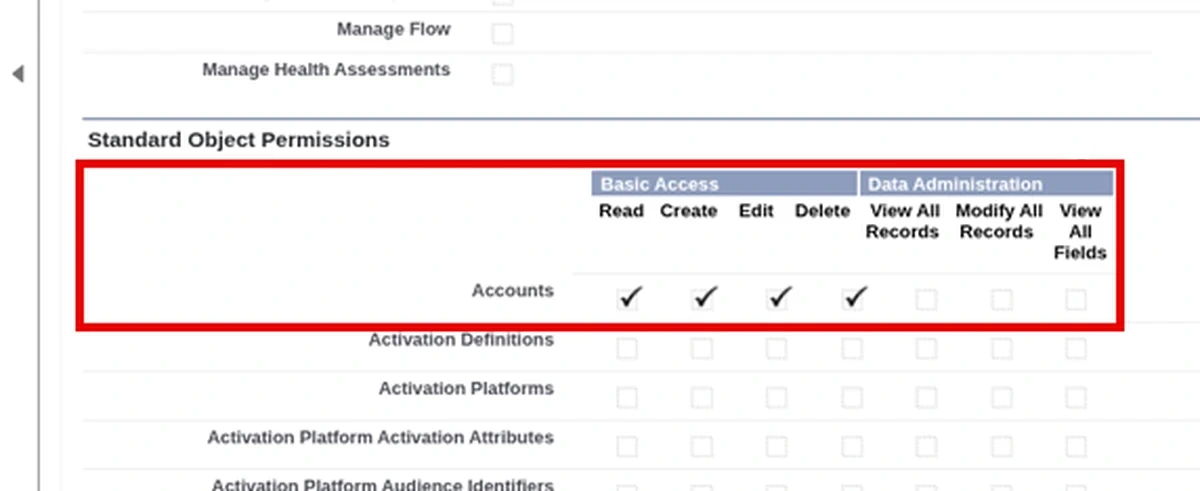
| Profile | Exactly one | Baseline object and field permissions, system permissions, page layout assignments, login hours, login IP ranges, default record types | Which records you see |
| Permission set | Zero or many | Additional object, field, app and system permissions | Removing access (they only add) |
| Permission set group | Zero or many | A bundle of permission sets for a job role; a muting permission set inside the group can turn permissions off for that group | Record visibility |
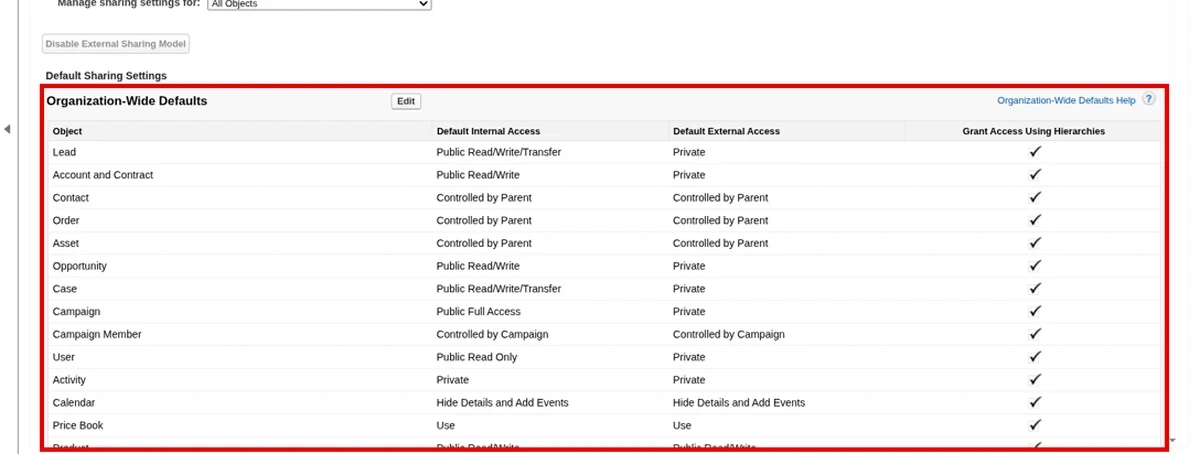
| Org-wide defaults | One setting per object | The baseline record access: Private, Public Read Only, Public Read/Write | Object or field permissions |
| Role | Zero or one | Record access through the hierarchy: managers get access to records owned by users below them, when Grant Access Using Hierarchies is on | Object permissions, fields, page layouts |
| Sharing rules | Many per object | Opening records to roles, groups or territories, by owner or by criteria | Restricting access below the org-wide default |
Four scenarios, worked the way the exam asks
1. “Sales reps should see only their own opportunities, but managers should see their team’s.”
Set the Opportunity org-wide default to Private and build a role hierarchy that matches the reporting lines. Managers inherit access to their reports’ records. No profile change is needed because reps already have Read and Edit on Opportunity.
2. “One support agent needs to delete cases. Nobody else on the team should.”
Create a permission set with Delete on Case and assign it to that one agent. Don’t clone the profile. Cloning a profile for one permission is the classic wrong answer, because it leaves you maintaining near-duplicate profiles forever.
3. “The finance team needs to read every account, regardless of owner.”
Two valid answers depending on the wording. If it’s about record visibility, use a sharing rule that shares all accounts with a Finance public group. If it really means every record of the object for a small group of power users, a permission set with View All on Account does it. View All overrides sharing for that object.
4. “A field must be hidden from contractors but visible to employees.”
Field-level security, set on the profile or a permission set. A role can’t hide a field, and removing the field from a page layout doesn’t secure it: the value still shows in reports, list views and the API.
Cert Lab by Nick Frates
Practice these as exam-style scenarios
The free Admin Cert Lab drills security and access questions with explanations for every option.
Start the free Admin Cert Lab →Exam traps
- “Use the role hierarchy to give access to the Opportunity object.” Wrong. Roles never grant object permissions.
- “Use a sharing rule to restrict access.” Wrong. Sharing rules only open access. To restrict, set a stricter org-wide default and open it back up where needed.
- “Remove the field from the page layout to secure it.” Wrong. Use field-level security.
- “Create a new profile for the one exception.” Usually wrong. Salesforce’s direction is minimal profiles plus permission sets and permission set groups.
- View All and Modify All are object permissions that ignore sharing. They are a legitimate answer when the question says “all records of this object”, and a trap when it says “records owned by their team”.
- Grant Access Using Hierarchies can be turned off only for custom objects. For standard objects the hierarchy always applies.
FAQ
Can a user have more than one profile? No. Exactly one profile, any number of permission sets and permission set groups.
Can a user have no role? Yes. They then get record access only from the org-wide defaults, ownership and sharing.
Do permission sets ever remove access? A normal permission set only adds. A muting permission set inside a permission set group removes permissions, and only for users who get them through that group.
Where do I check why a user can or can’t see a record? Open the record and use Sharing Hierarchy to see who has access and why. On the user record, check the profile, permission set assignments and role.
Hope this helps!
Best,
Nick