Hey friends,
To change org-wide defaults (OWD) in Salesforce, go to Setup, Sharing Settings, edit the Organization-Wide Defaults and pick the new access level per object; Salesforce then runs a sharing recalculation and emails you when it's done. Raising access takes effect immediately, while lowering access only takes effect after that recalculation finishes.
Org-wide defaults are the baseline access users have to records they don't own. Every rule below comes from Salesforce Help: Organization-Wide Sharing Defaults and Set Your Internal Organization-Wide Sharing Defaults.
What are the org-wide default access levels?
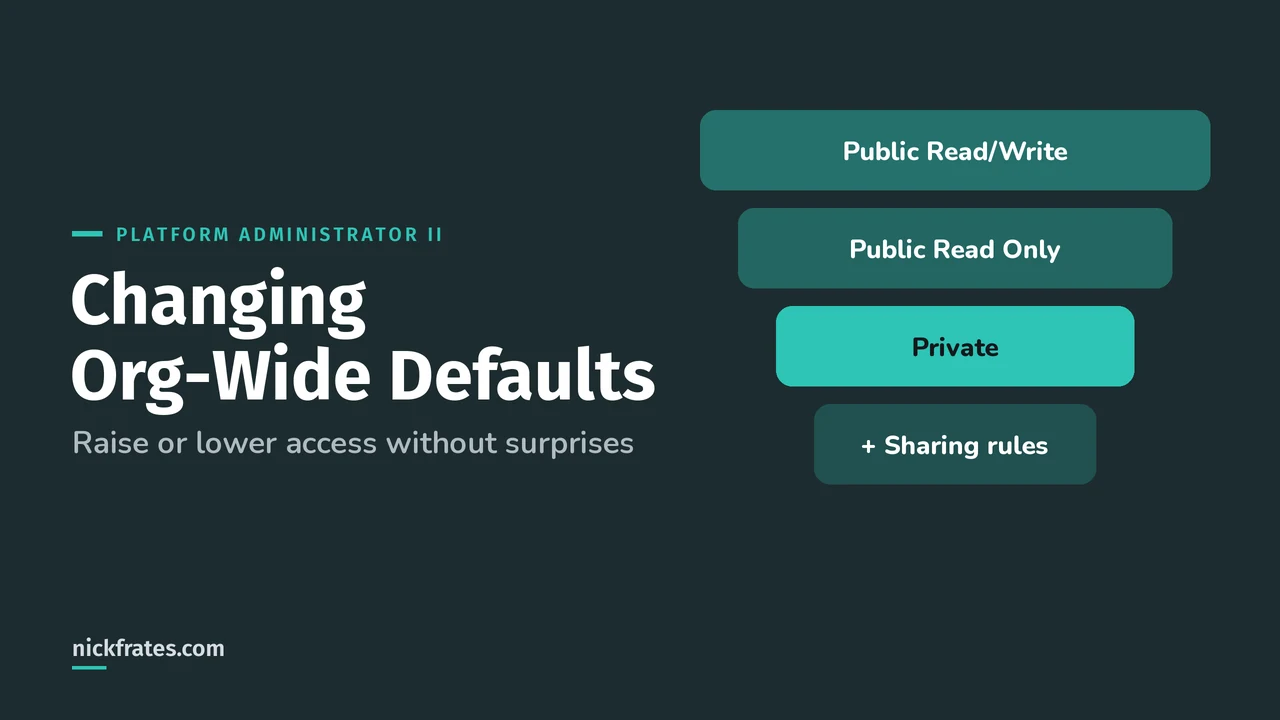
For most objects you choose Private, Public Read Only or Public Read/Write, plus Controlled by Parent for some. A few objects have special levels like Public Full Access or View Only. You can set separate internal and external defaults.
The key rule: OWD is the floor. The role hierarchy, sharing rules and manual sharing can only open access up from there. They can't restrict it further. My Salesforce security model post covers how the layers stack, and Help's sharing features overview lists them all.
What happens when you change an org-wide default?
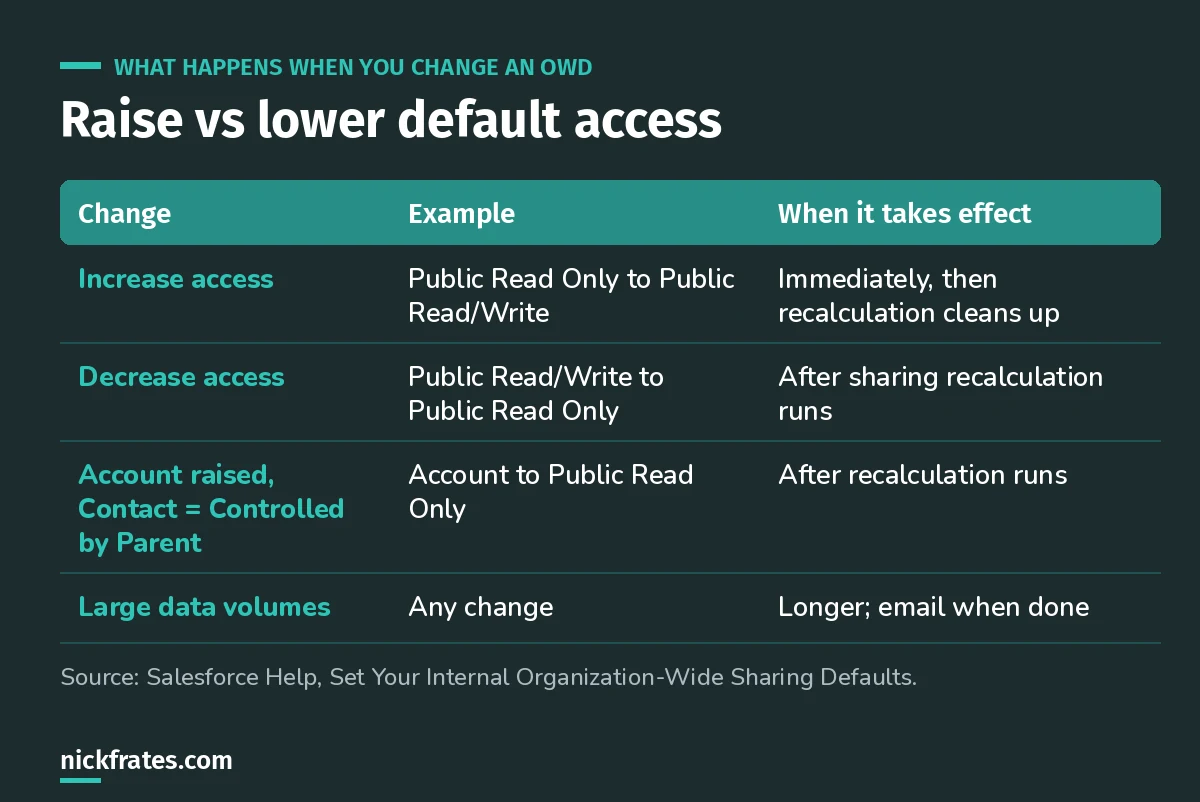
Lowering access is the risky direction, because nothing changes until recalculation finishes.
When you increase access, everyone gets it right away, and recalculation then removes the now-redundant manual and rule-based shares. When you decrease access, users keep the old access until recalculation finishes. With lots of data that can take a while, so you can watch progress on the Background Jobs page and in View Setup Audit Trail.
Which objects depend on each other?
Some objects are linked, so one change forces another:
- If Account is Private, Opportunity and Case must be Private too.
- Contact must be Private or Controlled by Parent when Account is Private.
- If Contact is Controlled by Parent and you raise Account, Opportunity or Case access, the change waits for recalculation.
- On the detail side of a master-detail relationship, users can act on a record only if they can do the same on its master records.
How to change OWD safely, step by step
- Write down why. Who needs more or less access, and to which object?
- Check the dependencies above so the change doesn't force surprise changes on related objects.
- Test in a sandbox first, logging in as users from different roles to confirm what they see.
- If you're lowering access, add sharing rules first for the groups that should keep it.
- Change it in a quiet window. Setup, Sharing Settings, Edit, choose the level, Save.
- Watch Background Jobs and wait for the completion email before telling users it's done.
- For big reorganizations, ask Salesforce about deferring sharing calculations. It's off by default, and you must resume and run a full recalculation afterward.
I learned most of what I know by testing myself fast and often. Focus on Force was the resource I loved early on, and rapid-fire practice tests were what made things stick. Cert Lab is my version of that: quick tests, explanations with current Help links and screenshots. Certs brought me interviews, hires, raises and new domains to work in, but they work best alongside hands-on experience, not instead of it.
Cert Lab by Nick Frates
Let the Platform Administrator II Cert Lab test you to success
Security and Access is 20% of the exam. Practice sharing scenarios on OWD, hierarchies, sharing rules and controlled by parent, with every answer explained.
Start the Platform Administrator II Cert Lab for $9.99 →A worked example
Say sales leadership wants leads locked down to stop reps poaching each other's prospects. Today Lead is Public Read/Write. I'd create a sharing rule giving the inside sales team read access to marketing-owned leads, test it in a sandbox, then lower Lead to Private in the evening. Owners, people above them in the role hierarchy, admins and anyone with a sharing rule keep access. Everyone else loses it once recalculation finishes.
Common OWD mistakes
- Trying to restrict with sharing rules. Sharing rules only add access. Lower the OWD instead.
- Announcing the change too early. Lowered access isn't enforced until recalculation completes.
- Forgetting Grant Access Using Hierarchies. You can turn it off only for custom objects that aren't Controlled by Parent.
- Changing Account without thinking about Contact, Opportunity and Case.
FAQ
Where do you change org-wide defaults in Salesforce?
Setup, Sharing Settings, then Edit in the Organization-Wide Defaults section.
Does changing OWD take effect immediately?
Raising access does. Lowering access takes effect after sharing recalculation finishes.
Can sharing rules make access more restrictive than the OWD?
No. Sharing rules, the role hierarchy and manual sharing only grant extra access.
How do I know recalculation is done?
Salesforce sends an email, and you can check the Background Jobs page.
Where should you go next?
- Platform Administrator II study guide
- Permission sets and permission set groups
- Platform Administrator II practice questions
Cert Lab by Nick Frates
Let the Platform Administrator II Cert Lab test you to success
Lessons, flashcards, section quizzes and four 60-question practice exams for all seven Platform Administrator II sections, every answer explained.
Start the Platform Administrator II Cert Lab for $9.99 →Hope this helps!
Best,
Nick