Hey friends,
To set up Salesforce Knowledge, make sure your authors have Knowledge User licenses, turn on Lightning Knowledge in Knowledge Settings, build record types for each kind of article, then create data category groups and decide who can see them. In Lightning, record types replace Classic article types, and once Lightning Knowledge is on you can't turn it off.
Get the setup right and everything else gets easier: reps find answers faster, customers solve more on their own, and you walk into the exam knowing the config cold. Knowledge Management is 12% of the Agentforce Service Consultant exam, and configuring Knowledge is called out by name. Every fact below comes from Salesforce Help.
What is Salesforce Knowledge?
Salesforce Knowledge is the knowledge base inside Salesforce, built from articles that answer process questions and FAQs. Experienced reps and internal writers create the articles, and you can publish them internally, on customer and partner sites, on public websites, or share them in emails (Salesforce Knowledge).
New orgs use Lightning Knowledge. If you're still curious about the authoring side, my guide on how to create Knowledge articles walks through drafts, publishing and versions. This post is about the setup underneath.
How do you set up Salesforce Knowledge in Lightning?
- Check your licenses. Knowledge User licenses are listed under Company Information, in the Feature Licenses related list (Set Up Salesforce Knowledge).
- Make yourself a Knowledge user. Check Knowledge User on your user record. Authors need it too, while readers with Read permission can view published articles (Lightning Knowledge User Access).
- Enable Lightning Knowledge. In Setup, open Knowledge Settings, click Edit, select Enable Lightning Knowledge and save (Enable Lightning Knowledge).
- Configure the Knowledge object. After you enable it, Knowledge shows up in Object Manager. That's where you manage fields, page layouts and record types.
- Build data categories and visibility so articles are easy to browse and land in front of the right people.
- Pick a sharing model: data category sharing or standard Salesforce sharing.
Salesforce says it plainly: test in a sandbox or trial org before enabling Lightning Knowledge in production, because there's no undo.
What replaced article types in Lightning Knowledge?
Record types did. Enabling Lightning Knowledge changes your org's data model to use record types instead of article types, and all articles live in a single Knowledge object (Lightning Knowledge Migration Tool).
- Use record types for each kind of content, like FAQ, How-to or Troubleshooting, each with its own page layout and fields.
- Orgs with several Classic article types must consolidate them through data migration before enabling Lightning Knowledge.
- The Lightning Knowledge Migration Tool handles that move. You request it from Salesforce Support with 1 to 2 weeks of notice, and a sandbox test is required first.
- Plan profiles, page layouts and user access around your record types (Lightning Knowledge Record Types).
How do data categories work in Salesforce Knowledge?
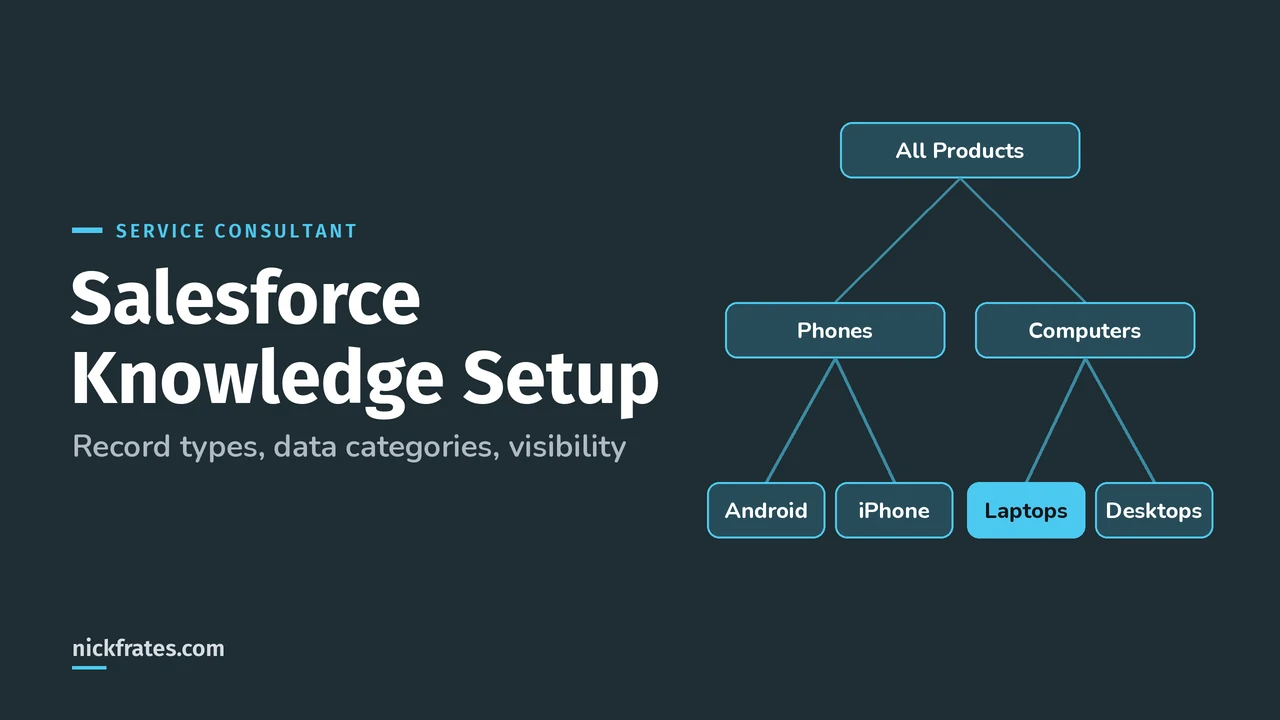
Data categories classify articles so people can find them, arranged in category groups with a hierarchy. Salesforce's example uses two groups: Sales Regions (All Sales Regions, then North America, Europe and Asia) and Products (All Products, then Phones, Computers and Printers) (Work with Data Categories).
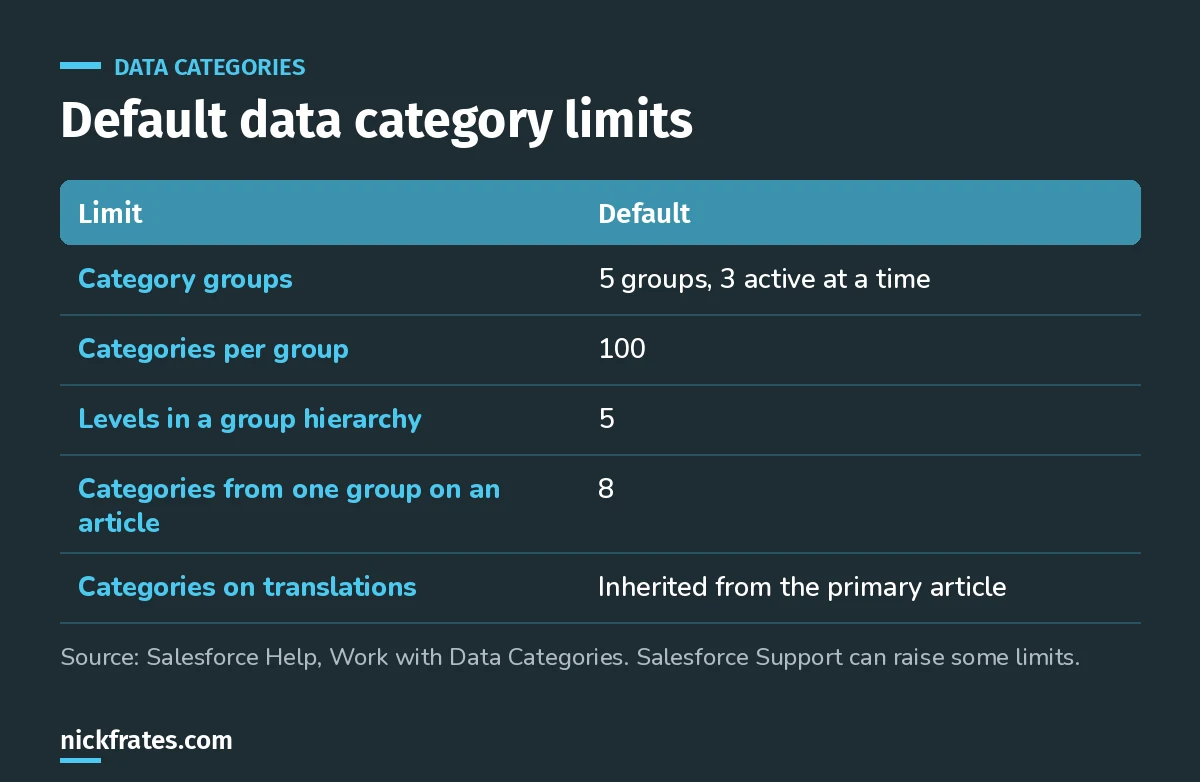
Plan around these limits early, especially the 3 active category groups.
You add categories only to the primary article. Translations inherit them and can't be categorized separately.
How does data category visibility work?
Visibility decides which categories, and so which articles, a user can see, with three options: All Categories, None, or Custom. You set it by role, permission set or profile (Data Category Visibility).
The rule that shows up in scenario questions: making one category visible also makes its whole direct family line visible, meaning its parents and every child under it. In a Geography group, if France is the only visible category, the user sees articles in Europe, France and all French cities, but nothing under Asia.
To set a starting point for everyone, use Default Data Category Visibility in Setup. Pick a category group, click Edit, and choose All, None or Custom (Default Data Category Visibility).
Why I keep pushing practice questions: they work. I've passed 17 Salesforce certifications, and Focus on Force was a big part of the early ones. Reading first and testing later was slow. Testing fast, then reading only what I got wrong, cut my study time way down and made the scenarios feel familiar on exam day. That's exactly how I built Cert Lab.
Cert Lab by Nick Frates
Let the Service Consultant Cert Lab test you to success
Scenario questions on Knowledge setup, data category visibility, KCS and every other exam section, with an explanation for every option.
Start the Agentforce Service Consultant Cert Lab for $9.99 →Should you use data category sharing or standard sharing?
Since Summer '20, Lightning Knowledge can use standard Salesforce sharing instead of data categories to control access. Turn it on with Use standard Salesforce sharing in Knowledge Settings. By default, the Knowledge object is then Public Read/Write for internal users and Private for external users (Set Up Salesforce Sharing for Knowledge).
- With standard sharing, data categories still classify, filter and search articles, but they no longer control access (Sharing Considerations for Lightning Knowledge).
- Standard sharing works on the article version, so a user can see some versions but not others. Category sharing applies to the primary article, so every version shares the same access.
- Sharing rules on language or record type can replace category groups you built only to control access.
How do you map data categories to cases?
Data Category Mappings link a case field to a data category group, so article searches on a case are filtered to the right category. In Setup, open Data Category Mappings, pick the case field, choose the category group, and set a default category for values that don't match (Data Category Mapping).
- Filtering works only with text and picklist case fields, and it runs after the case is saved.
- A category group can be used only once in a mapping.
- If Suggest articles for cases considering case content is on, suggested articles come back instead of the mapping-based search.
Worked example: a support site for two product lines
Say a company sells phones and laptops, supports customers in North America and Europe, and has partners who should only see partner-facing articles. Here's how I'd lay it out:
- Record types for FAQ and Troubleshooting, each with its own page layout.
- Two category groups: Products (Phones, Laptops) and Regions (North America, Europe), well under the 3-active limit.
- Standard sharing, with sharing rules that keep internal-only articles away from partner and customer users.
- A data category mapping from the case Product field to the Products group, so reps see phone articles on phone cases.
What setup mistakes should you avoid?
- Enabling Lightning Knowledge in production first. It can't be disabled, so test in a sandbox.
- Building category groups only for access when standard sharing would be simpler.
- Forgetting the family-line rule and accidentally exposing a whole branch of categories.
- Hitting the active group limit late. Only 3 category groups can be active at once by default.
- Missing licenses. Authors without Knowledge User can't create or edit.
Where should you go next?
- The Agentforce Service Consultant study guide covers every exam section with weights.
- How to create Knowledge articles for drafts, publishing, versions and archiving.
- Salesforce case management for the cases your articles help close.
Cert Lab by Nick Frates
Practice the whole Service Consultant exam
Short quizzes for each of the eight exam sections plus full practice exams, every answer explained with links to current Salesforce docs.
Start the Agentforce Service Consultant Cert Lab for $9.99 →Hope this helps!
Best,
Nick