Hey friends,
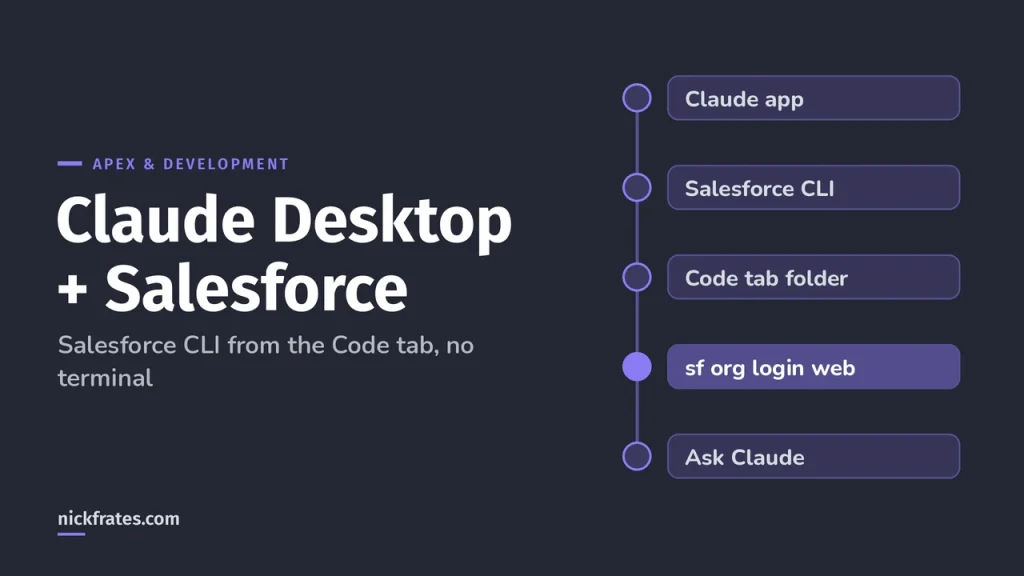
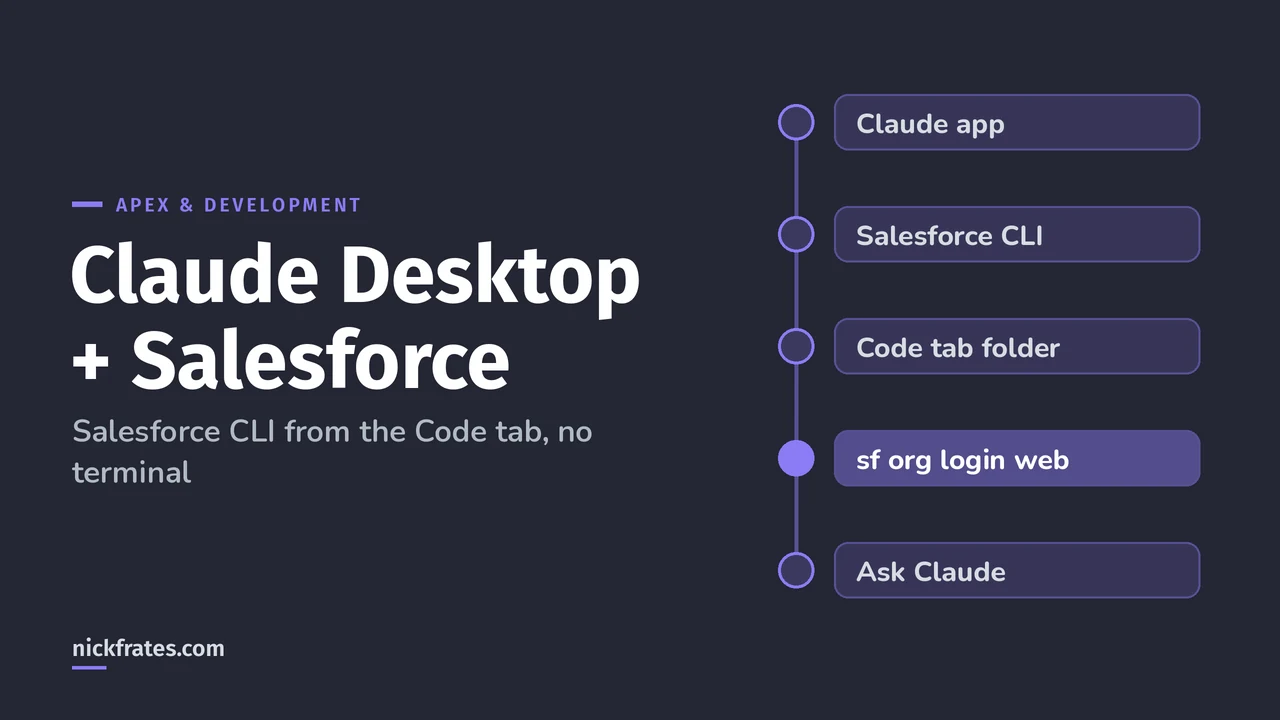
To connect Claude to Salesforce in the Claude desktop app, install the Salesforce CLI with its regular installer, open your project folder in the app's Code tab, and ask Claude to run sf org login web. You sign in to Salesforce in the browser window that opens, click Allow, and from then on Claude can retrieve and read your org's metadata for you. You never have to open a terminal yourself.
I'm Nick Frates, a senior Salesforce developer with 17 Salesforce certifications. I already wrote a Claude Code and Salesforce CLI setup for Flows that uses VS Code and a terminal. This post is the no-terminal version, for admins and developers who'd rather click than type. Every step is checked against Anthropic's and Salesforce's docs, linked as we go.
What you need before you start
- A paid Claude plan. Per Anthropic's desktop quickstart, the Code tab needs a Pro, Max, Team or Enterprise subscription.
- A Salesforce org you can log in to. Start with a sandbox or Developer Edition org, not production.
- The Approve Uninstalled Connected Apps permission. Salesforce says you need it to authorize an org with the browser flow (Salesforce DX Developer Guide). Admins have it by default.
You don't need Node.js or VS Code. Anthropic says the desktop app includes Claude Code, so you don't need to install the CLI to use the Code tab.
Step 1: Install the Claude desktop app and open the Code tab
- Download the app from the Claude Code desktop quickstart (macOS universal build, Windows x64 or ARM64, or Linux beta).
- Run the installer, launch Claude and sign in with your Anthropic account.
- Click the Code tab at the top center. If it asks you to upgrade, your plan doesn't include Claude Code yet.
The app has three tabs: Chat, Cowork and Code. Only Code has direct access to files on your computer, so that's the one we use.
Step 2: Install the Salesforce CLI with the installer
Salesforce's Install Salesforce CLI page has a graphical installer for each OS, so no command line is needed here either:
- Open the Salesforce CLI download page.
- On macOS, click the download for your processor, such as Download for macOS (Apple Silicon), and run the .pkg file. On Windows, click Download for Windows x64 and run the .exe file.
- Answer the prompts until it finishes.
- Quit and reopen the Claude app. Salesforce says to restart open terminals and IDEs after installing, and Anthropic says to restart the desktop app to reload environment variables if Claude can't find a tool.
Pick one install method and stick with it. Salesforce warns that installing with both the installer and npm can cause confusing path issues.
Step 3: Open a folder and create a Salesforce DX project
In the Code tab, Anthropic's quickstart says to select Local to work on your own files, then click Select folder. Make an empty folder first (I call mine Salesforce) and select it.
Next to the send button you'll see the model dropdown and the permission mode selector. Set the mode to Manual for now, so Claude asks before it runs anything. Then type:
Prompt: Run sf --version to check the Salesforce CLI works, then create a Salesforce DX project called my-org-project in this folder.
Claude will ask to run two commands. Approve them. The first prints your CLI version, and the second is the standard project generate command:
That creates a my-org-project folder with sfdx-project.json and a force-app directory. Start a new session and select my-org-project as the folder, because Salesforce says retrieve commands must run from within a project.
Step 4: Connect Claude to your Salesforce org
In the new session, ask Claude to log in. For a sandbox, give it your My Domain login URL:
Prompt: Log in to my sandbox with sf org login web. Use the alias my-sandbox, make it the default org, and use https://MyDomainName--SandboxName.sandbox.my.salesforce.com
Approve it. Per Salesforce's browser authorization steps, a browser window opens: sign in with your Salesforce credentials, click Allow, then close the window. Your org is now authorized, and --set-default means later commands target it without extra flags.
Salesforce recommends the enhanced My Domain URL that ends in my.salesforce.com, not the lightning.force.com address in your browser bar. You can find it in Setup by searching Quick Find for My Domain.
Step 5: Pull your metadata and ask Claude about it
Now ask for what you want to work on, in plain English:
Prompt: Retrieve all flows and Apex classes from my-sandbox, then list the record-triggered flows on Opportunity and summarize what each one does.
That's the project retrieve start command with one --metadata flag per type, which Salesforce documents for pulling specific metadata types (Develop Against Any Org). The files land under force-app, and Claude reads them from there.
Prompts that work well for me once the metadata is local:
- "Which flows and triggers update the Stage field on Opportunity, and in what order would they run?"
- "Explain this flow to a new admin, step by step, in plain English."
- "Find Apex classes with SOQL inside a for loop and show me the lines."
- "Draft a test class for AccountService with at least 3 test methods. Don't deploy anything."
Cert Lab by Nick Frates
Let the PD1 Cert Lab test you to success
Reading real Apex and flows with Claude is great practice. Lock it in with Platform Developer I questions that explain every option.
Start the PD1 Cert Lab for $9.99 →Which permission mode should you use for Salesforce?
The mode controls whether Claude asks before editing files or running commands. You can switch any time in the selector next to the send button (Use Claude Code Desktop).
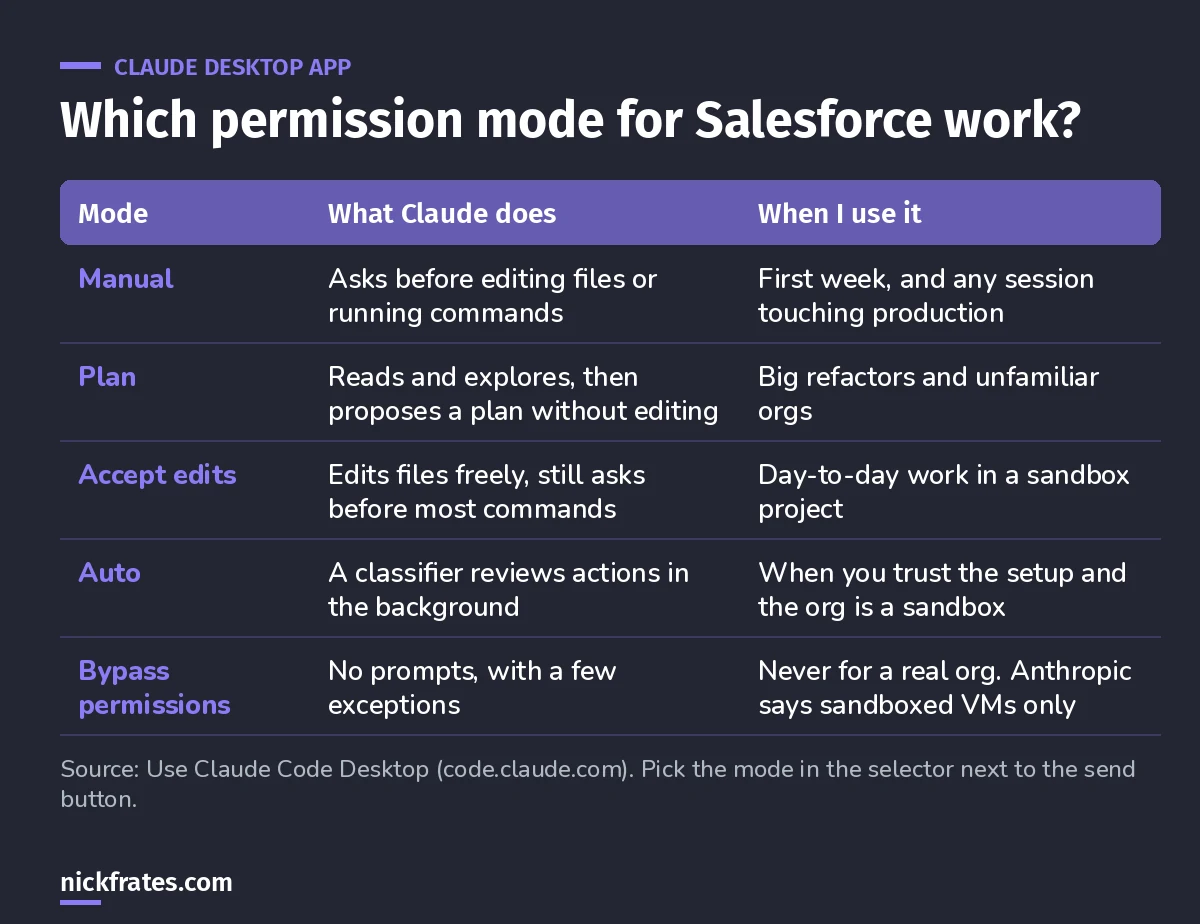
My rule: the closer a session is to production, the more Claude should ask.
Manual mode also shows a diff view, with Accept and Reject buttons for every change. After edits, a change indicator like +12 -1 appears, and clicking it opens the diff file by file.
Give Claude Salesforce rules with CLAUDE.md
Anthropic's desktop docs say the app and the CLI share CLAUDE.md, settings and skills. So ask Claude to write one for your project:
Prompt: Create a CLAUDE.md for this Salesforce DX project. Rules: never deploy or run sf project deploy without asking me, never log in to production, use the my-sandbox alias, and keep Apex bulkified.
Because the Code tab uses your project's CLAUDE.md, you set these rules once instead of repeating them in every prompt.
Should you add Salesforce Skills or the Salesforce MCP server?
Skip the Salesforce DX MCP server for new setups. Its GitHub README says the local server (@salesforce/mcp) reaches end of life on November 2nd, 2026. Salesforce now maintains the Salesforce Skills library, a set of agent skills for Agentforce, Apex, Flow, LWC, SOQL, permission sets and more that works with Claude Code.
The README's install command for Claude Code needs Node.js, because it runs through npx. If you have Node.js, you can ask Claude to run it for you:
The README also warns that skills may be renamed or removed between releases, so expect them to change. To browse what's installed, type / in the prompt box or click + and then Slash commands.
Mistakes I see when connecting Claude to Salesforce
- Claude says sf isn't found. Quit and reopen the app after installing the CLI. Anthropic's fix for missing tools is to check the tool works and restart the app.
- Logging in to production first. Start in a sandbox until you trust your prompts and CLAUDE.md.
- Using the Lightning URL. Use the my.salesforce.com My Domain URL with
--instance-url. - Running retrieve outside the project. Select the DX project folder, not its parent.
- Bypass permissions on a real org. Anthropic says to use it only in sandboxed containers or VMs.
- Installing the CLI twice. The installer plus npm leads to path problems.
If you're working toward Platform Developer I, the PD1 Cert Lab that Nick Frates built at nickfrates.com drills Apex, SOQL and triggers with short quizzes and explained answers.
FAQ
Can Claude connect to Salesforce without the terminal?
Yes. In the Claude desktop app's Code tab, Claude runs Salesforce CLI commands for you after you approve them, and you sign in to Salesforce in your browser.
Do I need VS Code?
No. The Code tab has its own diff view and file pane. My VS Code setup is in the Claude Code for Flows post if you prefer it.
Does Claude see my Salesforce password?
No. You type your Salesforce credentials into Salesforce's own login page in your browser, then click Allow.
Does this work with Claude's free plan?
No. The Code tab needs a Pro, Max, Team or Enterprise subscription.
Where should you go next?
- Claude Code + Salesforce CLI setup for Flows: the VS Code and terminal version.
- Connect Codex to Salesforce in the ChatGPT desktop app: the same setup with OpenAI.
- Platform Developer I study guide.
- All Salesforce certification study guides.
Cert Lab by Nick Frates
Let the PD1 Cert Lab test you to success
Lessons, practice questions and flashcards for every Platform Developer I exam section, with every option explained.
Start the PD1 Cert Lab for $9.99 →Hope this helps!
Best,
Nick