Hey friends,
Salesforce Digital Wallet is the free, built-in place to see how many Agentforce Flex Credits, Conversations and Einstein Requests your org has used and has left. Open it from the App Launcher by searching for Digital Wallet, in a production org, with the View Consumption permission. From there you can drill into usage by day, usage type, org, agent and action, and set alerts before you run out.
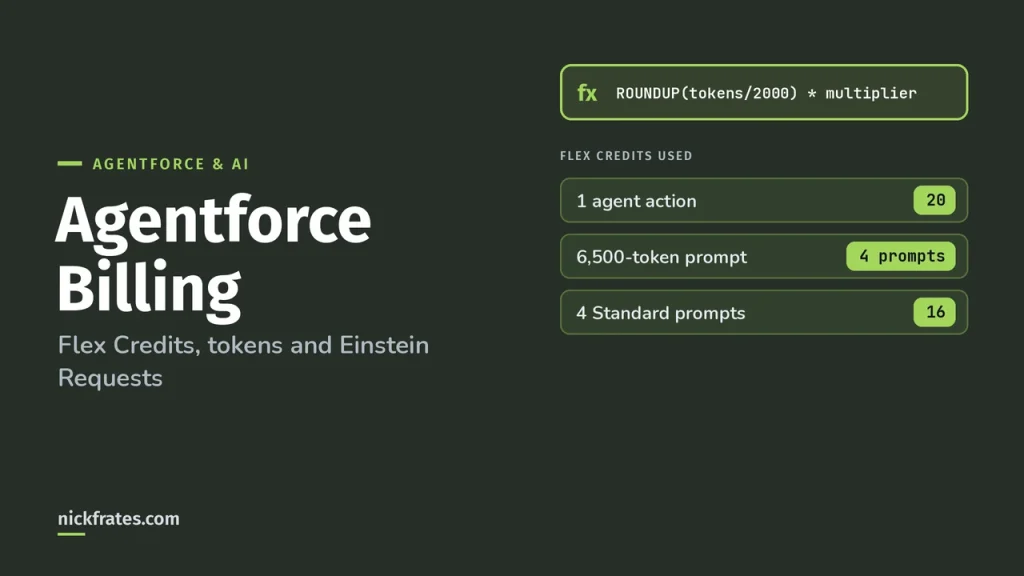
I'm Nick Frates, a senior Salesforce developer with 17 Salesforce certifications. Everything here comes from the Digital Wallet pages in Salesforce Help, starting with About Digital Wallet. If you want to understand what each credit pays for first, read my post on how Agentforce billing is metered.
Who can open Salesforce Digital Wallet?
Per Access Digital Wallet, it's available in Lightning Experience in Enterprise and Unlimited Editions. It tracks sandbox usage, but you have to be in production to open it.
| To do this | You need |
|---|---|
| Open the home page and consumption cards | View Consumption |
| See seat-based License Utilization | View License Utilization |
| View, manage or assign consumption tags | View, Manage or Assign Consumption Tags |
| Use the Your Account app | Manage Billing, or the Your Account App admin user permission set |
Help adds one more requirement: you need a Data 360 license, not a Customer Data Platform (CDP) license. If you open the app and see no cards, it's almost always a missing permission or a hidden tab.
How do you read a consumption card?
Each consumption-based product gets a card. From Monitor Usage for Consumption-Based Products, these are the fields worth knowing:
- Last Processed: when Digital Wallet last synced your usage, in your org's default time zone.
- Credits Consumed: what you've used from that card as of Last Processed.
- Credits Remaining and Total Credits: what's left and what your contracts allocated.
- Start Date, End Date and Contract: "Multiple" means more than one contract feeds the card.
- Pricing model or Retired badge: a retired card's remaining entitlement moved to another card.
Usage updates multiple times a day but can lag. Help is clear that if Digital Wallet and your invoice disagree, the monthly statement wins.
The newer home page (a staggered release starting October 7, 2026) adds color-coded bars: green means 21% or more remaining, orange 1% to 20%, and red 0% or less.
How do you find when and where Agentforce credits were used?
Click View Consumption Details on the home page to open Consumption Insights (Help). Then:
- Pick a range from the Consumption Period dropdown above the bar chart.
- Click a bar to see that day's usage across the card's usage types.
- Turn on Show Breakdown to split the chart by usage type, such as standard actions vs prompts.
- Use the View By box to narrow to one sandbox, scratch org or companion org.
- Click the pie chart icon next to the table for a share-of-usage view, when there's enough data.
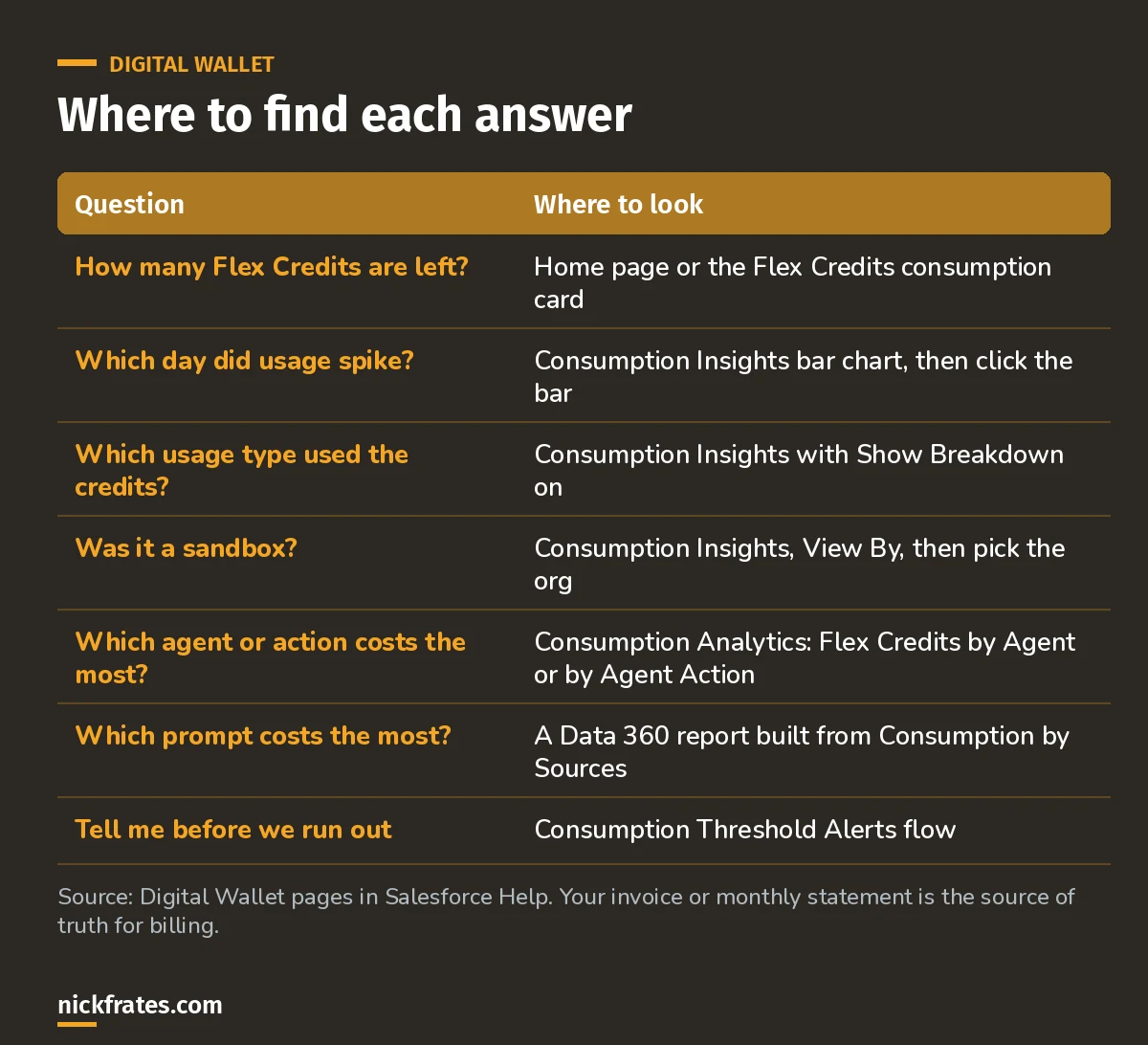
Most questions have one obvious place to look.
How do you see which agent or action costs the most?
Use the Consumption Analytics dashboard (Tableau Next). Its Consumption Explorer section (Help) includes three visualizations that answer this directly:
- Flex Credits Consumption by Agent: total usage per agent and which card it came from.
- Flex Credits Consumption by Agent Action: total usage per action.
- Consumption Forecast by Agent: a trend per agent per month, 3 months ahead. It needs at least 3 data points, so new agents show "we couldn't display this content" at first.
For prompts, Help shows how to track consumption for generative AI prompts with a Data 360 report. The quick way is to copy the Consumption by Sources report, which uses the TenantEnrichedUsageEvent data lake object. Help says building or running either version of the report doesn't incur costs.
Cert Lab by Nick Frates
Let the Agentforce Specialist Cert Lab test you to success
Agentforce Specialist scenarios ask how agents are built, tested and monitored. Practice them with questions that explain every option and link to the Help page behind it.
Start the Agentforce Specialist Cert Lab for $9.99 →How do you set Agentforce usage alerts in Digital Wallet?
Salesforce ships a flow template for this. Before you start, two checks from Configure and Activate the Consumption Threshold Alerts Flow: the Default Workflow User must be an active user with a verified email (not the Integration User), and the flow only works in production.
- In Setup, find and select Flows.
- Click New Flow, then find and select the Consumption Threshold Alerts template.
- (Optional) Change the schedule. If you leave it, the flow runs at the next scheduled interval.
- (Optional) Change who gets alerts. By default it's users with the System Administrator profile. Edit the Get System Administrator Profile element to use another profile.
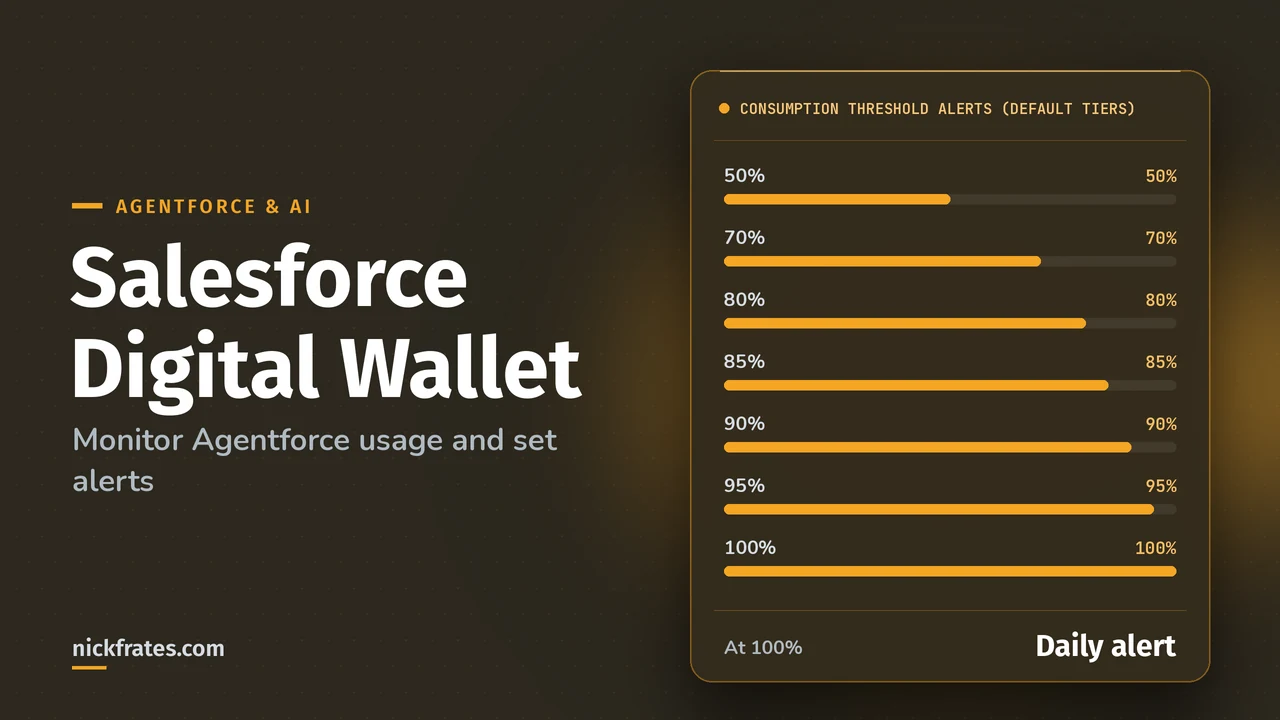
- (Optional) Change the thresholds. The defaults are 50%, 70%, 80%, 85%, 90%, 95% and 100% of each card's purchased entitlement.
- Click Save, then Activate.
How the alerts behave, from Manage Consumption Threshold Alerts and Notifications:
- 50% to 95%: one notification when each tier is crossed, then silence until the next tier.
- 100%: a recurring notification, daily by default, until usage drops below 100%.
- Resets: if usage drops below a tier (for example after you buy more capacity), the tier resets on the next run and can alert again.
- Audit trail: each alert is a TenantConsumptionAlert record you can query and report on.
Retrieving usage doesn't consume Data 360 (formerly Data Cloud) credits, but the flow counts toward your org's flow limits. To modify it you need Manage Flow, and creating notification types needs Customize Application. You can also send alerts to a permission set, a public group or Slack.
Mistakes I see with Digital Wallet
- Looking in a sandbox. Sandbox usage is tracked, but Digital Wallet only opens in production.
- Trusting the chart over the invoice. Insights can lag. The monthly statement is the source of truth.
- Leaving the Integration User as Default Workflow User. The alert flow needs an active user with a verified email.
- Alerting only admins. Finance and the agent owner usually need the 80% alert more than the admin does.
- Missing sandbox spend. Testing Center runs and previews use credits. Use View By to see them.
- Tuning the wrong agent. Check Flex Credits by Agent Action before rewriting instructions.
If you're preparing for the Agentforce Specialist exam, the Agentforce Specialist Cert Lab that Nick Frates built at nickfrates.com covers agent setup, testing and monitoring with short quizzes.
FAQ
Is Salesforce Digital Wallet free?
Yes. Help calls it a free account management tool for viewing and analyzing your footprint across your Salesforce products.
Can I open Digital Wallet in a sandbox?
No. It tracks sandbox usage, but you have to open it from production.
How often does Digital Wallet update?
Multiple times a day, though it can take longer. Check Last Processed on each card.
How do I check Flex Credits in Salesforce?
Open Digital Wallet from the App Launcher and look at the Flex Credits card: Credits Consumed, Credits Remaining and Total Credits.
Where should you go next?
- Agentforce billing: what each action, prompt and token costs.
- Agentforce pricing explained: list prices and buying models.
- Agentforce Testing Center: where test usage comes from.
- Agentforce Specialist study guide.
Cert Lab by Nick Frates
Let the Agentforce Specialist Cert Lab test you to success
Lessons, practice questions and flashcards for every Agentforce Specialist exam section, with each answer explained and linked to Salesforce Help.
Start the Agentforce Specialist Cert Lab for $9.99 →Hope this helps!
Best,
Nick