Hey friends,
Prompt Builder is the Setup tool where you write reusable prompt templates, ground them with your Salesforce data, test them against real records, and activate them so users, flows, Apex and agents can run them. Below I build a Field Generation template step by step, then cover the other template types, grounding, versions and the prompt-writing habits that make the output usable.
Sources: Salesforce Help's Prompt Builder pages. Prompt Engineering is also 20% of the Agentforce Specialist exam, so I flag exam details along the way.
Before you start: access
- Prompt Builder needs Einstein generative AI turned on and one of the add-ons listed in Help (Einstein for Platform, Einstein or Agentforce for Sales or Service, or Agentforce Foundations).
- Give template builders the Prompt Template Manager permission set. Users who only run templates need permission to execute them, not build them.
- Build in a sandbox. Activated templates are visible to users right away.
The three template types
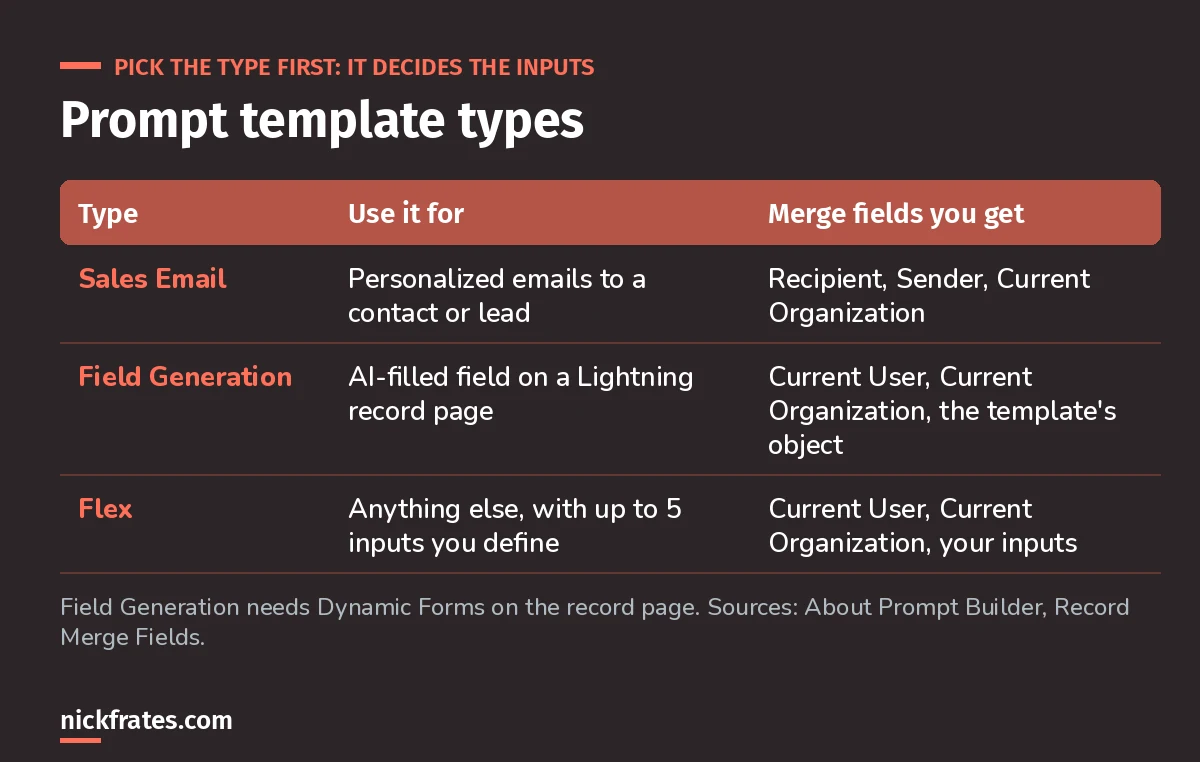
Most first projects are Field Generation.
You can also call any template through an invocable action (so from Flow), the Connect REST API, or Connect in Apex. Templates can also become agent actions; see my Agentforce tutorial.
Step by step: a Field Generation template
The goal: a Case_Summary__c long text field on Account that a rep fills with one click before a call.
- From Setup, enter Prompt Builder in Quick Find and open it.
- Click New Prompt Template and choose Field Generation.
- Name it, pick the Object (Account) and the Object Field Einstein should fill (Case_Summary__c). Click Create.
- In the Prompt Template Workspace, write the prompt. Type or use Insert Resource to add merge fields.
- Open Preview Settings, pick a real Account under Inputs, and click Save & Preview. Read the resolved prompt and the response.
- Iterate until the output is right, then click Activate.
- Add the template to the field on the Account Lightning page. That page must use Dynamic Forms (Help).
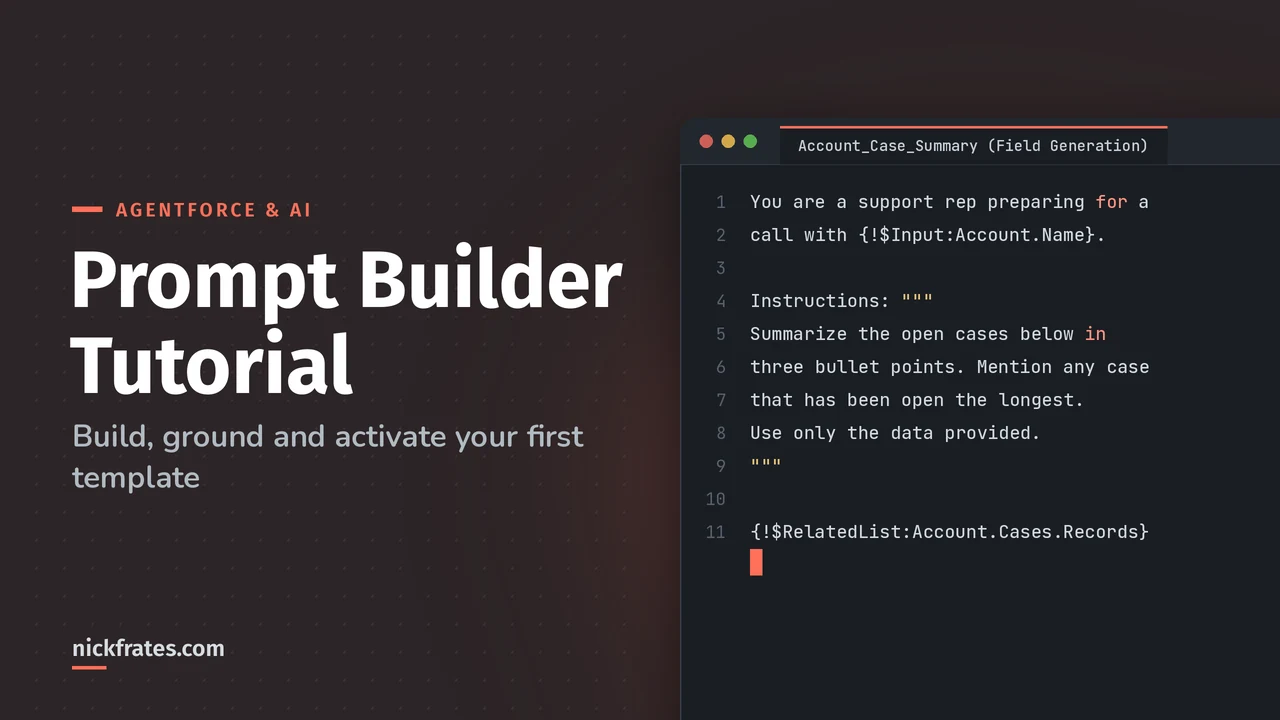
Here's the template I'd start with:
You are a customer support representative preparing for a call
with {!$Input:Account.Name}.

Instructions: """
Summarize the open cases below in three short bullet points.
Call out the case that has been open the longest.
Use only the case data provided. If there are no open cases,
say so in one sentence.
"""

Open cases:
{!$RelatedList:Account.Cases.Records}
Two habits from Salesforce's best practices are doing the work there: instructions go on their own line after Instructions: inside triple quotes, so the model can tell context from instructions, and the prompt tells it to produce only the content you want.
Grounding: giving the template context
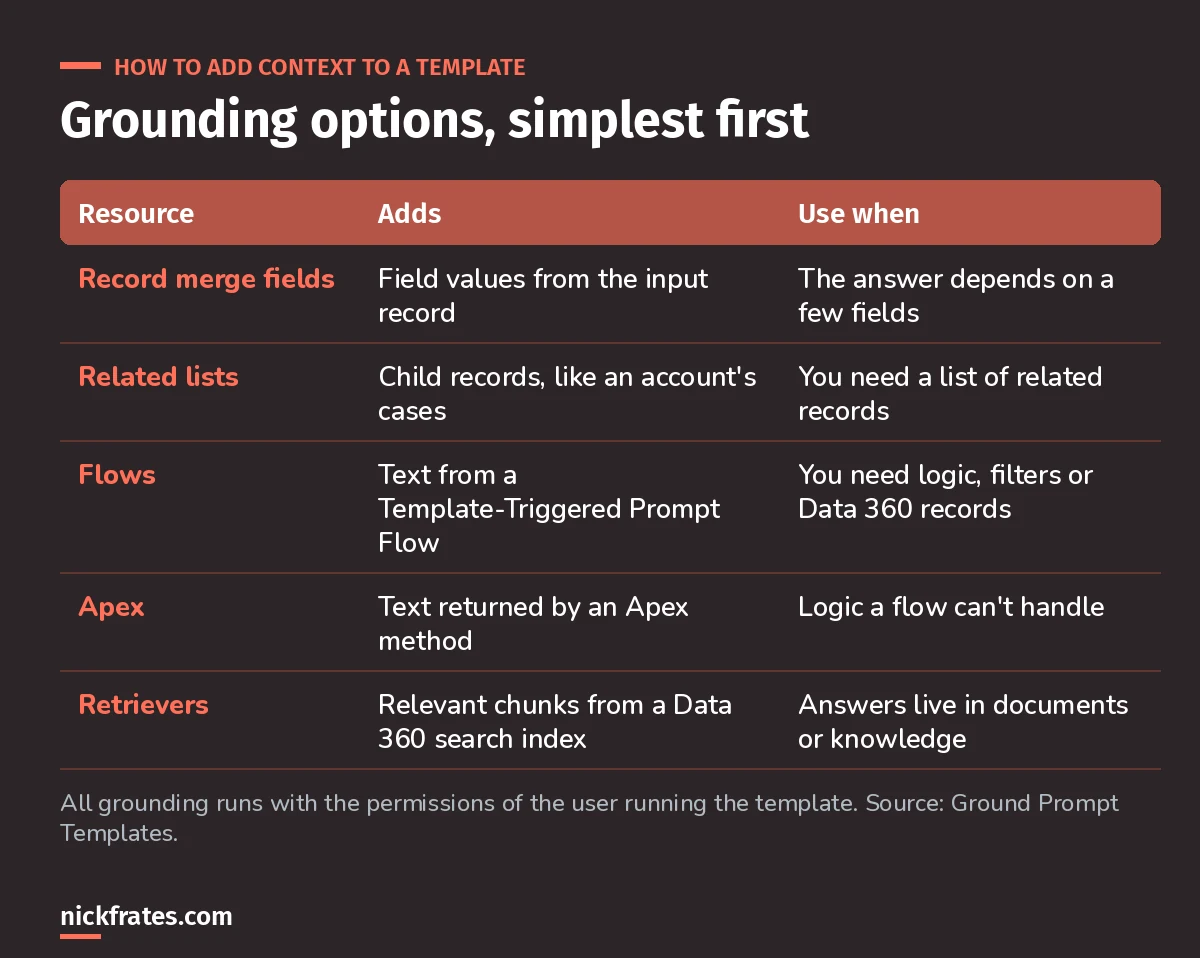
Start with merge fields. Reach for flows and retrievers when you need them.
- Flows: build a Template-Triggered Prompt Flow, use Get Records (Data Cloud Object is an option) and Create Prompt Instructions elements. Other flow types can't be used in templates (Help).
- Changing a flow or Apex class's inputs breaks the template that uses it, and you can't save new versions until it's fixed. Plan inputs before you wire them in.
- Retrievers pull chunks from Data 360. See my post on Data 360 for Agentforce for how chunking, indexes and prefilters work.
Cert Lab by Nick Frates
Practice Prompt Engineering for AI-201
Prompt Engineering is 20% of the exam. The Cert Lab covers template types, grounding, activation and Trust Layer questions, with every answer explained.
Start the AI-201 Cert Lab, $9.99 →Versions and activation
- Each save creates a version. Only one version can be active, and with none active the template disappears for users.
- Activating a version makes it immutable, even after you deactivate it. To change it, save a new version (Help).
- That makes versions a safe way to A/B your wording: keep the old one, activate the new one, roll back if needed.
What happens when a user clicks the button
The template is invoked, merge fields are resolved with the user's access, the Einstein Trust Layer masks sensitive data and adds its safety policies, the prompt goes to the model through the LLM gateway, and the response is checked for toxicity and demasked before it comes back (Help). I walk through each of those steps in Einstein Trust Layer explained.
How to write prompts that work
Salesforce lists the "ingredients" of a good template (Help). You won't need all of them every time:
- Participants and relationship: who's writing to whom.
- Goal: what the response should achieve.
- Data: merge fields, not pasted values.
- Instructions in triple quotes.
- Guidelines that reduce hallucinations, like "use only the data provided".
- Language, style and tone.
My own additions after building a few of these:
- Say what to do when data is missing. Otherwise the model fills the gap with something plausible.
- Ask for a shape: three bullets, two sentences, under 80 words. Field Generation output lands in a field, so short wins.
- Preview with an ugly record: no cases, 40 cases, blank fields. That's where templates break.
Practice questions
1. You need a template that takes an Opportunity and a Product as inputs. Which type?
Answer: Flex. Sales Email and Field Generation have fixed inputs.
2. You activated version 3 and spotted a typo. What do you do?
Answer: save the fix as version 4 and activate it. Version 3 can't be edited.
3. Your template needs open cases filtered by priority plus a Data 360 field. Which grounding option?
Answer: a Template-Triggered Prompt Flow.
Keep going
- Agentforce Specialist study guide.
- AI-201 practice questions with explanations.
- Einstein Trust Layer explained.
Cert Lab by Nick Frates
Get the Agentforce Specialist Cert Lab
Lessons, practice questions and flashcards for all 6 AI-201 exam sections, built from Salesforce Help.
Start the AI-201 Cert Lab, $9.99 →Hope this helps!
Best,
Nick