Hey friends,
Salesforce data modeling means deciding which objects hold your data, what fields they have, and how they relate. Use standard objects like Account, Contact and Opportunity where they fit, add custom objects for everything else, and link them with lookup or master-detail relationships, plus a junction object when you need many-to-many. Schema Builder draws the result as an ERD (entity relationship diagram).
Sources: Salesforce Help's Object Relationships Overview, many-to-many and relationship considerations pages, Schema Builder, and Trailhead's data modeling module.
Objects, fields and records
Trailhead puts it simply: think of objects as database tables, fields as columns and records as rows. Standard objects come with Salesforce (Account, Contact, Lead, Opportunity). Custom objects are ones you create for your business, like a Property object for a real estate company. Salesforce also has external objects, platform events and big objects, but standard and custom are the ones you'll model day to day.
Model rule one: use a standard object when it fits. You get built-in features, reports and integrations for free. Only build custom when the standard object would need bending.
The standard Sales and Service model
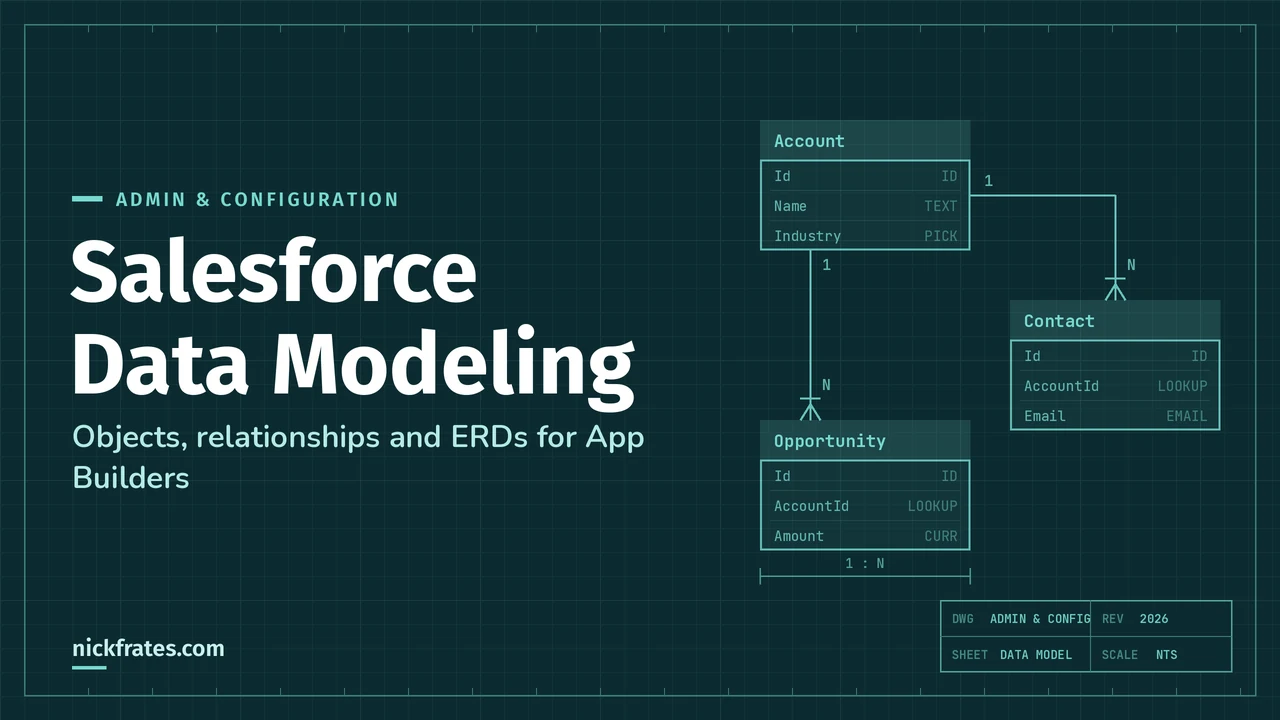
The relationships you'll see in almost every org: an Account has many Contacts, many Opportunities and many Cases. Leads sit on their own until they're converted into an account, contact and (optionally) opportunity. The header image above is that core pattern drawn as an ERD.
The relationship types
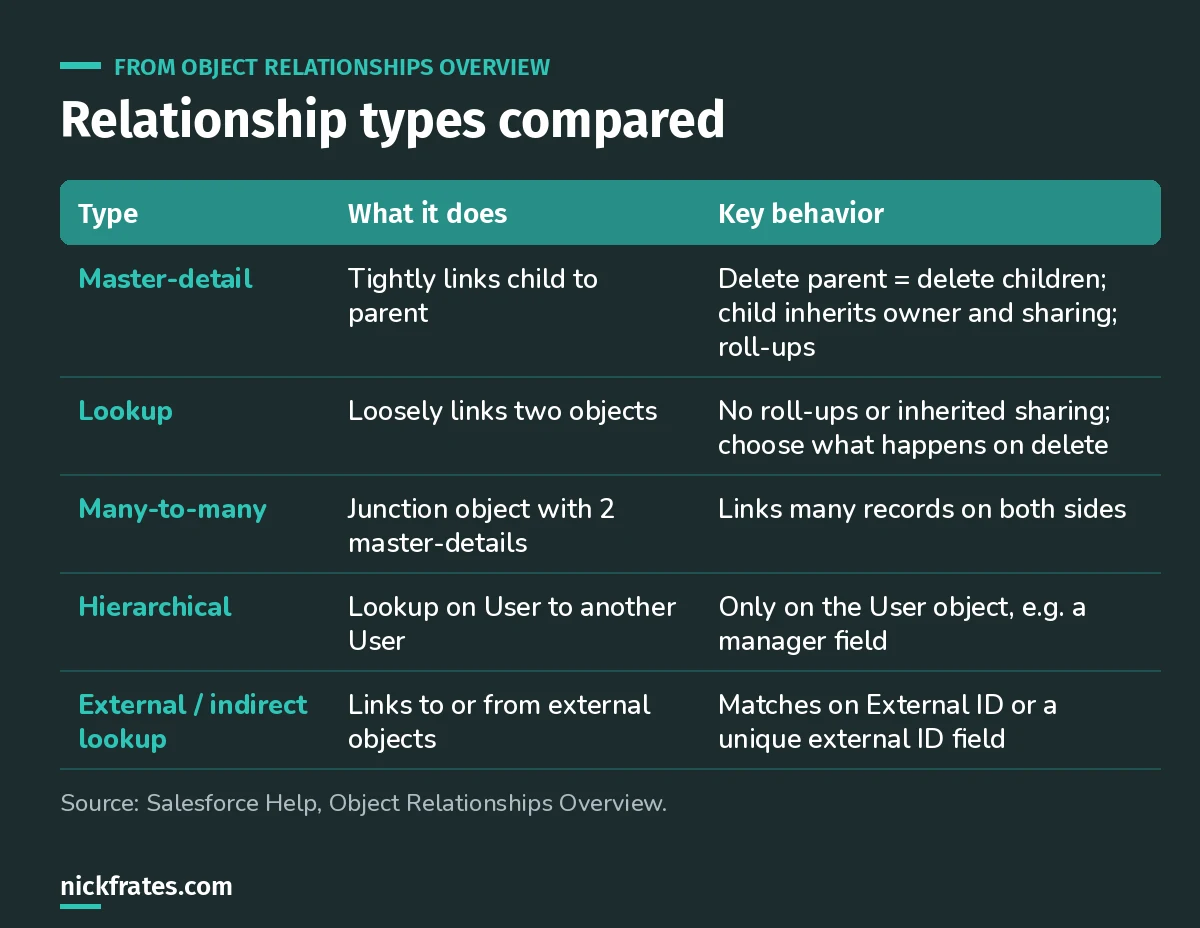
Master-detail and lookup are the two you'll use most.
Master-detail in detail
- Deleting a master deletes its detail and subdetail records. Undeleting the master brings them back.
- The detail record has no Owner field. It's set to the master's owner, and the detail inherits the master's security. That's why custom detail objects can't have sharing rules, manual sharing or queues.
- The relationship field is required on the detail page layout.
- Reparenting is off by default; you can allow it with the Allow reparenting option on custom objects.
- You get roll-up summary fields on the master.
- Each custom object can have up to two master-detail relationships and up to 40 relationships in total. Salesforce recommends staying under 10,000 child records per master.
Help also suggests creating a master-detail relationship before the custom object has data.
Lookup in detail
A lookup links two objects without the tight coupling: no roll-up summaries and no inherited sharing. You can make it required. If it's optional, you choose what happens when the parent is deleted: clear the field (the default) or don't allow the deletion.
A lookup can also point an object at itself (Bug to Bug), but a record can't link to itself. For the full decision guide, see lookup vs master-detail.
Converting between them
- Master-detail to lookup: allowed if there are no roll-up summary fields on the master. The detail's org-wide default becomes Public Read/Write.
- Lookup to master-detail: allowed only if every record already has a value in the lookup field. Afterwards, the child's org-wide default becomes Controlled by Parent.
Cert Lab by Nick Frates
Data Modeling is a big App Builder section
The App Builder Cert Lab covers relationships, junction objects, roll-ups and Schema Builder with practice questions that explain every option.
Start the App Builder Cert Lab, $9.99 →Many-to-many with a junction object
Help's example: a custom Bug object and the standard Case object, where a bug can affect many cases and a case can involve many bugs. You connect them with a junction object that has two master-detail relationships.
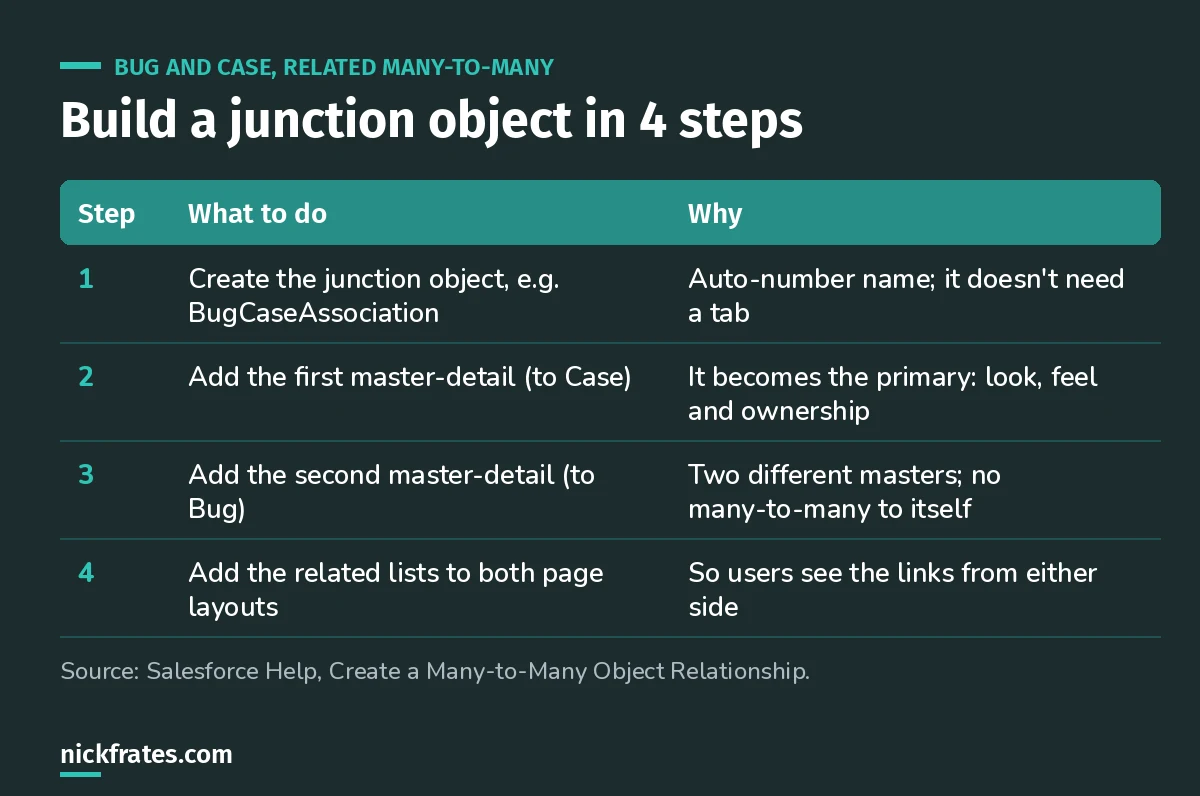
The first master-detail you create decides ownership and look and feel.
You can't make a many-to-many relationship from an object to itself: the two master-detail fields on the junction can't have the same master.
Hierarchical, external and indirect lookups
- Hierarchical is a special lookup only on the User object, for things like a direct manager field. A user can't end up referring to themselves through it.
- External lookup links a child standard, custom or external object to a parent external object, matching on the parent's External ID.
- Indirect lookup links a child external object to a parent standard or custom object, matching on a custom unique, external ID field on the parent.
Drawing your ERD with Schema Builder
Schema Builder (Setup, Quick Find, Schema Builder) shows standard and custom objects with their lookup and master-detail relationships, and you can add custom objects, relationships and most custom field types by dragging and dropping. Help notes geolocation fields are the exception. It saves the layout as you move objects, which makes it a quick way to produce an ERD for a design review.
I wrote up a faster way to create lots of fields in bulk field creation and Schema Builder.
My modeling checklist
- Can a standard object do this?
- Who owns the child records? If "whoever owns the parent", master-detail.
- Do you need roll-ups? Master-detail, or a flow or a tool like DLRS for lookups.
- Should deleting the parent delete the children? If not, lookup.
- Many on both sides? Junction object.
- Will this object hold a lot of child records per parent? Remember the 10,000 guidance.
Keep going
- Lookup vs master-detail: the decision in depth.
- The Salesforce security model: how relationships affect sharing.
- Cross-object formula examples: using relationships in formulas.
- App Builder practice questions: data modeling scenarios.
Cert Lab by Nick Frates
Get the Platform App Builder Cert Lab
Lessons, practice questions and flashcards for all 5 App Builder exam sections, built from the official exam guide.
Start the App Builder Cert Lab, $9.99 →Hope this helps!
Best,
Nick