Hey friends,
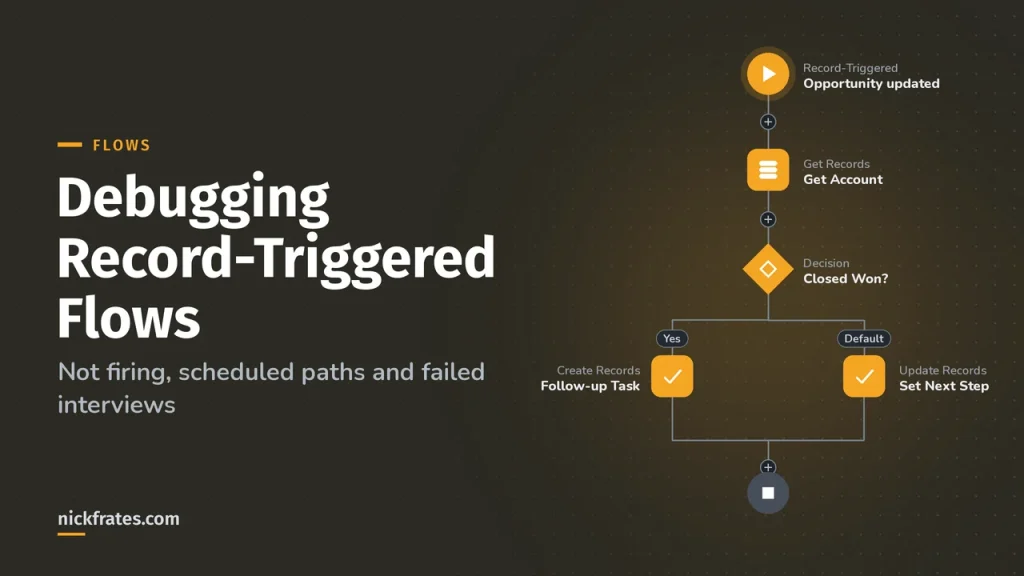
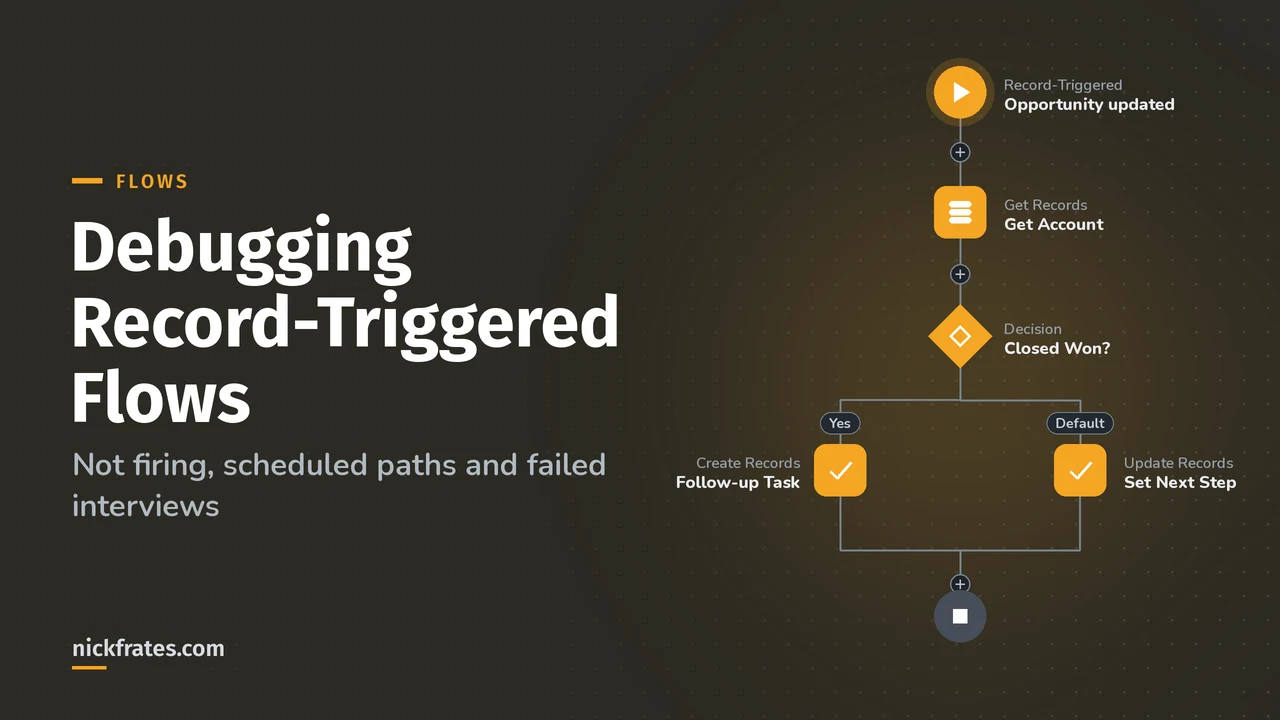
When a record-triggered flow doesn't fire, the cause is usually the start conditions: the flow isn't active, the record didn't meet the entry conditions, or the flow is set to run only when a record is updated to meet them and the record already did. Scheduled paths add their own rules: they're canceled when the record stops meeting the conditions, retried up to five times on failure, and visible in Setup under Time-Based Automations.
This is based on Salesforce Help's Scheduled Paths, record-triggered flow and Flow Builder debugger pages, plus the Flow Troubleshooting Trailhead module.
Why didn't my flow fire?
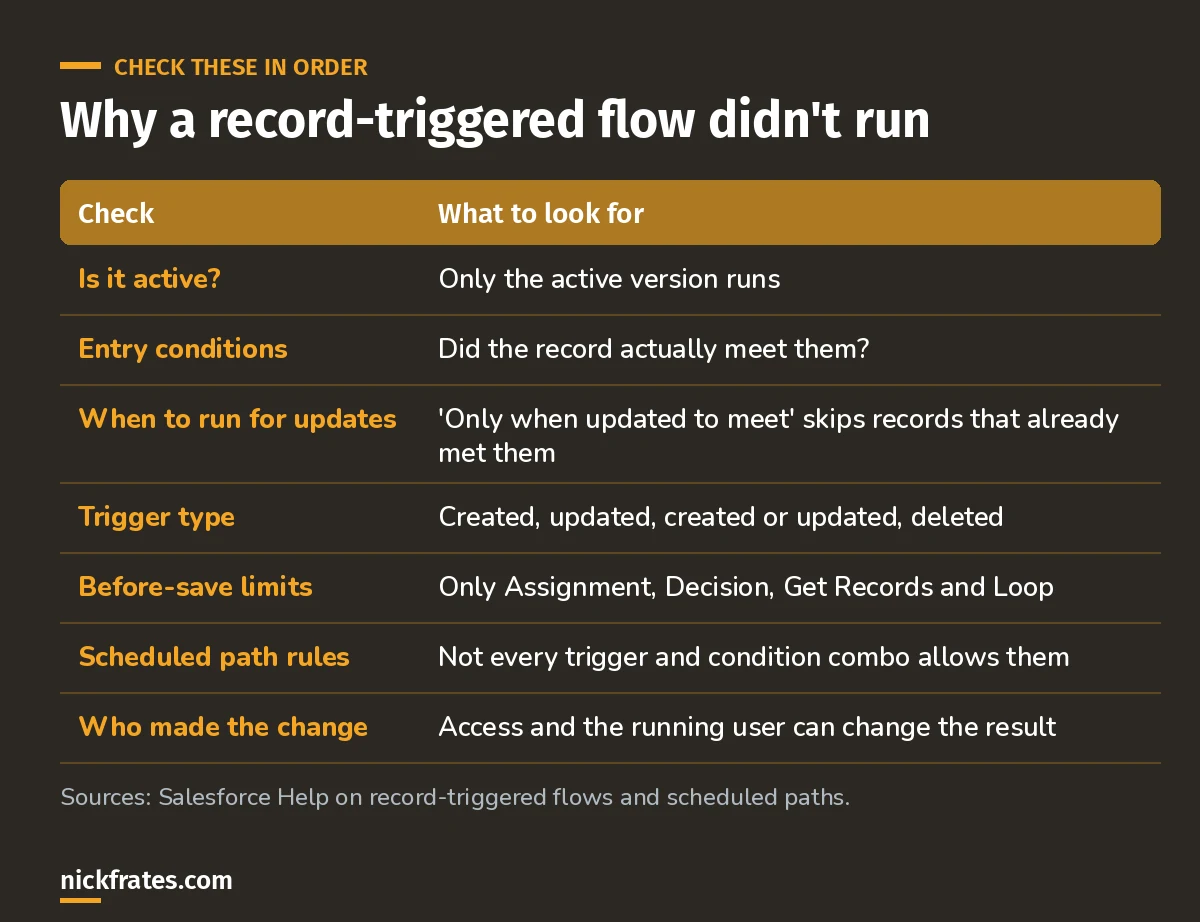
Start with the entry conditions.
The setting that trips most people is When to Run the Flow for Updated Records. With Only when a record is updated to meet the condition requirements, the flow runs only if the previous version didn't meet the conditions and the new one does. If the record already met them, editing it again does nothing. That's by design: it stops the flow running on every edit.
For before-save flows, also remember the element limits: only Assignment, Decision, Get Records and Loop. If you need to create related records or use the record ID, you need an after-save flow.
I compared the two in before-save vs after-save flows.
Scheduled paths: when they run
A scheduled path runs part of a record-triggered flow later: a set time after the trigger, or before or after a date field on the record. Help's Account example shows the rules clearly:
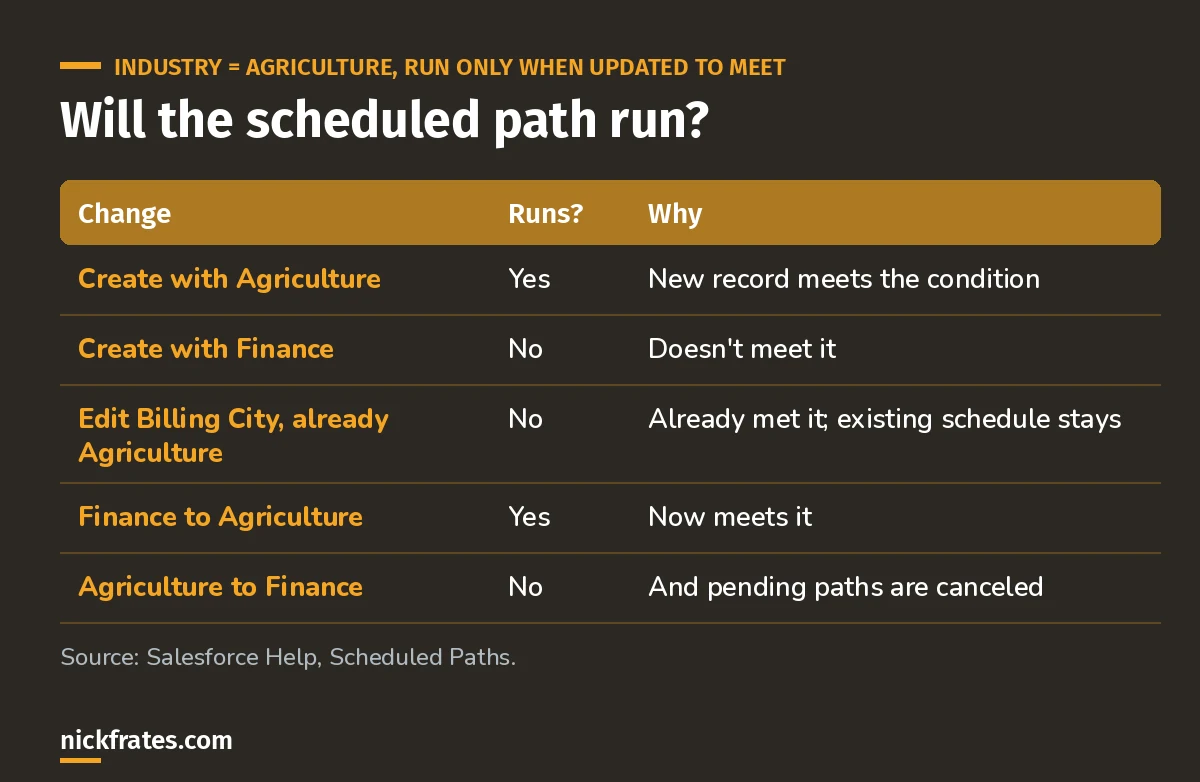
Every update re-checks the conditions.
Other scheduled path rules from Help:
- They're only available on after-save flows optimized for Actions and Related Records, and only for certain trigger and condition combinations. For example, A record is updated needs a condition with Only when a record is updated to meet the condition requirements.
$Record__Priorisn't supported in scheduled path elements or their entry formulas.- If the time source is a date field and someone moves that date into the future, the path runs at the new time, even if it already ran.
- They run in system context, but actions run as the user who changed the record. Set a Default Workflow User in Process Automation Settings for when that user is inactive.
- Daily limit: 250,000 scheduled path interviews or 200 per user license, whichever is greater. Extra interviews wait until the limit resets.
Cert Lab by Nick Frates
Flow troubleshooting is an App Builder objective
The exam guide lists maintaining, monitoring and troubleshooting flows. The App Builder Cert Lab has practice questions on it that explain every option.
Start the App Builder Cert Lab, $9.99 →Finding pending and failed paths
Pending scheduled paths are listed in Setup under Time-Based Automations. If a path fails, Salesforce sends the error email and retries: after 15 minutes, then 30, 60, 120 and 240 minutes, five retries in all. The retry count isn't shown, but the Scheduled Date column shows the next attempt.
If you deactivate the flow, pending paths stay on the list until their scheduled time, then get canceled. If there's a newer active version by then, they run under that version instead. Keep that in mind before you deactivate a flow to "stop" something.
Batches and limits
Records scheduled for the same minute are grouped into batches of up to the batch size you set (default and maximum 200, minimum 1). Smaller batches help with per-transaction Apex limits. In bulk runs, if some interviews fail, the transaction rolls back and the successful ones are retried immediately, up to twice.
The debugging tools
- Test Mode: autolaunched and record-triggered flows use Test Mode instead of the Debug button. You can save and reuse test scenarios.
- Debug (other flow types): shows each step and the path taken. Without Run flow in rollback mode, it really performs its actions, including DML (creating, updating and deleting records).
- Run as another user: debug as a specific user to catch access problems. It needs a one-time setup and works only in a sandbox.
- Ask Agentforce (Beta): from the debug panel's Details tab, get an AI root cause analysis and an optional automatic fix.
For fault paths and error emails, see Flow error handling and my step-by-step debugging guide.
My debugging order
- Confirm the active version and the trigger settings.
- Re-read the entry conditions against the actual record values.
- Check the update setting (every time vs only when updated to meet).
- Look in Time-Based Automations for pending paths.
- Check the failure emails and the running user's access.
- Reproduce in a sandbox with Test Mode or the debugger.
Keep going
- Salesforce flow types explained
- Order of execution: where flows run in a save.
- Scheduled flows: when a schedule-triggered flow fits better.
Cert Lab by Nick Frates
Get the Platform App Builder Cert Lab
Lessons, practice questions and flashcards for all 5 App Builder exam sections, built from the official exam guide.
Start the App Builder Cert Lab, $9.99 →Hope this helps!
Best,
Nick