📝 How to Turn Rich Text into Plain Text


Happy Saturday!

This week I had a client who was building a flow to create a Task.

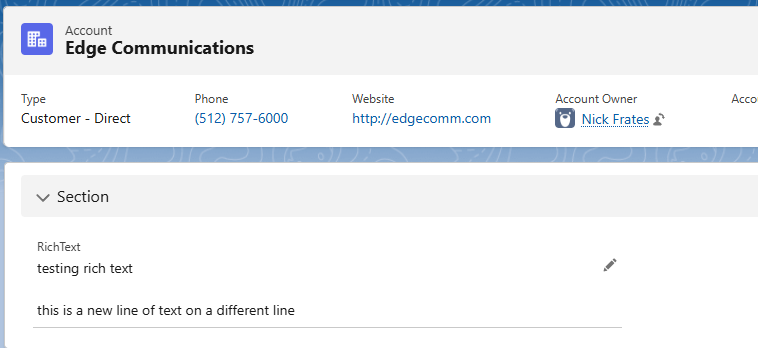
The flow was populating the Task Description field using text from a rich text field on a parent object.

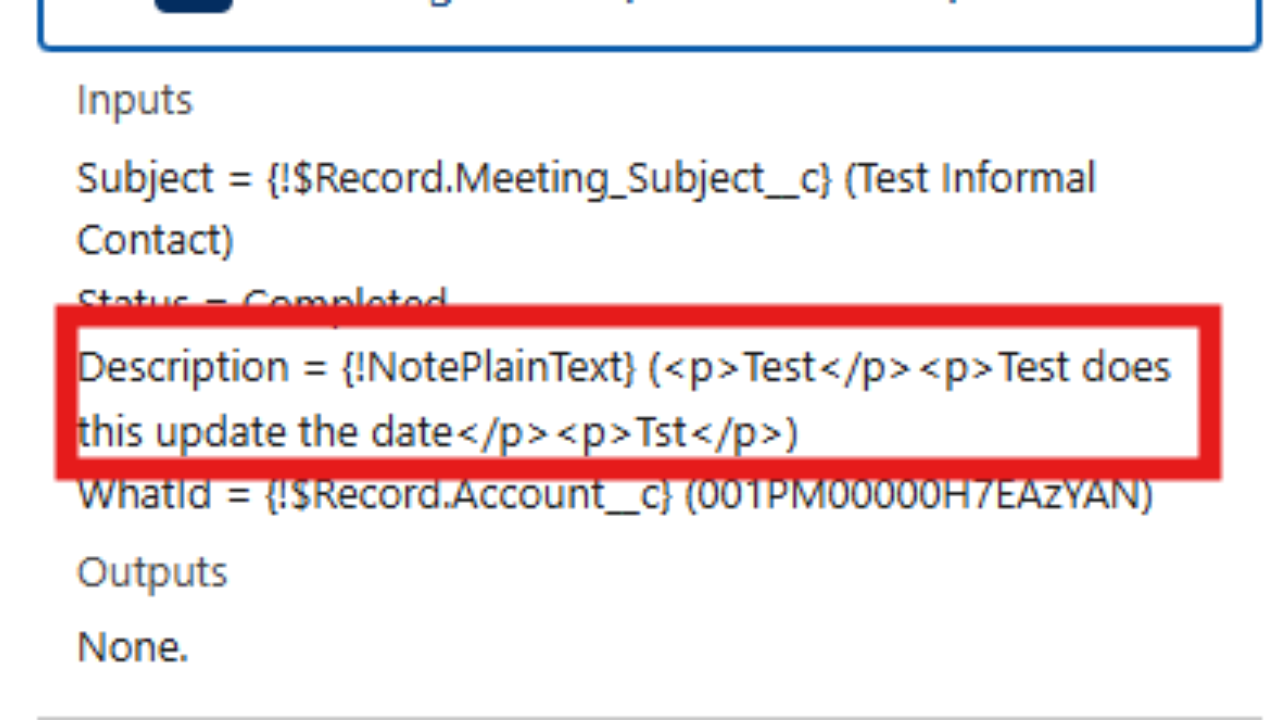
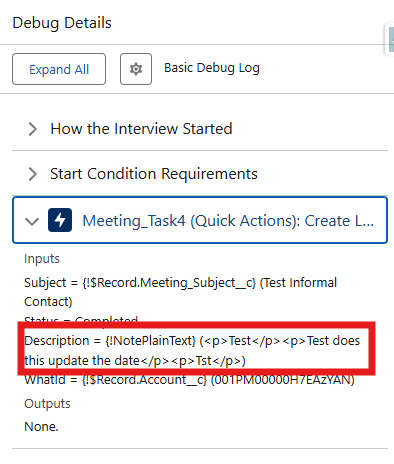
She was running into problems though, because the new Task Description had lots of HTML tags in it from the rich text field, and these didn't look nice in the task description:


Short of building an Apex class, she wanted to know: is there a workaround?

I built something to solve the requirements, and I wanted share it with you!

The steps we'll take will convert the rich text from an object field into a plain text variable in the flow.

You can use that to update records as needed. 

Step 1:

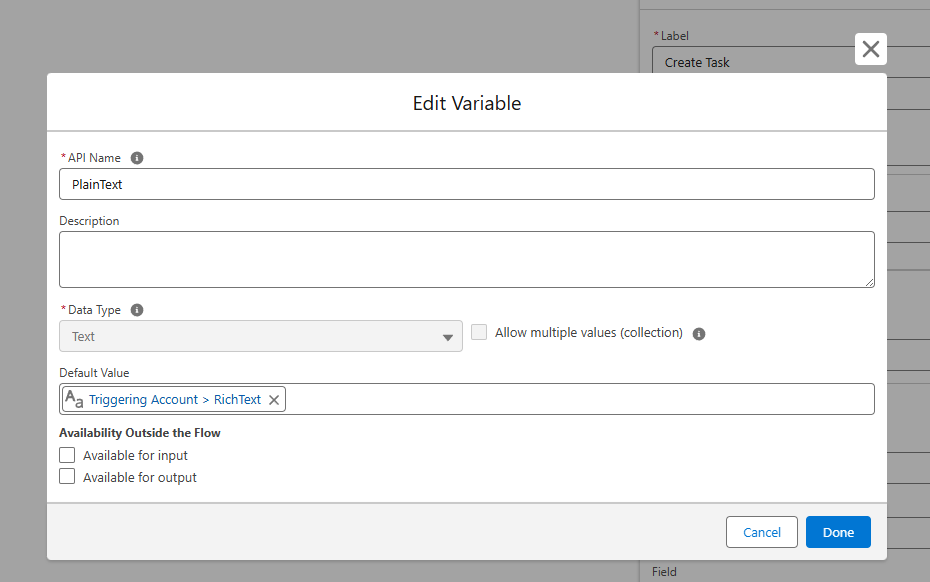
Create a text variable in the flow. Name it something like "PlainText".

Set the default value of the field to be the Rich Text field from the object you're working with.

You could also set this value with an assignment element.


Step 2:

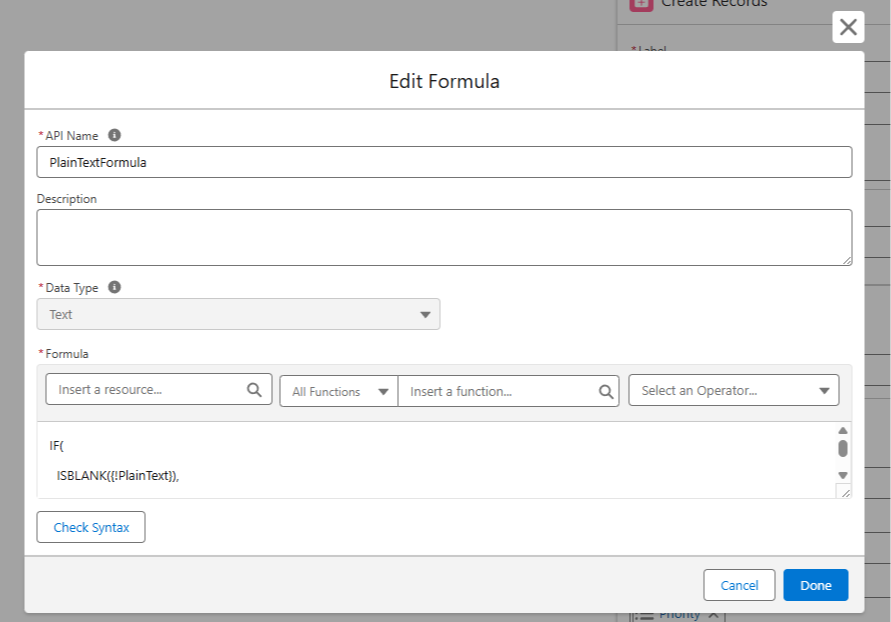
Create a formula resource in the flow that references the PlainText variable created in Step 1.


Copy and paste the formula below into the formula builder, making sure the reference to the text variable from Step 1 is accurate.

IF(ISBLANK({!PlainText}), "", SUBSTITUTE(SUBSTITUTE(SUBSTITUTE(SUBSTITUTE(SUBSTITUTE({!PlainText},
"<p dir=\"ltr\">", BR()), "<p>", BR()), "</p>", ""), "<br/>", BR()), "<br>", ""))

The formula scans the plain text and replaces common HTML tags like <p> or <br> with nothing, or, in some cases replaces the HTML tag with a line break using the BR() formula in Salesforce. 

Step 3:

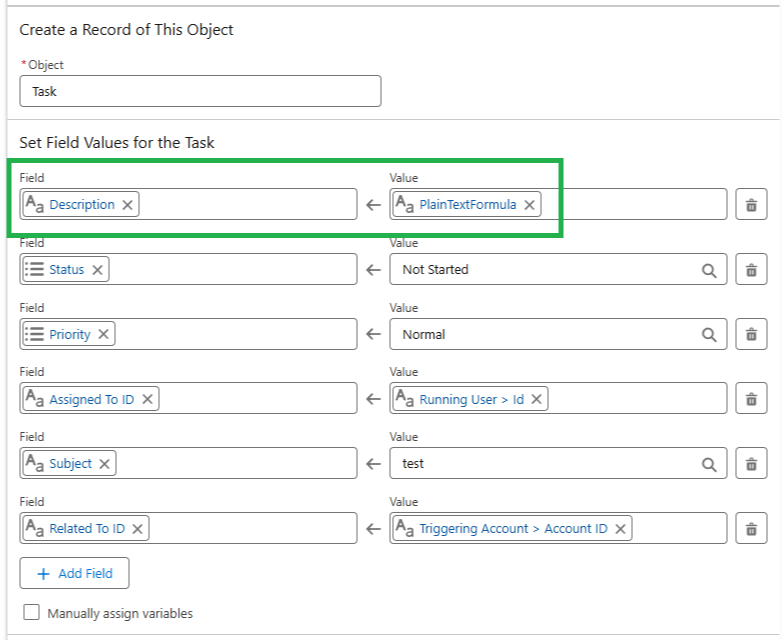
Use the formula as the resource to set field values on the task description or elsewhere in the flow. 


Step 4:

Test it out in the debugger and keep an eye on the field results over time. 

You can add new HTML tags into the formula as you come across them in order to handle them too (since we didn't handle all possible HTML tags).

If formulas are a bit of a sticking point, you can paste the formula (and any uncaught HTML tags) into ChatGPT and ask it to rewrite the formula to exclude the new HTML tag. 

You'll want to test any AI generated formulas since they can be hit or miss.

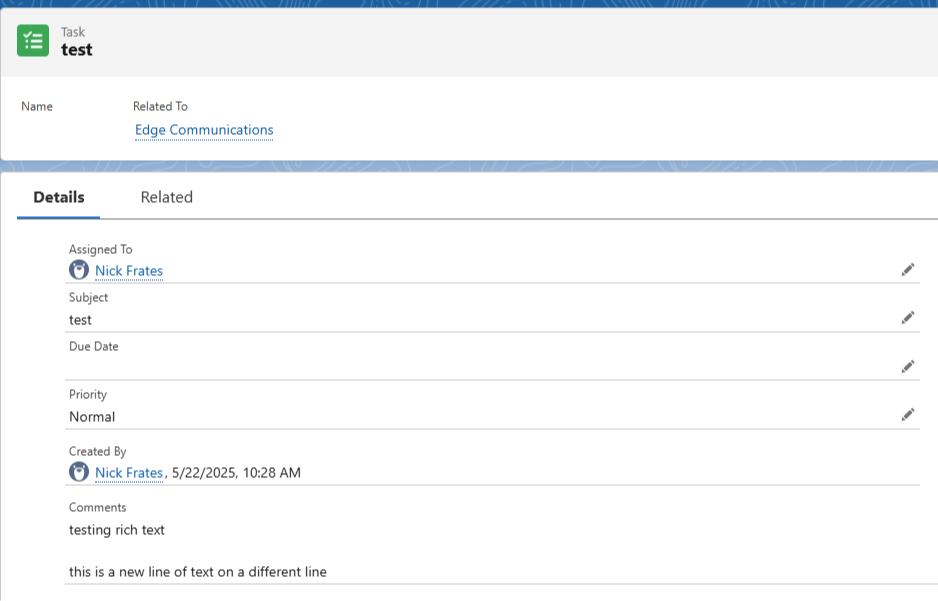
In my sandbox this process worked to convert a rich text field into the task description:


So to quickly recap:

  • We built a flow text variable and populated it with the Rich Text
  • Then we built a formula that removes specific HTML tags from that variable
  • We then use the formula to set the Task Description in the flow
  • This lets us "convert" rich text to plain text without using Apex


Hopefully this helps you at some point!


Best,

Nick


P.S. If you find or create a better solution for this use case, let me know!